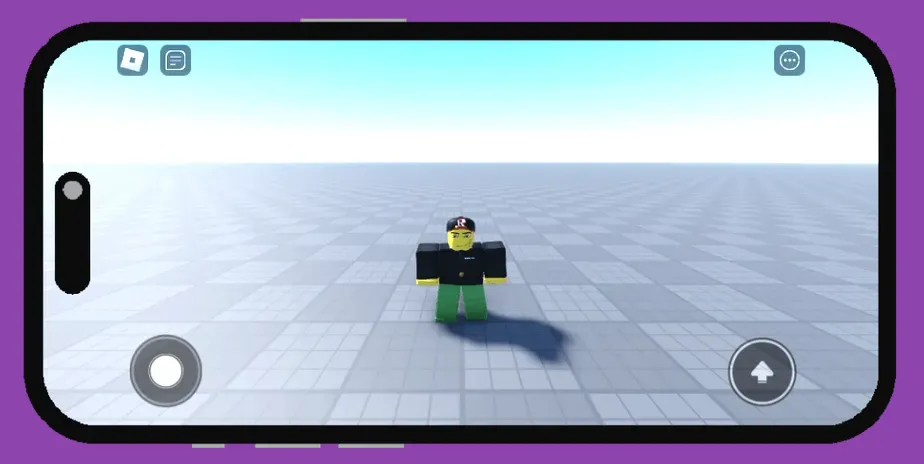
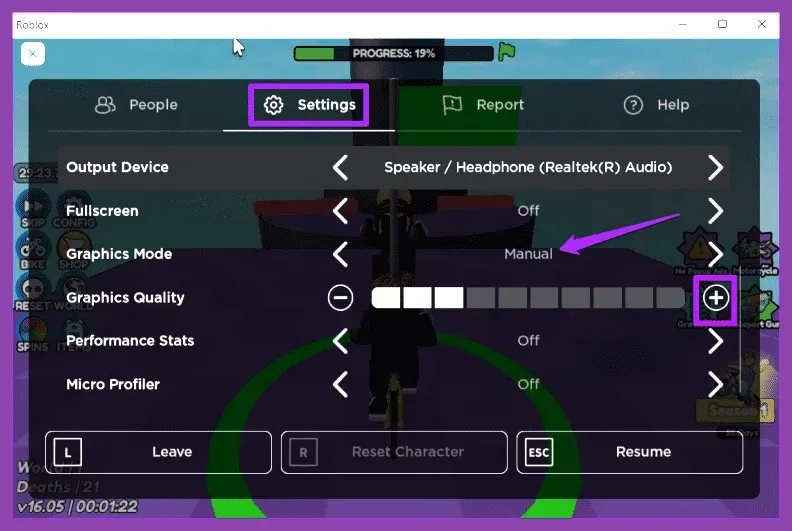
To immediately fix Roblox battery drain and stop your phone from overheating, open your in-game menu while inside any experience, navigate to Settings, switch Graphics Mode from Automatic to Manual, and drag the graphics quality slider down to level 1 or 2. This single adjustment drastically cuts down mobile GPU utilization, prevents thermal throttling, and stops your device from burning through its charge during intensive sessions of popular titles like Roblox.
Understanding Why Roblox Drains Mobile Batteries So Fast
Modern smartphones and tablets are powerful, but running user-generated 3D environments places a massive burden on both the CPU and GPU. Unlike native mobile games engineered for a single hardware profile, Roblox acts as an engine hosting thousands of distinct experiences—ranging from simple simulators to massive open-world RPGs like Blox Fruits, Arsenal, and Adopt Me. Each experience runs unique Lua scripts, complex collision detection, and high-particle combat effects simultaneously.
When you play on default settings, the Roblox mobile client often uncaps your framerate and forces automatic graphics scaling based on perceived peak hardware capability. This causes your phone to push past 60 frames per second even when unnecessary, driving up power consumption and generating excess heat. To put this in perspective, running an unoptimized experience at maximum brightness and uncapped FPS can drain a 4,500 mAh battery in under ninety minutes while pushing internal temperatures past 42°C (107°F).
If you enjoy optimizing hardware and improving your overall digital setup, you might find inspiration in tweaking performance profiles similarly to State of Survival best emulator settings for pc or configuring mobile configurations akin to Stardew Valley mobile best defensive setup. However, mobile performance troubleshooting requires a targeted approach focusing specifically on thermal management and rendering loads.
Step-by-Step Guide to Lowering In-Game Graphics and FPS
The most effective software-level mitigation is configuring your in-game rendering parameters correctly. Do not rely on the default automatic settings, as they frequently misjudge thermal limits during extended play sessions.
- Launch any Roblox experience on your iOS or Android device.
- Tap the Roblox logo icon in the top-left corner to open the in-game menu.
- Navigate to the Settings tab.
- Locate Graphics Mode and toggle it from Automatic to Manual.
- Use the Graphics Quality slider and pull it down to level 1 or 2. You will notice immediate removal of dynamic shadows and complex post-processing effects.
- If your device supports a native frame-rate limiter in developer options or third-party boosters, cap your display refresh rate to 60Hz or even 30Hz for slower-paced simulator titles.
Lowering these values reduces the strain on your processor, directly mirroring how adjusting visual fidelity helps balance hardware requirements in demanding titles such as Street Fighter 6 system requirements minimum and recommended or The First Descendant best weapons tier list 2026.
Managing Background Processes and System-Level Optimizations
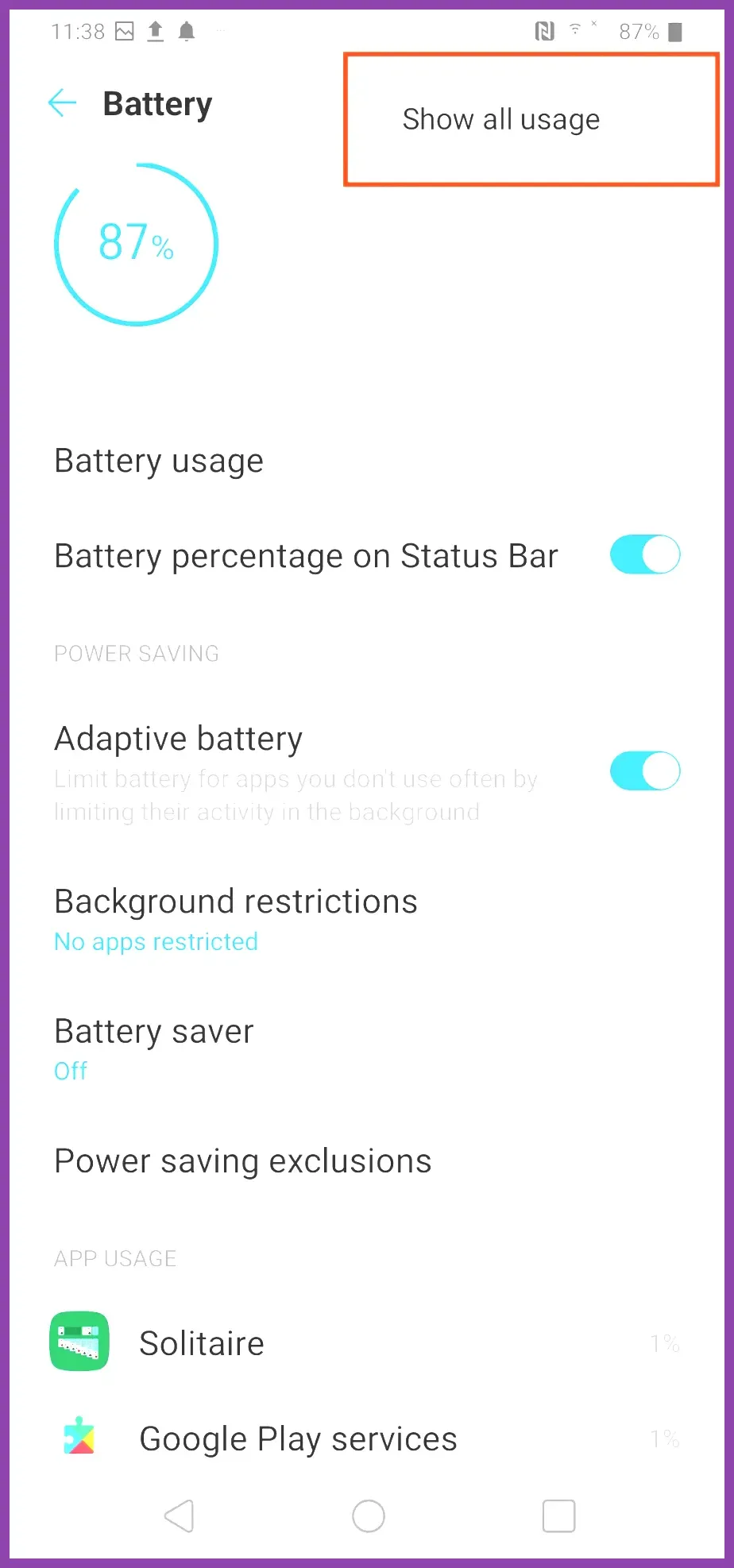
Even with optimized in-game settings, background application refresh, push notifications, and system location services can exacerbate battery drain while playing Roblox. Mobile operating systems frequently allocate background resources to social apps, email clients, and streaming services, which competes with Roblox for thermal headroom.
Before launching your favorite experiences, clear your recent apps tray. On Android devices, utilize built-in gaming dashboards such as Samsung Game Launcher or Xiaomi Game Turbo to block incoming notifications, mute unnecessary system sounds, and lock performance profiles to a balanced or battery-saver mode. On iOS devices, enable Guided Access to lock your session, prevent accidental swipes, and temporarily restrict background data usage for non-essential applications.
For players who transition between mobile devices and handheld gaming PCs like the Steam Deck, managing thermal output is a familiar challenge. You can review portable hardware optimization techniques detailed in guides like Steam Deck OLED unlock all secret characters to understand how power profiles affect long-term battery health.
Hardware Habits and Thermal Management Best Practices
Software adjustments are only half the battle. Lithium-ion and lithium-polymer batteries degrade rapidly when subjected to sustained high temperatures. When your phone grows hot during heavy Roblox sessions, internal chemical resistance increases, leading to rapid charge depletion and potential battery swelling over time.
Never play while charging: Charging your phone pumps electrical current directly into the battery while generating its own thermal energy. Playing graphically intensive games simultaneously creates a double-heat loop that accelerates battery wear.
Remove thick phone cases: Heavy-duty shockproof cases trap heat against the glass and metal chassis of your smartphone. Removing your case during extended gaming sessions allows passive heat dissipation.
Avoid direct sunlight: Playing outdoors under direct sunlight forces your phone to crank screen brightness to maximum, pushing display power consumption through the roof while trapping solar heat.
If you enjoy deep tactical management and survival mechanics, you might appreciate checking out guides like Subnautica 2 best class for solo players or exploring tactical progression strategies found in Summoners War best skills to max first. Maintaining healthy hardware longevity ensures your device remains battle-ready for any gaming genre.
Choosing Lightweight Experiences and Monitoring Power Draw
Not all Roblox experiences are created equal when it comes to resource consumption. Massive open-world roleplaying games packed with custom avatar accessories, thousands of active physics objects, and continuous particle emitters will always drain batteries faster than streamlined puzzle games, tycoons, or turn-based strategy titles.
If you notice your phone heating up within five minutes of joining a specific game, consider switching to less demanding experiences or checking community forums on the Roblox Wikipedia entry to learn more about the platform's underlying engine updates. Additionally, you can cross-reference hardware resource management tips with other community-driven optimization guides such as The Sims 4 best beginner tips and tricks or resource gathering routes highlighted in Stardew Valley 1.6 how to farm gold fast.
By consistently applying manual graphics sliders, capping your frame rates, removing protective cases during heavy play, and avoiding charging sessions during active gameplay, you will preserve your device's battery health and enjoy uninterrupted, lag-free Roblox sessions wherever you go.