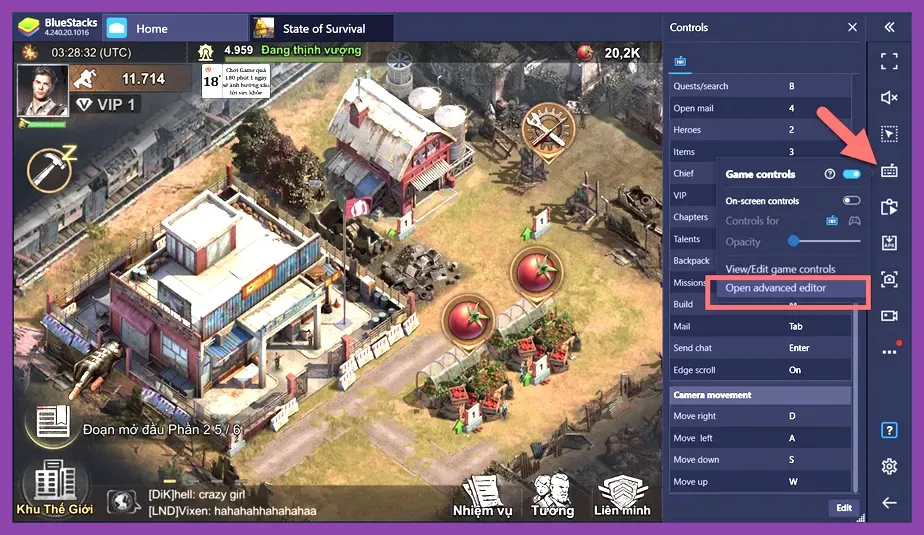
Achieving stable 60 FPS and eliminating stutter during massive Alliance War events in State of Survival requires configuring your Android emulator with dedicated hardware virtualization, 4 CPU cores, 4GB of RAM, and DirectX 11 rendering mode. Running strategy titles like State of Survival on a PC using software such as BlueStacks 5 or LDPlayer 9 completely changes your gameplay experience, allowing for precise mouse clicking during fast-paced infection zone exploration and seamless multi-accounting. If you want to optimize your setup alongside other tactical experiences, check out our guide on Squad Busters best characters tier list 2026 for more mobile-to-PC tips, or fine-tune your performance similarly to Stardew Valley 1.6 best settings for max fps.
Configuring BlueStacks 5 for Peak Performance

BlueStacks 5 remains the top choice for running State of Survival on Windows PCs due to its robust Pie 64-bit instance support and extensive custom keymapping tools. To start, download the latest version directly from the official BlueStacks website and create a fresh Pie 64-bit instance. Open the engine settings panel and configure your hardware resource allocation to prevent memory leaks and unexpected crashes during State of Survival's intense Capital Clash events.
Optimal Hardware Resource Allocation
Head to the Performance tab within the settings menu and apply these exact values for a mid-to-high-end gaming PC:
- CPU Allocation: Select 'Custom' and assign 4 to 6 CPU cores (never assign all physical cores; leave at least 2 for Windows background processes).
- RAM Allocation: Select 'Custom' and assign 4096 MB (4GB) or 8192 MB (8GB) if you frequently run multiple resource-heavy applications simultaneously.
- Performance Mode: Set to 'High Performance' to prioritize sustained clock speeds over power saving.
- 的高帧率 (High Frame Rate): Toggle 'Enable high frame rate' ON and slide the FPS cap slider up to 90 or 120 FPS for buttery smooth camera panning across your settlement.
After saving these adjustments, restart your emulator instance. For players transitioning between different genres of survival and crafting, optimizing system resources is just as crucial as configuring RimWorld how to unlock all secret characters or managing heavy base builds like those found in Stardew Valley 1.6 system requirements minimum and recommended.
Graphics and Renderer Settings
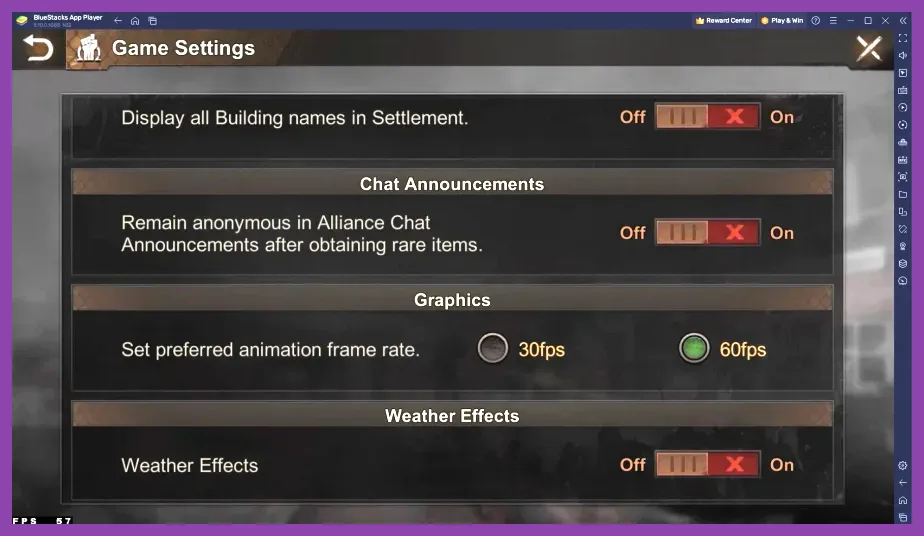
Choosing the correct graphics renderer prevents graphical artifacts, black screens, and sudden hitching when scrolling across the global wilderness map. Navigate to the Graphics tab in your emulator settings and match these configurations:
- Graphics Engine: Set to 'Compatibility' mode if you encounter black loading screens, or 'Performance' mode for maximum frame rates.
- Graphics Renderer: Select 'DirectX 11' for stable NVIDIA and AMD GPU utilization. Switch to 'OpenGL' only if your PC features integrated graphics or older legacy hardware.
- Interface Renderer: DirectX.
- ASTC Texture: Set to 'Hardware decoded' to offload texture compression processing directly onto your graphics card.
- GPU Dedicated: Toggle ON to force the emulator to utilize your discrete graphics card instead of integrated CPU graphics.
Proper graphic setting optimization keeps your frame rates stable, similar to tweaking graphical profiles in Street Fighter 6 system requirements minimum and recommended or executing precise moves in competitive setups like Roblox best loadout for ranked.
LDPlayer 9 Alternative Configuration
LDPlayer 9 is a lightweight alternative known for its exceptional memory management and native support for high refresh rate monitors. You can download the installer from the official LDPlayer website. Once installed, click the gear icon on the right sidebar to access the settings menu. Under the 'Advanced' tab, set the CPU cores to 4 and RAM to 4096M. Under the 'Model' tab, spoof your device profile to a high-end smartphone model like the Samsung Galaxy S23 Ultra or ROG Phone 6 to unlock ultra-high graphic settings within State of Survival's in-game options menu.
Enabling VT (Virtualization Technology)
No emulator setting will yield acceptable performance if hardware virtualization is disabled in your PC's BIOS. To verify that VT is active, press Ctrl + Shift + Esc to open the Task Manager, click on the Performance tab, and look at the CPU section. Find 'Virtualization' and ensure it reads 'Enabled'. If it reads 'Disabled', restart your computer, enter your motherboard's UEFI/BIOS settings during startup (usually by pressing Del or F2), locate Intel VT-x or AMD-V, and toggle it to Enabled. Gamers who enjoy complex tactical depth can also explore deep mechanics found in titles like Stalker 2 how to respec skill points or uncover hidden secrets across Stalker 2 best secret locations and stashes guide.
In-Game Settings and Custom Keymapping
Once your emulator is optimized, launch State of Survival and immediately tap the avatar icon in the top left corner, head to Settings, and set your in-game graphics preset to 'High' with frame rates locked at 60 FPS or higher. Disable unnecessary particle effects if you participate in heavy alliance rallies to maintain clarity during chaotic battles against the Infected and opposing players.
Advanced Keybinding Setup

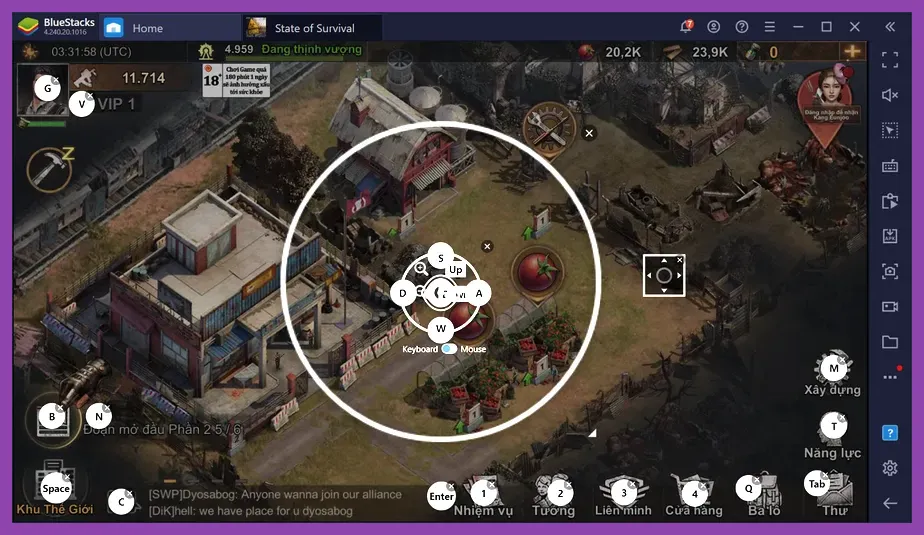
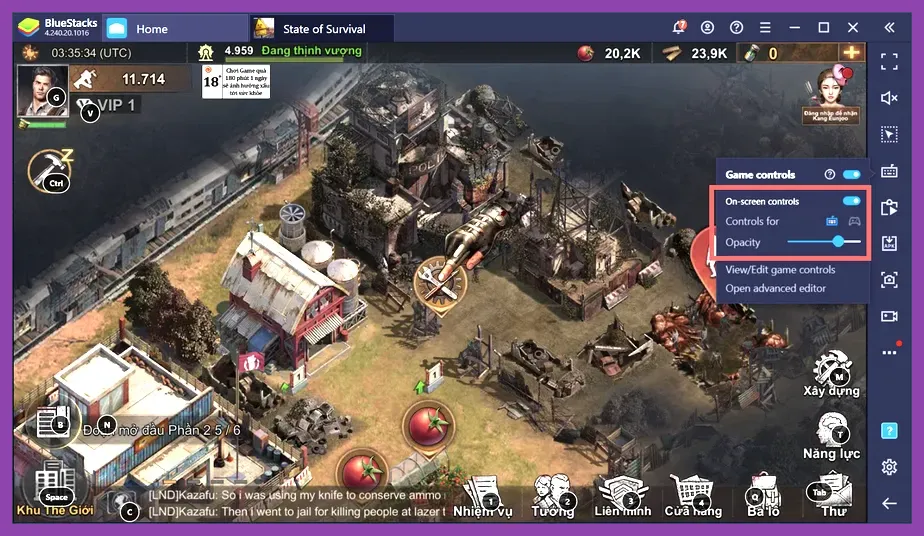
Use the emulator's built-in keyboard control editor (F10 in BlueStacks or Ctrl + 1 in LDPlayer) to map essential shortcuts for rapid base management:
- Tap Spot / Quick Click: Bind your primary mouse click to drag-select building queues or hero abilities.
- WASD Camera Pan: Assign W, A, S, D keys to smoothly pan across your settlement without constantly dragging your mouse cursor to the edge of the screen.
- Shortcut Keys: Bind numeric keys (1, 2, 3, 4) to instantly trigger hero combat abilities such as Sarge's turret deployment or Maddie & Frank's motorcycle charge during exploration stages.
For additional cooperative tactical coordination and team-based synergy guides, take a look at our expert breakdowns for Sea of Thieves best team comp synergy guide and Solo Leveling Arise best co-op multiplayer builds. Mastering these emulator configurations and hardware tweaks ensures your settlement outlasts the apocalypse with peak efficiency and zero input lag.