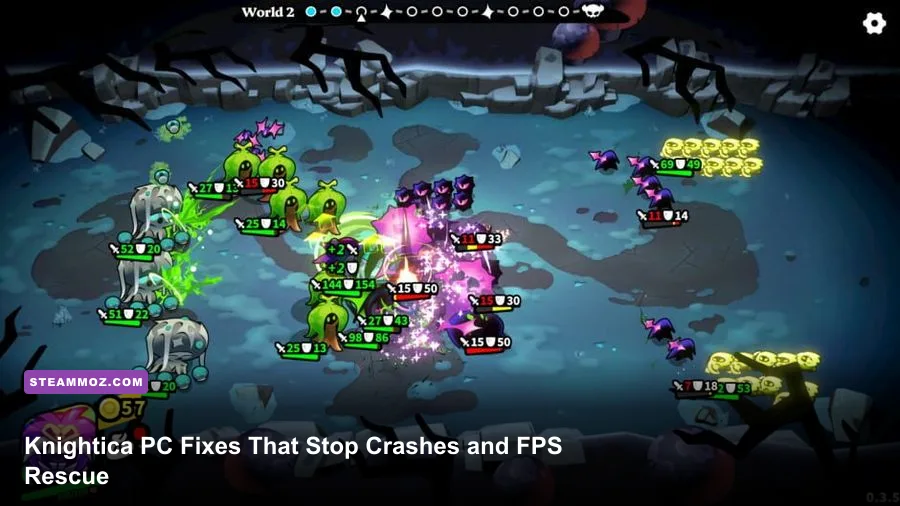
If Knightica is crashing on startup or dragging your PC below a playable frame rate, the fastest route is to verify the game files, update the correct GPU driver, force the dedicated GPU on laptops, and then lower shadows, volumetric effects, and resolution scaling. Don't immediately turn every option to Low: Knightica's biggest performance hits usually come from lighting, effects, and render resolution, while textures are often safe to keep at High if your graphics card has enough VRAM.
This guide focuses on fixes you can test in a sensible order, so you don't spend an afternoon reinstalling Windows for a problem caused by one damaged download or a bad overlay. Knightica's exact performance can vary between builds, GPUs, and driver versions, and the safest place to check the currently supported configuration is the game's official Steam listing. If the title has recently received a patch, test the clean settings below before assuming your hardware is too weak.
Start with the fixes that stop most crashes
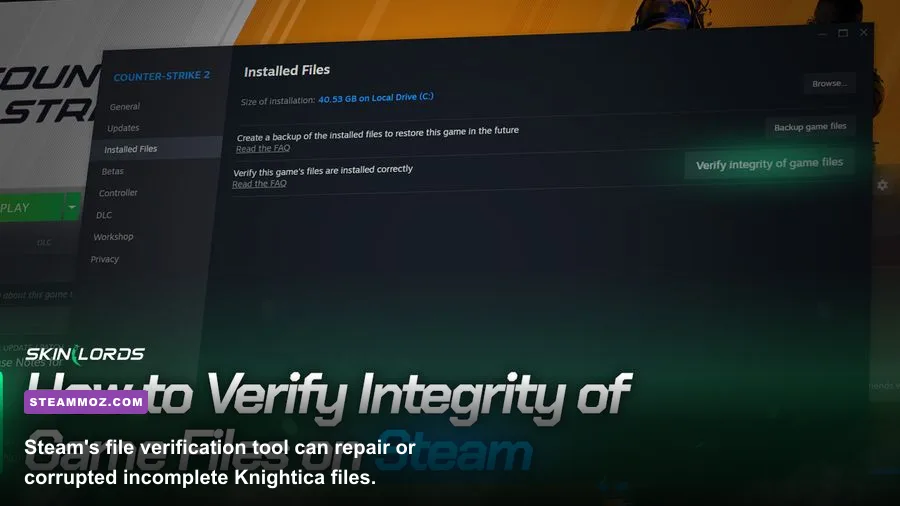
Before changing advanced settings, completely close Knightica and Steam. Open Steam, right-click Knightica in your Library, choose Properties, select Installed Files, and click Verify integrity of game files. This compares your local installation with Steam's depot and replaces missing or corrupted files. It won't delete your saves, but cloud synchronization should finish before you begin.
Next, reboot the PC rather than merely relaunching the game. A reboot clears a stuck graphics process and gives Windows a clean DirectX session. Install the latest stable driver for your card from NVIDIA's driver page or AMD Software: Adrenalin Edition. If the crash began immediately after a driver update, use the manufacturer's clean-install option or roll back to the previous stable package.
Disable overlays for the first test. Turn off Steam Overlay, Discord Overlay, Xbox Game Bar, NVIDIA Instant Replay, AMD recording, MSI Afterburner's overlay, and ReShade. These tools hook into the same rendering pipeline as the game. They are useful once Knightica is stable, but they make diagnosis much harder. Also remove any GPU overclock or undervolt temporarily; a profile that survives a benchmark can still fail when a game rapidly changes shader and memory loads.
For a crash that happens at the same point every time, make a backup of your save folder, then test a new game. If a new save works but your original save crashes in one location, the issue may be corrupted save data or a patch-related incompatibility rather than graphics hardware. Don't delete the original save while testing.

🎮 Knightica
Looking to experience this game? Grab your digital key directly on our store for $8.99.
View on Steammoz Store →Use a stable Knightica graphics profile first
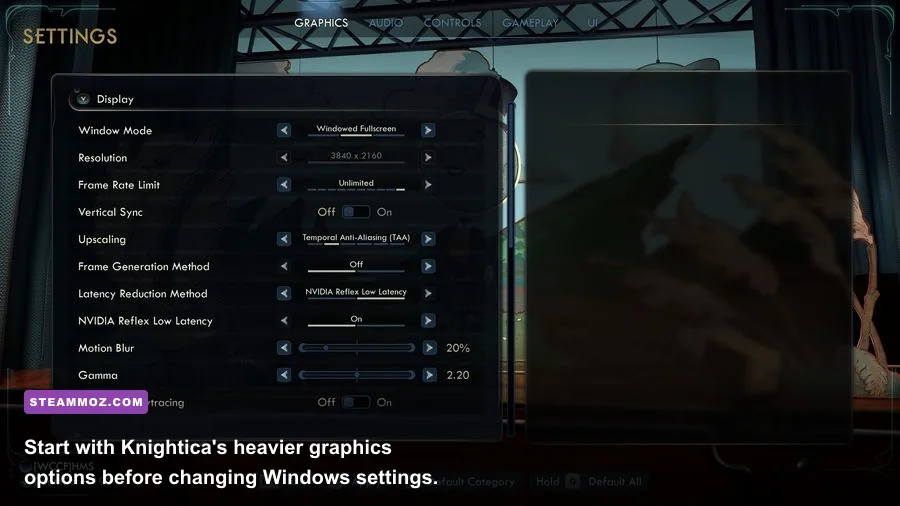
Launch Knightica with a conservative baseline: exclusive fullscreen if available, your monitor's native resolution, V-Sync off for testing, and a frame cap slightly below your monitor's refresh rate. On a 60 Hz screen, cap at 60 FPS; on 120 Hz, start at 90 or 100 FPS instead of chasing an unstable 120. A consistent 60 feels much better than a counter jumping between 45 and 90.
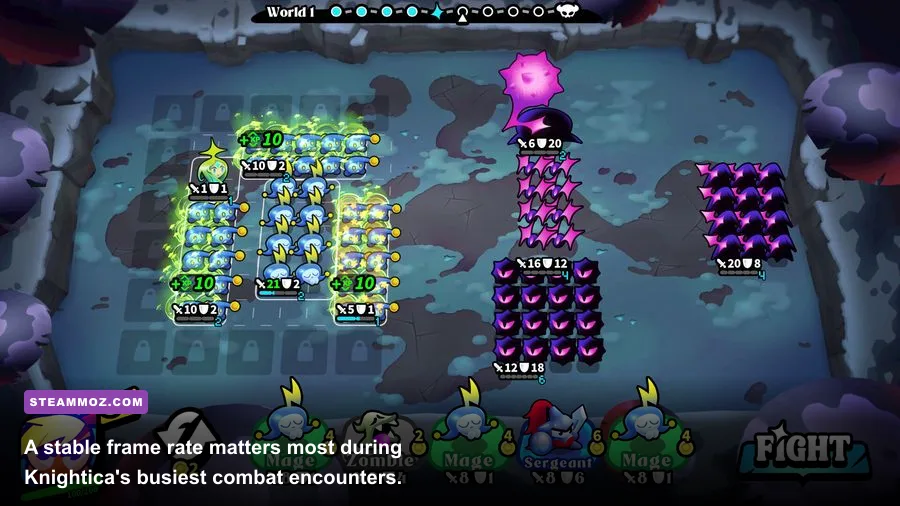
Change one option at a time and play the same demanding section for several minutes. Menus are useless for judging performance because they rarely show the same number of lights, enemies, particles, and streaming activity as gameplay. Use the built-in benchmark if Knightica provides one; otherwise, repeat a busy combat encounter and note the lowest one-percent frame rate.
| Setting | Recommended Starting Value | FPS Impact | Visual Trade-Off |
|---|---|---|---|
| Resolution | Native, then 90% scale | Very high | Lower scaling softens the image but can rescue GPU-limited performance. |
| Resolution Scale | 85–100% | Very high | Usually less noticeable than dropping texture quality. |
| Shadows | Medium | High | Reduces shadow distance and contact detail. |
| Volumetric Effects | Low or Medium | High | Fog and shafts of light look flatter. |
| Effects or Particles | Medium | Medium to high | Large fights become clearer but less dramatic. |
| Textures | High if VRAM allows | Low on average FPS | Preserves surface detail; insufficient VRAM causes hitching. |
| Ambient Occlusion | Medium | Medium | Characters and corners lose some depth. |
| Anti-Aliasing | Medium or temporal | Low to medium | Lower values create more shimmer on thin geometry. |
| Motion Blur | Off | Small | Sharper camera movement and easier combat tracking. |
If the GPU is sitting near 99 percent while FPS is low, lower resolution scale, shadows, and volumetrics first. If GPU usage is low but the frame rate still collapses, the limit is more likely the CPU, shader compilation, background software, or asset streaming. In that case, dropping resolution won't solve the real problem.
Fix stutter, shader compilation, and sudden FPS drops
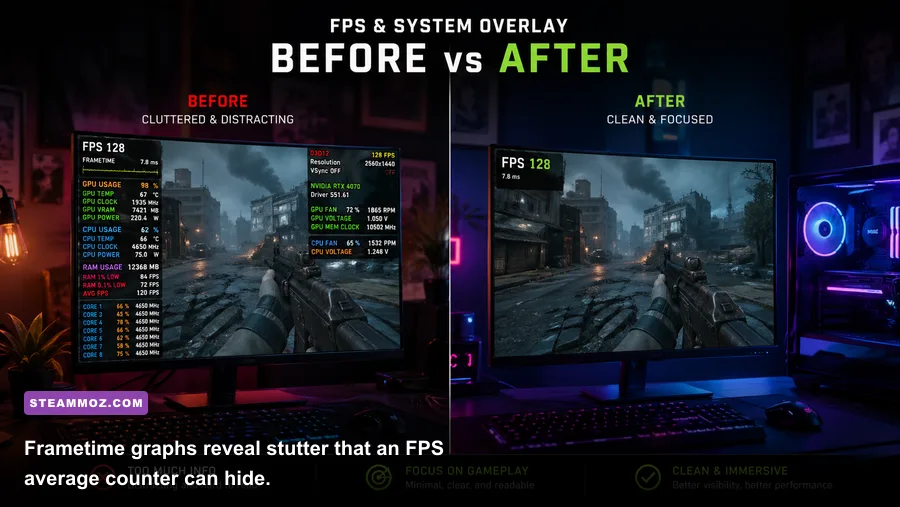
Low average FPS and ugly stutter are different problems. A game can report 70 FPS while producing a hitch every few seconds because one frame takes far longer to render. Watch the frame-time graph with Steam's performance overlay or a trusted monitor. Smooth pacing means the graph stays relatively flat; tall spikes point toward shader compilation, streaming, background tasks, or VRAM pressure.
Leave at least 15 percent free space on the drive containing Knightica and the Windows page file. SSD storage is strongly preferable for modern asset streaming. Close browsers with many tabs, video encoders, launchers, and RGB utilities before testing. Windows Defender can also scan new game files in the background, so let the first launch finish its shader or cache work before judging performance.
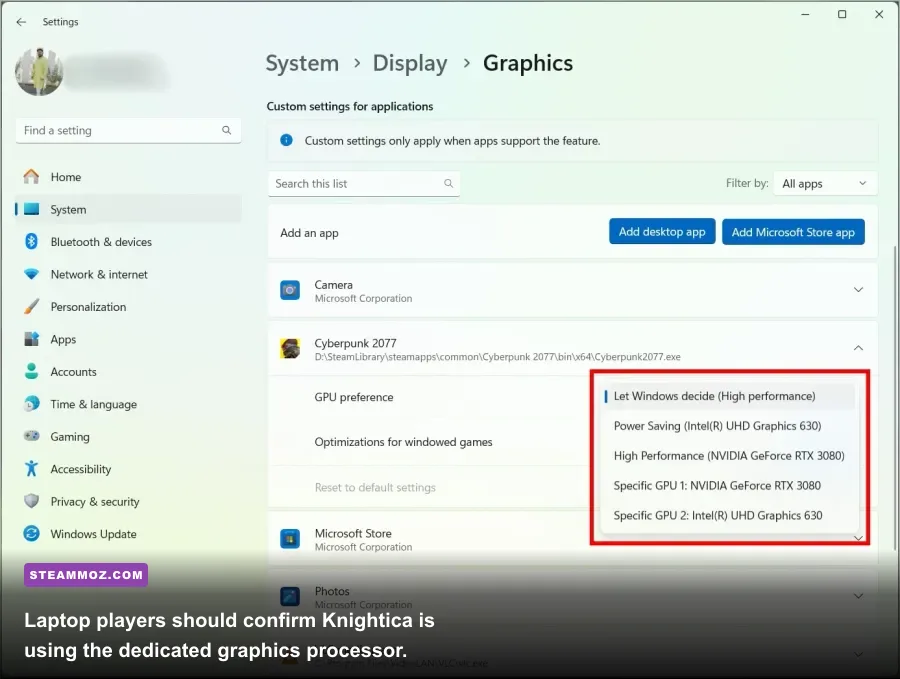
Don't use an aggressive third-party process-priority tweak. Set Knightica to High performance in Windows Graphics settings instead. Go to Settings > System > Display > Graphics, add the game's executable, choose Options, and select High performance. This is especially important on gaming laptops, where Windows may otherwise launch the game on integrated graphics.
Windows power mode should be set to Best performance while plugged in. Laptop owners should test with the charger connected, the manufacturer's performance mode enabled, and a clear airflow path. Thermal throttling often looks like a random Knightica FPS problem: the first ten minutes run well, then CPU or GPU clocks fall as temperatures rise.
Stop startup crashes and black screens
If Knightica crashes before reaching the menu, reset its local configuration rather than repeatedly reinstalling the entire game. First back up saves. Then search the game's Steam discussion page or developer support channel for the current save and configuration locations; those paths can differ by engine and build. Rename the configuration folder instead of deleting it, launch the game, and let it create fresh settings.
Try launching with a simple windowed mode or a lower resolution if the game exposes launch options. A black screen can happen when Knightica saves a resolution or refresh rate your display cannot accept. Once the menu appears, select the monitor's native resolution and a normal refresh rate, then restart into fullscreen.
Run Steam and Knightica normally first. If Windows reports an access or permission problem, install the game in a library folder you control and avoid placing game files inside protected system directories. Never download random replacement DLL files from unofficial websites. Repair the runtime through Microsoft's official Visual C++ Redistributable downloads page, and use Microsoft's DirectX End-User Runtime only when an error specifically identifies a missing legacy component.
For unexplained crashes, check Event Viewer > Windows Logs > Application immediately after the failure. A display-driver module suggests a GPU driver or overlay issue. A faulting application module points more toward the game, its runtime, or damaged files. This clue isn't a verdict, but it tells you which branch to test next.
Match the fix to your hardware bottleneck
Don't judge Knightica solely by whether your PC meets a store page's minimum line. Minimum hardware typically targets a lower preset and a lower frame-rate floor, while a 60 FPS experience needs more headroom. VRAM matters too: high textures may look excellent but can trigger hitching when the card runs out of memory and starts swapping assets.
| Symptom | Likely Limit | First Change | What to Monitor |
|---|---|---|---|
| GPU at 95–100%, low FPS | Graphics card or resolution | Lower resolution scale, shadows, and volumetrics. | GPU usage, temperature, VRAM. |
| GPU below 80%, one CPU core busy | CPU bottleneck | Reduce crowd, simulation, view-distance, or effects settings if available. | Per-core CPU usage and frame time. |
| Short freezes when entering areas | Streaming or shader cache | Use an SSD, free drive space, and allow shader processing to finish. | Disk activity and frame-time spikes. |
| Textures pop or hitch suddenly | VRAM pressure | Drop textures one step and disable high-resolution packs. | Dedicated GPU memory. |
| Performance worsens after 10 minutes | Thermal throttling | Improve airflow, clean vents, and use a cooler power profile. | Clock speeds and temperatures. |
| Crash only with overlays enabled | Hook conflict | Disable overlays, capture tools, and ReShade. | Crash timing and driver events. |
For more general PC troubleshooting ideas, Steamoz's PC fixes that stop crashes and rescue FPS covers the same diagnostic mindset across other games. If Knightica is running on a handheld, start with a 30 or 40 FPS cap, lower resolution scale, and a wattage limit that your device can sustain rather than a burst setting that quickly overheats.
Build a reliable final profile and test it properly
Once Knightica stops crashing, re-enable features one at a time. Turn on Steam Overlay first, then your recording software, then any visual mod. If the crash returns, you've found the suspect instead of guessing. Keep a note of your driver version, resolution, preset, and cap; that information makes a developer report dramatically more useful.
A strong general profile is native resolution, High textures, Medium shadows, Low or Medium volumetrics, Medium effects, temporal anti-aliasing, Motion Blur off, and a capped frame rate. If you still see dips, use 85–90 percent resolution scale before destroying texture quality. If the picture becomes too soft, sharpen the image modestly rather than pushing the GPU back into an unstable workload.
Finally, use the game's official Steam community and developer channels for patch-specific reports. The Steam Support troubleshooting hub is useful for installation and launch issues, while the Steamoz frame-rate settings guide offers another practical example of tuning for stable frame pacing. Knightica doesn't need every slider at minimum; it needs the few expensive settings brought under control, a clean installation, and a frame cap your hardware can actually hold.