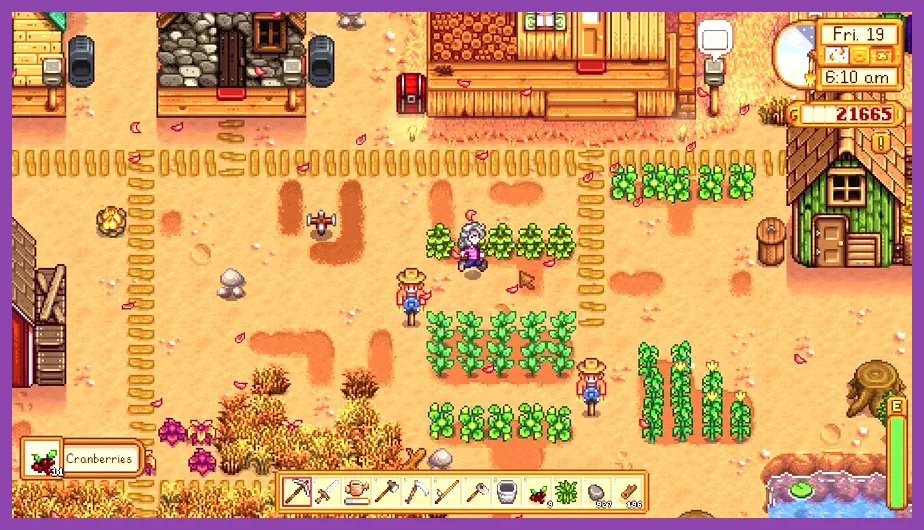
To achieve a rock-solid, ultra-smooth frame rate in Stardew Valley 1.6, you need to configure your in-game display options, adjust windowed borderless modes, and properly manage demanding SMAPI mods that impact CPU overhead. While ConcernedApe's masterpiece is famously lightweight, massive multiplayer farms, heavy automation mods, and high-refresh-rate monitors can still introduce micro-stutters. By applying specific tweaks to your graphics configuration, limiting background application interference, and optimizing your hardware utilization, you can eliminate frame drops entirely and enjoy buttery-smooth farming.
Understanding Stardew Valley 1.6 Performance Bottlenecks
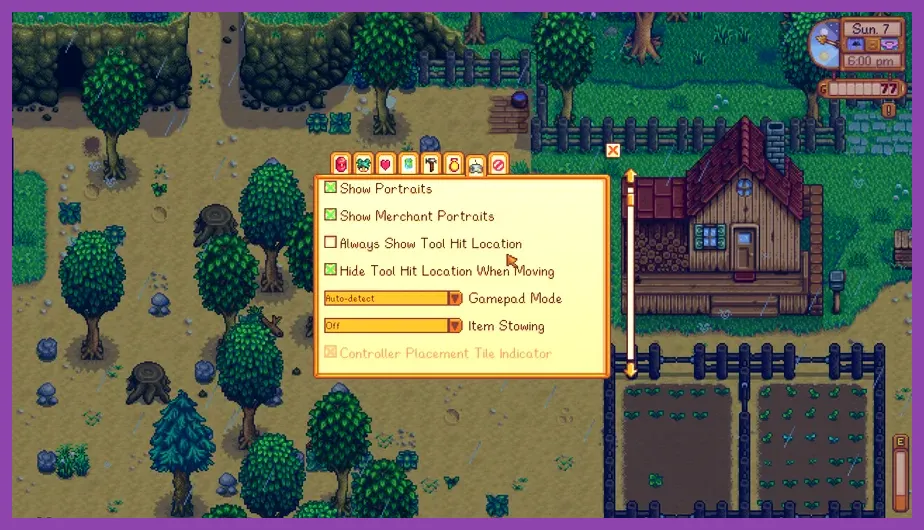
Even though Stardew Valley is a 2D pixel-art indie game, version 1.6 introduced massive content additions, including new multi-player scaling mechanics, larger farm types like the Meadowlands Farm, and expanded modding frameworks via SMAPI. Most performance bottlenecks do not stem from your GPU struggling to render textures; instead, they originate from CPU single-core limitations tied to game ticks, pathfinding for farm animals and villagers, and asset streaming when using high-resolution texture replacement packs.
If you are experiencing hitching when walking between map zones—such as transitioning from your farm to Cindersap Forest—or frame drops during heavy rainy days when hundreds of grass tiles and water animations render simultaneously, your configuration needs immediate adjustment. For players looking into broader system optimization techniques for demanding titles, checking out resources like Nine Sols best graphics settings can help you understand how to fine-tune your PC hardware for optimal frame delivery across various indie masterpieces.
Optimal In-Game Display and Graphics Settings
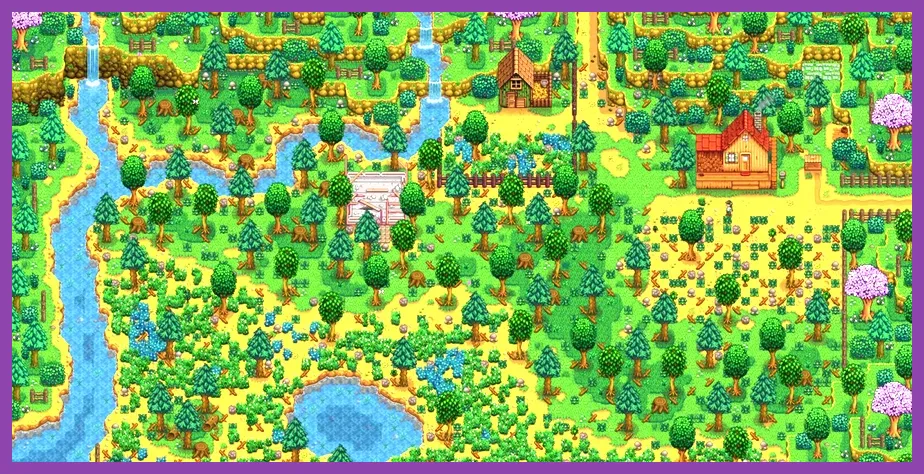
Launch Stardew Valley through Steam and navigate to the options menu via the ESC key or the main title screen. Adjusting these specific toggles will drastically reduce render latency and maximize your frames per second:
- Window Mode: Set this strictly to Fullscreen or Windowed Borderless depending on your alt-tab habits. True Fullscreen provides direct hardware-level rendering access to your display adapter, bypassing Windows Desktop Window Manager (DWM) overhead and preventing unnecessary vertical sync stutter.
- Resolution: Match your native monitor resolution exactly (e.g., 1920x1080, 2560x1440, or 3840x2160). Running non-native resolutions introduces scaling filters that can blur pixel art and occasionally create frame-pacing anomalies on high-refresh-rate panels.
- Lighting Quality: Toggle this to Normal rather than ultra if you run older hardware. While Stardew's lighting engine is optimized, complex shadow overlays during festival events or evening farm walks can tax lower-end integrated GPUs.
- Zoom Level: Keep your default zoom between 75% and 100%. Pushing the zoom level down to 50% forces the engine to render significantly more tiles and entities on-screen at once, which increases CPU draw calls and drops minimum frames during fast movement.
For more detailed technical evaluations on matching your hardware profiles to game demands, take a look at the comprehensive breakdown provided in the Monster Hunter Wilds system requirements guide to understand how display parameters affect modern PC pipelines.
Advanced Configuration via Startup Parameters
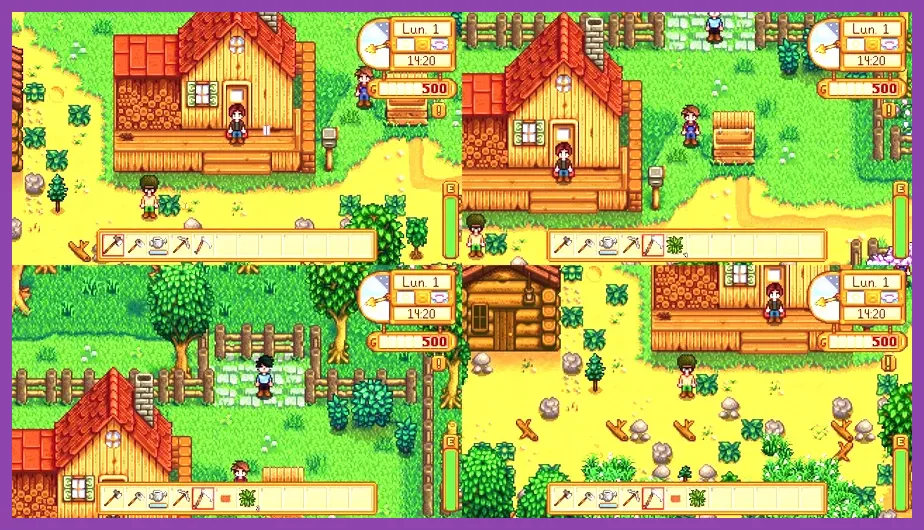
Advanced users can leverage Steam launch options to force the game to prioritize resources. Right-click Stardew Valley in your Steam Library, select Properties, and look at the General tab under Launch Options. Inputting specific commands can bypass unnecessary startup checks and force better thread prioritization.
Add -dx11 or ensure your XNA framework and .NET dependencies are fully up to date via the official Stardew Valley website. Keeping your runtime environments fresh prevents memory leaks during extended play sessions that often span multiple in-game days without a restart.
Furthermore, if you are managing a complex setup across multiple platforms or tweaking handheld performance similar to configuring hardware like the Nintendo Switch, exploring strategies found in the Nintendo Switch 2 specs guide can give you greater insight into hardware resource allocation.
Managing SMAPI Mods for Maximum Frame Rates
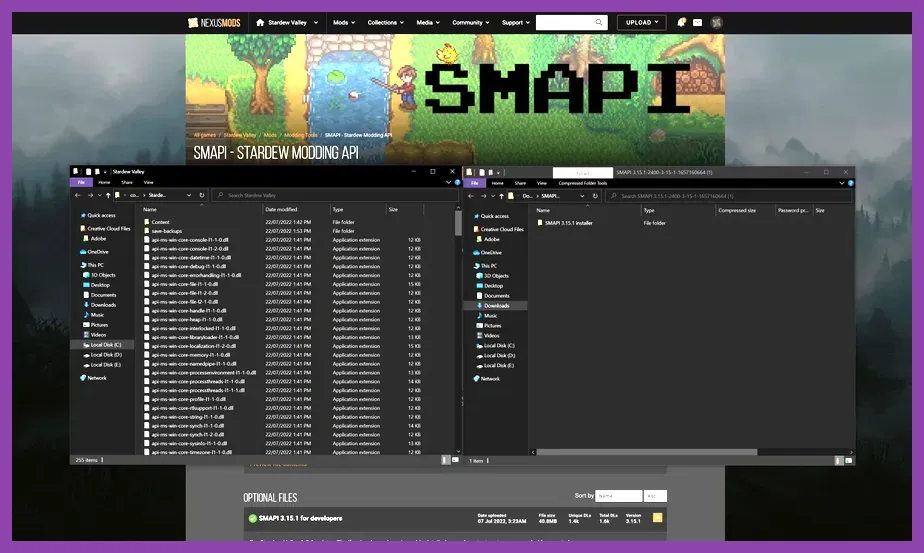
One of the primary culprits behind low FPS in Stardew Valley 1.6 is unchecked mod usage. While quality-of-life mods like UI Info Suite 2 or Automate are essential, poorly optimized content packs or outdated DLL hooks will actively throttle your frame rate.
- Audit Your Mod List: Regularly check your SMAPI console window upon game startup for red warning text. Outdated mods running compatibility patches will constantly throw error exceptions that eat up CPU cycles every single game tick.
- Limit Heavy Visual Overhauls: Massive texture replacement packs that upscale every tree, building, and crop tile require substantially more VRAM and RAM bandwidth. If your system is stuttering, revert to vanilla textures or lightweight aesthetic adjustments.
- Streamline Content Patcher Packs: Avoid stacking multiple redundant custom farm map mods that override the same tiles, as this creates conflict overhead during map loading sequences.
If you enjoy optimizing your play spaces and managing complex inventory or automation setups, you might also appreciate tactical organization strategies similar to those discussed in the Manor Lords beginner tips and tricks article.
Hardware and Operating System Tweaks
Beyond the game client itself, your operating system environment plays a massive role in maintaining stable frame delivery. Stardew Valley runs on the Microsoft XNA Framework / .NET, which benefits immensely from single-core CPU boost clocks.
- Hardware-Accelerated GPU Scheduling (HAGS): Enable HAGS within your Windows Graphics Settings to allow your GPU to manage its own memory more efficiently.
- Power Plan: Set your Windows Power Plan to High Performance or Ultimate Performance. This prevents your CPU from down-clocking during quiet moments in the game, eliminating micro-stutters when a sudden surge of calculations occurs (such as processing overnight crop sales).
- Background Application Culling: Close hardware-accelerated web browsers like Chrome or Discord overlay hooks if you are running Stardew Valley on a modest laptop or budget desktop rig. These applications compete for GPU compositing resources and can introduce unnecessary frame drops.
If you are looking for more ways to streamline your gaming setup, clean up background tasks, and maximize efficiency across your entire library, consulting expert roundups like the Red Dead Redemption 2 solo build guide offers fantastic parallel advice on optimizing game performance.
Co-op and Multiplayer Performance Optimization
Playing Stardew Valley 1.6 in multiplayer co-op introduces network synchronization overhead alongside local rendering demands. If you host a farm with up to eight players, network tick rates and server-side calculations can cause stuttering for both host and clients.
To ensure smooth co-op sessions:
- The player with the strongest CPU and fastest stable internet connection should always act as the host.
- Limit excessive item dropping on the farm floors, as rendering hundreds of loose inventory items across multiple client screens causes significant network and rendering lag.
- Keep chests organized to prevent prolonged inventory query calculations when multiple players access storage containers simultaneously.
By implementing these comprehensive graphic adjustments, managing your SMAPI mod ecosystem carefully, and keeping your operating system clean, you will easily achieve a locked, maximum frame rate that lets you enjoy Stardew Valley 1.6 without a single hitch.