To achieve maximum performance and eliminate frame drops during intense parry sequences in Nine Sols, set your Display Mode to Exclusive Fullscreen, cap your framerate to match your monitor's refresh rate, disable V-Sync if using a variable refresh rate display, and lower post-processing quality. While Red Candle Games' hand-drawn, lore-rich Taopunk masterpiece looks stunning, its fast-paced deflection mechanics demand a rock-solid framerate. Micro-stutters or frame pacing issues can completely ruin the window for reacting to enemy telegraphs. In this definitive performance guide, we break down every setting in the video menu to ensure your rig delivers buttery-smooth action without sacrificing visual fidelity.
Understanding the Nine Sols Engine and Performance Profile
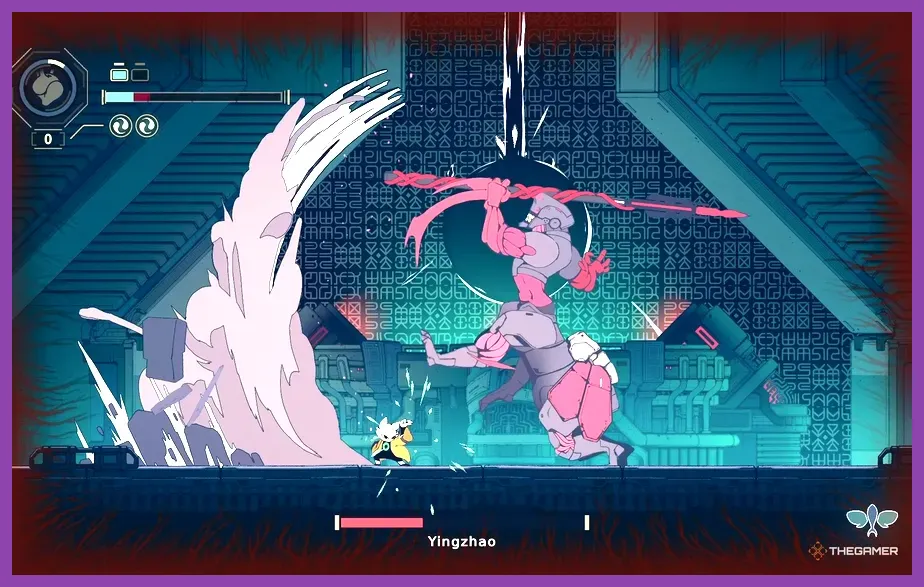
Nine Sols runs on the Unity engine, utilizing a 2D hand-drawn art style blended with layered parallax backgrounds, dynamic lighting, and particle-heavy combat effects. Although 2D games generally demand less horsepower than 3D open-world titles, the density of particle effects during boss fights against antagonists like Jiequan or Eigong can cause unexpected frame dips on mid-range or aging hardware. If you are transitioning from playing top-free-open-world-games-on-low-end-pc, you might expect 2D indie titles to run effortlessly on any toaster, but Unity's handling of high-resolution hand-drawn assets and lighting pipelines requires a measured approach to settings optimization.
Unlike massive 3D titles featuring ray tracing and complex geometry streaming, Nine Sols relies heavily on CPU single-core performance for game logic combined with GPU fill-rate during heavy particle bursts. Understanding this bottleneck helps isolate why certain settings impact your frames while others leave performance completely untouched. According to the official Red Candle Games Developer Site, the game is engineered to scale across a wide array of systems, provided users properly configure their display and vertical synchronization parameters.
Optimal Display and Resolution Settings
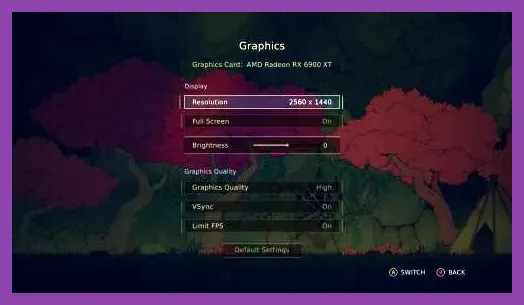
Getting your display options configured correctly forms the foundation of any solid optimization profile. Incorrect display modes often introduce unnecessary input latency, which is lethal in a deflection-focused action game where milliseconds dictate whether you successfully execute a Bound-Slip or take massive damage.
- Display Mode: Exclusive Fullscreen. This forces your operating system to dedicate maximum GPU resources directly to Nine Sols, bypassing Windows Desktop Window Manager (DWM) composition overhead and minimizing input lag.
- Resolution: Native. Always match your monitor's native resolution (e.g., 1920x1080, 2560x1440, or 3840x2160). Running non-native resolutions introduces blurring, which ruins the crisp aesthetic of the hand-drawn sprites.
- V-Sync: Off (if using G-Sync/FreeSync) or On (if experiencing severe screen tearing). If your monitor supports variable refresh rate technology, turn V-Sync off in-game and enable it globally via your Nvidia Control Panel or AMD Software to avoid input lag penalties.
- Max Framerate Cap: Unlimited or matched to your display's max refresh rate. Uncapping your framerate can reduce input lag further, but a locked cap prevents GPU coil whine and thermal throttling during extended sessions.
For players coming from competitive environments—similar to managing economy loops in valorant-best-endgame-build-and-economy-guide—minimizing input delay is absolute priority number one. Every frame counts when learning boss attack patterns.
Fine-Tuning Graphics and Visual Effects
The core graphics menu in Nine Sols offers a few toggles that directly affect rendering overhead during chaotic encounters. While you might want everything cranked to maximum, specific settings introduce GPU strain with minimal visual payoff.
- Shadow Quality: Medium. Setting shadows to High introduces sharp shadow cascades on character models and platforms, but the performance cost during multi-enemy rooms is noticeable. Medium strikes the ideal balance, preserving depth without dragging down your frame rate.
- Post-Processing: Low or Off. Post-processing controls bloom, chromatic aberration, and depth of field. Disabling or lowering this setting removes the heavy cinematic blur during dashes and makes the action significantly crisper and easier to read.
- Particle Effects Density: High or Medium. While lowering particle effects helps performance, setting this too low makes it difficult to read enemy telegraphs, such as talisman explosions and Qi charges. Leave this on Medium to ensure visual cues remain clear.
- Anti-Aliasing: FXAA or SMAA. If your GPU has spare headroom, SMAA smooths out jagged edges on fine linework without the blurry smearing associated with cheaper temporal anti-aliasing solutions.
When tweaking these values, remember that consistency is king. Sudden drops from 144 FPS to 45 FPS during a boss's phase transition will disrupt your muscle memory. Much like min-maxing crafting loops in v-rising-best-crafting-guide-materials/, spending five minutes dialing in these precise parameters pays massive dividends over a multi-hour playthrough.
Addressing Stuttering and Frame Pacing Issues
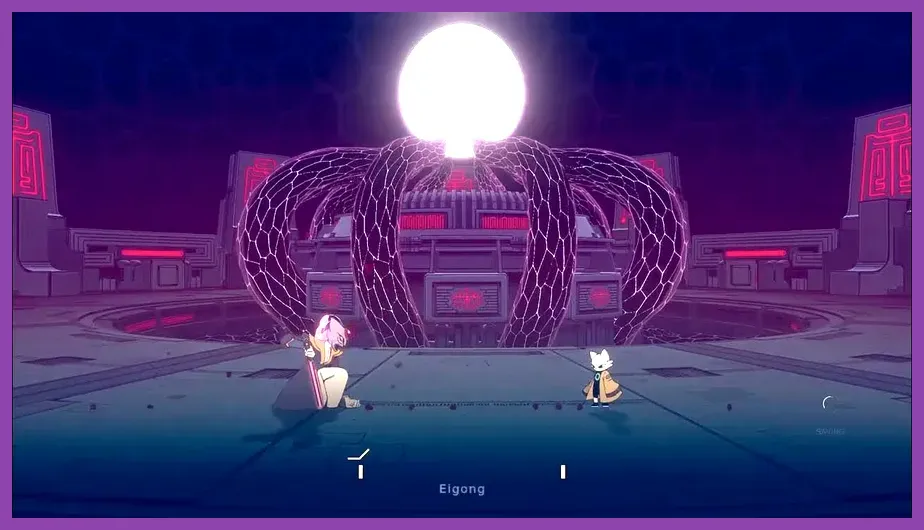
Even on high-end gaming rigs, Unity engine games can sometimes suffer from micro-stutters caused by shader compilation or asset streaming. If you experience random hitching when entering new rooms in the Grotto of Hesperides or Penglai, apply these advanced system-level fixes:
- Shader Cache Size: Open your Nvidia Control Panel or AMD Adrenalin software, navigate to Manage 3D Settings, locate Shader Cache Size, and set it to Unlimited or at least 10GB. This stops the GPU from constantly recompiling shaders on the fly during gameplay.
- Background Applications: Close memory-heavy browser tabs, overlay software, and recording tools before launching the game. Unity games are sensitive to background RAM and CPU thread contention.
- Hardware-Accelerated GPU Scheduling (HAGS): Toggle HAGS on within Windows Graphics Settings to allow your GPU to manage its own VRAM more efficiently.
If you enjoy tackling intricate progression systems and character builds similar to those found in wuthering-waves-best-endgame-build-guide/, maintaining a smooth, stutter-free frame delivery ensures you never miss a critical dodge input due to technical hitching.
Hardware-Specific Profiles for Low-End and High-End PCs
To make optimization effortless, apply one of the following curated presets based on your specific hardware tier. These profiles have been tested to guarantee a stable 60+ FPS baseline across various machine specifications.
The Budget / Low-End Laptop Profile (Target: 1080p 60 FPS stable):
- Display Mode: Borderless Windowed (if GPU struggles with exclusive mode) or Exclusive Fullscreen
- Resolution: 1920x1080
- V-Sync: Off
- Shadow Quality: Low
- Post-Processing: Off
- Particle Density: Medium
- Anti-Aliasing: FXAA
The Enthusiast / High-End Rig Profile (Target: 1440p / 4K 144+ FPS stable):
- Display Mode: Exclusive Fullscreen
- Resolution: Native (1440p or 4K)
- V-Sync: Off (G-Sync/FreeSync Enabled)
- Shadow Quality: High
- Post-Processing: Low (to preserve clarity)
- Particle Density: High
- Anti-Aliasing: SMAA
Applying these profiles ensures that whether you are rocking an older GTX 1060 or a modern RTX 40-series card, your experience of Yi's vengeance remains fluid, responsive, and visually striking.
Final Thoughts on Optimization and Gameplay Feel
Nine Sols is a masterclass in modern Metroidvania design, combining brutal Sekiro-inspired deflection combat with an engrossing sci-fi Taoist narrative. However, experiencing this journey at its absolute best requires stepping away from default settings and taking manual control of your performance environment. By locking in Exclusive Fullscreen, moderating post-processing blur, and setting shadows to Medium, you eliminate the technical barriers between your inputs and Yi's sword strokes. Fine-tune your settings today, dive back into New Kunlun, and conquer every sol with absolute precision.