To eliminate stuttering, frame drops, and crashes in Call of Duty Mobile on PC, switch your GameLoop official client engine to DirectX+, dedicate half your physical CPU cores and 4096MB to 8192MB of RAM, cap your in-game Graphics Quality to Low, and push Frame Rate to Max or Ultra. COD Mobile does not run natively on Windows; it relies on an Android translation layer. When your emulator fails to schedule virtualization threads or runs out of allocated video memory, it causes brutal micro-stutters and crashes straight to the desktop. Dialing in your emulator architecture, cleaning Tencent shader caches, and aligning Windows GPU scheduling resolves these bottlenecks instantly.
Reconfiguring GameLoop Engine: The Core Fix for Micro-Stutters
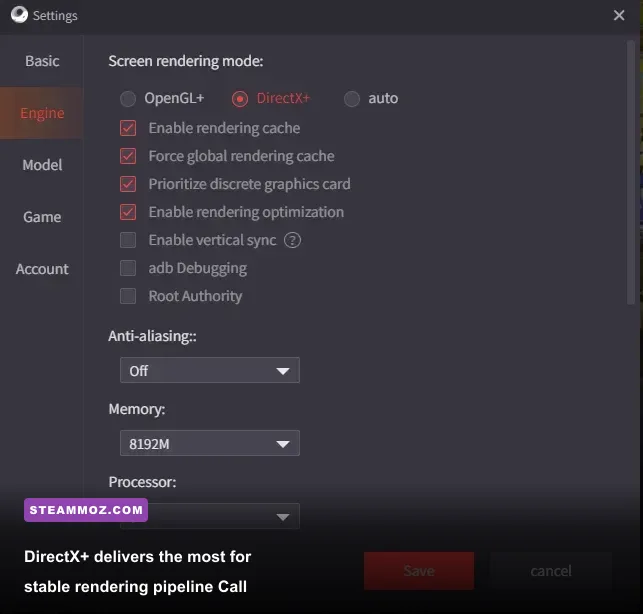
GameLoop translates ARM instruction sets into x86/x64 instructions in real-time. If your engine settings conflict with your graphics card architecture, your CPU frame-times will spike violently during intense gunfights. Many players leave their engine setting on "Auto," which constantly shifts between DirectX and OpenGL runtimes mid-match, generating severe frame drops.
Open GameLoop, head into Settings > Engine, and select DirectX+. While OpenGL+ works decently on specific legacy hardware, DirectX+ hooks directly into the Windows display driver model with much lower driver overhead. If you've been troubleshooting visual hitches like those tackled in our guide to boosting frame rates in visually heavy titles, you know that stabilizing the underlying graphics API is always step one.
Next, configure resource allocation with precision. Never allocate all your system resources to the emulator. If you have an 8-core, 16-thread CPU, select 4 Cores. If you give GameLoop all 8 cores, Windows starves its background operating system tasks, triggering massive micro-stutters as Windows fights the emulator for CPU execution time. For memory, set 4096MB on 8GB/16GB systems, or 8192MB if you run 32GB of system RAM.
| Engine Setting | Budget PC (4-Core / 8GB RAM) | Mid-to-High PC (6+ Cores / 16GB+ RAM) | Performance Impact |
|---|---|---|---|
| Rendering Engine | DirectX+ | DirectX+ | Prevents API-switching hitches and smoke lag |
| Memory Allocation | 4096MB | 8192MB | Prevents memory starvation crashes in Battle Royale |
| Processor Cores | 2 Cores | 4 Cores | Stabilizes frame pacing and CPU scheduling |
| Resolution | 1280x720 | 1920x1080 / 2560x1440 | Directly impacts GPU rendering load |
| Screen DPI | 160 DPI | 240 DPI or 320 DPI | Improves UI clarity; negligible FPS impact |
| Enable Vertical Sync | Disabled | Disabled (Use Monitor G-Sync/FreeSync) | Eliminates emulator-induced input latency |
Crucially, verify that Virtualization Technology (VT-x for Intel, AMD-V for AMD) is enabled in your motherboard BIOS. Without hardware virtualization, the emulator executes software virtualization, which throttles your processor and cuts your frame rate by up to 60%. Check Task Manager under the "Performance" tab; if "Virtualization: Disabled" shows up, reboot into your BIOS immediately to enable it.
In-Game Graphics Settings: Prioritizing Frame Pacing Over Eye Candy
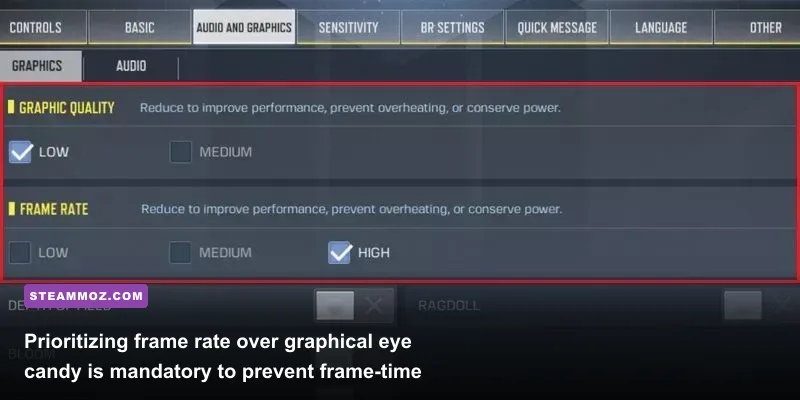
Cranking visual quality in Call of Duty Mobile on PC is a trap. The game's engine renders dynamic character shadows, ragdoll physics calculations, and reflective water surfaces that overwhelm the emulator's translation layer. Even an RTX 4080 will stutter if you leave high-overhead cosmetic toggles turned on.
Launch COD Mobile, click the gear icon on the main menu, and jump into Audio and Graphics. Your golden rule here: set Graphic Quality to Low and Frame Rate to Max or Ultra. Low graphical quality strips away post-processing bloat while leaving character visibility crisp. Enemy operators still display bright red shoulder indicators, giving you maximum competitive visibility without tanking your 1% low frame rates.
Much like the setup recommended in our breakdown of tuning PC settings for maximum FPS, you want raw frame-rate stability over atmospheric lighting. Turn off Real-Time Shadows; shadow mapping in GameLoop requires continuous draw call updates that spike CPU usage whenever players slide or jump across terrain. Disable Ragdoll, Bloom, Depth of Field, and Anti-Aliasing.
| In-Game Graphic Option | Recommended Setting | FPS Gain / Impact | Competitive & Tactical Note |
|---|---|---|---|
| Graphic Quality | Low | +25% to +35% FPS | Removes screen clutter and improves enemy target tracking |
| Frame Rate | Max (60) or Ultra (120) | Unlocks Engine Cap | Ultra enables 120Hz refresh rates on supported monitors |
| Real-Time Shadows | Off | +10% to +15% FPS | Prevents severe micro-stutter during rapid camera panning |
| Depth of Field | Off | +5% FPS | Eliminates peripheral blur when aiming down sights (ADS) |
| Ragdoll Physics | Off | Prevents Frametime Spikes | Stops sudden frame drops when multiple players die nearby |
| Anti-Aliasing | Off | +8% FPS | Sharpens edge contrast; improves long-distance target spotting |
If your monitor supports 120Hz or higher, the "Ultra" frame rate setting unlocks buttery-smooth 120 FPS gameplay in multiplayer matches (note that Battle Royale is currently hard-capped at 90 FPS by Activision). However, if your system struggles to hold 120 FPS consistently, drop the setting down to "Max" (60 FPS). In an emulator, holding a locked 60 FPS provides significantly better frame pacing than wildly fluctuating between 85 and 115 FPS.
Windows and GPU Driver Tweaks to Eliminate Random Crashes
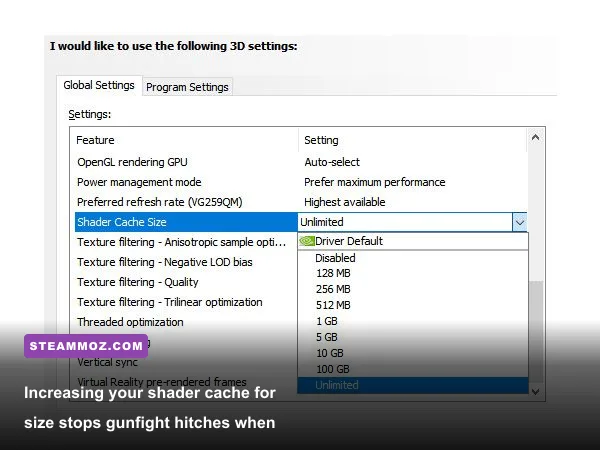
Sudden crashes to the Windows desktop—often without an error code—typically happen when your dedicated graphics driver resets or when Windows attempts to power-throttle the emulator's background processes. Resolving this requires telling both Windows and your GPU software to treat GameLoop as an intensive 3D application.
First, update to the newest NVIDIA Display Drivers or AMD Adrenalin drivers. After installing, configure your driver control panel specifically for GameLoop. If you've previously tackled unprompted desktop drops using our techniques from fixing crash-prone PC titles, these steps will feel familiar:
- Open the NVIDIA Control Panel (or AMD Software) and navigate to Manage 3D Settings > Program Settings.
- Click Add, browse to your GameLoop directory (typically
C:\Program Files\TxGameAssistant\uior your custom drive), and select AndroidProcess.exe and AppMarket.exe. - Set Power Management Mode to Prefer Maximum Performance. This prevents your GPU clock from down-throttling during lulls in match pacing.
- Set Shader Cache Size to 10GB or Driver Default. When this cache is too small, the emulator constantly recompiles shaders during gunfights, causing hideous 1-second freezes whenever an enemy fires an exotic weapon skin.
- Ensure Threaded Optimization is forced to On.
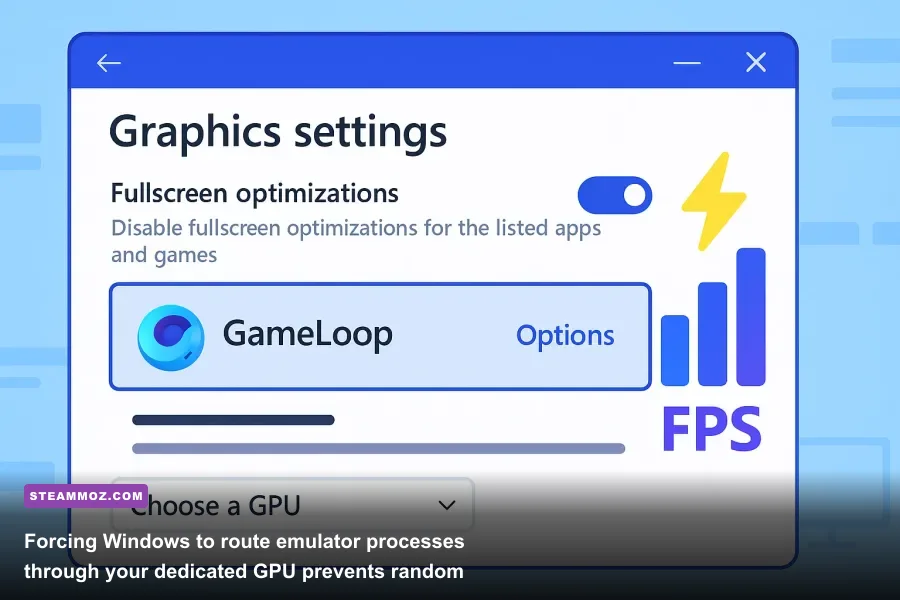
Next, configure the Windows Graphics Settings. Press the Windows Key, type Graphics Settings, click Browse, and locate AppMarket.exe and AndroidProcess.exe. Click Options under each executable and manually assign them to High Performance (locking them to your dedicated GPU rather than integrated graphics). This fix alone stops laptops and dual-GPU desktops from crashing due to unexpected GPU switching.
If crashes persist, ensure your Microsoft DirectX End-User Runtime packages and Visual C++ Redistributables (2015–2022) are fully updated, as missing DLLs cause silent emulator crashes when switching between game modes.
Eliminating Battle Royale Memory Leaks and Black Screen Crashes
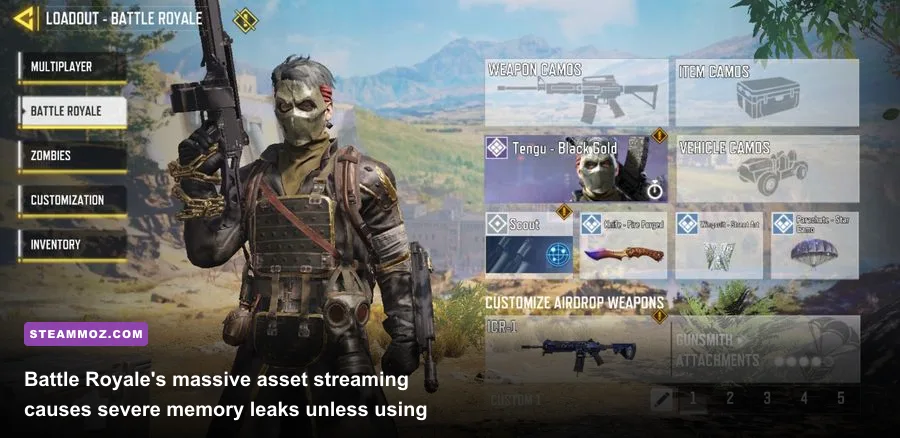
Battle Royale on maps like Isolated and Blackout places far higher demands on virtual memory than standard 5v5 multiplayer maps like Standoff or Crash. A well-known issue involves players encountering a sudden black screen—where game audio continues playing in the background while video freezes—usually around circle collapse three or four. This is a classic 32-bit memory heap overflow.
Older 32-bit versions of GameLoop hit an absolute virtual memory ceiling around 3.2GB. Once Battle Royale loads vehicle models, loot assets, and diverse character skins, the memory pool caps out, killing the video renderer. To resolve this permanently:
- Upgrade to GameLoop 64-bit: Completely uninstall the old 32-bit client. Download the official 64-bit installer directly from the GameLoop website. The 64-bit client manages system RAM efficiently without hitting the 32-bit address space wall.
- Purge the Tencent Shader and Temp Cache: Press
Win + R, type%temp%, and hit Enter. Delete all temporary files. Then open GameLoop, click the cleaning/broom tool on the right-hand sidebar to clear temporary runtime assets, and restart the emulator. - Move GameLoop to an SSD: If your emulator files sit on a mechanical hard drive (HDD), asset streaming will hitch constantly when you drive high-speed vehicles like the ORV or Antelope. Running the emulator off an NVMe or SATA SSD smooths out asset streaming and stops texture pop-in freezes.
If you regularly optimize your library for stability—much like the performance triage outlined in our guide to rescuing FPS and fixing crashes—you know that memory leaks require clean cache routines. Flush your GameLoop cache at least once a week if you play Battle Royale heavily.
Eradicating Input Lag and Micro-Stutters from Mouse Polling Mismatches
Sometimes what feels like a hardware stutter is actually an input polling conflict. Modern competitive gaming mice often poll at 1000Hz, 4000Hz, or even 8000Hz. While native PC titles handle hyper-polling easily, Android emulators struggle with extreme USB interrupt rates.
When you sweep your mouse at 4000Hz or 8000Hz inside GameLoop, the keymapper gets flooded with input packets. The emulator stalls its rendering thread trying to process thousands of coordinate updates per second, creating a jumpy, stuttering camera pan that looks identical to dropped frames. Open your mouse configuration software (such as Razer Synapse or Logitech G HUB) and drop your mouse report rate down to 500Hz or 1000Hz. Your camera movement will immediately become stable and fluid.
Additionally, network packet loss frequently disguises itself as rendering stutter. Desync between the emulator client and the game servers will snap your character back a few inches, feeling like an engine hiccup. Check the official Activision Support network alerts if you experience sudden rubberbanding. Always game over a hardwired Ethernet connection rather than Wi-Fi, and disable the "Network Acceleration" feature within GameLoop's general settings, as it can reroute your packets through congested third-party proxy nodes.
Following this approach—locking your engine to DirectX+, keeping in-game visuals strictly on Low with Max/Ultra frame rates, capping mouse polling rates, and ensuring the 64-bit emulator runtime is active—gives you a responsive, crash-free, and tournament-ready experience in Call of Duty Mobile on PC. If you enjoy dialing in smooth performance on PC, check our guides on stabilizing frame times before pushing high resolutions for deeper hardware tuning tips.