
If ELEX keeps crashing or crawling below a playable frame rate, start with a clean graphics profile, verify the Steam installation, update or clean-install your GPU driver, disable overlays, and cap the game to a stable 30, 45, or 60 FPS target. ELEX is an older 64-bit Piranha Bytes RPG, but its open-world streaming, vegetation, shadows, and CPU-heavy settlements can still produce stutter on modern PCs that easily exceed the recommended specifications.
The important distinction is between a low average FPS and bad frame pacing. ELEX may report 55 FPS while hitching every time you sprint into a new section of Magalan. That usually points to asset streaming, CPU load, shader compilation, background software, or a storage bottleneck rather than a graphics card that is simply too weak. The fixes below target both problems, with settings for low-end, mid-range, and high-end PCs.
Check Your PC Against ELEX's Real Bottlenecks
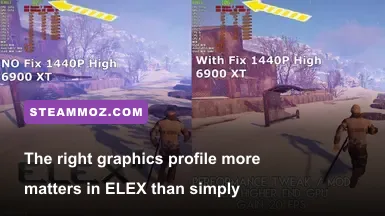
The official Steam requirements are modest by current standards: the minimum specification lists a 64-bit Windows installation, an Intel Core i5-2400, 4 GB of RAM, and a GeForce GTX 560 or Radeon HD 6870 with 2 GB of VRAM. The recommended specification moves to an Intel Core i7-3930K, 16 GB of RAM, and a GeForce GTX 1060 3 GB or Radeon RX 480. Those figures are useful, but they don't tell the whole story.
ELEX's open world streams terrain, objects, NPCs, vegetation, and combat audio as you move. A modern six-core processor and 16 GB of memory are much more comfortable than the old recommended parts, especially in Golieth, Hort, and the crowded edges of the major faction settlements. Installing the game on an SSD won't magically double your average FPS, but it can reduce the length and severity of traversal stutters.
| Target | Practical Hardware | Expected Profile | Main Limitation |
|---|---|---|---|
| Minimum playability | 4-core CPU, 8 GB RAM, GTX 960 or similar | 900p or 1080p Low, 30 FPS cap | Streaming hitches and crowded settlements |
| Balanced 1080p | 6-core CPU, 16 GB RAM, GTX 1060 6 GB or RX 580 | 1080p Medium, 40-60 FPS | Vegetation and shadows in forests |
| High-quality 1080p | Modern 6-core CPU, 16 GB RAM, RTX 2060 or RX 5600 XT | 1080p High, mostly 60 FPS | CPU spikes and engine frame pacing |
| 1440p | Modern 8-core CPU, 16 GB RAM, RTX 3060 or RX 6700 | 1440p Medium-High, capped 60 FPS | VRAM use and open-world streaming |
Before changing settings, check whether ELEX is installed on a hard drive, whether your system is paging to disk, and whether your CPU is reaching 100 percent on one or two threads. Use the Steam overlay's performance graph, MSI Afterburner, or Windows Task Manager during a repeatable route. Run from the Abandoned Farm toward Goliet, then test the same route after every major change. Reproducible testing beats guessing.
For the official baseline, compare your hardware with the ELEX Steam page. If your machine clears the recommended requirements but still stutters, focus on frame pacing and configuration rather than immediately buying new hardware.

🎮 ELEX
Looking to experience this game? Grab your digital key directly on our store for $7.49.
View on Steammoz Store →Use This ELEX Graphics Profile First
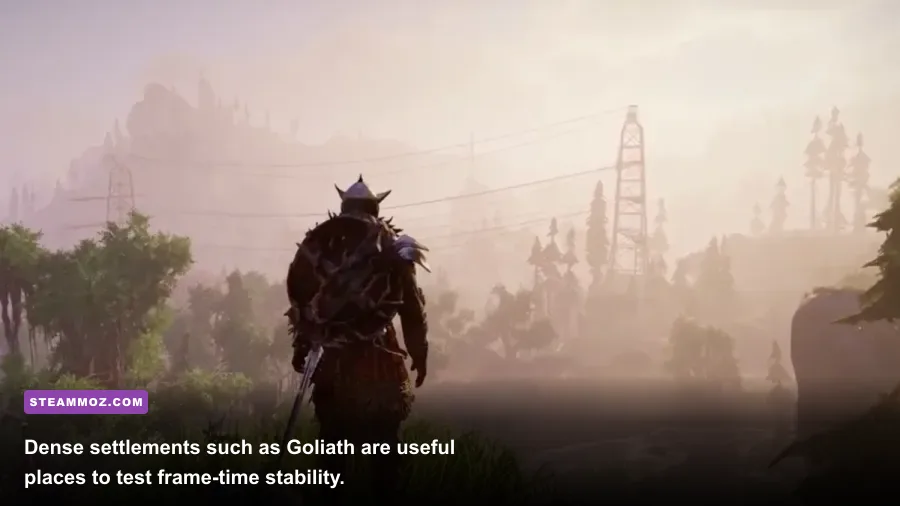
Don't begin by dropping every option to Low. ELEX's image quality collapses quickly when textures and view distance are sacrificed, while some of the most expensive options deliver relatively small visual gains. The best first pass keeps texture detail respectable and attacks vegetation, shadows, and distant object rendering.
| Setting | Recommended Value | FPS Impact | Visual Trade-Off |
|---|---|---|---|
| Resolution | Native resolution; 900p on weak GPUs | Very high | Lowering it is effective but softens the entire image |
| Fullscreen | Exclusive fullscreen if available | Low to medium | Usually improves consistency over borderless mode |
| V-Sync | Off for testing; On for tearing | Low | Can add latency and lock behavior when FPS dips |
| Textures | High with 4 GB VRAM; Medium with 2-3 GB | Low to medium | Mostly affects surface detail and VRAM use |
| Vegetation | Medium | High | Large boost in forests; grass becomes less dense |
| View Distance | Medium or High | High on CPU-limited systems | Reduces distant objects and pop-in when lowered |
| Shadows | Medium | High | Softens contact shadows and distant lighting |
| Effects | Medium | Medium | Controls combat effects, smoke, and visual clutter |
| Anti-Aliasing | Medium or the lowest acceptable option | Medium | Lower settings create more shimmer on vegetation |
For a GTX 1060-class PC, use 1080p, High textures, Medium vegetation, Medium shadows, Medium effects, and Medium view distance. Set a 60 FPS cap only if the game holds 60 during movement and combat. If it oscillates between 45 and 60, a locked 45 FPS target can feel smoother than an unstable 60. On a 60 Hz display, 30 FPS with consistent frame pacing is also preferable to frequent drops into the low twenties.
For older hardware, choose 900p or 1080p Low, but leave textures at Medium if VRAM allows. Set vegetation and shadows to Low, view distance to Medium, effects to Low, and disable V-Sync while testing. If GPU usage is below roughly 85 percent while the frame rate remains poor, lowering resolution won't solve the problem; your CPU, memory, or the game's streaming behavior is probably the limiter.
Players with modern GPUs should resist maxing everything immediately. ELEX isn't designed around a 144 FPS experience, and the extra cost of maximum vegetation and shadows can create ugly frame-time spikes for a gain you barely notice while fighting a Rock Drake. A firm cap through NVIDIA Control Panel, AMD Software, or RTSS is often the cleanest final step.
Fix Crashes Before They Corrupt Your Session
Crashes in ELEX usually come from damaged files, driver conflicts, overlays, permissions, unstable overclocks, or a broken user configuration. Work through these in order and launch the game after each step. Don't stack ten changes at once; if the crash disappears, you'll want to know why.
1. Verify the Steam installation
Open Steam, right-click ELEX in your library, choose Properties, open Installed Files, and select Verify integrity of game files. Steam will replace missing or damaged files, though it may not remove a corrupted user configuration stored outside the installation directory. Let the process finish completely before launching.
2. Clean up driver and overlay conflicts
Install the current driver for your NVIDIA, AMD, or Intel GPU. If crashes began immediately after a driver update, use the previous stable driver instead. During installation, choose the clean-install option where available. Then disable the Steam overlay, Discord overlay, GeForce Experience or NVIDIA App overlay, AMD overlay, Xbox Game Bar, and monitoring overlays one at a time.
Overlays hook into rendering and can trigger crashes during loading screens or when ELEX changes from an interior to the open world. Antivirus real-time scanning can cause similar interruptions. Add the ELEX installation folder to your security software's allowed list only if you trust the installation, and never download random replacement DLL files from unofficial websites.
3. Reset the user configuration
If ELEX crashes after changing resolution, display mode, or advanced graphics, close Steam and back up the game's user configuration before resetting it. ELEX commonly stores user files under the Windows user profile's local application-data folders, but the exact path can vary by installation and Windows setup. Search File Explorer for ELEX inside %LOCALAPPDATA%, rename the configuration folder rather than deleting it, and relaunch the game.
A renamed backup gives you a way back if it contains useful keybinds or saves. Do not delete your save folder blindly. Steam Cloud can also restore an unwanted configuration, so temporarily disable cloud synchronization if Steam keeps bringing the broken settings back after a reset.
4. Remove instability from the equation
Return CPU, GPU, RAM, and VRAM settings to stock values. ELEX may run for an hour before exposing an unstable undervolt or memory overclock, often during a transition into a settlement. Check Windows Event Viewer only after reproducing the crash; a display-driver reset points toward the GPU driver or overclock, while an application fault specific to ELEX makes files or configuration more likely.
For broader PC troubleshooting, our guides to Architect Life crashes and low FPS and Beacon Pines PC fixes cover the same driver, overlay, and file-verification logic in different engines.
Stop Stutter and Make Frame Times Predictable
Average FPS isn't the enemy here. ELEX's most distracting problem is often a sudden hitch when the camera faces a new valley or a group of NPCs loads into view. The goal is to reduce the number of assets the CPU and storage device must prepare at once, then cap the game below its worst-case performance.
Move ELEX to an SSD
An SSD is one of the most sensible upgrades for ELEX if the game is on a mechanical hard drive. Keep at least 15 percent free space on the drive, close heavy file-copying applications, and avoid running a browser with dozens of active tabs during testing. This won't fix a GPU-bound scene, but it can reduce traversal hitching and shorten loading transitions.
Cap the frame rate below the dips
Measure demanding scenes instead of staring at the highest number in an empty field. If ELEX swings from 60 to 38 FPS in Hort, try a 36 or 40 FPS cap. If the game can maintain 45 everywhere except a rare effect-heavy fight, cap it at 45. External limiters such as RTSS often provide steadier pacing than an in-game limiter, but don't run multiple limiters together.
Manage Windows background load
Use Windows Game Mode, close launchers you don't need, and check Task Manager for CPU-heavy update services. Keep the Windows power mode on Balanced or Best performance depending on your laptop's cooling behavior. A laptop that overheats will throttle, producing the exact sort of periodic low FPS that looks like an ELEX problem.
Monitor temperatures and clocks during a bad section. A GPU stuck near 99 percent with a full VRAM allocation indicates a graphics bottleneck. A GPU sitting at 50-70 percent while one CPU thread is saturated suggests view distance, NPC simulation, or streaming pressure. In the second case, lowering shadows and vegetation can help, but reducing resolution usually will not.
Use adaptive synchronization carefully
FreeSync and G-Sync can make a capped 40-60 FPS range feel far smoother, but confirm that the display is actually using the feature. Set the cap a few frames below the monitor's maximum refresh rate when targeting a high refresh display. If you use V-Sync, test both the game option and the driver option; conflicting settings can add latency or produce an awkward half-refresh lock when performance dips.
Test These Locations Instead of Guessing
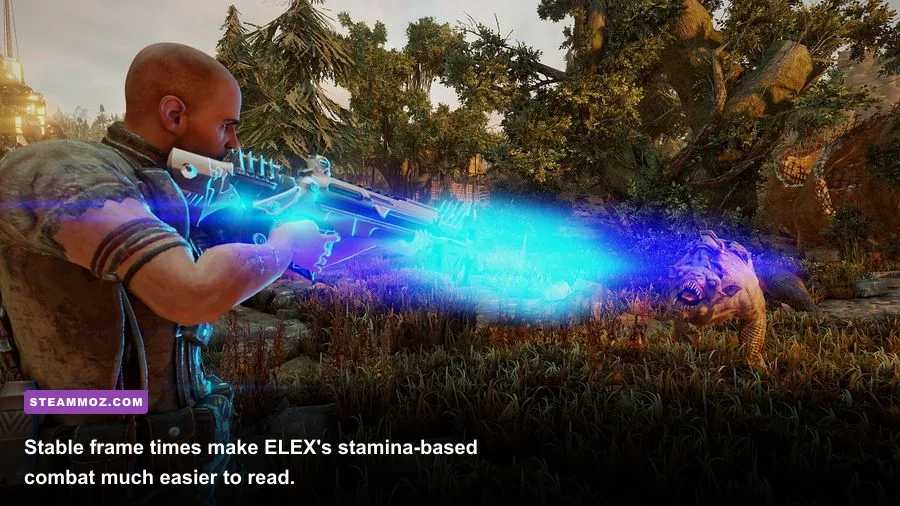
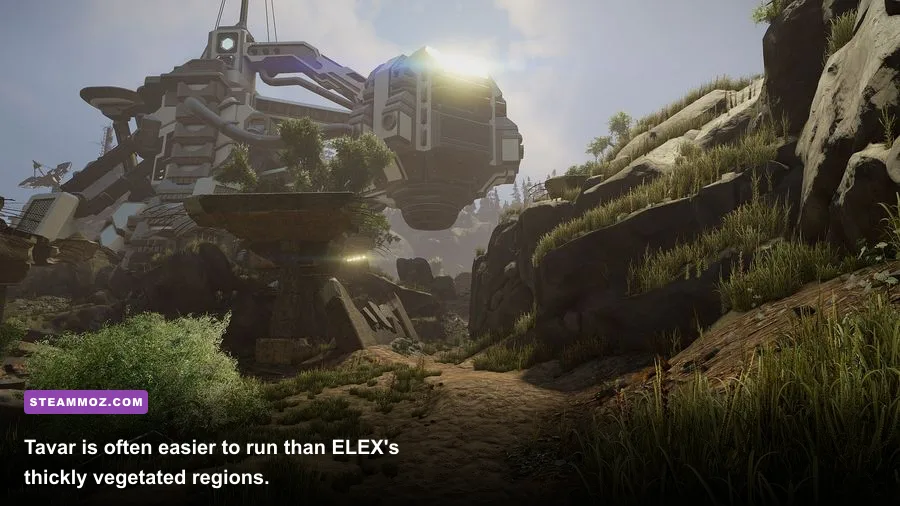
ELEX's regions don't stress a PC in the same way. Tavar's open desert can look smooth while the same settings buckle in Edan's forests. A proper test route should include vegetation, a settlement, combat, and a loading transition.
| Test Area | What It Exposes | Likely Fix | Useful Result |
|---|---|---|---|
| Edan forest paths | Vegetation rendering and streaming | Lower vegetation and view distance | Reveals traversal hitching |
| Goliet and Golieth outskirts | NPC density and CPU load | Reduce view distance; cap FPS | Shows worst-case CPU frame time |
| Tavar desert | GPU baseline in open terrain | Compare resolution and textures | Separates GPU limits from CPU limits |
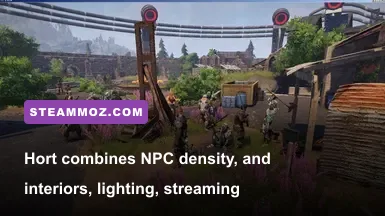
| Hort | Interior transitions and dense objects | SSD, overlays off, clean configuration | Useful for crash reproduction |
| Ignadon volcanic roads | Effects, lighting, and long sightlines | Lower effects and shadows | Tests combat and visual effects |
Walk the same route for two minutes, fight a nearby group, enter and exit a building, then repeat after a restart. If the first run stutters more than the second, shader or asset cache behavior may be involved. If every run collapses in the same spot, that points more strongly toward a specific setting, damaged asset, or engine-level bottleneck.
Don't use a crowded faction hub as your only benchmark. ELEX can feel excellent across the wilderness and then lose smoothness around NPC-heavy areas. That isn't necessarily a fault in your PC; it is the game's workload changing dramatically. Build your final cap around the heaviest normal scene you actually visit.
Reliable Fix Order for Low-End and High-End PCs
Here are two practical profiles that avoid the usual trap of chasing benchmark numbers. The low-end profile prioritizes consistency, while the high-end profile preserves the look of Magalan without pretending the engine can deliver flawless high-refresh performance everywhere.
| Option | Low-End Stability Profile | High-End Balanced Profile | Why It Works |
|---|---|---|---|
| Resolution | 1600x900 or 1920x1080 | Native 1440p or 1080p | Only lower resolution when GPU usage is high |
| Textures | Medium | High | Preserves detail without exhausting VRAM |
| Vegetation | Low | Medium | One of the biggest open-world performance levers |
| View Distance | Medium | High | Balances pop-in against CPU frame time |
| Shadows | Low | Medium | Reduces expensive distant shadow work |
| Effects | Low | Medium | Helps during explosions and faction fights |
| Frame Cap | 30 or 40 FPS | 45 or 60 FPS | Stable pacing beats unstable peak FPS |
Low-end repair sequence
Install ELEX on an SSD if possible, set textures to Medium, lower vegetation and shadows first, and use a 30 or 40 FPS cap. Turn off every overlay and verify the files. If the game still crashes, reset the user configuration before experimenting with compatibility modes. Windows compatibility settings are not a universal performance fix and can introduce scaling or input problems.
Mid-range repair sequence
Start at 1080p with High textures and Medium everything else. Test Tavar, Edan, and a faction settlement. If GPU usage is consistently above 95 percent, lower resolution or effects. If GPU usage is low and frame time spikes in towns, lower view distance and vegetation, then cap at 45 or 50 FPS. This is the sweet spot for many GTX 1060, GTX 1660, RX 580, and RX 5500 XT systems.
High-end repair sequence
Use native resolution, High textures, Medium vegetation, Medium shadows, and High view distance. Don't assume an RTX 4070 makes every engine limitation disappear. Cap the game at 60 FPS, disable overlays, and leave a little VRAM headroom. If you still see regular traversal hitches, put the game on an SSD and investigate CPU background load rather than dropping the entire preset.
For more targeted PC optimization ideas, see our A Year of Rain settings guide and Bionic Dues performance breakdown. The games differ, but the same rule applies: identify whether the GPU, CPU, memory, or storage is actually responsible before changing settings at random.
When Nothing Works, Use a Clean Reinstall
A clean reinstall is the last resort, not the first click. Uninstall ELEX through Steam, back up your saves manually, check for leftover ELEX folders in the Steam directory and local application-data locations, then reinstall to an SSD. Before restoring old configuration files, launch the untouched game once, set a conservative profile, and test a new save.
Restore saves only after confirming that the fresh installation is stable. If the new save works but the old one crashes in a particular area, the problem may be tied to a corrupted world state or a broken quest event rather than graphics. If every save crashes at launch, the driver, installation, configuration, or Windows environment remains the more likely culprit.
ELEX rewards a boring, methodical fix because its worst PC problems are inconsistent. Verify the files, reset the configuration, disable overlays, use a clean driver, move the game to an SSD, reduce vegetation and shadows, and cap the frame rate to what the most demanding settlement can sustain. Once the frame times settle down, Magalan's rough edges become much easier to forgive—and the game's strange factions, jetpack exploration, and brutal opening hours can finally take center stage.
If you want another deep RPG rabbit hole after getting ELEX stable, browse Steamoz's picks for games like Far Cry Primal or games like F.E.A.R. 2. Just remember the lesson ELEX teaches on PC: a consistent frame is worth more than a flashy number in the corner.