For the best Far Cry 6 - Game of the Year Upgrade Pass performance, start with High textures, medium shadows, volumetric fog on medium, water on high, terrain and environment on high, motion blur off, DXR off, and FSR 2 set to Quality. That profile usually delivers the cleanest 60-fps experience on a modern mid-range PC, while the biggest gains come from disabling ray-traced reflections and shadows rather than gutting texture quality.
This matters because the GOTY Upgrade Pass doesn't create a separate lightweight build. It bundles the base game with the Season Pass, Vaas: Insanity, Pagan: Control, Joseph: Collapse, and the Blood Dragon Set. Every one of those modes uses the same demanding Dunia engine, and the dense foliage, streaming open world, volumetric effects, and large combat encounters can expose weak settings very quickly.
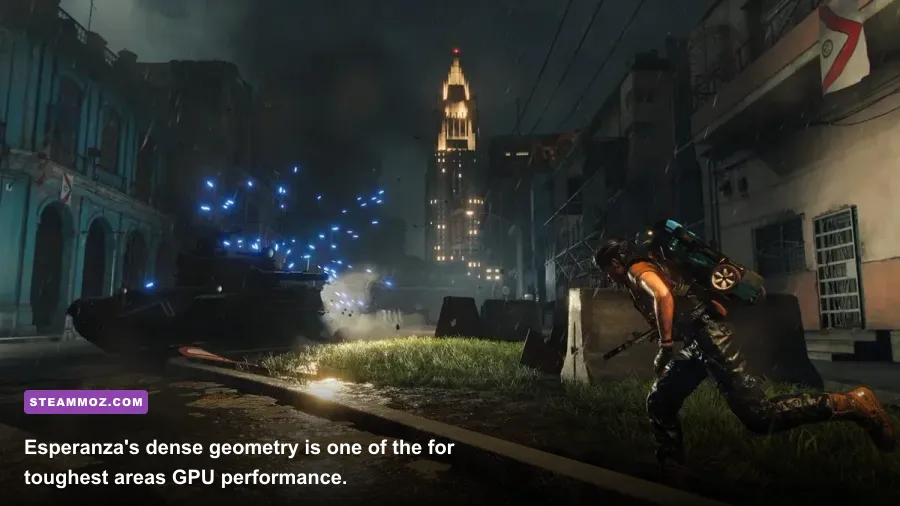
Before changing anything, update your GPU driver, install the game on an SSD, and let Far Cry 6 finish its shader preparation. Ubisoft's official Steam listing gives the baseline PC requirements, but those figures are only a starting point. A machine that technically meets the minimum can launch the game and still struggle badly in Esperanza or during a storm.
The best Far Cry 6 settings for maximum FPS

Use the following profile first. It is designed around stable frametimes rather than a screenshot-friendly average FPS number. Far Cry 6 feels much better at a locked 60 fps than it does bouncing between 48 and 75 fps whenever you sprint through vegetation.
| Setting | Recommended Value | FPS Impact | Visual Trade-Off |
|---|---|---|---|
| Resolution | Native or 100% scale | Very high | Lower only when the GPU is clearly overloaded |
| Textures | High | Low to medium | High preserves weapon and foliage detail |
| Texture Filtering | High | Low | Improves distant ground sharpness |
| Geometry and Vegetation | High | Medium | Lowering reduces object and foliage density |
| Environment | High | Medium | Medium can make towns look noticeably emptier |
| Water | High | Low to medium | Keep high unless coastal areas tank performance |
| Terrain | High | Low | Preserves hillside and rock detail |
| Volumetric Fog | Medium | High | Big improvement during smoke, rain, and dawn lighting |
| Shadows | Medium | High | Softens shadow detail but keeps scenes readable |
| Ray-Traced Reflections | Off | Very high | Water and glass lose subtle reflections |
| Ray-Traced Shadows | Off | High | Standard shadows remain perfectly serviceable |
| Anti-Aliasing | TAA | Low | Stable image with some distant softness |
| FSR 2 | Quality | Medium gain | Good 1440p compromise; use Balanced for heavier GPUs loads |
| Motion Blur | Off | Negligible | Sharper aiming and less visual smearing |
| Depth of Field | Off | Small | Cleaner weapon sight picture |
The crucial choices are Shadows, Volumetric Fog, and the two DXR options. Textures look expensive in menus, but they mostly consume VRAM instead of hammering the GPU every frame. Ray tracing does both: it increases shader work and adds more reflection or shadow calculations during already busy scenes.

🎮 Far Cry 6 - Game of the Year Upgrade Pass
Looking to experience this game? Grab your digital key directly on our store for $14.99.
View on Steammoz Store →What to change first when FPS drops
Don't immediately lower every option to Low. Far Cry 6's visual hierarchy is unusually forgiving if you reduce the right settings. Begin by checking the performance overlay during a repeatable test: stand near a busy checkpoint, drive into a city, and then fight a dozen enemies. The built-in benchmark is useful, but it doesn't fully represent traversal stutter in the open world.
1. Disable ray tracing before touching textures
Ray-Traced Reflections and Ray-Traced Shadows are the easiest settings to sacrifice. Reflections are most visible in water around Madrugada and Valle de Oro, while ray-traced shadows add nuance beneath trees and buildings. Neither improves target visibility enough to justify the cost in a fast firefight. On many mid-range cards, disabling both can recover roughly 15 to 30 percent of GPU performance, although the exact result depends on resolution and driver overhead.
2. Lower volumetric fog from High to Medium
High fog looks impressive during hurricanes, smoke-filled outposts, and sunrise scenes, but it is a costly layer over the entire image. Medium keeps the atmosphere intact while reducing the number and quality of volumetric samples. If your average is acceptable but your one-percent lows collapse during explosions, this is usually the first non-ray-tracing adjustment to make.
3. Reduce shadows only after fog
Shadows affect more than visual fidelity. High-quality cascaded shadows require extra rendering work across the scene, and the cost rises when you can see a long road, a plantation, and several buildings at once. Medium shadows retain convincing contact shading around vehicles and characters. Low shadows, by contrast, can make enemies look oddly detached from the ground.
4. Lower geometry and environment for CPU limits
If lowering resolution barely increases FPS, your GPU probably isn't the main problem. Watch CPU usage, frametime graphs, and background processes. Geometry, Environment, and Vegetation control how much the engine must stream and draw. Drop them from High to Medium if crowded bases, checkpoints, or Esperanza produce hitching while your GPU sits below full utilization.
| Symptom | Likely Limit | First Change | Expected Result |
|---|---|---|---|
| GPU at 99%, low average FPS | GPU workload | Disable DXR, then use FSR Quality | Higher average FPS with modest image loss |
| GPU below 90%, stutter in cities | CPU or streaming | Lower Environment and Geometry | Improved traversal and combat lows |
| Sharp hitching when driving | Storage, shader cache, or RAM | Move to SSD and close background apps | Fewer asset-streaming spikes |
| Blurry distant foliage | Upscaling or TAA | Use FSR Quality and raise filtering | Cleaner detail without a major FPS hit |
| VRAM warning with HD textures | Video memory capacity | Remove HD Texture Pack or lower textures | Less hitching and fewer texture pop-ins |
FSR 2, resolution, and image quality
Far Cry 6's upscaling options are valuable, but they shouldn't be treated as magic performance switches. FSR 2 Quality renders below native resolution and reconstructs the image. At 1440p, it is usually the best balance for a 60-fps target. Balanced adds more headroom for heavy weather and city fights, while Performance is better reserved for 4K systems that cannot maintain a playable frame rate otherwise.
At 1080p, native resolution with TAA can look cleaner than FSR Quality because the reconstruction has fewer pixels to work with. If your GPU can already hold 60 fps, keep the resolution native and use FSR only when you need additional room for higher shadows or a 120-Hz target. At 1440p, FSR Quality generally makes more sense, especially with a Radeon RX 6700 XT, GeForce RTX 3060 Ti, or faster card.
At 4K, don't chase native rendering unless you have genuinely high-end hardware. The game is heavy enough that FSR Quality or Balanced produces a much more consistent experience. The difference is easiest to spot in thin leaves, telephone wires, and distant railing; during actual combat, the steadier frame pacing matters far more.
Keep Texture Filtering high. It sharpens surfaces viewed at an angle and has a relatively small performance cost. Also disable Motion Blur and Depth of Field if you want a crisp first-person image. Motion blur is a cinematic preference, not a performance solution, and turning it off makes quick camera turns and weapon recoil easier to read.
HD texture pack and VRAM decisions
The HD Texture Pack is where many Far Cry 6 performance guides oversimplify the situation. Better textures don't always reduce average FPS, but they can create hitching when the card runs out of VRAM. The game streams huge surfaces across Yara, and the GOTY content adds more missions and locations without reducing the base game's memory demands.
Use High textures with 6 GB cards and keep the HD pack disabled unless the in-game VRAM meter leaves comfortable headroom. An 8 GB card can often run the pack at 1080p or 1440p with careful settings, but an 8 GB card is not automatically safe at 4K. Twelve gigabytes or more is the sensible target for HD textures at high resolution, especially if you also enable ray tracing.
The warning indicator is more useful than internet arguments about a card's theoretical capability. If it shows that the selected settings exceed available VRAM, expect texture pop-in, pauses when turning rapidly, or sudden drops after extended play. Lowering resolution can help the GPU, but it doesn't fully solve a VRAM capacity problem. Remove the HD pack or reduce textures instead.
| GPU VRAM | 1080p Profile | 1440p Profile | HD Texture Pack |
|---|---|---|---|
| 4 GB | Medium textures, DXR off, FSR Quality | FSR Balanced or lower resolution | Disable |
| 6 GB | High textures, DXR off | High textures, FSR Quality | Usually disable |
| 8 GB | Ultra textures possible, test carefully | High textures, DXR off | Playable with headroom checks |
| 12 GB or more | Ultra textures | High or Ultra textures | Recommended, especially below 4K |
| 16 GB or more | Ultra textures | Ultra textures and optional DXR | Best suited for 4K experiments |
RAM matters too. Ubisoft lists 8 GB for the minimum specification and 16 GB for the recommended target, but 16 GB is the practical floor if you want to play the base game alongside browsers, launchers, recording software, or the Season Pass content. Close overlays you don't need, particularly browser tabs that quietly consume several gigabytes.
Recommended FPS profiles for different PCs
There isn't one perfect Far Cry 6 preset. A competitive 1080p setup should prioritize input response, while a cinematic 4K machine can spend performance on fog and reflections. These profiles are better starting points than the game's broad Low, Medium, High, and Ultra presets because they target specific frame-rate goals.
| Target | Resolution | Core Settings | Practical Expectation |
|---|---|---|---|
| 60 FPS budget | 1080p | Medium textures, medium shadows, fog medium, DXR off, FSR Quality | Best for older 4 GB to 6 GB GPUs |
| 60 FPS balanced | 1440p | High textures, shadows medium, fog medium, DXR off, FSR Quality | Strong mid-range GPU target |
| 90-120 FPS | 1080p | High textures, geometry medium, fog medium, FSR Quality or Balanced | Requires a fast CPU and GPU |
| High-fidelity 60 FPS | 1440p | Ultra textures, shadows high, fog high, DXR off, FSR Quality | Needs high-end GPU and ample VRAM |
| Cinematic 4K | 2160p | High textures, fog medium, DXR optional, FSR Quality | Use a frame cap to smooth heavy scenes |
For 60-Hz monitors, cap the frame rate at 60 if your system can hold it. For 120-Hz displays, a 90 or 100 fps cap can feel better than allowing the frame rate to swing wildly. Use the game's limiter first; if it produces inconsistent pacing on your system, test a driver-level cap. V-sync depends on your display: adaptive sync users should generally leave in-game V-sync off and let FreeSync or G-SYNC handle the presentation.
Windows, drivers, and stutter fixes
Far Cry 6's settings menu cannot fix every hitch. Install it on an SSD with at least 20 GB of free space beyond the game's footprint so Windows and the shader cache aren't fighting for room. Update your AMD, Nvidia, or Intel driver, then restart the PC instead of immediately launching through Ubisoft Connect.
Disable unnecessary overlays from Ubisoft Connect, Steam, Discord, and GeForce Experience while testing. They don't always cause problems, but stacking several hooks makes troubleshooting needlessly messy. If performance worsens after a driver update, clear the graphics shader cache and let it rebuild; the first run afterward may stutter briefly as new shaders compile.
Windows Game Mode is worth leaving on. Hardware-accelerated GPU scheduling can help some systems and hurt others, so test it rather than treating it as a universal tweak. Don't use aggressive process-priority tools, registry hacks, or random config files promising a hidden “boost.” They can destabilize the game, interfere with anti-cheat components, and make reliable comparisons impossible.
Keep the GPU temperature and clock stable. A laptop that begins at 90 fps and falls to 62 fps after fifteen minutes may be thermal throttling, not badly chosen shadows. Plug laptops into wall power, select the manufacturer's performance mode, and make sure the game uses the discrete GPU. On desktops, check that the monitor cable is connected to the graphics card rather than the motherboard.
Settings that matter in the GOTY content
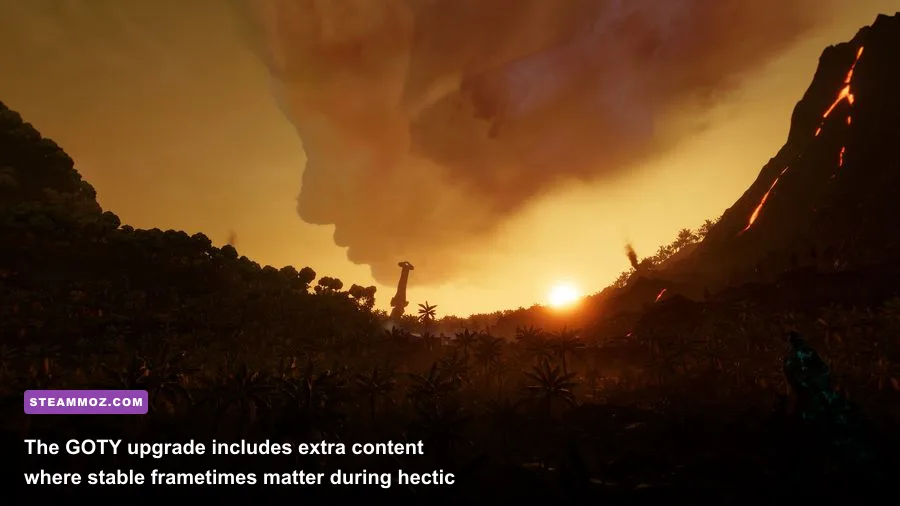
Vaas: Insanity, Pagan: Control, and Joseph: Collapse are more contained than Yara, but that doesn't make them free of performance spikes. Their visual effects, enemy waves, and dense combat arenas can stress volumetric fog and shadows more than a quiet island road. The same balanced profile works well, especially when modifiers or enemy groups fill the screen.
Special Operations are a useful stress test because the objective often forces you through exposed terrain while enemies attack from multiple directions. Toxic Supremo containers, fire, smoke, and water effects can produce short-lived drops. If those lows bother you, lower fog before texture quality. You want enemy silhouettes and weapon detail to stay readable while the atmosphere takes the hit.
For the toughest test, load a busy checkpoint near Esperanza, trigger an alarm, and fight while driving or using a Supremo. This combines AI, destruction, particles, vehicles, and streaming. Measure the one-percent lows, not just the average. A profile that reports 80 fps but repeatedly plunges to 35 will feel worse than a locked 60 profile with consistent delivery.
Players comparing this optimization work with other PC-focused guides may also find Steamoz's Dragonkin performance settings guide useful for understanding why stable frametimes beat inflated averages. Our ELEX PC fixes cover a similar driver-and-streaming troubleshooting process, while the Everspace 2 FPS guide has additional advice for isolating graphics bottlenecks.
Final Far Cry 6 performance verdict
For most players using the Far Cry 6 Game of the Year Upgrade Pass, the winning setup is simple: High textures, High filtering, High terrain and environment, Medium shadows, Medium volumetric fog, DXR off, motion blur off, and FSR 2 Quality at 1440p. That combination protects Yara's lush look while removing the settings most likely to wreck one-percent lows.
Only add the HD Texture Pack after checking VRAM headroom. Only enable ray tracing when your GPU can absorb the hit without compromising your target frame rate. If you're chasing 120 fps, reduce geometry and environment before turning the entire image into a blurry Low preset. And if the game still stutters after sensible settings, investigate storage, shader caches, CPU limits, and thermals rather than endlessly lowering resolution.
For official reference, compare your system against the Far Cry 6 official game page, check Ubisoft's support documentation, and review the official PC edition listing. Once your frame pacing is stable, the GOTY upgrade's extra campaigns and Yaran chaos look far better than they do through a constantly hitching, over-tuned Ultra preset.