If EVERSPACE 2: Wrath of the Ancients is crashing, stuttering, or running at low FPS on PC, start with a clean file check, updated GPU driver, disabled overlays, and a sensible upscaling profile. Then lower volumetric effects, shadows, and volumetric fog before touching texture quality. Those steps solve most expansion-related crashes and usually deliver a much steadier frame rate without making the game look like a blurry starfield.
The important distinction is whether you have a crash, a consistently low frame rate, or sudden hitching during new encounters. They can look similar, but the fixes are different. A crash usually points to corrupted files, a driver conflict, an overlay, unstable overclocking, or an access problem. Low FPS is normally a GPU or CPU limit. Hitching often comes from shader compilation, streaming, background software, or a frame-time spike when a busy combat scene loads.
Before changing anything, note your GPU, CPU, RAM, resolution, current FPS, and exactly when the problem happens. A crash during launch is a different case from a crash after entering a new Wrath of the Ancients mission. Keep the official EVERSPACE 2 Steam page bookmarked for build updates, and check ROCKFISH Games’ Steam announcements before spending an hour chasing a bug that already has a hotfix.

Fix EVERSPACE 2 crashes before changing graphics
Crashes should be handled in a controlled order. Don’t immediately delete your saves or reinstall Windows. First, close the game and Steam completely, including Steam from the system tray. Reboot once, then launch the game with every non-essential overlay disabled. Steam Overlay, Discord Overlay, GeForce Experience, AMD Adrenalin recording, Xbox Game Bar, MSI Afterburner’s OSD, and RGB utilities can all hook into a DirectX game at the wrong moment.
1. Verify the base game and expansion files
In Steam, right-click EVERSPACE 2, choose Properties, open Installed Files, and select Verify integrity of game files. Let the process finish rather than launching while Steam is still repairing files. This is especially useful after a major update, moving the game between drives, or installing Wrath of the Ancients while Steam was downloading other content. A damaged archive can cause a crash only when the game reaches a particular mission, location, ship effect, or enemy asset.
If verification repeatedly reacquires the same files, check the drive. Leave free space for updates, remove read-only permissions from the library folder, and avoid installing the game inside a cloud-synced directory. Security software can also quarantine a file after an update; add the Steam library and the game executable to your antivirus exceptions only if you trust the installation.
2. Perform a clean GPU driver update
Update your NVIDIA, AMD, or Intel driver from the manufacturer’s official site, not from a random driver mirror. If the crashes started immediately after a driver update, roll back to the previous stable driver instead. A clean installation is worthwhile when the game crashes after changing DLSS, FSR, HDR, or resolution. NVIDIA users can select Custom installation and Perform a clean installation; AMD users should use the factory-reset option in Adrenalin if an old profile appears corrupted.
Don’t combine a driver update with five other changes. Update, reboot, and test the same save in the same location. If the first run stutters, give the game a few minutes to rebuild shader data. Repeatedly quitting during that process can make the next launch look worse, not better.
3. Remove unstable tuning and reset configuration
Temporarily return your CPU, GPU, RAM, and undervolt settings to stock. A profile that survives a benchmark can still fail during a long dogfight with heavy particle effects. Also turn off frame-generation experiments, third-party sharpening, and custom launch commands while troubleshooting. If the game will not reach the menu, use Steam’s launch options to test a safe display mode, such as -windowed, then remove the command after recovery.
Resetting the local graphics configuration can fix a crash loop caused by a bad resolution or renderer setting. Back up your save files first, then locate EVERSPACE 2’s local configuration folder through Windows search or the game’s support instructions. Rename the configuration folder rather than deleting it. Start the game, allow it to create fresh settings, and test before copying anything back. Your saves are valuable; configuration files are replaceable.
For deeper cases, send a crash report and system details through the official ROCKFISH support portal. Include the crash timing, GPU driver version, Windows version, whether an overlay was active, and the last location or mission you entered. “It crashed” is hard to action; “it crashes every time after loading a Wrath of the Ancients mission with DLSS enabled on driver version X” is useful evidence.
🎮 EVERSPACE 2 - Wrath of the Ancients
Looking to experience this game? Grab your digital key directly on our store for $14.99.
View on Steammoz Store →The best PC settings for higher FPS
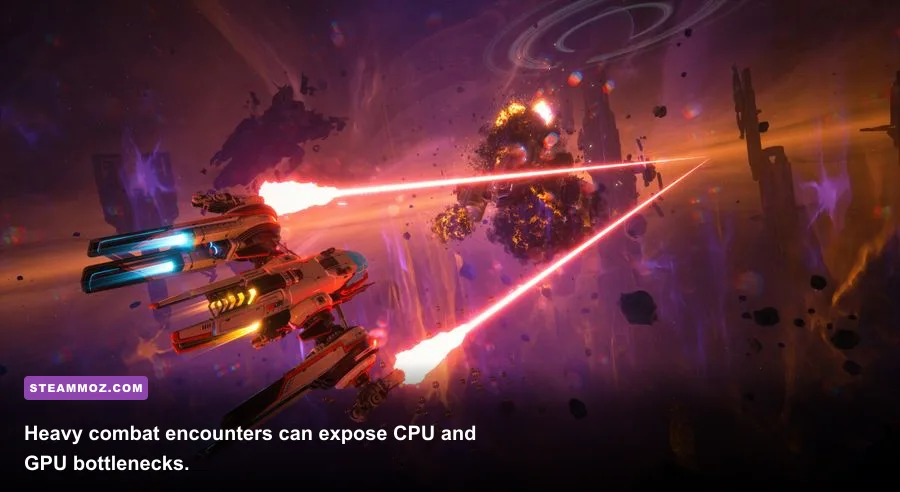
Once the game is stable, tune performance one setting at a time. Start with a frame-rate target: 60 FPS for most systems, 90 or 120 FPS for high-refresh monitors, and a locked 30 or 45 FPS if your hardware cannot sustain 60. A stable frame time feels much better than a wildly fluctuating counter. If you use a 144 Hz display, cap the game at 72 or 90 FPS when the GPU cannot hold 144; consistency beats chasing a number you see only in empty space.
| Setting | Recommended Value | FPS Impact | Visual Trade-Off |
|---|---|---|---|
| Resolution | Native, then 90% scale if needed | High | Lowering it helps immediately but softens the cockpit and HUD |
| Upscaling | DLSS Quality, FSR Quality, or XeSS Quality | High positive | Quality modes preserve ship detail better than Performance |
| Volumetric Fog | Medium | Medium to high | Less dense nebula depth and light scattering |
| Shadows | Medium | Medium | Contact shadows become less defined around stations |
| Effects and Particles | High on modern GPUs, Medium on older cards | Medium | Lower values reduce explosions and weapon bloom |
| Reflections | Medium | Medium | Station and cockpit reflections lose clarity |
| Textures | High if VRAM allows | Low FPS impact, high VRAM use | Lower texture detail is noticeable on ships and interiors |
| Motion Blur | Off | Small | Cleaner target tracking and less smear |
Upscaling is the biggest easy win because it reduces the number of pixels your GPU renders before reconstructing the image. Use DLSS Quality on a compatible NVIDIA card, FSR Quality on AMD or mixed hardware, and XeSS Quality when Intel’s solution gives you the cleanest image. Avoid jumping straight to Performance mode. In a space game, thin cables, targeting brackets, distant ships, and asteroid edges make aggressive upscaling shimmer quickly.
If you’re still below target, lower volumetric fog and shadows before textures. Textures mostly consume VRAM; they don’t normally cause a large FPS drop unless the card is running out of memory and constantly streaming. Fog and shadows affect every busy scene, especially areas with glowing nebulae, stations, and multiple ships. Keep textures High, if your VRAM permits, because lowering them makes the game look worse for a relatively small average-FPS gain.
Three practical profiles
| Hardware Situation | Resolution Profile | Key Settings | Expected Goal |
|---|---|---|---|
| Entry-level 1080p GPU | 1080p with FSR or XeSS Quality | Medium shadows, Medium fog, Medium effects, High textures if VRAM allows | Stable 45–60 FPS |
| Mainstream 1080p/1440p GPU | Native 1080p or DLSS/FSR Quality | High textures, Medium fog, High effects, Medium shadows | Stable 60–90 FPS |
| High-end 1440p GPU | Native 1440p or Quality upscaling | High textures, High effects, High shadows, Medium-to-High fog | Stable 90–144 FPS where CPU allows |
Disable motion blur if you’re sensitive to smear, but don’t expect it to transform performance. The same goes for depth of field and chromatic aberration: they improve clarity when disabled, yet they aren’t the main reason a crowded fight runs slowly. For more PC tuning ideas, Steamoz’s Dragonkin settings guide covers the same useful principle: cut expensive effects first and preserve the details you actually notice.
Stop stutters caused by CPU load and background apps
A low GPU percentage is the giveaway here. If your GPU sits around 60–75 percent while FPS collapses during a large fight, the processor, asset streaming, or a background task may be limiting the frame. Closing a browser with video tabs, launchers, RGB suites, hardware monitors, and recording software can smooth frame times. Windows Game Mode is generally worth leaving enabled, while unnecessary startup applications should be disabled in Task Manager.
Watch frame time rather than average FPS. At 60 FPS, each frame has about 16.7 milliseconds. A sudden 40 ms spike feels like a hitch even if the counter still reports 60. Use the Steam performance overlay or a trusted monitoring tool, but turn off the overlay after testing if it becomes part of the problem. Compare an open-space flight, a station interior, and a busy Wrath of the Ancients combat encounter. That three-location test shows whether the issue is general rendering or scene-specific simulation.
Windows and storage checks
Install the game on an SSD when possible. A hard drive can still run many games, but streaming large environments and effects is more likely to produce pauses. Keep Windows’ page file set to system-managed unless you have a specific reason to change it, and close other applications that are consuming RAM. The Steam page lists 8 GB as the minimum memory class and 16 GB as the safer target; modern expansion content, browsers, and background apps make 16 GB the practical starting point.
Use Windows power settings that allow full performance while plugged in. On laptops, connect the charger and confirm that EVERSPACE 2 is using the dedicated GPU rather than integrated graphics. NVIDIA Control Panel and AMD Adrenalin both let you select the preferred high-performance GPU per application. A laptop accidentally running the game on integrated graphics will look like a broken optimization problem, but no amount of shadow tweaking will make that experience pleasant.
Don’t use a RAM cleaner or “FPS booster.” These utilities often close useful caches, inject overlays, or change power settings unpredictably. The best performance tools are boring: current drivers, clean background processes, sensible limits, and a repeatable test route. That’s the same reason our PC requirements coverage focuses on real hardware headroom instead of miracle software.
Patch-day troubleshooting for Wrath of the Ancients
New expansion content can expose problems that never appeared in the base campaign. A fresh mission may load different ship meshes, lighting, audio, and effects, while a new save checkpoint can reproduce the same crash reliably. If the base game is stable but the expansion is not, avoid overwriting your only save. Make a backup, test an earlier manual save, and record whether the crash follows the mission, the location, or the graphics option.
A clean test sequence
- Restart Steam and Windows. This clears stuck downloads, driver state, and processes holding files open.
- Verify game files. Wait for Steam to finish repairing the installation.
- Disable overlays and recording. Test with Steam Overlay, Discord, Game Bar, and GPU capture tools off.
- Reset graphics to a conservative profile. Use 1080p, Quality upscaling, Medium fog, Medium shadows, and a 60 FPS cap.
- Load a backup or earlier save. Test the same mission and note the exact trigger.
- Change one feature at a time. Re-enable HDR, overlays, frame generation, or higher effects individually.
That sequence matters because it separates installation damage from a reproducible game bug. If the crash persists on a clean configuration and occurs at the same point, stop cycling through random settings. Check the latest official EVERSPACE website and support channels, then submit the report with your save location, hardware, driver, and steps to reproduce.
If FPS is fine in the original campaign but drops only in expansion combat, use a temporary performance profile rather than wrecking image quality everywhere. Lower fog, reflections, and effects for those encounters, cap the frame rate, and restore High settings after leaving the heavy scene. Players coming from other demanding games may also appreciate Steamoz’s DeltaZeal beginner pilot guide, which takes a similarly practical approach to surviving space combat without wasting resources.
Finally, remember that shader stutter after a driver change can settle after several minutes of normal play. Don’t judge the first corridor, station, or combat encounter immediately after updating. Let shaders build, then restart the game and repeat the test. If crashes disappear and frame times stay consistent, you’ve found the fix. If they don’t, the evidence you collected is now specific enough for ROCKFISH—or the hardware vendor—to act on.