The best Filament - Marmalade Edition graphics settings are 1080p or 1440p resolution, Fullscreen mode, V-Sync off, anti-aliasing on a medium setting, and shadows and post-processing reduced before texture quality. Filament is not a demanding PC game, but its dark corridors, glowing cables, reflective machinery, and camera movement can create uneven frame pacing on older laptops. The profile below prioritizes a locked 60 FPS without making the Alabaster look flat or muddy.
That distinction matters. This isn't a twitch shooter where a jump from 90 to 120 FPS changes your aim. Filament is a first-person puzzle game built around the abandoned Alabaster, a research vessel filled with hundreds of cable-routing challenges. A consistent frame time makes rotating rooms, tracing colored connections, and reading small visual clues feel much better than an unstable peak frame rate.
The official Steam listing for Filament confirms the game's modest PC footprint, while the developer's Filament page provides the game's core presentation and design context. Marmalade Edition includes the same puzzle-focused experience, so these recommendations apply to that release rather than a separate graphics engine.
Best Filament Marmalade Edition settings at a glance
Start with the table below, then adjust one option at a time. The goal is not simply to select every low preset. Filament's visual style depends on clean color separation: a red cable should remain obviously red, a glowing node should stand out against the room, and machinery should keep enough texture to communicate depth.
| Setting | Recommended value | Estimated FPS impact | Visual result |
|---|---|---|---|
| Display mode | Fullscreen | Low, but improves consistency | Usually gives the cleanest frame pacing and input response |
| Resolution | Native 1080p or 1440p | High at 4K | Preserves readable cables and sharp puzzle outlines |
| V-Sync | Off, unless you see tearing | 0 FPS cost when off | Reduces latency; use a driver cap if needed |
| Texture quality | High | Low on modern GPUs | Keeps ship panels, floor seams, and equipment detailed |
| Anti-aliasing | Medium or High | Low to medium | Smooths cable edges without excessive blur |
| Shadows | Medium | Medium to high | Retains room depth while removing expensive softness |
| Effects and post-processing | Medium | Medium | Controls glow, bloom, and atmospheric cost |
| View distance | High | Low | Useful in larger puzzle chambers and corridors |
| Frame cap | 60 FPS or monitor refresh rate | Improves stability | Prevents needless GPU spikes and fan noise |
Texture quality is the setting I would protect first. Filament does not stream a huge open world, so high textures generally offer a good visual return for a small performance cost. Shadows are the better place to cut. The game uses lighting to sell the lonely, industrial mood of the Alabaster, but shadow resolution and filtering can consume considerably more GPU time than the puzzle geometry itself.
If you're on a 60Hz monitor, cap the game at 60 FPS after confirming it can hold that number. If you use a 120Hz or 144Hz display, a 90 or 120 FPS cap is sensible only if your system can maintain it in every room. A stable 60 is preferable to a graph that swings between 130 and 58 whenever you enter a heavily lit chamber.

🎮 Filament - Marmalade Edition
Looking to experience this game? Grab your digital key directly on our store for $3.99.
View on Steammoz Store →The best 1080p, 1440p, and low-end profiles
Filament scales unusually well because its levels are enclosed rather than sprawling outdoor environments. The biggest differences between machines usually come from resolution, driver overhead, background applications, and frame pacing rather than raw game complexity. Use these profiles as practical starting points, not as a reason to force every slider to its maximum.
| Profile | Resolution and mode | Quality settings | Target |
|---|---|---|---|
| Low-end laptop | 1920x1080 Fullscreen | Textures Medium, AA Low, Shadows Low, Effects Low, V-Sync Off | Locked 60 FPS where possible |
| Balanced 1080p | 1920x1080 Fullscreen | Textures High, AA Medium, Shadows Medium, Effects Medium, View Distance High | Stable 60-120 FPS |
| Balanced 1440p | 2560x1440 Fullscreen | Textures High, AA High, Shadows Medium, Effects Medium, V-Sync Off | Stable 60 FPS |
| High-end 1440p | 2560x1440 Fullscreen | Textures High, AA High, Shadows High, Effects High, View Distance High | 90 FPS or higher |
| 4K quality | 3840x2160 Fullscreen | Textures High, AA High, Shadows Medium, Effects Medium | Locked 60 FPS with headroom |
What to change first on an integrated GPU
Start by lowering resolution only if the balanced 1080p profile cannot hold 60 FPS. On an integrated GPU, a 1600x900 or 1280x720 render target can provide a substantial gain, but the cable puzzles will become harder to inspect. If the game offers a resolution scale option, use it before dropping the desktop resolution; a small reduction, such as 90 percent, often preserves a cleaner interface.
Next, lower shadows and effects. Keep textures at Medium unless you see memory pressure or hitching. Texture quality affects VRAM usage more than average FPS, while shadows and effects tend to affect the actual rendering workload. Close browser tabs, recording software, and RGB utilities before testing. Filament is light enough that background programs can represent a surprisingly large share of the frame-time problem on older systems.
Players who have tuned other demanding PC games may recognize the approach in our Dragonkin performance settings guide: reduce the expensive effects first, then protect clarity-critical details. The same principle works here, even though Filament's requirements are far less aggressive.
Why shadows, bloom, and anti-aliasing matter in Filament
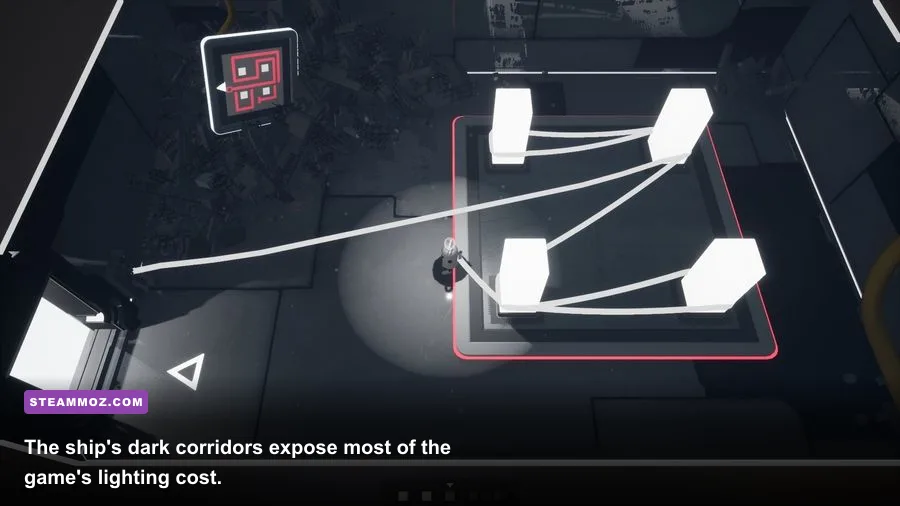
Filament's performance profile is mostly a lighting problem rather than a geometry problem. The Alabaster's puzzle rooms are full of emissive screens, colored cable ends, metal surfaces, and small light sources. When several of those elements overlap, post-processing and shadow filtering can create frame-time spikes that are easy to miss if you watch only the average FPS counter.
Shadows
High shadows are attractive in the larger rooms, especially where machinery casts layered silhouettes across the floor. They are also the first setting worth reducing on a GTX 1050, older Radeon card, Steam Deck-like hardware, or integrated graphics. Medium usually keeps enough contact shadow to make walls, platforms, and cable stations readable. Low can look flatter, but it is a fair trade if it turns a 45 FPS traversal dip into a locked 60.
Effects and bloom
Effects control the atmosphere around bright components. Excessive bloom can soften the boundaries of glowing cable nodes and make a busy puzzle board look less precise. Medium is the sweet spot: you retain the ship's cold, luminous personality without paying for maximum glow in every room. If you are sensitive to shimmering or halos, reducing effects may improve visual clarity as much as it improves performance.
Anti-aliasing
Anti-aliasing deserves a little more care. Low anti-aliasing can leave diagonal cables and thin railings visibly jagged, particularly at 1080p. High anti-aliasing can introduce a softer image depending on the implementation and resolution. Medium is the safest recommendation for 1080p. At 1440p, High is usually worthwhile because the extra pixel density already limits the blur penalty.
Don't lower textures and anti-aliasing together just because a preset tells you to. That combination removes surface detail and makes the cable network shimmer at the same time. Cut shadows first, then effects, then anti-aliasing. This order preserves the game's visual language and keeps the puzzles readable.
How to eliminate stutter and inconsistent frame pacing
A high FPS number does not guarantee smooth Filament gameplay. Moving through the Alabaster can trigger asset loading, lighting changes, or shader compilation. The result may be a short hitch when entering a new section, followed by perfectly normal performance. Because puzzle-solving involves deliberate camera movement, these interruptions stand out more than they would in a frantic action game.
Use a sensible cap
Set an in-game limit if one is available. Otherwise, use your GPU control panel or an overlay limiter. For a 60Hz display, 60 FPS is the obvious starting point. On a 144Hz monitor, try 72 or 90 FPS if the game cannot hold 144 consistently. A cap that leaves roughly 10 to 15 percent GPU headroom helps prevent sudden spikes when a room adds more lights.
Choose one synchronization strategy
V-Sync off gives the lowest latency, but you may see tearing during slow camera pans. V-Sync on removes tearing at the cost of added queueing and, on some systems, more noticeable drops when the frame rate falls below refresh. With a FreeSync or G-SYNC-compatible display, enable adaptive sync in the monitor and driver, disable in-game V-Sync if it behaves poorly, and cap FPS a few frames below refresh.
Check the simple PC fixes
- Install Filament on an SSD if you have one. It won't transform average FPS, but it can reduce loading pauses.
- Use the latest stable GPU driver rather than an experimental preview driver.
- Disable overlays from Steam, Discord, Xbox Game Bar, and recording software while benchmarking.
- Set Windows to a normal or high-performance power plan when playing on a plugged-in laptop.
- Watch GPU usage, CPU usage, temperatures, and frame time together. A low GPU percentage with stutter often points to background tasks, power limits, or shader compilation rather than graphics quality.
For broader troubleshooting habits, our ELEX PC fixes guide covers the same driver, overlay, and configuration checks in more demanding conditions. Filament rarely needs extreme intervention, but the diagnostic logic is identical.
Filament performance testing that actually tells you something
Don't benchmark only the opening area. The early Alabaster corridors are relatively light, while larger puzzle rooms combine more lights, reflective surfaces, and interactive machinery. A useful test should include movement through a corridor, a room transition, and several minutes looking across a populated puzzle board.
| Test scene | What to watch | Warning sign | Best adjustment |
|---|---|---|---|
| Dark corridor with bright panels | Effects and bloom frame time | Brief drops when turning toward lights | Lower Effects to Medium or Low |
| Large cable puzzle room | GPU usage and shadow cost | GPU reaches 99 percent with dips below target | Lower Shadows before Textures |
| Door or room transition | One-off loading hitch | Repeated stutter every transition | Move installation to SSD and check overlays |
| Slow 180-degree camera pan | Tearing and frame pacing | Uneven motion despite high average FPS | Use a cap and adaptive sync strategy |
| Long puzzle session | Thermal stability | Performance falls after 15-30 minutes | Improve cooling or reduce power-limit heat |
Use a frame-time graph rather than relying on an FPS counter. A flat line near 16.7 milliseconds means a clean 60 FPS experience. Repeated spikes to 25 or 33 milliseconds explain why the game feels hesitant even if the counter says 58 or 60. Capture the same route after every change, and alter only one setting per pass.
There is no universal “best” preset because display resolution changes the balance. At 1080p, anti-aliasing and cable clarity matter more. At 1440p, you can often raise anti-aliasing while keeping shadows at Medium. At 4K, resolution becomes the dominant cost, so lowering shadows may not be enough if the GPU is already saturated by pixel count.
My final max-FPS profile for Marmalade Edition
For most gaming PCs, I recommend 1080p or 1440p native resolution, Fullscreen, High textures, Medium anti-aliasing, Medium shadows, Medium effects, High view distance, V-Sync off, and a frame cap matched to the refresh rate. This profile keeps the Alabaster's panels and machinery sharp while removing the settings most likely to create unnecessary GPU load.
On a modern mid-range desktop, the sensible target is a locked 60 FPS at 1440p, with enough headroom to experiment with High shadows or effects. On an entry-level laptop, use 1080p, Medium textures, Low shadows, Low-to-Medium effects, and a 60 FPS cap. On a high-end PC, 4K at 60 FPS is reasonable, but don't assume the Ultra-style combination is automatically better: heavy bloom can make puzzle elements less legible, and maximum shadows add atmosphere rather than useful information.
| Hardware situation | First choice | Second choice | What to avoid |
|---|---|---|---|
| Integrated graphics | 1080p, Low shadows, Medium textures | 900p or resolution scale reduction | 4K output and maximum effects |
| Older dedicated GPU | 1080p, Medium shadows and effects | 60 FPS cap with adaptive sync | High shadows at uncapped FPS |
| Mainstream gaming PC | 1440p, High textures, Medium shadows | Raise AA before lighting effects | Changing several settings at once |
| High-end desktop | 1440p high refresh or 4K 60 | High shadows after checking frame time | Uncapped GPU load for no practical gain |
Filament is already a friendly game for modest hardware, so the best optimization is restraint. Don't sacrifice texture detail or puzzle readability to chase a three-digit FPS number. Lock a frame rate your system can hold, keep lighting effects under control, and test the larger rooms rather than trusting the first corridor. If you enjoy digging into older PC releases, our Drawful 2 PC requirements breakdown and Far Cry 2 performance guide offer useful comparisons for lightweight and legacy-friendly games.
The result is exactly what Filament needs: smooth camera movement, stable puzzle inspection, fast room transitions, and enough visual detail to make the Alabaster feel like a real ship instead of a collection of flat test chambers.