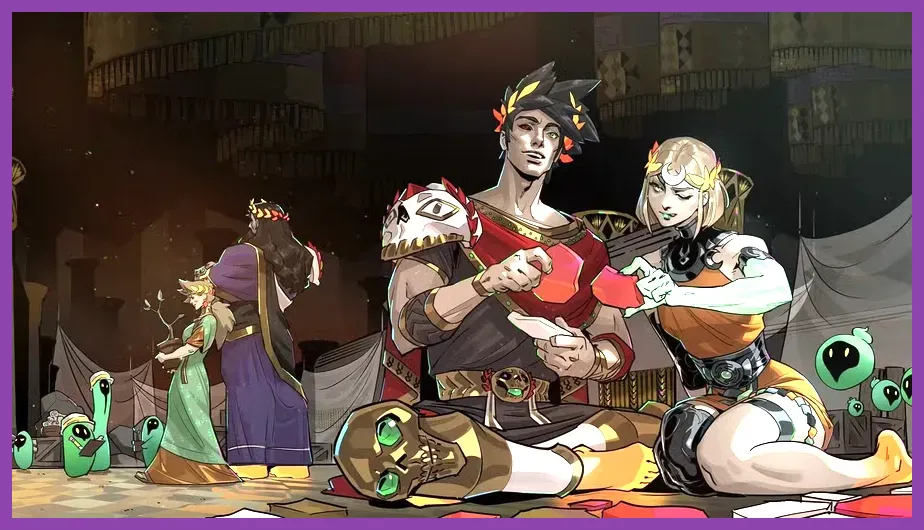
For the highest FPS in Hades 2 on PC, use Fullscreen, your monitor’s native resolution, VSync Off, a 120 or 144 FPS cap, Shadows Low, Effects Medium, Particles Low, and Anti-Aliasing Low or Off. Keep Textures High and Texture Filtering High because they preserve the game’s sharp hand-painted art with a small performance cost. This profile is the best starting point for stable frame pacing rather than an inflated peak-FPS number.
Hades II is less demanding than most modern action games, but its busiest rooms can still produce noticeable dips when several enemies, projectiles, casts, and environmental effects appear together. Melinoe’s Witch Staff, Sister Blades, Moonstone Axe, Argent Skull, Umbral Flames, and Black Coat all create different visual workloads. A setting that looks fine in a quiet Erebus chamber may struggle during Hecate’s fire patterns, Scylla’s concert arena, or a crowded Fields of Mourning encounter.
This guide covers the PC version and prioritizes responsive dodging, clear telegraphs, and consistent frame delivery. For broader troubleshooting, our guide to DREDGE’s best settings for max FPS uses the same important distinction between average FPS and reliable frame pacing.
Best Hades 2 Settings for Maximum FPS
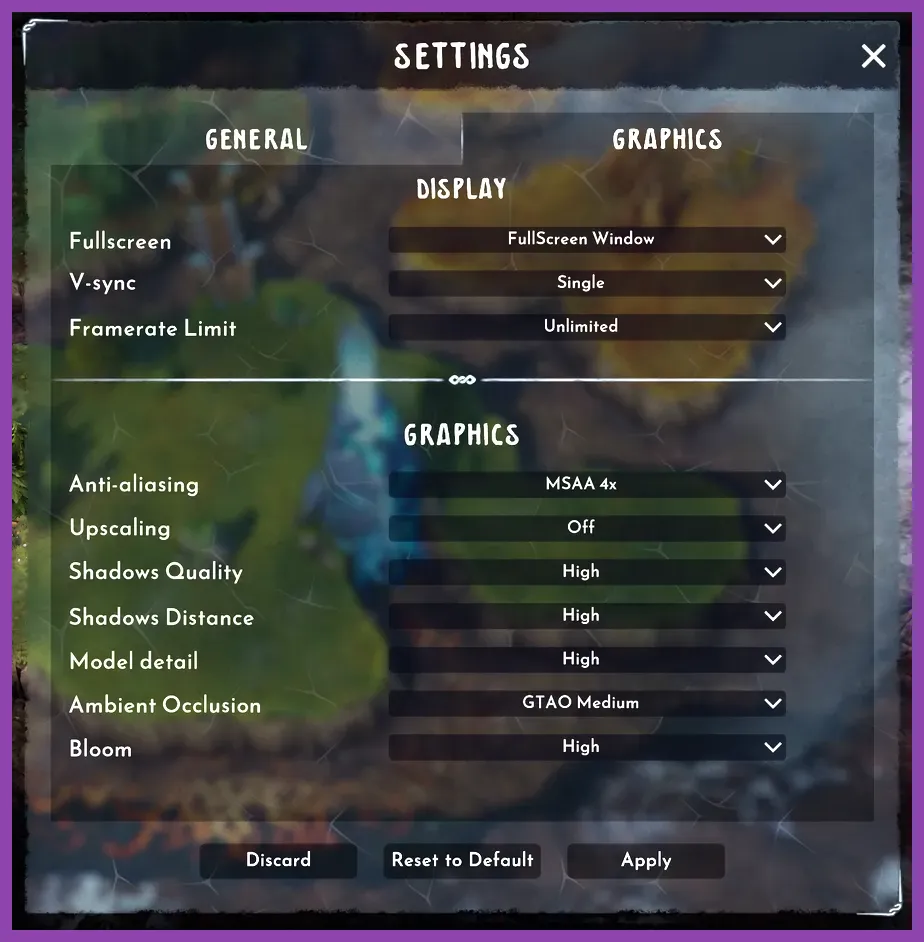
Start with the following competitive performance profile. The exact names or availability of some options can change as Supergiant Games updates Early Access, so use the closest matching option in your current build.
| Setting | Recommended value | Why it works |
|---|---|---|
| Display Mode | Fullscreen | Reduces desktop compositor interference and improves consistency. |
| Resolution | Native resolution | Keeps text and attack telegraphs sharp; lower only if GPU-limited. |
| VSync | Off | Removes the traditional synchronization wait for the lowest latency. |
| Frame Rate Limit | 120 or 144 FPS | Prevents needless rendering above your display’s useful refresh rate. |
| Quality Preset | Custom | Allows targeted reductions instead of lowering every visual option. |
| Shadows | Low | One of the safest reductions in busy rooms and boss arenas. |
| Effects Quality | Medium | Controls costly spell, lighting, and impact effects while retaining clarity. |
| Particle Quality | Low | Helps when many projectiles or enemy attacks overlap. |
| Anti-Aliasing | Low or Off | Improves GPU headroom with limited impact at 1080p. |
| Texture Quality | High | Usually costs more VRAM than frame rate; retain it when possible. |
| Texture Filtering | High | Keeps floor and wall art clear at oblique angles for a small cost. |
If your menu combines Effects and Particles into a single option, choose Medium first, then test Low only if the frame rate still dips. Do not automatically select the lowest preset: Hades 2’s visual identity depends heavily on crisp textures, colored lighting, and readable spell effects. Shadows and particles are generally better sacrifices than texture detail.
Set the frame cap just below your display’s refresh rate when using variable-refresh-rate technology. For a 144Hz monitor, try 141 FPS; for 120Hz, try 117 FPS. If Hades II does not offer the exact cap you want, use your GPU driver or an external limiter. A locked 60 FPS is preferable to an erratic 80-110 FPS on weaker hardware, because consistent timing makes dash windows and enemy telegraphs easier to read.
Best Resolution and Display Options
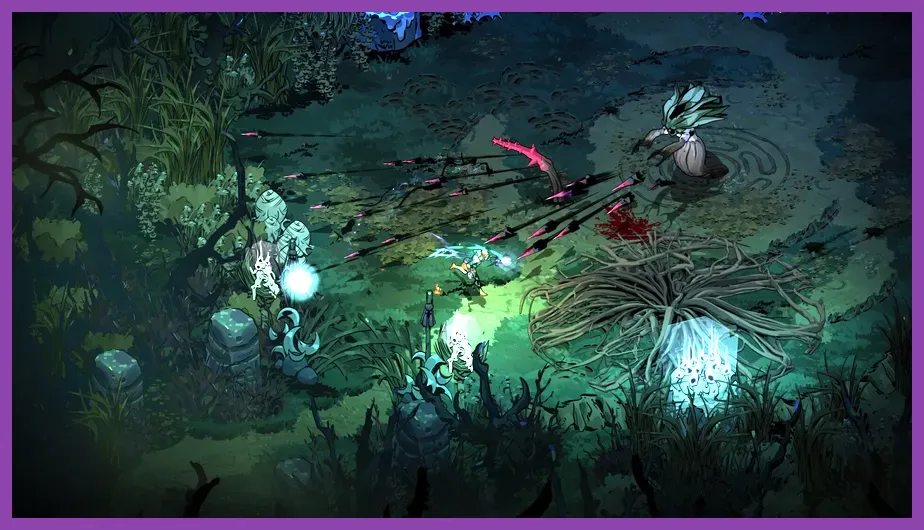
Resolution has a much larger effect on GPU load than most individual quality sliders. At 1080p, the maximum-FPS profile should normally stay at native resolution. At 1440p or 4K, begin with native resolution and reduce it only after testing Shadows, Effects, Particles, and Anti-Aliasing. Lowering resolution makes every UI element and combat outline softer, while those four settings usually provide better performance per visual sacrifice.
Use exclusive or standard Fullscreen if the game presents that choice. Borderless Windowed is convenient for alt-tabbing, but it can introduce additional compositor behavior on Windows. The difference is small on many current systems, yet Fullscreen is the correct first choice when the goal is maximum and most stable FPS.
Turn VSync Off when your priority is input response. VSync can prevent tearing, but it may also add latency and cause a sudden step down when the computer misses the display’s refresh interval. If you see obvious tearing and have FreeSync or G-SYNC, enable VRR in the monitor and driver, keep in-game VSync Off if that combination behaves correctly, and cap the frame rate a few frames below the refresh ceiling.
Brightness is not an FPS setting. Leave it at a level where shadows in Erebus remain visible without washing out Melinoe’s outlines. Likewise, controller vibration, rumble, and audio settings have no meaningful frame-rate benefit. Disabling them may improve comfort, but it will not solve a GPU bottleneck.
Windows scaling and overlays deserve attention when performance seems inexplicably poor. Disable unnecessary Xbox Game Bar, Discord, browser, and recording overlays while testing. Add the game to your GPU’s high-performance application list, keep the laptop connected to power, and select the dedicated GPU rather than integrated graphics. These changes matter more than lowering texture quality on a modern desktop.
Which Graphics Settings Affect FPS Most?
1. Shadows
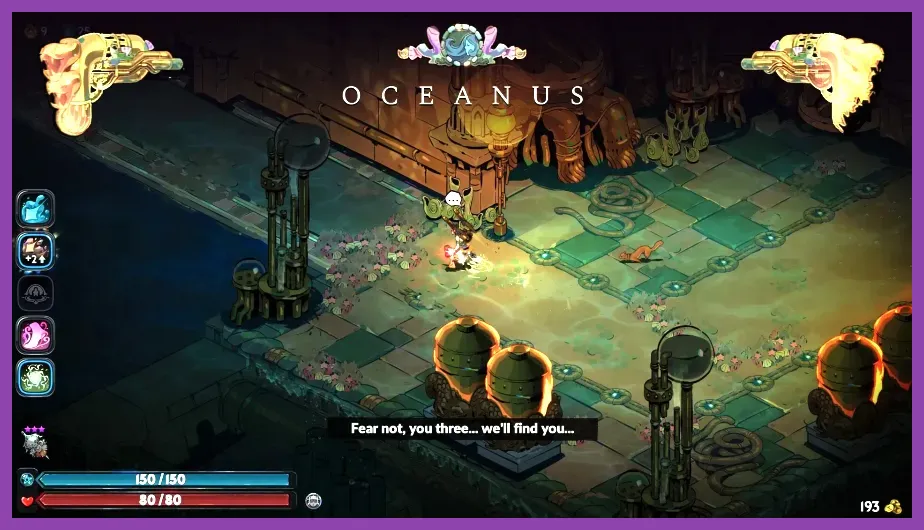
Shadows are the first setting to reduce. They affect the number and quality of dynamic shadow calculations around Melinoe, enemies, rooms, and lighting sources. Low shadows usually preserve the important silhouettes while reducing the workload during crowded encounters. If your GPU usage reaches 95-100 percent and FPS falls in the Fields of Mourning or Oceanus, Shadows Low is the most sensible first adjustment.
2. Effects and Particles
Effects Quality and Particle Quality become important when you trigger several casts, boons, and attacks at once. Moon Water, Omega moves, enemy projectiles, and boss attacks can fill the screen with transparency and animated particles. Set Effects to Medium for a good balance, then lower Particles to Low if boss arenas cause stutter. This is especially useful with the Argent Skull’s explosive attacks or the Umbral Flames’ repeated projectiles.
3. Anti-Aliasing
Anti-aliasing has a moderate GPU cost and can soften fine outlines. At 1080p, Low or Off often gives the best FPS. At 1440p and 4K, keep Low if diagonal edges shimmer too much without it. Do not compensate for a weak GPU by immediately lowering every other option: Hades 2’s art is already stylized, so a small amount of aliasing is usually less distracting than muddy textures.
4. Textures and Texture Filtering
Texture quality primarily uses video memory. If your graphics card has enough VRAM and you are not seeing hitching when entering rooms, High is the right choice even in a max-FPS configuration. Lower Textures to Medium only when memory usage is full or you experience asset-streaming stutter. Texture Filtering High improves the appearance of floor patterns and room surfaces with a comparatively small frame-rate penalty.
5. Resolution Scaling
If your build includes a rendering-scale or upscaling option, use it only after the simpler settings are exhausted. A 90 percent render scale can provide useful headroom at 1440p while retaining more clarity than a large resolution drop. At 1080p, native resolution is usually preferable. Check the edges of Melinoe, enemies, and projectiles after changing it; excessive scaling can make attack telegraphs harder to distinguish.
For comparison, our Clash of Clans performance settings guide explains why visual presets should be adjusted according to the actual bottleneck rather than blindly set to Low. The same principle is particularly useful in Hades II because textures are inexpensive compared with real-time effects.
Hades 2 60, 120, and 144 FPS Profiles
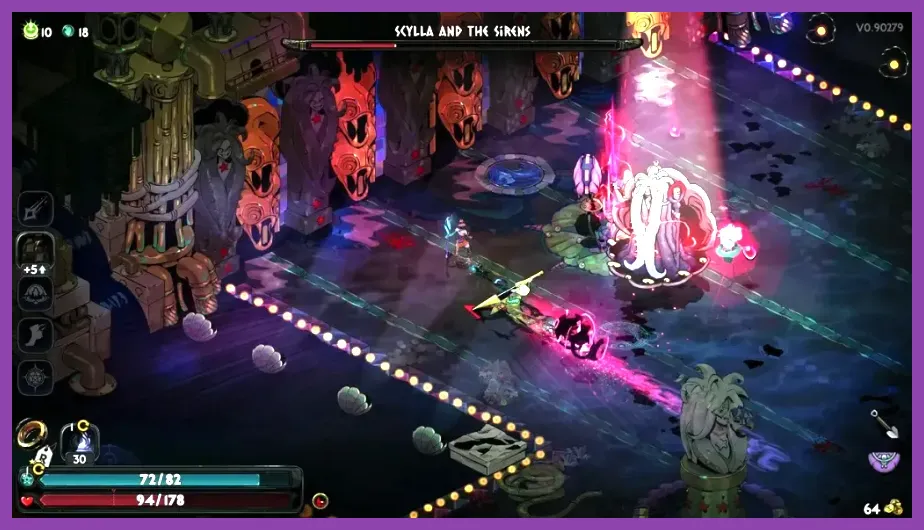
Stable 60 FPS profile for older PCs
Use 1920x1080 or your display’s native resolution, Fullscreen, VSync On if tearing is distracting, Shadows Low, Effects Medium, Particles Low, Anti-Aliasing Low, Textures Medium or High, and Texture Filtering High. Cap the game at 60 FPS. This profile suits systems near the game’s minimum requirements and prioritizes a consistent experience through Hecate, Scylla, and other multi-phase fights.
Do not chase 120 FPS on hardware that repeatedly falls below 60. A stable 60 FPS gives attacks, dashes, and invulnerability timing a predictable rhythm. If the game still dips, lower Effects to Low, then reduce resolution slightly. Texture Quality should be the last major visual setting you reduce unless your GPU is short on VRAM.
120 FPS profile for mainstream gaming PCs
Use native 1080p or 1440p, Fullscreen, VSync Off with VRR, Shadows Low, Effects Medium, Particles Low or Medium, Anti-Aliasing Low, Textures High, and Texture Filtering High. Set the cap to 117 FPS on a 120Hz display. This is the best all-round target for players who want visibly smoother movement without creating unnecessary load.
Test this profile in a full room rather than in the Crossroads. Enter Erebus, trigger several Omega abilities, and deliberately fight through a dense encounter. Then test Oceanus, where bright surfaces and layered effects can reveal a weakness that is not visible in quieter chambers. If the minimum frame rate remains close to 120, raise Particles to Medium before touching textures.
144 FPS profile for high-refresh systems
Use native 1080p, Fullscreen, VSync Off, a 141 FPS cap, Shadows Low, Effects Low or Medium, Particles Low, Anti-Aliasing Off or Low, Textures High, and Texture Filtering High. This target is most realistic for a modern desktop GPU and a high-refresh monitor. At 1440p, start with the 120 FPS profile and move to 144 only if the GPU maintains the target during Scylla’s arena and crowded surface encounters.
High refresh rate does not change Hades II’s underlying combat rules, but it can make rapid directional movement feel cleaner. The benefit is lost if frame delivery is uneven. Watch the one-percent-low behavior with a frame-time overlay rather than trusting the counter’s maximum value.
How to Test and Fix Hades 2 FPS Drops
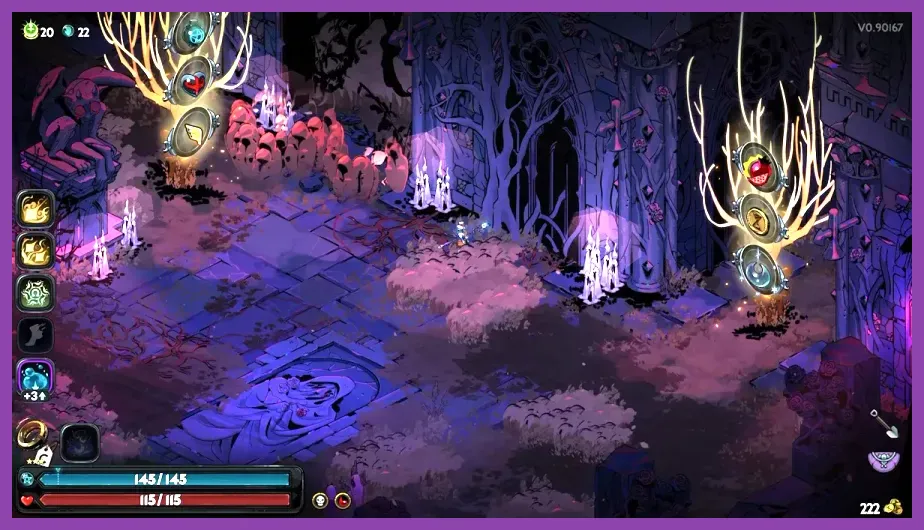
Change one setting at a time and use the same repeatable route. Start at the Crossroads for a baseline, enter Erebus, clear a crowded room using your preferred weapon, and continue to Hecate’s arena if practical. Repeat the test with Oceanus and the Fields of Mourning. These locations expose different issues: enemy density, transparency, lighting, room scale, and projectile volume.
Record average FPS, the lowest sustained FPS, and whether the game feels smooth during camera movement. A drop from 144 to 125 FPS may be invisible on one system, while a brief hitch to 40 FPS is immediately noticeable. If GPU usage is near 100 percent, lower resolution scale, Shadows, Effects, or Particles. If GPU usage is low while the frame rate remains poor, investigate CPU load, background applications, thermal throttling, power limits, or a frame cap.
Use the official Hades II Steam page to confirm the current system requirements and update status. Supergiant’s official Hades II site is also the best place to follow development information, while the developer’s official news archive can clarify changes introduced by major patches.
Verify game files in Steam after a failed update, install current graphics drivers, and close recording software before comparing results. On laptops, set Windows to Best Performance and confirm that the charger is connected. Avoid random launch options copied from unrelated games; Hades II does not need aggressive command-line tweaks to run well, and unsupported flags can make troubleshooting harder.
Shader compilation or first-run asset preparation can also create temporary stutter after a driver or game update. Give the game a few minutes, revisit the same rooms, and compare a second run before changing every setting. If the problem persists, report reproducible details through the official support channels, including GPU model, driver version, resolution, selected cap, and the room or boss where the drop occurs.
For additional PC troubleshooting context, see Steamoz’s guides on fixing lag and low FPS on PC and diagnosing frame drops. For Hades 2 specifically, the winning order is simple: cap the frame rate, lower Shadows, reduce Particles and Effects, preserve Textures, then adjust resolution only when the GPU remains saturated.
Recommended final profile: Fullscreen, native resolution, VSync Off with VRR, a cap below your refresh rate, Shadows Low, Effects Medium, Particles Low, Anti-Aliasing Low, Textures High, and Texture Filtering High. That combination delivers the clearest route to maximum usable FPS while keeping Melinoe, enemy attacks, and boss telegraphs readable throughout the Underworld and the surface.