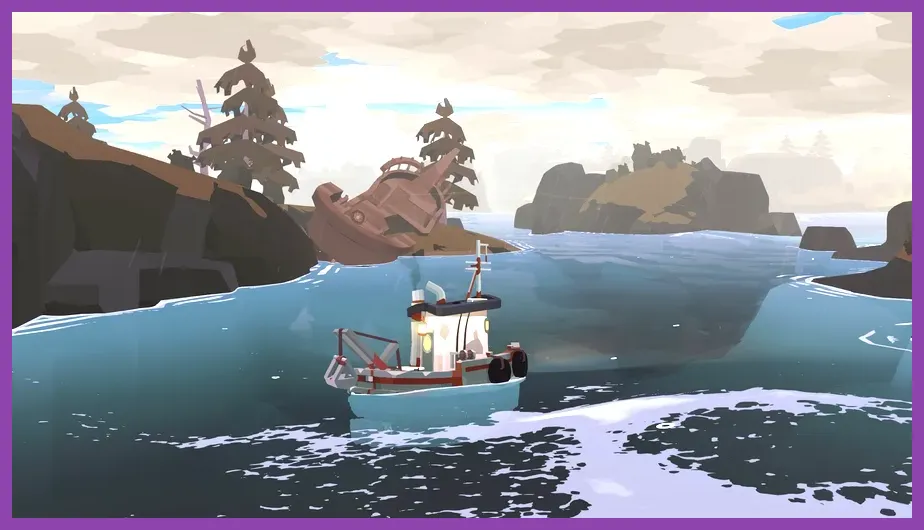
For the highest FPS in DREDGE on PC, use Fullscreen mode, turn VSync off, set the frame-rate limit to Unlimited or your monitor’s refresh rate, keep Textures on High, and reduce Shadows, Anti-Aliasing, Post Processing, Ambient Occlusion, and Water Quality to Low or Medium. This combination preserves the game’s readable art style while targeting a stable 60 FPS on modest hardware.
DREDGE is not a technically demanding game, but frame pacing can become noticeable during storms, nighttime fog, dense effects, and large regions such as Stellar Basin. Before changing anything, confirm your PC meets the requirements listed on the official DREDGE Steam page, then use the profiles below instead of lowering every option blindly.
Best DREDGE Settings for Maximum FPS
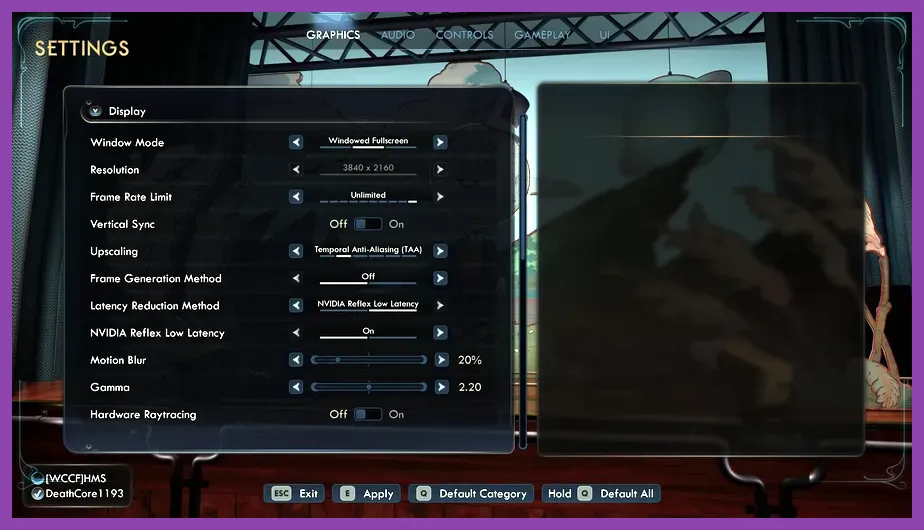
Open DREDGE’s Options menu from the title screen or pause menu and apply this maximum-FPS profile. Some setting names can vary slightly between PC versions, but the performance priorities remain the same.
- Display Mode: Fullscreen.
- Resolution: Your monitor’s native resolution. Drop to 1600×900 or 1280×720 only if the GPU still struggles.
- VSync: Off for the highest reported FPS. Turn it on if you see visible tearing.
- Frame Rate Limit: Unlimited for benchmarking, or 60 for a smoother and cooler system.
- Texture Quality: High. Lower this only when the GPU has limited VRAM or texture stutter appears.
- Shadow Quality: Low.
- Anti-Aliasing: Low or the lowest available sample level.
- Post Processing: Low.
- Ambient Occlusion: Off or Low.
- Water Quality: Medium; use Low on integrated graphics.
- Foliage or Effects Quality: Low if available.
- Motion Blur: Off.
- Depth of Field: Off if available.
Textures are the setting to protect first. DREDGE’s boats, fish, islands, and menus remain noticeably cleaner on High, while shadows and ambient effects generally cost more frames for a smaller visual improvement. If your menu combines these options into Low, Medium, High, and Ultra presets, select High first, then manually lower shadows and post-processing.
Recommended 60 FPS Balanced Profile
The following profile is the best starting point for most gaming PCs with integrated graphics, older laptop GPUs, or entry-level cards such as a GTX 1050, GTX 1650, RX 570, or newer equivalent. It avoids the overly flat look of the lowest preset while removing the options most likely to cause dips.
- Resolution: Native 1080p.
- Display Mode: Fullscreen.
- VSync: On if your monitor is 60 Hz; otherwise off with a 60 FPS cap.
- Textures: High.
- Shadows: Medium.
- Anti-Aliasing: Medium.
- Post Processing: Medium.
- Ambient Occlusion: Low.
- Water: Medium.
- Motion Blur and Depth of Field: Off.
- Frame Rate Limit: 60 FPS.
A 60 FPS cap is usually preferable to Unlimited in DREDGE. The game is exploration-focused rather than competitive, and a cap reduces sudden clock-speed changes, fan noise, and unnecessary GPU usage while sailing between fishing spots. If you use a 120 Hz or 144 Hz display, try a 90 or 120 FPS cap only after verifying that the frame time stays consistent.
Best Low-End PC and Laptop Profile
For Intel UHD, older AMD integrated graphics, or a laptop that runs hot, start at 1280×720 and use the lowest-cost effects profile. DREDGE’s fixed camera and strong color contrast make the resolution reduction less damaging than aggressive shadow or lighting effects in many other games.
- Resolution: 1280×720, or 1600×900 if performance allows.
- Fullscreen: On.
- Textures: Medium; use Low if VRAM usage causes hitching.
- Shadows: Low.
- Anti-Aliasing: Low or Off.
- Post Processing: Low.
- Ambient Occlusion: Off.
- Water and Foliage: Low.
- Motion Blur and Depth of Field: Off.
- Frame Rate Limit: 30 or 45 FPS, depending on stability.
Choose a cap your system can hold consistently. A locked 30 FPS is better than fluctuating between 30 and 55, particularly when the camera moves across foggy water. If the game feels responsive at 45 FPS, use that cap with a 90 Hz display. Windows users should also close browser tabs, recording tools, and overlays before testing, since integrated graphics share system memory with other applications.
Steam Deck Settings for Stable Performance
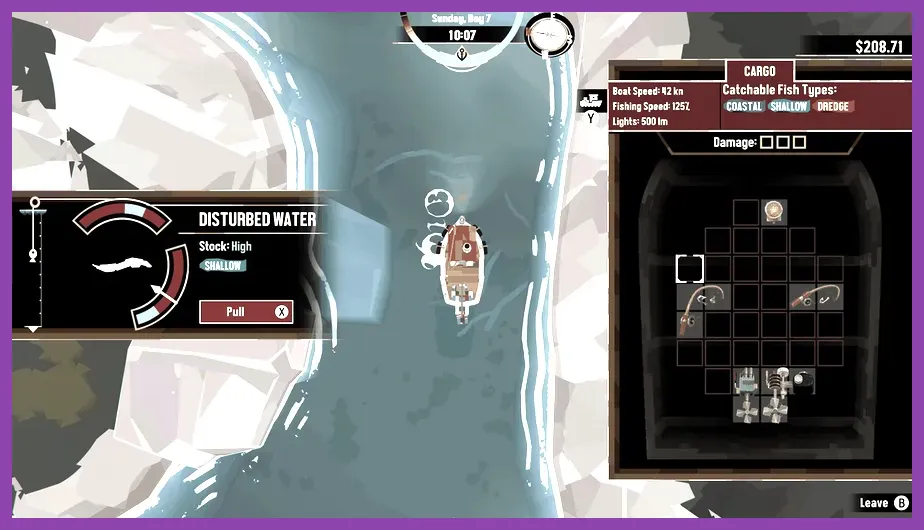
DREDGE runs well on Steam Deck, but a stable limit is more useful than chasing the highest possible number. Set the game to 1280×800, use Fullscreen, enable VSync if tearing appears, and cap the system at 40 FPS. Keep Textures on High, set Shadows and Post Processing to Medium or Low, and disable Motion Blur and Depth of Field.
If you prefer battery life, use a 30 FPS cap with Shadows Low, Ambient Occlusion Off, and Water Low. If you are using an OLED model, the 90 Hz display makes a locked 45 FPS profile a practical middle ground. The broader Steam Deck OLED settings guide explains how refresh-rate caps affect battery use across PC games, while our list of best open-world Steam Deck games covers similar handheld performance targets.
Do not lower the resolution below 1280×800 unless you are troubleshooting. The small gain is rarely worth softer text in DREDGE’s inventory, map, and quest screens.
Where to Test FPS in DREDGE
Test performance in locations that stress different effects rather than standing still in Greater Marrow. Sail between the Greater Marrow docks during daylight first, then compare the result with these areas:
- Stellar Basin: Move around the research station and open water. Fog, water effects, and the area’s large creature can expose GPU dips.
- Devil’s Spine: Sail near the volcanic islands and watch for drops during smoke, fire, and dense environmental effects.
- Twisted Strand: Test through mangrove channels, where foliage and visibility effects can affect frame pacing.
- Open ocean at night: Travel after dusk with the boat’s lights active. This checks lighting, fog, and post-processing together.
Use the same route for every settings change and observe frame time, not only the FPS counter. A steady 58–60 FPS feels better than a counter that briefly reaches 100 before dropping into the 40s. If you need an overlay, Windows Xbox Game Bar or your GPU software is enough; avoid stacking several overlays at once.
Fix Dips After Changing Graphics Settings
Restart DREDGE after major resolution or quality changes, especially if the game continues using the previous frame-rate behavior. Check that Windows is using the dedicated GPU for DREDGE, update your graphics driver, and select a High Performance power mode when playing on a laptop. Keep the laptop connected to power, because battery profiles can reduce GPU clocks even when the settings are correct.
If lowering resolution does not improve FPS, the problem may be CPU overhead, background software, thermal throttling, or an unstable frame cap rather than graphics quality. In that case, keep Textures High, lower Shadows and Post Processing, and cap the game at 60, 45, or 30 FPS. Our guides covering lag and low FPS troubleshooting and PC performance requirements provide broader Windows checks that also apply here.
Finally, keep DREDGE updated through Steam and check the official Black Salt Games DREDGE page for patch and DLC information. The main performance goal is consistency: Fullscreen, High textures, Low shadows, reduced post-processing, and a sensible FPS cap deliver the clearest image with the smoothest fishing, sailing, and combat on most PCs.