The fastest way to fix lag and low FPS in GTA 6 is to use the performance display mode, install every Rockstar and console update, keep the game on internal SSD storage, close background downloads, and separate frame-rate problems from online network lag. However, do not apply invented PC settings or expect a magic config file yet: Rockstar has confirmed GTA VI for PlayStation 5 and Xbox Series X|S, while an official PC release, system requirements, and a complete graphics menu have not been published. The steps below are therefore divided between confirmed console troubleshooting and safe PC preparation for a future release.
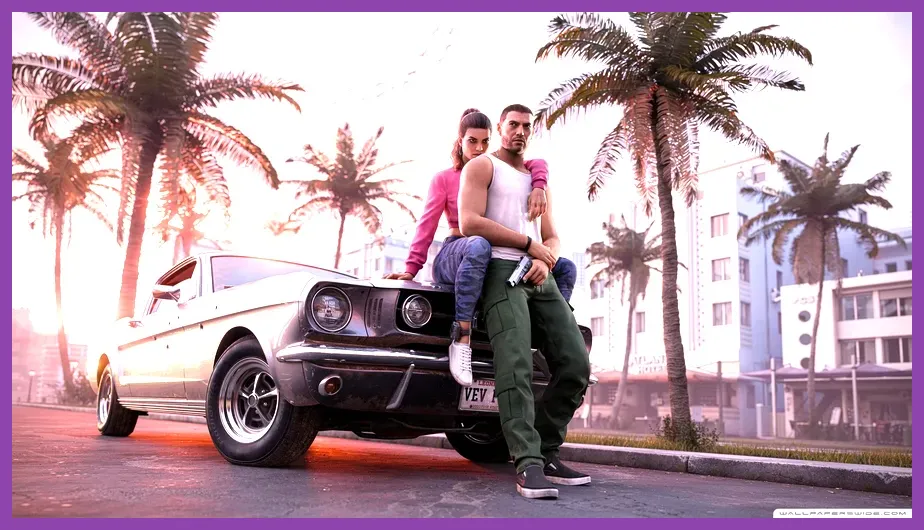
Rockstar’s official game page identifies the announced setting as the state of Leonida, including Vice City, and the reveal has introduced protagonists Lucia and Jason. Those details matter because an open-world game with dense traffic, crowds, interiors, weather, streaming terrain, and rapid driving can produce different performance behavior in a city sequence than it does in a quiet rural area. Always test a fix in the same demanding location before deciding that it worked.
Check Whether GTA 6 Is Actually Lagging
“Lag” describes several different problems. Low FPS is a rendering issue: camera movement looks uneven, controls feel sluggish, and the problem remains even when you play offline. Stutter is a frame-time issue: the game runs smoothly, then pauses for a fraction of a second while it streams a new street, vehicle, building, or weather effect. Network lag affects multiplayer synchronization: other players rubber-band, actions arrive late, or the connection drops while the local camera may remain smooth.
GTA VI has not launched at the time of writing, so there is no verified benchmark showing a fixed frame-rate target for its Vice City or Leonida areas. Do not trust videos claiming “official GTA 6 PC requirements” unless they link to Rockstar’s own announcement. Bookmark the official GTA VI website and compare future patch notes, platform details, and settings information against that source.
- Low FPS: the whole image updates too slowly, especially during driving or heavy combat.
- Traversal stutter: brief freezes appear when moving quickly through a dense area or entering a new interior.
- Input delay: buttons respond late even though the picture looks consistent; display processing or network play may be responsible.
- Online lag: players teleport, voice chat breaks up, or matchmaking reports a connection problem.
On console, record a short clip during the problem and note the exact activity: driving through Vice City, entering a mission, switching characters, or playing online. On PC, use a frame-time graph rather than FPS alone. A locked 30 FPS with even frame pacing can feel better than an unstable 45 FPS that repeatedly falls to 20.
Use the Best PS5 and Xbox Series X|S Setup
Start with the platform basics before changing advanced options. Fully close GTA 6 rather than leaving it suspended, restart the console, and install the newest game update. Also install the latest PlayStation 5 or Xbox system software. Launch-day patches can change streaming, shader compilation, and display behavior, so testing an unpatched build is not useful.
If GTA VI offers a choice between a quality or fidelity mode and a performance mode, select Performance first. The exact resolution, ray-tracing features, and frame-rate target are not confirmed, but performance modes normally reduce image quality or visual effects to deliver a steadier update rate. Use quality mode only if you prefer sharper resolution and can accept a lower or less consistent frame rate. Do not assume “120 Hz” means the game will run at 120 FPS; the game must support that output mode.
- Set the television or monitor to its low-latency Game Mode.
- Enable VRR only if both the display and console support it correctly, then verify that the display reports a compatible refresh range.
- Use the console’s automatic 4K and HDR settings initially; manually forcing unusual resolutions can create black screens or extra processing delay.
- Connect the console directly to the display while testing, bypassing an AV receiver or capture device.
- Turn off motion smoothing, noise reduction, dynamic contrast, and artificial sharpening on the television.
Keep the PS5 or Xbox Series X|S in an open area with several centimeters of ventilation space. Heat-related throttling is less common than incorrect settings, but a blocked intake, dusty cabinet, or hot room can cause instability. Never place the console inside a sealed cabinet while testing GTA 6 performance. If the console shuts down, displays an overheating warning, or becomes unusually loud, stop troubleshooting the game and address the hardware environment.
Fix GTA 6 Stutter, Streaming, and Slow Loading
Open-world stutter often comes from asset streaming rather than average rendering speed. GTA 6 is expected to move the player rapidly through a large version of Leonida, so texture, geometry, traffic, and interior data may load continuously. On console, install the game on the internal storage rather than an external USB drive. If the platform supports an approved expansion SSD, use one that meets the manufacturer’s speed requirements.
Leave meaningful free space on the drive. A nearly full SSD can complicate updates, temporary files, and patch installation even when the game itself still launches. Delete unused captures and games, then restart the console after a major update. Do not interrupt an installation or repeatedly cancel a patch; an incomplete update can create corrupted data and imitate performance problems.
For PC, the same rule applies: use a properly configured NVMe or SATA SSD, not a slow mechanical hard drive. Windows should have room for its page file, and the launcher should be allowed to verify the installation. If a future PC build begins stuttering after an update, use the launcher’s file-verification tool before deleting configuration files. Back up saves and settings first, because manual file deletion can remove keybinds or accessibility choices.
Test traversal after the game has completed its initial shader compilation. A first launch can be unusually uneven while shaders are prepared. If every launch repeats the same long stutters, check storage health, background disk activity, and available VRAM. Pause cloud synchronization, large downloads, recording software, and browser tabs while testing. Our storage reduction guide covers the same principle: free space and clean installs prevent avoidable loading trouble.
Best GTA 6 PC Graphics Settings to Try
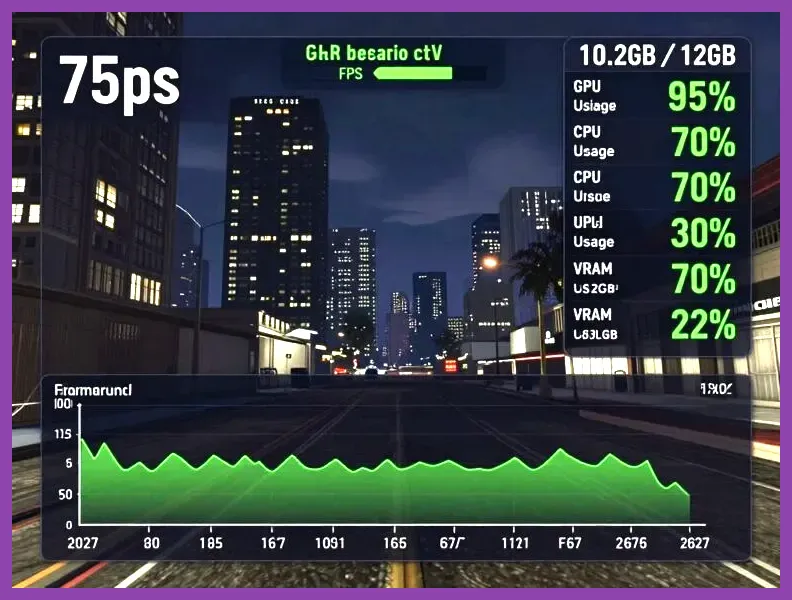
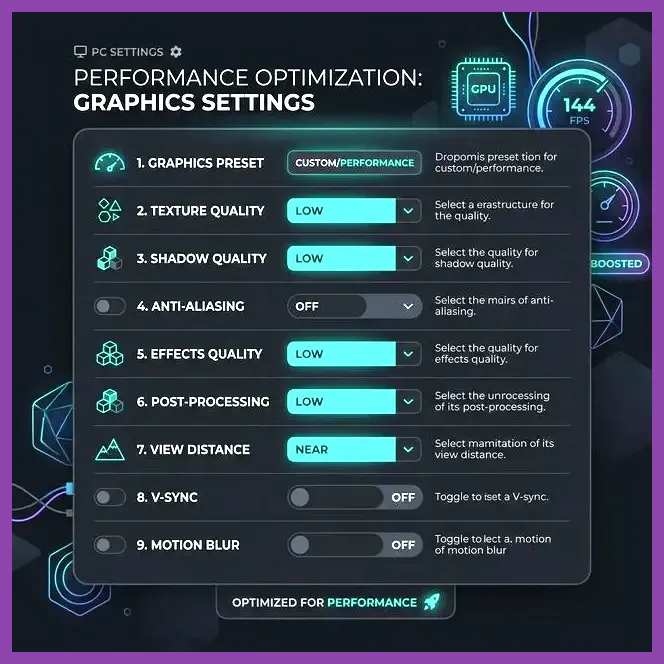
There is currently no official GTA 6 PC version, so the following is a launch-day method, not a claim about Rockstar’s final menu. If a PC edition arrives, create a baseline before changing anything: native resolution, the default preset, motion blur off, and a frame-rate cap that your hardware can sustain. Change one option at a time and repeat the same test route around Vice City.
Balanced profile
- Resolution: native monitor resolution or a clean 16:9 output.
- Preset: High, if available.
- Textures: High, lowering to Medium only when VRAM is full.
- Shadows: Medium.
- Reflections: Medium; reduce ray-traced reflections first if offered.
- Volumetrics, clouds, and fog: Medium.
- Crowd, traffic, and distance detail: Medium.
- Upscaling: DLSS or FSR Quality, if officially supported.
- Frame generation: Off while diagnosing latency and frame pacing.
- Motion blur: Off; this improves clarity but does not create extra FPS.
Performance profile
- Resolution: 1080p or a lower internal render scale on a 1440p or 4K display.
- Textures: Medium if the VRAM meter is over budget.
- Shadows and reflections: Low or Medium.
- Volumetrics: Low.
- Crowd and traffic density: Low or Medium, especially on CPU-limited systems.
- Distance detail: Medium rather than the lowest setting, which can cause distracting pop-in.
- Upscaling: DLSS or FSR Balanced; use Performance only as a last resort.
- Ray tracing: Off during troubleshooting.
- V-Sync: Off if using a correctly configured G-SYNC or FreeSync display; otherwise test it against a capped frame rate.
Textures usually affect VRAM more than raw GPU speed. Shadows, reflections, volumetric effects, crowds, traffic, and view distance are more likely to reduce performance in a dense open-world scene. If the GPU is below 95 percent usage while FPS is low, lower crowd density, traffic, simulation distance, and other CPU-heavy settings before reducing texture quality.
Find the Real PC Bottleneck
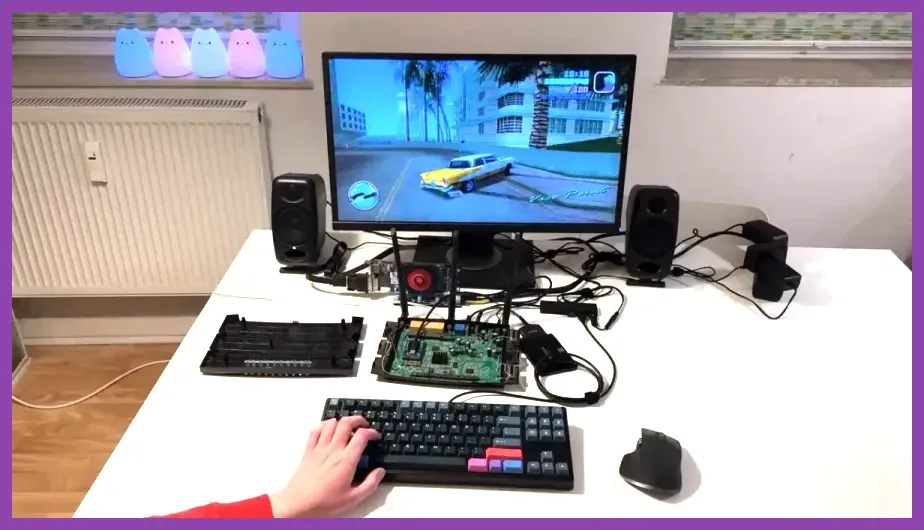
Use an overlay such as NVIDIA FrameView, AMD’s performance metrics, or a trusted monitoring utility. Watch GPU utilization, CPU utilization by individual core, VRAM, system RAM, temperatures, and frame time. The goal is not to chase a screenshot-perfect number; it is to identify which component is preventing a stable target.
- GPU at 95–99 percent: lower resolution, upscaling quality, ray tracing, shadows, and volumetrics.
- One or two CPU cores near full load: reduce traffic, crowds, distance detail, background applications, and unnecessary overlays.
- VRAM at or above the limit: lower textures, reflections, and texture streaming quality; restart the game after applying major changes.
- RAM nearly full: close browsers, launchers, RGB utilities, and capture programs, then check for memory leaks.
- Rising temperatures with falling clock speeds: clean dust filters, improve airflow, and return overclocks or undervolts to stable defaults.
Install the latest stable graphics driver from NVIDIA or AMD when Rockstar lists compatibility changes. Avoid third-party “GTA 6 FPS boost” DLLs, registry packs, leaked executables, and unofficial trainers. They can contain malware, corrupt installations, trigger anti-cheat problems in online modes, or simply change image quality without improving frame time.
Use a sensible cap. If your machine fluctuates between 52 and 75 FPS, a 60 FPS cap may feel steadier than leaving the frame rate uncapped. If it cannot hold 60, test 45 or 30 with consistent frame pacing. Frame generation can make an overlay show a higher number, but it does not remove the underlying render latency; fix the base frame rate first.
Fix GTA 6 Online Network Lag
Network lag cannot be solved by lowering shadows or textures. For GTA Online or any future GTA 6 online mode, use Ethernet for the first test. If Wi-Fi is necessary, use a 5 GHz or 6 GHz connection near the router, avoid crowded channels, and stop 4K streaming, cloud backups, and large downloads on the same network.
Restart the router and console or PC, then test another online game. If every game has high ping or packet loss, the problem is probably the home network or internet provider rather than GTA 6. Enable UPnP on the router if your network supports it, or follow Rockstar’s official networking guidance instead of opening random ports. Do not place the console behind a VPN while diagnosing matchmaking or latency.
Check the Rockstar Support website for service alerts and platform outages. A server problem can look like local lag, particularly during launch periods. Capture the error code, platform, region, NAT type, connection method, and approximate time before contacting support. That information is more useful than reporting that the game “feels slow.”
If your local FPS is smooth but other players teleport or missions fail to synchronize, keep graphics settings unchanged and focus on latency. If the screen itself freezes while driving through Vice City, return to the storage, temperature, shader, and graphics tests above. Keeping those symptoms separate prevents you from replacing hardware for a router problem or blaming Wi-Fi for a GPU bottleneck.
Apply Updates Without Breaking Performance
After every major GTA 6 patch, reset only the setting that changed and retest your saved route. Updates can rebuild shaders, alter streaming behavior, or replace recommended driver profiles. Give the game time to finish any first-run compilation, then restart it once before judging performance. Avoid stacking mods, reshade presets, unofficial config files, and driver-level overrides on top of a new build.
Use Rockstar’s official Newswire for patch information, and keep platform firmware current. On PC, disable automatic overclocking profiles temporarily if a patch introduces crashes or severe stutter. On PS5 and Xbox Series X|S, use the platform’s repair or reinstall options only after checking updates, storage health, ventilation, and display mode. Reinstalling is time-consuming, but it is a reasonable final step for corrupted data.
For a quick checklist, select Performance mode when available, update the game and console, use internal SSD storage, maintain free disk space, disable television processing, enable VRR only after verifying it works, and test online play over Ethernet. On PC, start with the Balanced profile, monitor frame time, lower CPU-heavy crowd and traffic settings, keep textures within the VRAM budget, and cap FPS below the unstable maximum. These steps will not override an unoptimized launch build, but they give you the cleanest, safest baseline when GTA 6 performance information becomes official.
For broader hardware planning, compare those future requirements with Steamoz’s PC system requirements guide, and use our graphics settings performance guide for the same GPU, CPU, VRAM, and frame-time testing method.