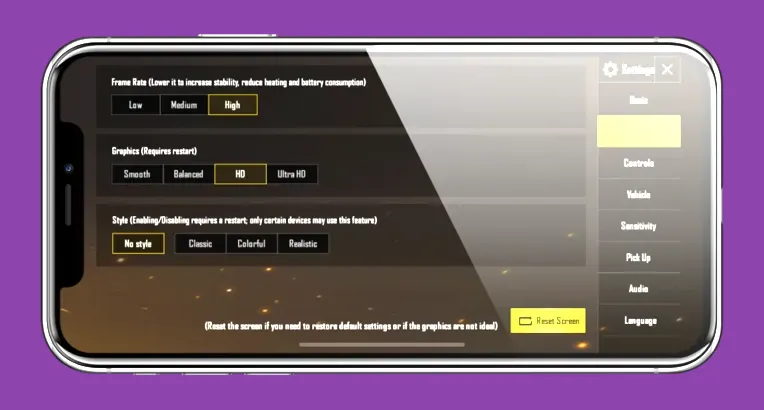
To drastically reduce PUBG Mobile's storage size without sacrificing core gameplay performance, you need to manually delete unneeded map packs, strip away high-definition resource downloads, and clear out cached update data directly through the in-game Resource Management Center. By default, a fully updated installation of Tencent's battle royale juggernaut can easily exceed 15GB to 25GB of internal storage, choking your smartphone's performance and preventing smooth gameplay runs. If you are struggling with low storage warnings, frame drops, or memory allocation errors, deploying targeted file pruning will quickly reclaim precious gigabytes.
Mastering the In-Game Resource Management Center
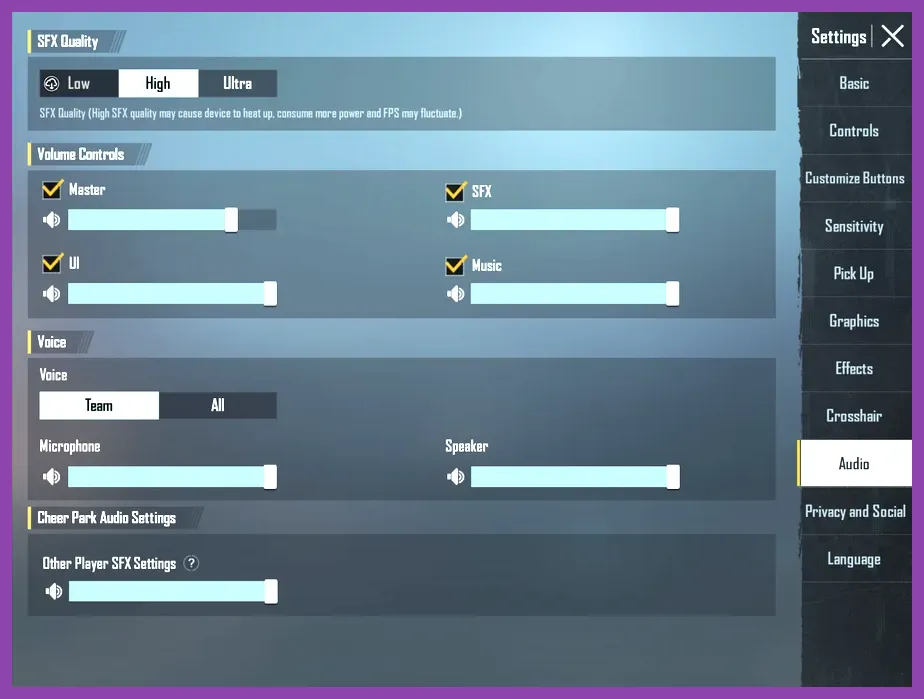
The single most effective method for shrinking your PUBG Mobile installation footprint is utilizing the built-in Resource Management Center, accessible directly from the main lobby settings. When you first install the game or accept major patches, the application prompts you to pull down expansive texture packages, lobby animations, and high-fidelity audio streams. For most competitive players dropping into Erangel, Miramar, Sanhok, or Livik, these cinematic assets are entirely optional and eat up unnecessary space.
Navigate to your settings gear icon in the bottom right corner, select the 'Downloads' tab, and inspect the massive list of installed asset packs. You will find distinct categories separated into Classic Maps, Arena Maps, Resource Packs, and Audio Packs. To execute a comprehensive storage diet, systematically delete the HD Resource Pack, Vintage Map expansions, and unnecessary voice packs such as alternate language announcer files. If you want to maintain pristine tactical audio without keeping massive data sets, stick strictly to the standard definition audio channel.
For more insights on optimizing mobile performance, check out our dedicated guide on Mobile Legends best settings for max fps to ensure your device runs smoothly across all competitive titles. Additionally, keeping your hardware running at peak efficiency requires understanding how system loads affect battery life and processing thresholds, much like balancing performance in demanding PC titles found in our breakdown on how to fix lag and low fps in Project Zomboid.
Pruning Unused Map Files to Recover Gigabytes
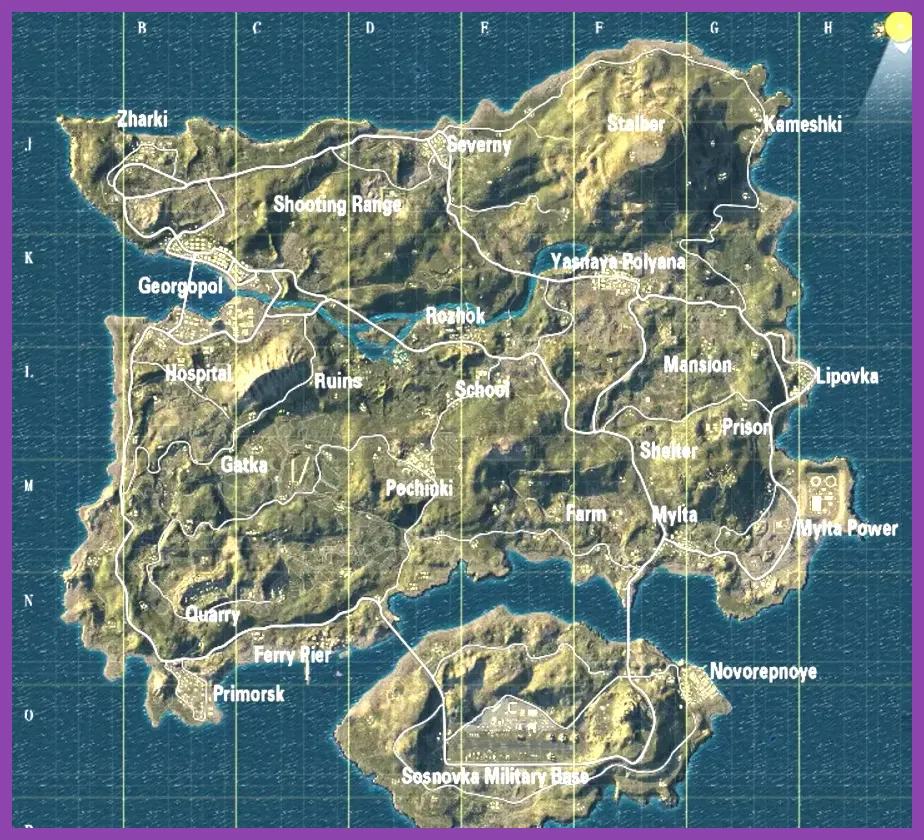
Maps take up the lion's share of PUBG Mobile storage. While Erangel and Livik are staples for competitive and casual queueing alike, keeping secondary battlegrounds like Vikendi, Karakin, Nusa, and Sanhok permanently downloaded when you never play them is an unnecessary waste of memory. Each individual map download can range anywhere from 300MB to over 1.5GB depending on whether you opted for standard or ultra-high-definition textures.
To purge these maps, open your matchmaking mode selection screen, tap the download icon next to the map list, and select the trash icon or uncheck the files you wish to remove. By restricting your active maps to just your top two favorites—such as Erangel and Livik—you instantly shed several gigabytes of dead weight. This not only preserves storage space but also speeds up game launch times and reduces background RAM usage during matchmaking checks.
When managing heavy game assets, keeping your overall gaming ecosystem lean is critical. Players transitioning between platforms often look for streamlined optimization tips, similar to mastering resource management strategies found in our Monster Hunter Wilds best beginner tips and tricks guide, where understanding file integrity and hardware limits prevents mid-game stutters.
Stripping High-Definition Graphics and Skin Packs
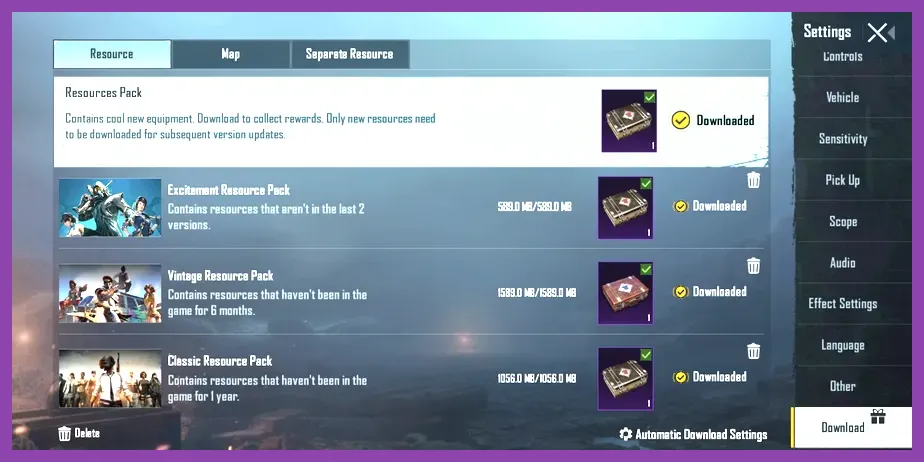
PUBG Mobile features a vast array of weapon skins, vehicle finishes, and character outfits that dynamically stream into your match whenever another player is nearby. While seeing a fully upgraded M416 Glacier or customized Aston Martin is visually appealing, the rendering files and cache associated with high-end cosmetic packages bloat your app directory significantly. Furthermore, the game frequently encourages players to download the 'HD Graphic Pack' which forces your device to render high-polygon character models and excessive particle effects.
To counter this, head to the Workshop or Inventory menus and refuse to download optional resource expansion packs for skins you do not own. When configuring your display settings, lock your graphics profile to 'Smooth' or 'Balanced' with the frame rate set to 'Extreme' or '90fps'. This configuration prevents the client from downloading heavy ultra-HD textures that your screen size may not even fully benefit from, while simultaneously granting you a competitive edge through higher, more stable frame rates.
Managing extensive item inventories and cosmetic databases can slow down any gaming platform. If you enjoy managing complex progression systems and character rosters, you will find helpful structural advice in our Cookie Run Kingdom comprehensive character guide, which breaks down how to prioritize essential assets over vanity items.
Clearing System Cache and Temporary Update Files
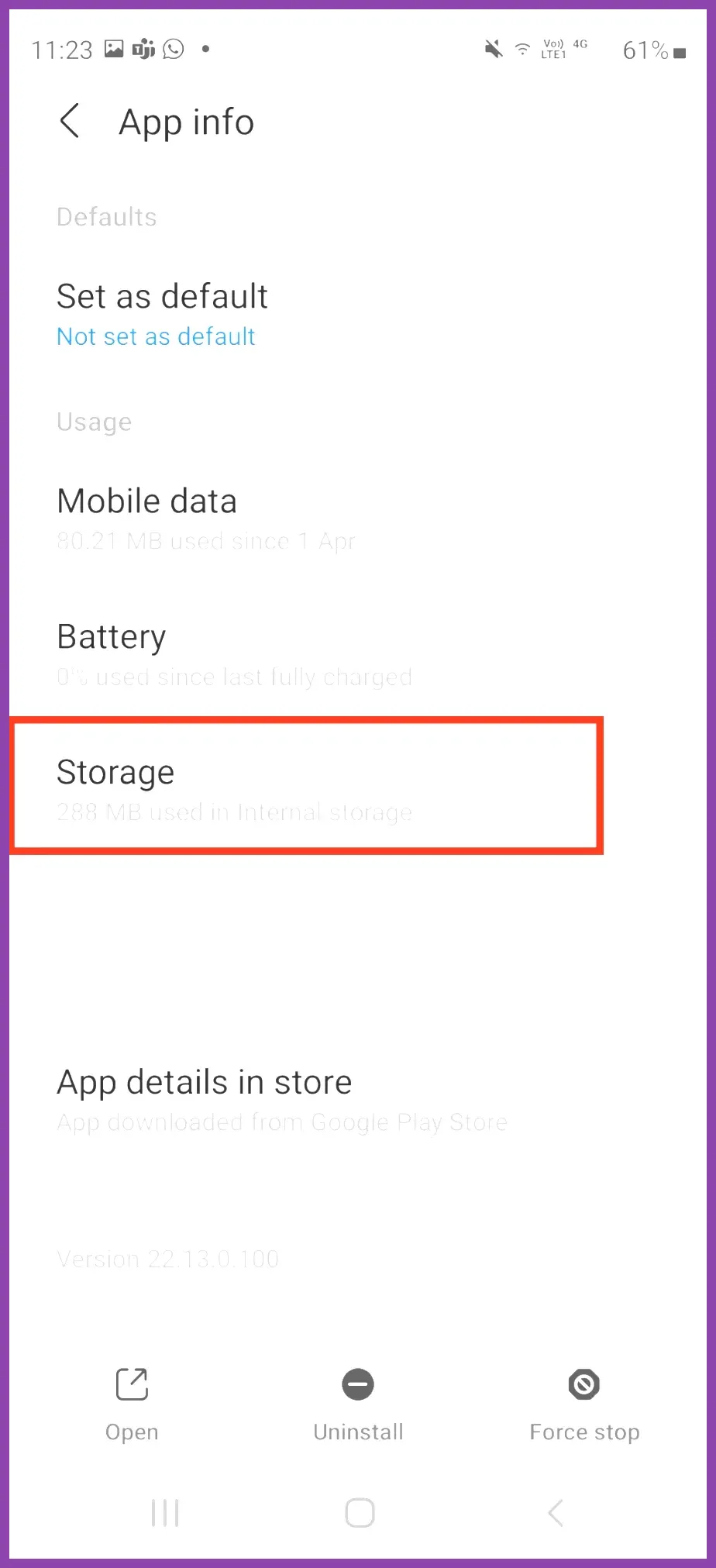
Even after deleting maps and resource packs inside PUBG Mobile, your mobile operating system retains a substantial amount of lingering cache, temporary update packages, and log files that accumulate over months of gameplay. These residual files are frequently left behind by Tencent's incremental patching system whenever a minor hotfix or seasonal update drops.
To completely clear these out on Android devices, navigate to your phone's core Settings menu, select 'Apps', find PUBG Mobile in the application list, and tap 'Storage'. From here, select 'Clear Cache'. Note: Do not tap 'Clear Data' unless you want your entire game reset, which forces a massive re-download of the base client. Clearing the cache safely wipes out corrupted temporary files and frees up several hundred megabytes to a few gigabytes of hidden junk data.
For iOS users, the process is slightly different because Apple's ecosystem manages app caching automatically. However, if your PUBG Mobile app size balloons past 15GB despite having minimal map packs installed, the most reliable method on iOS is to perform a clean reinstall. Delete the app entirely, restart your device to flush the system memory, and download the latest optimized client directly from the official PUBG Mobile Official Website.
For players who love diving deep into inventory optimization and achievement tracking across various titles, keeping your digital library orderly is a rewarding habit. You can explore similar completionist strategies in our detailed guides, such as Cyberpunk 2077 Phantom Liberty how to unlock all achievements and how to unlock all achievements in Dead by Daylight, where managing every single in-game asset and stat tracker ensures maximum system responsiveness and tracking accuracy.
Utilizing the Lite Version and Managing Updates Wisely
If your mobile device has severely constrained hardware limitations—such as 3GB of RAM or less than 32GB of total storage—standard optimization techniques might still leave your phone struggling. In these extreme scenarios, consider transitioning to alternative configurations or monitoring your update habits closely. Tencent periodically releases streamlined game updates designed to reduce overall package weight, but failing to prune custom voice packs and resource expansions immediately undoes those developer-side savings.
Make it a habit to audit your PUBG Mobile resource manager once a month. Whenever a major seasonal patch rolls out, the game often forces re-downloads of core files that can duplicate legacy assets if not properly overwritten. By keeping your map list restricted to your primary battleground, declining high-definition audio packages, and routinely scrubbing your system cache, you ensure that PUBG Mobile remains fast, responsive, and lightweight on your device's storage drive.