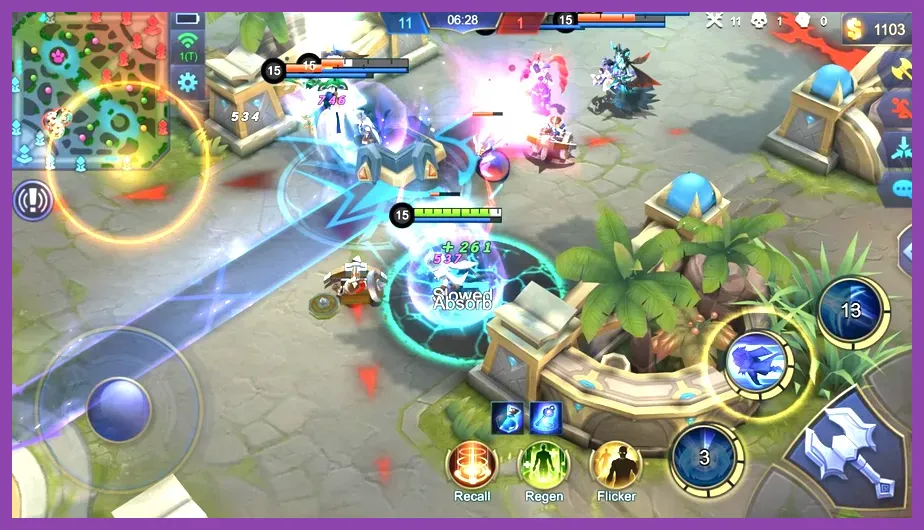
To achieve a locked, maximum frame rate in Mobile Legends: Bang Bang, you must immediately toggle High Frame Rate (HFR) mode to "High," set graphics quality to "Low" or "Medium," and disable resource-heavy features like Outline, Shadow, and HD Display. While Moonton's premier MOBA is optimized for a wide array of mobile devices, competitive play demands absolute fluidity. A fluctuating frame rate directly impacts your ability to execute split-second flicker-ult combos on heroes like Gusion, Chou, or Fanny. If you want to eliminate input lag, avoid stuttering during major Lord clashes, and secure clean victories, you need a precise calibration profile tailored for maximum performance.
For those diving into other competitive handheld titles or seeking more technical optimization guides, checking out resources like Valorant best settings for max fps or exploring portable survival titles via top free survival games on low-end pc highlights how universal hardware tuning principles are across modern platforms. Meanwhile, let us break down the exact display, control, and network settings required to squeeze every drop of performance out of your smartphone or tablet.
Understanding the Core Display Options for Maximum Performance
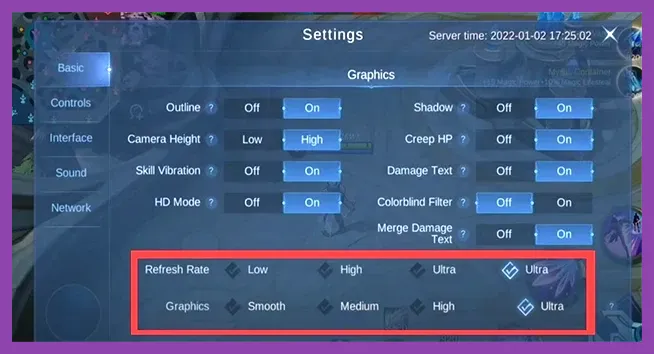
The display settings menu in Mobile Legends: Bang Bang controls how your device's GPU renders the Land of Dawn. Many players make the critical mistake of maxing out every visual toggle, assuming modern smartphones can handle it. However, MOBA titles require consistent frame pacing over visual fidelity. When ten players are spamming spells in the mid-lane, unoptimized particle effects and high-resolution textures will cause your processor to throttle.
To establish a stable baseline, navigate to the settings gear icon in the top-right corner of the main lobby and select the "Basic" or "Graphics" tab. Here is the exact performance profile you should apply:
- High Frame Rate (HFR): ON (Unlocked to 60 or 90/120Hz depending on your display hardware).
- Graphics: Low or Medium. (Avoid "High" or "Ultra" if your device runs warm during extended gaming sessions).
- Outline: OFF. (Removes the thick black border around character models, slightly easing GPU load and cleaning up visual clutter).
- Shadow: OFF. (Rendering dynamic shadows under every minion, creep, and hero consumes valuable GPU cycles for zero competitive advantage).
- HD Display: OFF. (Disabling high-definition asset scaling ensures native rendering resolution matches your device's processing sweet spot, preventing down-scaling bottlenecks).
- Character Display: Low.
By stripping away unnecessary visual embellishments, your device's thermal output drops significantly. This prevents thermal throttling—the primary culprit behind sudden mid-game stuttering during intense team fights. For optimization strategies on desktop performance tuning, you can also cross-reference our guide on Total War Warhammer 3 best graphics settings for performance, which applies similar downscaling logic to complex engine rendering.
Advanced Camera and Map Settings to Reduce Processing Overhead
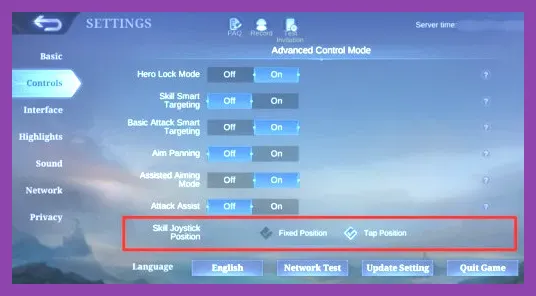
Beyond graphical rendering, game logic and camera calculations also draw on your device's RAM and CPU. Managing how the game displays the battlefield can drastically improve your overall frame pacing. Features like Camera Shift and Vibrations might seem minor, but they introduce subtle processing overhead that conflicts with maintaining a rock-solid 60 FPS output.
Under the "Controls" and "Interface" tabs, adjust the following parameters:
- Camera Shift: OFF. (When enabled, the camera automatically pans when casting long-range skills like Layla's ultimate or Moskov's spear. Disabling this keeps the camera tethered directly to your hero, eliminating jarring camera movement calculations).
- Vibration Mode: OFF. (Haptic feedback drains battery life and adds minor hardware interrupts to your system processor).
- Minimap Hero Icons: ON. (While this is a crucial competitive setting, ensure Minimap Transparency is adjusted so it doesn't overlap with performance overlay elements if you use third-party FPS counters).
- Damage Text: Simplified. (Showing detailed floating combat text for every single minion hit creates a massive wall of text during wave clearing, which taxes CPU rendering pipelines).
For players transitioning between mobile ecosystems and desktop action titles, maintaining clean interfaces is vital. You can explore how interface scaling affects performance in our Warframe best settings for max fps breakdown, or look into portable handheld optimization via Warzone Mobile best settings for max fps.
Network Optimization and Speed Mode Integration
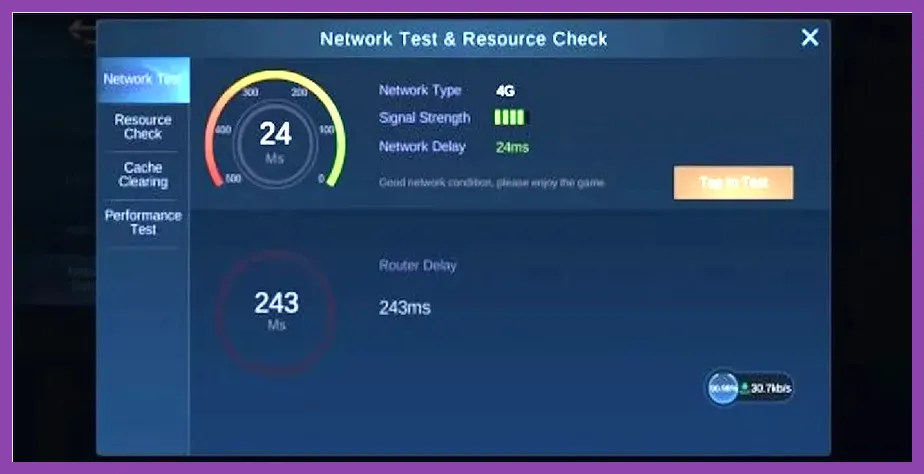
Frame drops in Mobile Legends are frequently mistaken for hardware lag when they are actually symptoms of network jitter or packet loss. When your connection stutters, the game client attempts to synchronize state data, causing micro-freezes that mimic a failing GPU. To ensure your device runs at peak efficiency, network settings must be calibrated alongside your graphics.
Go to the network settings panel and verify these configurations:
- Speed Mode: ON. (This increases network resource allocation to the game, ensuring faster packet transmission at the cost of slightly higher data usage).
- Network Boost: ON. (Utilizes both Wi-Fi and mobile data simultaneously to prevent sudden disconnects during crucial matches).
- Multi-Wi-Fi/Dual-Channel Optimization: Enable this in your phone's native system settings (available on iOS and modern Android skins like MIUI, OneUI, and ColorOS) to aggregate network stability.
Stable ping directly complements high frame rates. When your input is registered instantly without network delay, your hardware-accelerated visual feedback ensures every skill lands precisely where intended.
Device-Specific Tweaks for Android and iOS Users

In-game settings alone cannot fix a device weighed down by background processes. Whether you are playing on a dedicated gaming phone like the ROG Phone series, an iPhone, or a budget Android device, external system optimizations are necessary to lock in maximum frames.
For Android users, access your device's developer options and ensure the following are managed:
- Force 4x MSAA: OFF. (Enabling this globally ruins mobile game performance; let Mobile Legends manage its own rendering pipeline).
- Game Mode / Game Turbo: Always enable your manufacturer's dedicated gaming utility. Set it to "Performance Mode" or "Ludicrous Mode" to prioritize CPU clock speeds and prevent thermal throttling.
- Background Process Limit: Set to "At most 2 processes" or "Standard" depending on whether you want to prevent messaging apps from waking up during a ranked match.
For iOS users, disable Background App Refresh entirely for non-essential applications. Additionally, make sure Low Power Mode is strictly turned off before launching the game, as Apple's power-saving protocol aggressively caps CPU and GPU frequencies to 30 FPS, rendering HFR mode useless.
If you enjoy exploring mobile gaming ecosystems, check out our curated selections of handheld titles including top free anime games on android, immersive adventures via top free open world games on ios, and relaxing titles through top free farming games on android.
Maintaining Long-Term Frame Stability in Ranked Matches
Even with optimal settings, prolonged gaming sessions cause hardware temperatures to rise, leading to performance degradation. To maintain high frames throughout a long session of climbing from Epic to Mythic, follow these maintenance rules:
- Clear Cache Regularly: Use the built-in network and cache clearing tool in the game's loading screen menu once every two weeks to remove corrupted temporary files.
- Remove Phone Cases: Thick protective cases act as thermal insulators. Removing your case during heavy ranked sessions allows passive heat dissipation to keep your processor running at peak clock speeds.
- Avoid Charging While Playing: Charging generates substantial internal battery heat. Combining battery charging with high-performance gaming guarantees thermal throttling within two or three matches.
By combining optimized display parameters, disabled shadow and outline rendering, and strict hardware temperature management, your device will deliver a pristine, high-framerate experience. Master your mechanics, keep your ping low, and enjoy uninterrupted responsiveness as you dominate the Land of Dawn.