
To achieve maximum FPS and eliminate stuttering in Call of Duty: Warzone Mobile, you must immediately lower your Graphics Quality to Low, set your Framerate to Peak (60 or unlocked depending on device support), and enable Upscaling to Peak Performance. Dropping fidelity removes heavy shader rendering loads, while aggressive upscaling reduces native resolution overhead, ensuring smooth input response during fast-paced gunfights in Verdansk and Rebirth Island.
Understanding the Performance Bottlenecks on Mobile
Mobile processors face extreme thermal throttling during extended battle royale sessions. Unlike traditional PC ports where you can fine-tune individual shadow maps and ambient occlusion, mobile optimization relies on aggressive preset scaling and dynamic resolution scaling (DRS). When you drop into hot zones like Superstore or Downtown, your GPU handles massive asset streaming while processing high-tick server data. If your thermal limits are exceeded, your system automatically downclocks the CPU and GPU cores, causing massive framerate drops right when you pull the trigger on an enemy operator running an optimized loadout.
To counteract this, you need to manage your hardware environment before launching the app. Clear background apps, remove heavy protective phone cases that trap heat, and turn off battery-saver modes. Modern mobile hardware like the Snapdragon 8 Gen series or Apple's A-series chips possess incredible raw power, but they require proper thermal headroom to sustain peak 60 or 120 FPS performance over a multi-match session. Configuring your in-game options correctly acts as your first line of defense against hardware throttling and unstable frame pacing.
Ideal Graphic Preset and Customizations for Maximum Frame Rates

Configuring your in-game display panel correctly determines whether you experience fluid tracking or micro-stutters during high-intensity fights. Navigate to the Settings menu, select Graphics, and apply the following exact configuration profile:
- Graphics Quality: Low (Crucial for minimizing GPU strain and maintaining high framerates)
- Framerate: Peak (Unlocks maximum capability based on your device refresh rate, target 60 or 90/120 Hz)
- Upscaling: Peak Performance (Aggressive dynamic scaling that prioritizes smooth rendering over crisp pixel density)
- Tessellation: Off (Removes unnecessary surface detail calculations on terrain and buildings)
- World Streaming: Low or Static (Reduces real-time texture streaming load which heavily taxes mobile RAM)
Applying this exact profile ensures your hardware focuses strictly on rendering player models and immediate geometry. While the game may look slightly softer during parachute drops, the competitive advantage gained from an uninterrupted frame rate far outweighs cosmetic fidelity. If you are familiar with optimizing performance setups in titles like Stardew Valley mobile settings or configuring complex emulators such as State of Survival PC configurations, you will recognize the necessity of shedding non-essential visual fluff for pure competitive responsiveness.
Advanced Display and Camera Settings to Boost Fluidity
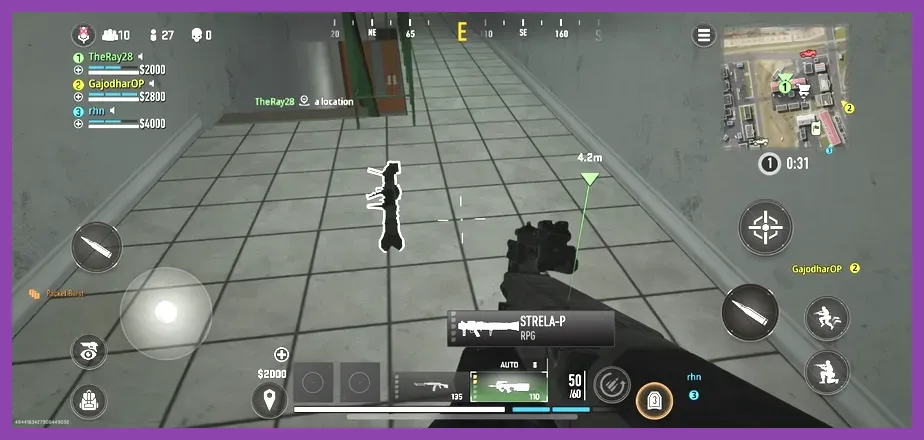
Beyond basic graphics sliders, several peripheral display configurations impact your visual clarity and apparent smoothness. Field of View (FOV) plays a massive role in performance. While running a higher FOV like 90 to 100 lets you see more of the battlefield around weapons like the RAM-7 or ISO Hemlock, it also forces your GPU to render a wider viewport, increasing rendering load. If you are struggling to maintain a stable framerate, dial your FOV back to 80 or 85 to strike a healthy balance between situational awareness and stable frame pacing.
Furthermore, disable Motion Blur and Weapon Motion Blur immediately. Motion blur smears frames together to fake cinematic motion, but in a competitive first-person shooter, it obscures enemy movement and makes tracking targets during quick camera swipes nearly impossible. Similarly, turn off World Motion Blur and set Screen Shake to zero. Keeping your camera movements crisp and stable prevents artificial visual noise that drains processing power and strains your eyes during frantic close-quarters engagements in tight building complexes.
Managing Device Temperature and Battery Profiles

Hardware optimization extends past software menus. Even with optimal settings, running Warzone Mobile for consecutive hours will heat up your device, triggering thermal protection protocols that slash your performance in half. To maintain your high FPS profile, consider implementing these physical practices:
- Use a dedicated mobile gaming cooler or clip-on semiconductor fan to actively dissipate heat from the back chassis of your phone or tablet.
- Never play while your device is plugged into a fast charger, as charging generates intense internal heat that compounds processor thermal throttling.
- Lower your device screen brightness to around 50% to reduce thermal generation from the display panel.
- Enable Do Not Disturb mode to prevent incoming calls or banner notifications from popping up, which can cause sudden micro-stutters mid-gunfight.
Players striving for top-tier competitive performance often manage their hardware setup with the same precision that hardcore gamers apply to Solo Leveling Arise co-op builds or fine-tuning Squad Busters character rosters. Treating your mobile device like a dedicated gaming console ensures consistent, reliable framerates match after match.
Network Optimization and Audio Settings for Competitive Play
High frame rates mean nothing if your network connection introduces severe packet loss or latency spikes. Head into your account and network settings to monitor your ping and packet loss indicators in real-time. Connect to a stable 5GHz Wi-Fi network rather than relying on fluctuating mobile data connections, and ensure your router prioritizes gaming traffic via Quality of Service (QoS) settings if available. A stable connection ensures that your high FPS actions register instantly on the game servers without rubberbanding.
In addition to network stability, audio processing impacts both your situational awareness and system resource allocation. Complex 3D spatial audio calculations can place a minor tax on your mobile processor. In the Audio settings, select Headphone or Studio Reference profiles, and ensure Master Volume and Effects Volume are balanced while lowering unnecessary music tracks. Hearing enemy footsteps, reloads, and parachute glides clearly without performance-draining audio glitches gives you the ultimate edge when pushing bounties across the map.
Fine-Tuning HUD Layout and Controls for Maximum Responsiveness
Your touch controls and HUD layout directly affect how fluidly you interact with the game world. An unresponsive layout can make even a locked 60 FPS feel sluggish. Customize your HUD by increasing button sizes for critical actions like firing, aiming down sights (ADS), jumping, and sliding. Utilize a multi-finger claw grip setup if you play on a phone, or position your thumbs ergonomically if you use a gamepad controller compatible with iOS or Android.
Furthermore, adjust your sensitivity profiles to match your new high-FPS environment. With smooth frame rates, your camera will track much faster and more fluidly. Test your horizontal and vertical sensitivity in the firing range or practice boot camps, making small increments until your crosshair placement snaps naturally onto targets. Combining optimized graphics presets, proper thermal management, and a clean control layout ensures your Warzone Mobile experience delivers peak performance from your first drop to the final extraction circle.