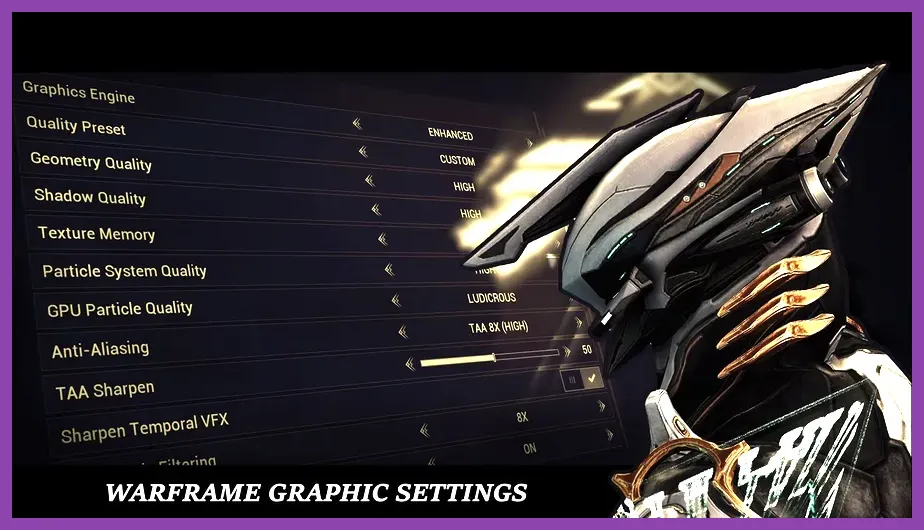
To achieve maximum frames per second in Warframe, you must drop vertical sync, lower GPU-heavy post-processing filters like Bloom and Depth of Field, set Display Mode to Fullscreen, and utilize Dynamic Resolution scaling to lock your framerate above 144Hz during hectic Void Fissure or open-world bounty runs. Digital Extremes' engine scales exceptionally well across older and newer hardware alike, but crowded multiplayer sessions in nodes like Sanctuary Onslaught or the Plains of Eidolon will quickly bottleneck your CPU and GPU if your preset options are left on default or high.
Display and Resolution Settings for Maximum Performance
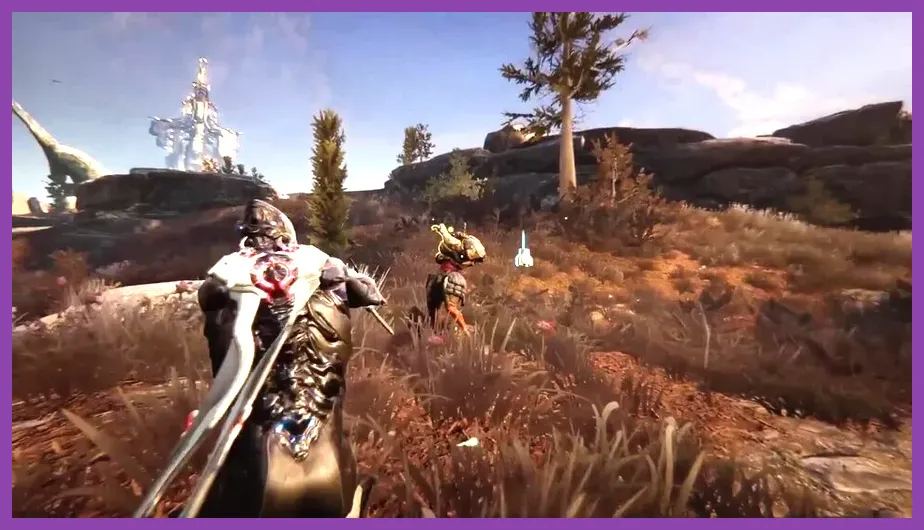
Your journey to buttery-smooth combat begins in the Display tab of the official Warframe game client. Configuring your window mode and rendering resolution is the single most effective way to eliminate stuttering and input lag when playing fast-paced frames like Gauss or Titania.
Fullscreen vs. Borderless Windowed
Always select Fullscreen rather than Borderless or Windowed. Fullscreen gives your GPU direct, exclusive access to the rendering pipeline, bypassing the Windows Desktop Window Manager (DWM) composition overhead. This simple switch can easily net you an extra 10 to 15 percent baseline FPS, especially on Windows 10 and 11 systems running background apps like Discord or web browsers.
Dynamic Resolution and Upscaling
If you are struggling to maintain a high framerate on older GPUs like the NVIDIA GeForce GTX 1060 or AMD Radeon RX 580, enable Dynamic Resolution and set it to Auto with a target FPS of your monitor's refresh rate (e.g., 144Hz). This feature intelligently downscales internal rendering resolution during high-intensity explosions and ability spam while keeping the UI crisp and readable.
Advanced Graphics Configuration Profile

Moving down to the Graphics tab requires ruthless pruning of visual clutter. While Warframe is a visually striking free-to-play title, many of its advanced rendering features consume massive amounts of GPU fill rate without adding competitive value. For players prioritizing performance over cinematic flair, consider checking out Like a Dragon Infinite Wealth Best Settings for Max FPS to see how modern optimization principles apply across different engines.
Key Video Options to Toggle Off or Low
- GPU Particle System: Set to Low or Medium. High particle density during Saryn's Spore spreading or Ember's World on Fire casting will instantly tank frame rates in cooperative squads.
- Shadow Quality: Set to Medium or Low. Dynamic shadows cast by tileset geometry demand significant processing power. Dropping this setting yields massive FPS gains in tight indoor corridors.
- Volumetric Lighting: Off. This setting adds atmospheric fog rays but severely impacts performance in open-world zones like Deimos and the Vallis.
- Local Reflections: Off. Eliminates unnecessary ray-tracing or screen-space reflection calculations on metallic floor surfaces.
- High Dynamic Range (HDR): Toggle based on your monitor capability, but ensure it is disabled if your display only supports standard dynamic range to avoid color-space conversion overhead.
Post-Processing and Visual Clarity Adjustments
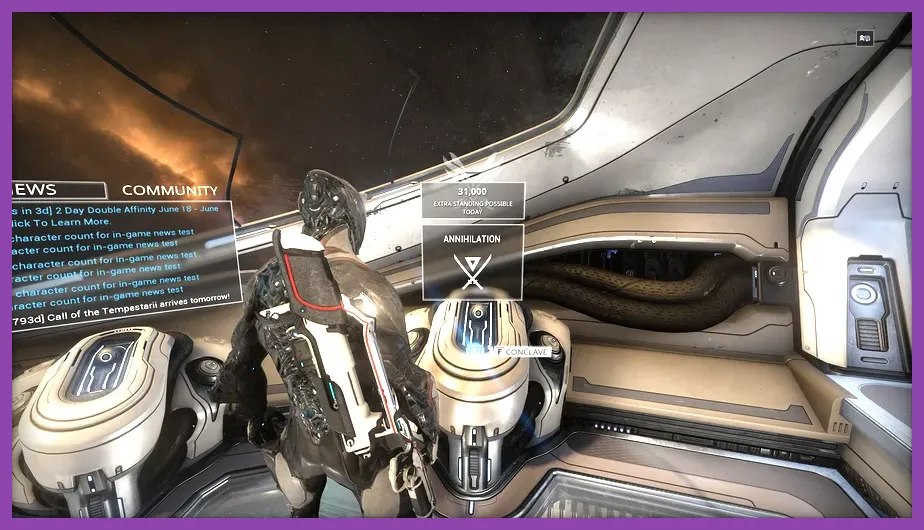
Post-processing effects in Warframe can introduce motion blur and screen glare that not only drops your FPS but actively hinders your target tracking during high-speed parkour maneuvers. For related performance tweaks in other modern titles, check out Nine Sols Best Graphics Settings for High Performance.
Optimizing Blur and Depth Settings
Ensure that both Motion Blur and Depth of Field are toggled strictly to Off. Motion blur smears frame transitions, making it difficult to spot Nullifier crewman bubbles or Eximus unit energy indicators across tilesets. Depth of field blurs your peripheral vision whenever you aim down sights (ADS), which introduces a micro-stutter in your visual processing loop during precise headshots with weapons like the Kuva Bramma or Felarx.
Color Correction and Distortion
Turn Color Correction and Distortion off. Distortion effects caused by heat vents or laser barriers eat minor frame cycles, and turning off color correction normalizes lighting levels across dark Grineer Asteroid tiles and bright Corpus Ship layouts, improving enemy visibility.
Optimizing Audio and CPU Threading for Stutter Reduction
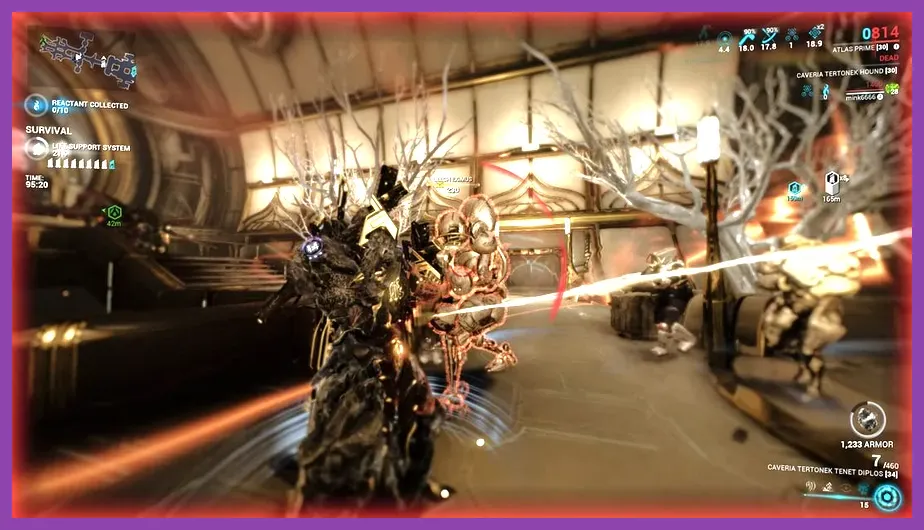
Framerate drops are not exclusively tied to your graphics card. Warframe relies heavily on physics calculations and audio processing during massive mob spawns in Steel Path Survival missions. If you want to dive deeper into system hardware requirements, review the Monster Hunter Wilds Best System Requirements PC Settings for reference on modern CPU scaling.
Multi-Threaded Rendering
Inside the launcher settings (click the gear icon in the top right of the standalone or Steam launcher), make sure Multi-Threaded Rendering and GPU Accelerated PhysX are checked. These options distribute calculations evenly across modern multi-core processors (such as the AMD Ryzen 5 5600X or Intel Core i5-12400F), preventing single-core bottlenecks when dozens of infested units pathfind toward your Tenno operative.
Audio Occlusion and Channels
If you experience stuttering during intense firefights, navigate to the Audio tab in-game and lower Audio Channels from High to Medium or Low, and toggle off Reverb and Audio Occlusion. Audio processing runs on the CPU, and reducing audio channel mixing frees up processing cycles for physics calculations.
UI and HUD Tweaks to Boost Responsiveness
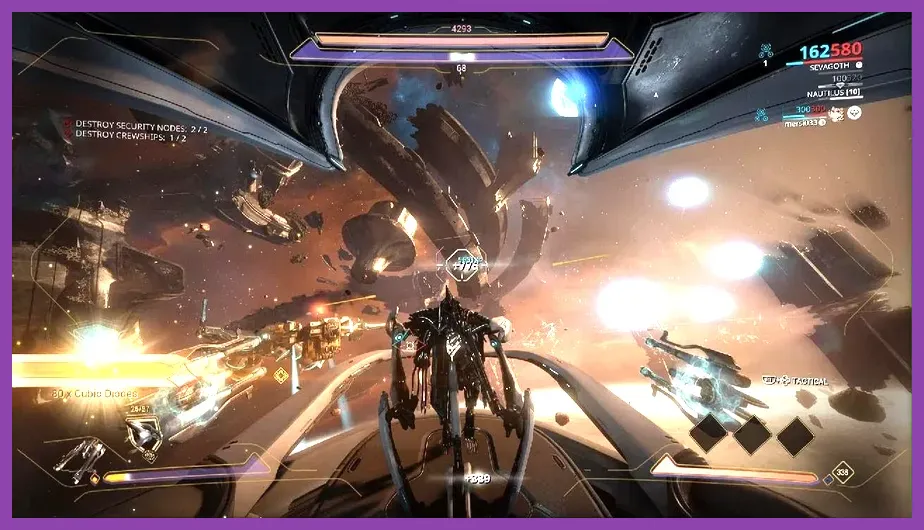
Believe it or not, your user interface settings can also impact interface rendering latency, especially on lower-end rigs. Clean up your screen real estate to keep input polling rates as responsive as possible. For more community-driven strategies on optimizing gameplay loops, consult the Lethal Company Best Beginner Tips and Tricks guide.
HUD Scale and Damage Numbers
Consider scaling down your HUD and setting damage numbers to Stacked rather than Floating. When using high fire-rate weapons like the Prisma Grakata, thousands of floating damage numbers spawn simultaneously, which can choke the game engine's rendering thread and cause severe micro-stutters. Stacked damage numbers condense this data efficiently, keeping your frame time graph flat and stable.
Testing Your Framerate in the Simulacrum
Once you have applied these optimized settings, load up Cephalon Simaris's Sanctuary and test your configuration in the Simulacrum. Spawn 20 level 185 Corrupted Heavy Gunners and test your favorite AoE weapons while monitoring your framerate via MSI Afterburner or the in-game Steam FPS counter. If your frame rate dips below your monitor's refresh rate during this stress test, lower your Geometry Detail or turn off Antialiasing from Temporal AA to SMAA. By balancing these settings, you will maintain a locked, high-refresh-rate experience across all standard nodes, Arbitrations, and deep Endless Steel Path incursions.