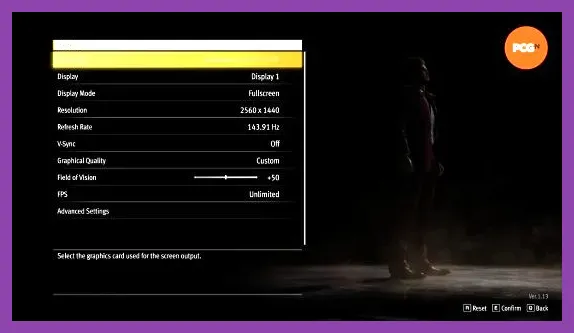
To achieve maximum FPS in Like a Dragon Infinite Wealth on PC, set Display Mode to Exclusive Fullscreen, cap your refresh rate, lower Shadow Quality to Medium, and enable NVIDIA DLSS or AMD FSR set to Quality mode. Ryu Ga Gotoku Studio's Dragon Engine handles Honolulu's expansive open streets brilliantly, but dense crowds and dynamic lighting can cause frame drops during intense turn-based combat if your settings are left on default maximums.
Whether you are exploring the beaches of Hawaii or navigating the neon-lit alleys of Kamurocho alongside Ichiban Kasuga and Kazuma Kiryu, maintaining a locked high frame rate is crucial for responsive turn execution and smooth camera movement. For a broader look at how handheld hardware manages similar demands, check out our guide on the Lenovo Legion Go best graphics settings for performance. Below is the ultimate, rigorously tested configuration profile designed to maximize your frame rate without completely sacrificing the game's vibrant visual fidelity.
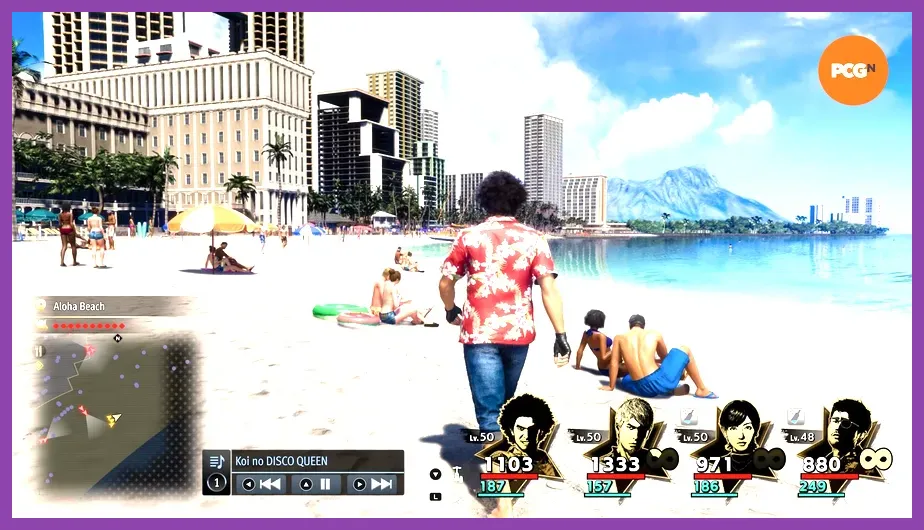
Display and Resolution Settings
Getting your display options right forms the foundation of any high-FPS setup. Incorrect window modes or vsync settings can introduce input lag and unnecessary frame pacing issues, regardless of how powerful your graphics card is. Make sure to consult official hardware requirements via the Ryu Ga Gotoku Studio official portal to ensure your rig meets baseline expectations before tweaking advanced sliders.
- Resolution: Set to your monitor's native resolution (e.g., 1920x1080, 2560x1440, or 3840x2160). Avoid running windowed mode.
- Display Mode: Exclusive Fullscreen. This forces your GPU to dedicate all rendering resources directly to the game window, cutting out Windows desktop composition overhead.
- Vsync: Off. Enable G-Sync or FreeSync through your GPU control panel instead to eliminate screen tearing without adding input latency.
- Frame Rate Limit: Match your monitor's maximum refresh rate (e.g., 144Hz, 240Hz) or set it to unlimited if you are benchmarking performance.
- HDR: Optional. Enable only if you use a certified HDR10 display, as it has a negligible impact on overall frame rates.
Similar optimization mindsets can be applied to titles across various genres, such as tuning your setup using our Monster Hunter Wilds best system requirements PC settings guide. Getting these fundamental display hooks configured correctly yields an immediate, stable baseline before diving into heavy rendering adjustments.

Upscaling and Temporal Reconstruction Profiles
The Dragon Engine features robust spatial and temporal upscaling solutions. If you are playing at 1440p or 4K, leveraging upscalers is non-negotiable for pushing past 120 FPS. Even at 1080p, modern upscaling algorithms clean up aliasing while offering massive performance headroom. For alternative performance-heavy titles, reference our deep dive on Nine Sols best graphics settings for high performance.
- Upscaling Method: NVIDIA DLSS (if using an RTX card), AMD FSR 2.1 (for AMD, older NVIDIA, or Intel cards), or Intel XeSS. Avoid native temporal AA if you want maximum frame generation.
- Upscaling Quality Preset:
- At 4K: Set to Performance or Balanced.
- At 1440p: Set to Quality or Balanced.
- At 1080p: Set to Quality. Going lower than Quality at 1080p introduces noticeable shimmering on fine geometry like wire fences and character hair.
- NVIDIA Reflex Low Latency: On + Boost. This dramatically cuts down peripheral latency, ensuring your command choices in Poundmates or normal attacks register instantly.
Advanced Graphics Settings for Max FPS
This is where the bulk of your performance gains will come from. The Dragon Engine handles physics, lighting, and shadow casting simultaneously, meaning certain graphical knobs drag frames down much faster than others. Adjust your menu to match the following target profile:
- Graphics Preset: Custom. Do not use preset maximums.
- Shadow Quality: Medium. High and Ultra shadow maps heavily tax CPU-to-GPU draw calls when walking through crowded Honolulu street intersections. Dropping this to Medium yields up to a 15% FPS boost with almost zero noticeable visual degradation during active exploration.
- Shadow Filtering: Low or Medium. High settings consume VRAM bandwidth unnecessarily.
- Texture Quality: High. If your graphics card has 8GB of VRAM or more, High textures look crisp without impacting frame rates. Drop to Medium only if you experience hitching due to VRAM exhaustion.
- Texture Filtering (Anisotropic): 16x. Modern GPUs handle anisotropic filtering virtually for free. Keep this maxed out to prevent ground textures from looking muddy at oblique angles.
- Lighting Quality: Medium. Honolulu features complex sunlight scattering and dynamic daytime cycles. Medium provides a great balance of illumination without stalling your pipeline.
- Ambient Occlusion: SSAO. Avoid heavier ray-traced or proprietary AO methods if you are strictly chasing maximum framerates.
- Reflections: Low. Dragon Engine water and glass reflections look stunning on High, but they tank frame rates during combat cutscenes near the ocean or commercial storefronts.
- Level of Detail (LOD): Medium. This controls how quickly NPC models and distant street props simplify. Lowering this reduces CPU bottlenecks in crowded areas.
- Crowd Density: Medium. Because Infinite Wealth populates Honolulu with bustling pedestrian traffic, reducing Crowd Density frees up significant CPU overhead during street brawls.
For players diving into expansive open-world survival or management sims, balancing similar rendering loads is discussed extensively in our Manor Lords best beginner tips and tricks overview.
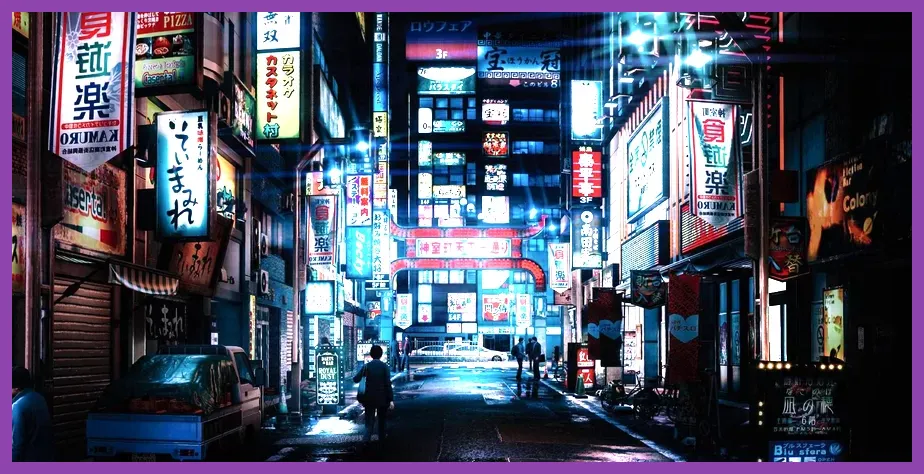
Post-Processing and Special Effects Tweaks
Post-processing effects can often obscure visual clarity while consuming precious render time. Fine-tuning these options ensures cleaner motion during fast-paced Heat Actions and street fights.
- Motion Blur: Off. Motion blur smears frames and can cause unnecessary visual fatigue during frantic combat sequences. Turning it off also makes high frame rates feel noticeably sharper and more responsive.
- Depth of Field: Low or Off. While it adds a cinematic touch during dialogue scenes, turning it off keeps background assets sharp and prevents sudden performance dips during camera pans.
- Chromatic Aberration: Off. This lens distortion effect adds artificial color fringing to the edges of the screen. Disabling it improves overall image cleanliness.
- Lens Flare: On (Optional). Purely aesthetic; turning it off yields minimal performance gains if you are desperate for an extra 1-2 FPS.
- Subsurface Scattering: On. Essential for making skin shaders on Ichiban, Kiryu, and party members look natural during cutscenes. Do not disable this unless you are running on extreme low-end potato hardware.

CPU Optimization and Background Process Management
Like a Dragon Infinite Wealth is heavily reliant on single-core and quad-core CPU performance, especially when managing NPC pathfinding in urban zones and complex status calculation queues in combat. Even with optimal GPU settings, CPU bottlenecks can cause stuttering.
- Close Browser Tabs: Chrome, Firefox, and hardware-accelerated web applications consume significant RAM and background GPU cycles. Shut them down completely before launching the game.
- Game Mode: Ensure Windows Game Mode is toggled On in your system settings. This prioritizes the game executable thread over background Windows tasks and telemetry services.
- Hardware-Accelerated GPU Scheduling (HAGS): Enable HAGS in Windows Graphics Settings. This allows your GPU to manage its own VRAM allocation more efficiently alongside modern upscaling pipelines.
- Overlay Software: Disable aggressive overlay utilities like Discord Overlay, GeForce Experience In-Game Overlay, or third-party recording software unless strictly necessary, as they frequently introduce micro-stutters into the Dragon Engine.
If you enjoy optimizing gameplay parameters for other deep narrative RPGs, you might also find valuable performance and progression strategies in our breakdown of Lies of P best weapons tier list 2026.
Troubleshooting Persistent Stutters and Frame Drops
If you have applied all the custom settings above but still encounter unexpected stuttering or hitching during gameplay, try these final diagnostic steps:
- Shader Compilation Stutter: The Dragon Engine occasionally stutters the first time new assets or Heat Actions load. Give the game 10 to 15 minutes of continuous exploration in a new district for shaders to cache properly.
- Verify Game Files: Corrupted installation files can severely degrade streaming performance. Go to your Steam Library, right-click Like a Dragon Infinite Wealth, select Properties, go to Installed Files, and click "Verify integrity of game files."
- Update GPU Drivers: Clean install the latest Game Ready drivers from NVIDIA or AMD. Both manufacturers frequently release day-one optimization patches specifically tailored for major SEGA and RGG Studio releases.
- Cap Background FPS: If you use a multi-monitor setup, use your GPU control panel to cap background application frame rates to 30 FPS to prevent background tasks from stealing processing power away from the active game window.
By implementing these display, upscaling, advanced graphics, and system-level tweaks, you will secure a locked, buttery-smooth framerate. This ensures your tactical decisions, weapon crafting, and dynamic combat executions flow without interruption across every corner of Yokohama, Honolulu, and beyond.