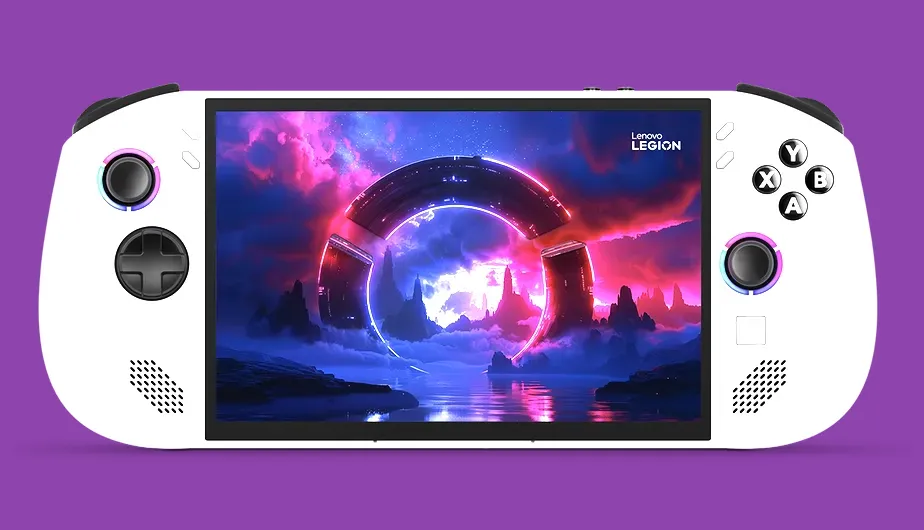
To achieve the best performance and frame rates on the Lenovo Legion Go, you must run demanding titles at a 1280x800 resolution combined with AMD Radeon Super Resolution (RSR) or Lossless Scaling, set your Windows power mode to Custom TDP at 25W plugged in or 18W on battery, and configure in-game graphics presets to Medium texture quality, Low shadows, and Medium ambient occlusion. Mastering your hardware configuration transforms the device from a sluggish portable PC into a powerhouse capable of handling demanding AAA releases. If you are comparing mobile ecosystems, you might also want to check out the Nintendo Switch 2 system requirements and specs guide to see how handheld hardware landscapes compare.
Mastering the Legion Space and Windows Thermal Profiles
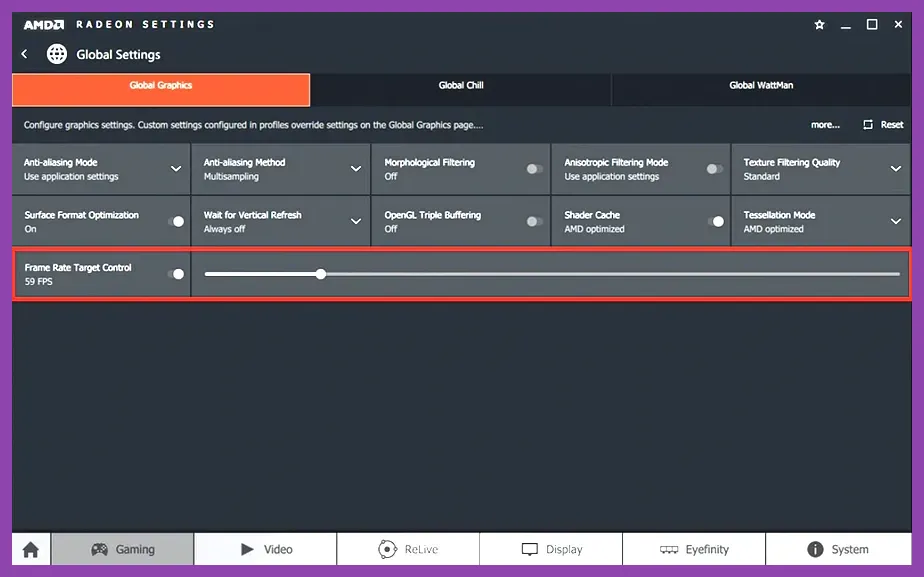
Before touching any in-game configuration sliders, your absolute first step is optimizing the operating system and hardware power envelopes. The Lenovo Legion Go relies on the AMD Ryzen Z1 Extreme processor paired with RDNA 3 graphics, which scales dynamically based on thermal limits. Open the Legion Space overlay and navigate to the Performance tab. For maximum frame stability while connected to a power outlet, select the Custom thermal mode, push the TDP slider to 30W STT (Smart Shift Technology) or 25W manually, and set the fan curve to full speed once temperatures exceed 75 degrees Celsius. When gaming on battery, drop your TDP profile down to 15W or 18W to preserve your battery life without causing severe thermal throttling. For more advanced hardware tweaks, consult the Stardew Valley 1.6 best settings for max fps guide for inspiration on lightweight game optimization.
Next, dive into the Windows display settings. The Legion Go features a native 1600p portrait display running at 144Hz. Running modern games at 2560x1600 or even 1920x1200 will cripple your GPU performance instantly. Change your Windows display resolution to 1280x800 before launching games that lack borderless windowed upscaling support. Additionally, ensure that Virtual Smart Access Memory (ReBAR) is enabled within your BIOS, as this provides a free 5 to 10 percent performance uplift across almost every modern DirectX 12 title. You can read more about hardware optimization parameters over at the official AMD Ryzen Z1 Extreme specification page.
The Universal Universal Graphics Preset Profile
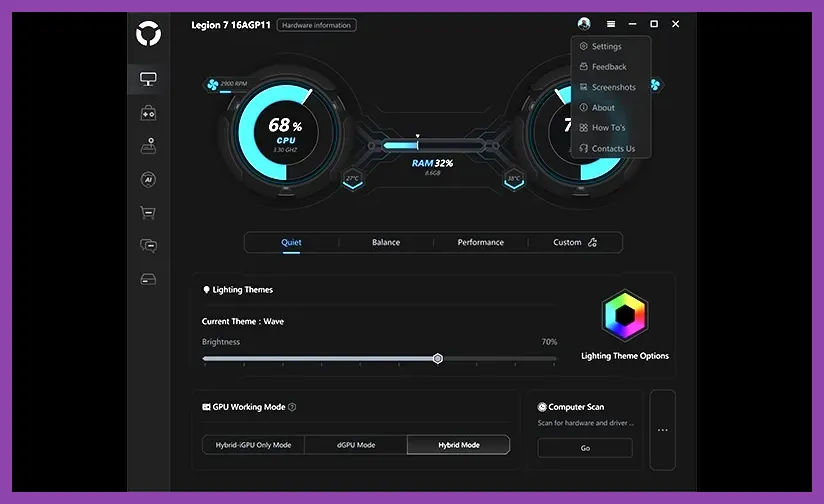
Finding a reliable baseline configuration saves hours of trial and error. Across almost every demanding action RPG, open-world survival game, or fast-paced shooter, you should apply a standardized baseline profile before tweaking individual settings. Here is the ultimate universal graphics template designed to net you a stable 50 to 60 frames per second on the Legion Go's 8.8-inch screen:
- Display Mode: Borderless Windowed (Required for AMD Radeon Super Resolution to function correctly).
- Resolution: 1280x800 (Or 800p equivalent in-game render scale).
- Upscaling: FSR 2.0 / FSR 3.0 / XeSS set to "Performance" or "Balanced" mode.
- Texture Quality: Medium to High (Depending on your VRAM allocation).
- Shadow Quality: Low (The single most demanding setting that yields the highest FPS return).
- Ambient Occlusion: Medium or SSAO (Disable Ray Tracing entirely).
- Anti-Aliasing: TAA or FXAA (Avoid heavy MSAA or supersampling).
- Motion Blur: Off (Recommended for clarity on smaller panels).
By enforcing a strict adherence to Low shadows and Medium textures, you minimize VRAM bottlenecks on the shared 16GB LPDDR5X memory pool. For fans of immersive building and survival simulators, checking out optimization tips similar to the Stardew Valley 1.6 system requirements minimum and recommended guide will give you a better understanding of how memory constraints affect frame pacing.
Allocating VRAM in the Legion BIOS
One of the most overlooked performance enhancements for the Lenovo Legion Go involves modifying the Frame Buffer Size, commonly known as VRAM allocation, within the system BIOS. Out of the box, the Legion Go is often configured to allocate a meager 3GB or 4GB of system RAM exclusively for video memory. Modern AAA games like Steam releases frequently demand 6GB to 8GB of VRAM just to load high-resolution texture pools without stuttering.
To fix this bottleneck, completely shut down your device. Turn it on while holding the Volume Up button until you enter the Legion BIOS utility. Navigate to the Configuration tab, locate the Uma Frame Buffer Size option, and change it from Auto or 4GB to 6GB or 8GB. Save changes and reboot. This simple modification eliminates stuttering caused by texture paging across system memory. If you enjoy tuning hardware settings for maximum efficiency, you may also appreciate exploring tactical setups like the ones found in the Roblox best loadout for ranked guide.
Leveraging AMD Radeon Super Resolution and Lossless Scaling
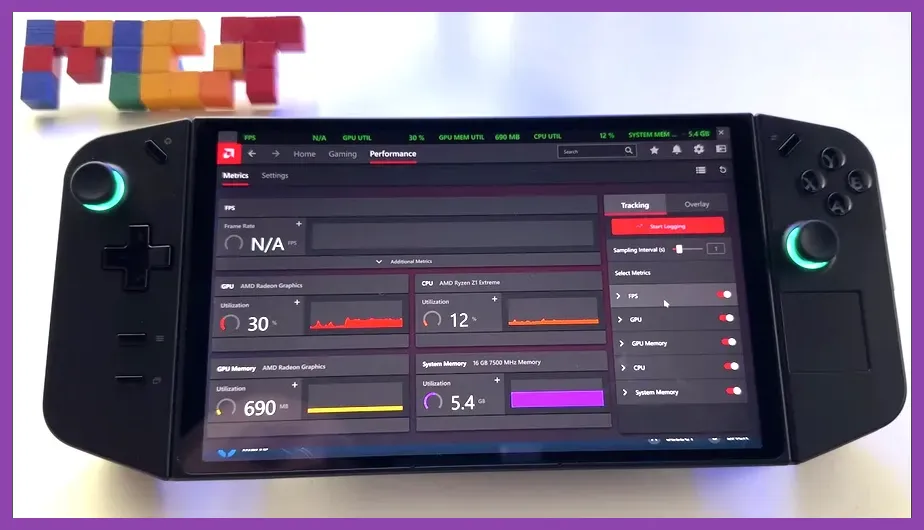
Because the Legion Go native panel operates at a high resolution, pushing native pixels is unnecessary and detrimental to battery longevity. AMD Radeon Super Resolution (RSR) allows you to drop your in-game resolution to 800p while using the hardware driver to upscale the image back to your display's native clarity with minimal visual degradation.
To set this up, open the AMD Software: Adrenalin Edition application, go to the Gaming tab, select Graphics, and toggle Radeon Super Resolution to Enabled. Next, launch your game and set its in-game resolution to 1280x800. You will instantly notice a dramatic surge in frame rates. Alternatively, many handheld enthusiasts use the third-party application Lossless Scaling available on the official Steam store page to inject frame generation into titles that lack native FSR support, effectively doubling your perceived fluid motion on the go.
If you enjoy optimizing game performance across various other platforms and devices, be sure to review the hardware breakdowns featured in the Phasmophobia best system requirements minimum and recommended overview.
Thermal Management and Hardware Longevity Tips
Pushing your Lenovo Legion Go to a constant 30W TDP generates significant heat, which can degrade battery health over time and cause the internal fans to spin at maximum noise levels. To maintain peak performance during long gaming sessions, invest in a dedicated handheld cooling dock or ensure that the rear air intake vents are never obstructed while playing on a soft surface like a bed or couch.
Furthermore, keep your AMD graphics drivers updated through the official Lenovo support portal or via AMD Adrenalin sideloaded drivers. Lenovo frequently releases controller firmware updates and power delivery optimizations that improve wake-from-sleep stability and gyro sensor accuracy. Proper maintenance guarantees your device handles heavy workloads smoothly for years to come.