
To achieve maximum frame rates and stable performance in Total War: Warhammer 3 without sacrificing visual clarity, you need to turn down heavy GPU hogs like Screen Space Reflections and Shadows while locking your Texture Quality to match your VRAM capacity. Real-time strategy games demand consistent 60+ FPS during chaotic 4000-unit land battles and sprawling multi-faction campaign map turns, making precise configuration essential.
For official patch notes, system requirements, and community discussions, visit the Total War: Warhammer 3 Steam Page or check out developer updates on the Creative Assembly Official Website. Furthermore, you can consult the Total War Warhammer Wiki for deep dives into game mechanics. If you enjoy optimizing complex PC games, you might also find value in checking out Stardew Valley 16 Best Settings for Max FPS or reviewing the Street Fighter 6 System Requirements for baseline PC comparisons.
Understanding Performance Bottlenecks in Total War: Warhammer 3
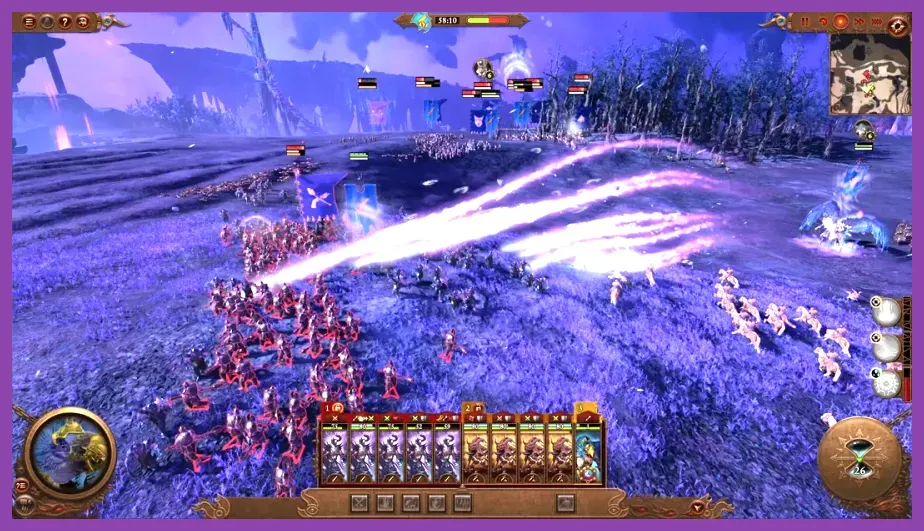
Total War: Warhammer 3 is notoriously demanding on both your CPU and GPU. During the campaign map phase, the game calculates thousands of AI faction movements, trade agreements, and economic updates, heavily taxing your processor's single-core speed. Conversely, during large-scale cinematic battles—such as a 20v20 stack clash involving daemonic entities, massive artillery units, and high-tier spellcasting—your graphics card and VRAM take the brunt of the workload.
Before modifying individual sliders, you should understand what your specific hardware setup can handle. If you are experiencing stuttering during turn transitions, your CPU and RAM speed are likely the bottlenecks. If your frame rates plummet when zooming into close-up unit formations, your GPU, VRAM, or specific graphics settings like Anti-Aliasing and Shadows are responsible. Finding the sweet spot requires a targeted approach rather than simply dropping everything to 'Low'.
The Optimal Performance Graphics Preset
Applying a customized performance profile yields drastically better visual fidelity than simply selecting the default 'Medium' or 'Low' presets. Many graphical settings in Creative Assembly's engine offer massive performance gains with negligible visual degradation.
Advanced Video Settings Breakdown
- Resolution Scale: 100% (Never lower this below 100% unless desperate, as it introduces severe blurriness).
- V-Sync: Off (Unless you experience screen tearing; use G-Sync or FreeSync via your GPU control panel instead).
- Texture Quality: High or Ultra (Dependent strictly on your GPU's VRAM. 8GB+ VRAM handles Ultra fine; 6GB VRAM should use High).
- Filtering: Anisotropic 4x or 8x (Extremely low performance cost for much crisper ground textures).
- Shadow Quality: Medium (High and Ultra shadow maps devour frame rates with minimal noticeable fidelity gain).
- Tree Detail: Medium (Massively impacts forested map battles; Medium provides a clean balance).
- Unit Detail: High (Keeps individual soldier armor and weapons distinct during zoom-ins without crushing frame rates).
- Building Detail: Medium (Reduces geometric complexity of distant settlement walls during sieges).
- Terrain Quality: Medium (Low causes noticeable popping; Medium keeps landscape contours smooth).
If you enjoy tackling complex progression systems and character optimizations in other titles, you may also appreciate reading our guides on Stalker 2 How to Respec Skill Points and Summoners War Best Skills to Max First.
Lighting, Post-Processing, and Visual Effects Tweaks
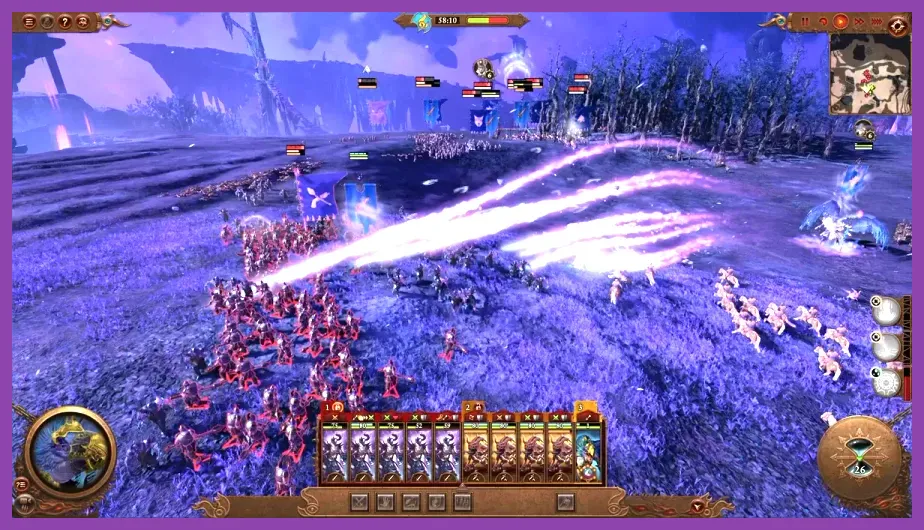
Post-processing effects and lighting options add cinematic flair to Total War: Warhammer 3, but they are often the primary culprits behind sudden frame drops during chaotic magic bombardment and massive cavalry charges.
Post-Processing and Lighting Settings
- SSAO (Screen Space Ambient Occlusion): Off or Low. SSAO darkens corners and creases where objects meet, but it costs a significant amount of GPU power. Disabling it gives a noticeable 5-10% FPS boost.
- Screen Space Reflections (SSR): Off. SSR adds dynamic water and armor reflections, but it is one of the single most resource-heavy settings in the entire game. Turn this off immediately for a massive performance uplift.
- Vignette: Off. This is purely a stylistic dark border around the screen that many players find distracting.
- DOF (Depth of Field): Off. Blurs the background during unit inspection and melee engagements; turning it off keeps your peripheral vision sharp.
- HDR: Enabled (Only if your monitor supports true HDR; otherwise leave disabled to avoid washed-out colors).
- Particle Detail: Medium. When multiple spellcasters throw fireballs, vortexes, and healing spells, high particle counts will choke your CPU and GPU. Medium keeps magic looking great while maintaining stability.
For more strategies on handling tactical depth and cooperative gameplay, take a look at Terraria Best Co-op Multiplayer Builds or explore Team Fortress 2 Best Unlockable Weapons to Get First.
Optimizing Campaign Map Performance
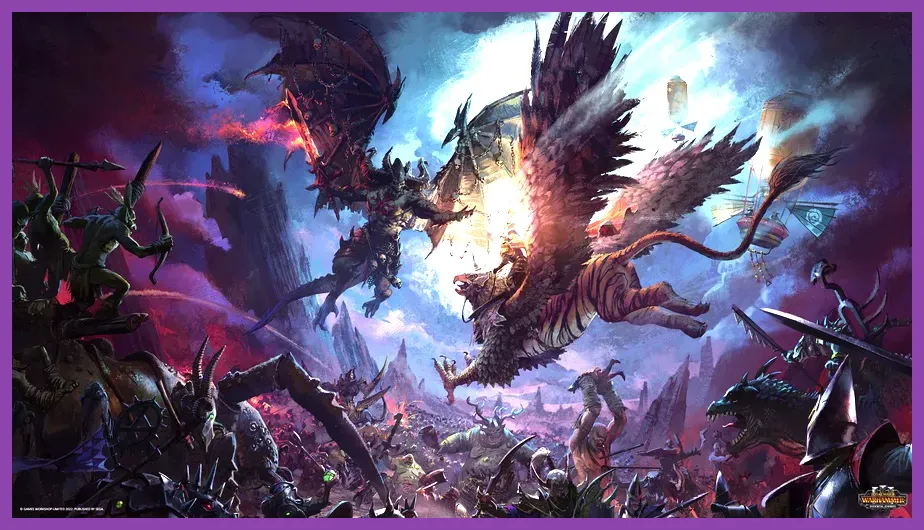
Players often overlook the campaign map, assuming that because it isn't rendering real-time physics for thousands of individual soldiers, it shouldn't impact performance. However, the sprawling campaign map of Warhammer 3—featuring animated rivers, corruption spread visual effects, moving armies, and settlement animations—can cause stuttering and low frame rates during end-turn processing.
Campaign-Specific Tweaks
To ensure smooth camera panning and responsive map navigation, lower the Fog of War quality and reduce UI Scale if playing on ultra-wide monitors. Additionally, limiting background frame rates when the game window loses focus can help manage thermal output if you tend to alt-tab frequently to check online wikis or strategy guides.
If you are managing performance setups on alternative platforms or mobile devices, you might find our guides on State of Survival Best Emulator Settings for PC and Stardew Valley Mobile Best Defensive Setup quite helpful.
Testing and Benchmarking Your Configuration

Never rely solely on intuition when modifying graphics settings. Total War: Warhammer 3 features a robust built-in benchmarking tool accessible directly from the main menu. Select either the 'Battle Benchmark' or the 'Campaign Benchmark' to test your newly applied settings.
When running the benchmark, pay close attention to the 1% Lows rather than just the average frame rate. A game might report an average of 75 FPS, but if your 1% lows drop to 24 FPS during intense magic barrages, you will experience severe stuttering and input delay. Adjust shadow and particle settings downward until your 1% lows remain stable above 45 to 50 FPS.
Hardware-Level Tweaks and Upscaling
Modern graphics cards support upscaling technologies that can dramatically improve frame rates without sacrificing visual clarity. Total War: Warhammer 3 features native implementations of AMD FSR (FidelityFX Super Resolution) and Nvidia DLSS (Deep Learning Super Sampling) on supported hardware.
If you are playing at 1440p or 4K resolution, enabling DLSS or FSR on the Quality setting can yield an instant 15 to 25 FPS boost while keeping text and UI elements razor sharp. Avoid using 'Performance' or 'Ultra Performance' modes at 1080p, as the internal rendering resolution becomes too low, resulting in severe shimmering on unit armor and distant terrain features.
Finally, ensure your graphics card drivers are fully up to date, and verify that your RAM is running at its advertised XMP/EXPO speeds in your BIOS. Strategy games are exceptionally sensitive to memory bandwidth constraints, and fixing a misconfigured BIOS profile often yields a larger performance increase than any in-game graphics slider adjustment.