To achieve maximum FPS in Valorant, you must drop all in-game graphical details to their lowest presets, disable resource-heavy post-processing features like Bloom and Distortion, and leverage external GPU optimizations through software such as the Nvidia Control Panel. Valorant is a CPU-bound tactical shooter where maintaining a frame rate well above your monitor's refresh rate—such as 240Hz or 360Hz—directly minimizes input lag and ensures smooth crosshair tracking when playing agents like Jett, Reyna, or Chamber.
Understanding Valorant System Architecture and Bottlenecks
Before adjusting sliders, it helps to understand what hardware drives Valorant's engine. Built on a modified version of Unreal Engine 4, the game relies heavily on single-core CPU performance rather than heavy GPU rendering. If you are experiencing stuttering during smoke grenade executions or heavy ability usage from agents like Viper or Omen, your CPU or RAM speed is likely the bottleneck. For players transitioning from lighter titles, checking your system requirements minimum and recommended provides a baseline, though competitive play demands hardware far exceeding those basic specs.
When tuning your system, keeping background applications closed is non-negotiable. Overlay software, web browsers with multiple tabs, and hardware monitoring tools consume valuable CPU cycles that could otherwise be dedicated to rendering your match. Pair your in-game changes with optimal hardware maintenance, ensuring your cooling solutions prevent thermal throttling during extended competitive sessions.
In-Game Video Settings for Maximum Frame Rates
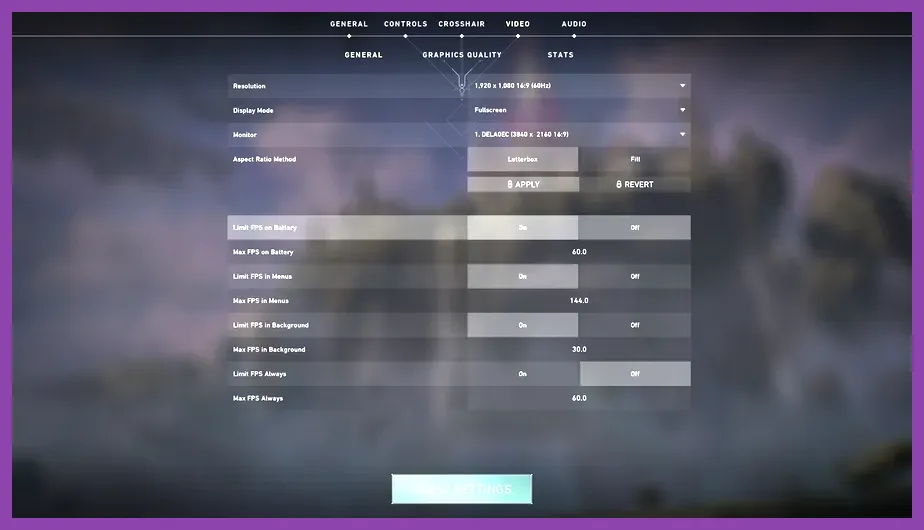
Navigate to the Settings menu, select the Video tab, and switch to the General sub-tab. Set your Display Mode to Fullscreen. Windowed and Windowless Fullscreen modes force the Windows Desktop Window Manager to render the game, introducing input latency and unnecessary frame drops. Set your Resolution to your monitor's native native resolution; running lower resolutions rarely yields significant CPU gains in Valorant and results in a blurry image that makes spotting distant head angles difficult.
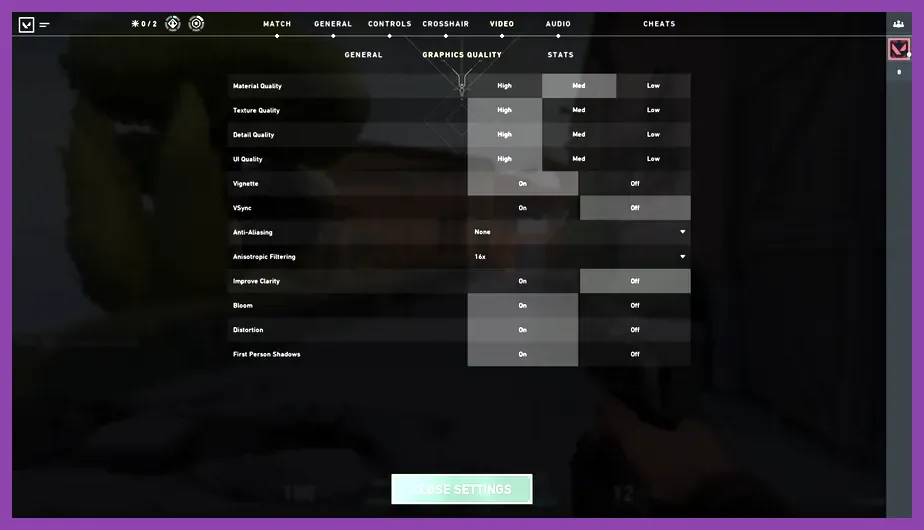
Next, move down to the Graphics Quality tab. This is where you reclaim raw performance. Apply the following exact profile:
- Multithreaded Rendering: On (Crucial for multi-core CPUs)
- Material Quality: Low
- Texture Quality: Low
- Detail Quality: Low
- UI Quality: Low
- Vignette: Off
- VSync: Off (Always keep VSync disabled to eliminate input lag)
- Anti-Aliasing: None (Or MSAA 2x if jaggies distract you, though None maximizes FPS)
- Anisotropic Filtering: 1x (Higher values impact texture sharpness at angles with minimal performance cost, but 1x is maximum FPS)
- Improve Clarity: Off (Can introduce subtle sharpness artifacts, though personal preference applies here)
- Experimental Sharpening: Off
- Bloom: Off
- Distortion: Off
- Cast Shadows: Off (Disabling shadows removes distracting player silhouettes through walls and grants a noticeable FPS boost)
These settings strip away unnecessary graphical overhead, ensuring your hardware pushes the highest possible frame ceiling. If you enjoy optimizing other titles with similar rigorous performance tuning, check out guides like stardew valley 16 best settings for max fps for cross-game optimization techniques.
Advanced Performance Stats and Framerate Caps
Monitoring your frame stability is just as important as the raw numbers. In the Video > Stats menu, enable text display for Client FPS, CPU Game Time, and Total Latency. This diagnostic data helps you isolate whether a sudden stutter is caused by network packet loss, GPU rendering spikes, or CPU bottlenecks.
Regarding frame rate limits, many players wonder if they should cap their FPS. If your system experiences wild fluctuations—for instance, jumping between 400 FPS and 200 FPS—your frame times become inconsistent, leading to micro-stutters. To combat this, set Limit FPS (Always) to a stable value that your PC can maintain during heavy site executes, such as 300 FPS or matching your monitor's refresh rate multiplied by two plus one. If you want to explore other tactical experiences that benefit from rigorous frame rate management, take a look at team fortress 2 best unlockable weapons to get first for classic competitive loadout optimization.
Nvidia and AMD GPU Control Panel Tweaks
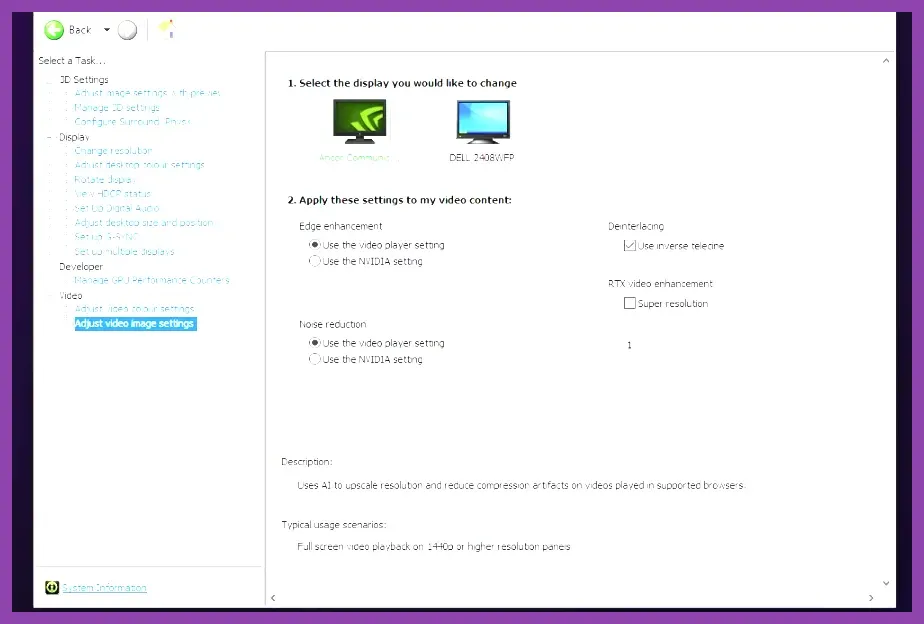
In-game settings only cover part of the equation. To squeeze every last drop of performance out of your graphics card, access your GPU's control panel. For Nvidia users, right-click your desktop, open the Nvidia Control Panel, and navigate to Manage 3D Settings > Program Settings, then select Valorant (or add VALORANT-Win64-Shipping.exe manually).
Apply the following external parameters:
- Low Latency Mode: Ultra (Queue frames are minimized directly at the driver level, tightening your mouse response)
- Power Management Mode: Prefer maximum performance
- Texture filtering - Quality: High performance
- Background Application Max Frame Rate: Off
- Vertical Sync: Off
AMD users can achieve similar results within AMD Software: Adrenalin Edition by enabling Radeon Anti-Lag and setting Texture Filtering Quality to Performance. For gamers who enjoy exploring complex PC setups and optimization layers, resources like state of survival best emulator settings for pc offer great insight into deep hardware tuning.
Windows OS Optimizations for Competitive Gaming
Your operating system can actively hinder your frame rates if left unoptimized. Press the Windows key, search for Graphics Settings, and ensure Hardware-Accelerated GPU Scheduling (HAGS) is turned On. This allows your GPU to manage its own VRAM more efficiently, reducing CPU overhead.
Furthermore, navigate to your Windows Power Options and select Ultimate Performance or High Performance. This prevents your CPU from downclocking during quiet moments in-game. Game Mode should also be toggled On in Windows settings to prioritize Valorant threads over background telemetry and update tasks. If you love optimizing various gaming ecosystems, check out steam deck oled unlock-all secret characters for handheld optimization tricks.
Testing and Validating Your Configuration in the Range
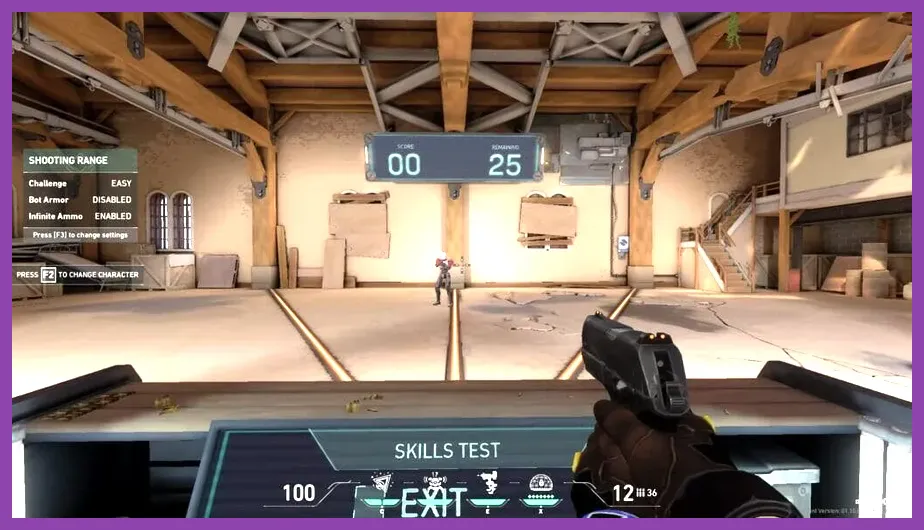
Once you have applied all in-game video changes, driver tweaks, and operating system modifications, boot up Valorant and head straight into the Practice Range. Spawn bots, use agent abilities rapidly, and test your tracking against moving targets at the shooting test area. Keep an eye on your frame rate counter and latency graph to ensure your system maintains complete stability without thermal throttling or sudden micro-stutters.
Fine-tuning your setup is an ongoing process as Riot Games frequently rolls out patches and engine updates. By maintaining clean drivers, minimalist graphics settings, and disciplined OS hygiene, your game will deliver the responsive, high-fps feedback necessary to climb the competitive ladder and secure headshots with absolute precision.