
To fix lag and low FPS in Project Zomboid, you need to adjust specific in-game graphic parameters, allocate adequate RAM via your Java startup arguments, lower zombie population load management, and disable performance-heavy mods from the Steam Workshop. Project Zomboid's deep simulation of thousands of individual items, tiles, and pathfinding zombies creates a massive CPU bottleneck, especially when entering dense urban environments like West Point or Louisville.
1. Optimize In-Game Graphic Settings for Maximum FPS
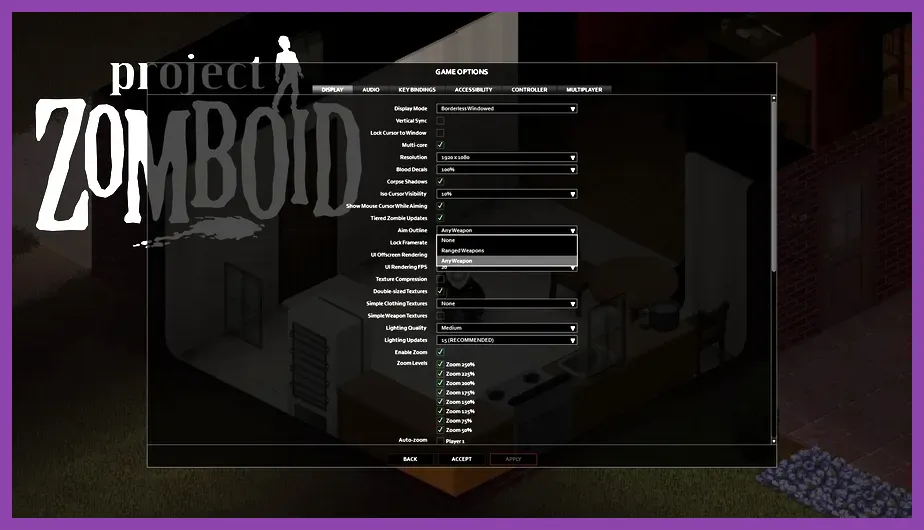
Project Zomboid relies heavily on both your graphics card and your CPU for rendering its distinct isometric world. While modern GPUs handle the basic rendering with ease, certain graphical toggles introduce massive frame pacing issues and stuttering. Adjusting these parameters provides an immediate performance uplift without drastically degrading visual fidelity.
Start by navigating to the main menu options and applying this optimized configuration profile:
- Lighting Quality: Set to Medium or Low. High lighting calculations severely tax your CPU when navigating dark interiors or densely wooded areas with dynamic light sources.
- Model Detail: Set to Low. This reduces the polygon complexity of player models, clothing layers, and zombie sprites.
- Texture Compression: Enable this setting if you are playing on a graphics card with 4GB of VRAM or less to free up memory bandwidth.
- Blood Decals: Cap them at 10% or disable them entirely. Rendering thousands of individual blood splatters across floors and walls during protracted combat sessions is a primary cause of late-game FPS drops.
- Isometric Zoom: Limit your maximum zoom-out distance. Rendering a wider area forces the engine to process more chunks simultaneously, spiking CPU utilization.
For players experiencing severe stuttering on older hardware, consulting resources like the The Indie Stone Official Forums can offer additional community-tested configuration tweaks.
2. Allocate More RAM and Edit Java Startup Arguments
Because Project Zomboid runs on the Java Virtual Machine (JVM), its performance is directly tied to how Java handles memory garbage collection. By default, the game may not utilize all the RAM available on your system, leading to stuttering when new chunks load as you drive down long highways.
You can manually adjust your RAM allocation to ensure smooth chunk loading:
- Open your Steam Library, right-click Project Zomboid, and select Properties.
- In the General tab, locate the Launch Options text field.
- To allocate 4GB of RAM, paste the following command:
-Xms4g -Xmx4g(adjust the number to match your available memory, ensuring you leave at least 4GB for your operating system and background applications). - For players running heavy multiplayer sessions or massive mod lists, checking out guides on optimizing handheld and low-spec gaming devices can provide further insights into memory management.
If you experience hitching when moving across map cells, ensuring your game is installed on an NVMe or SATA SSD rather than a traditional mechanical HDD is non-negotiable. Loading thousands of individual tile assets on an HDD causes massive input lag and rubberbanding.
3. Fix Multiplayer Rubberbanding and Network Lag

Multiplayer lag in Project Zomboid manifests as teleporting zombies, delayed container looting, and severe rubberbanding while driving vehicles at high speeds. This is usually caused by server-side tick rate limitations, high ping, or incorrect memory parameters on dedicated servers.
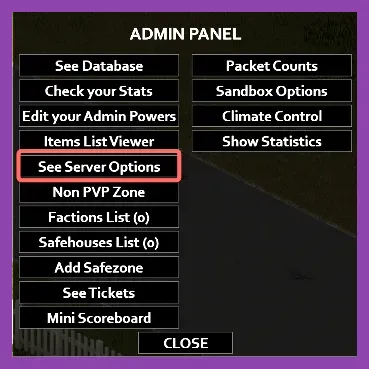
If you are hosting a dedicated server for your friends, you need to modify the servertest.ini configuration file located in your C:\Users\YourName\Zomboid\Server directory:
- UPnP: Disable UPnP if you are experiencing intermittent connection drops, and manually port-forward TCP port 16261 through your router.
- WaterAmount / FoodLoot: While these don't directly affect network lag, lowering excessive item spawns reduces the payload transferred during synchronization packets.
- PingLimit: Set a strict ping threshold (e.g., 200ms) to automatically boot high-latency connections that disrupt the server's tick rate synchronization.
For those managing complex co-op communities, pairing your setup knowledge with optimal multiplayer architectures—similar to strategies discussed in managing high-performance co-op sessions—ensures a stable environment for your player base.
4. Manage Zombie Population and Sandbox Settings
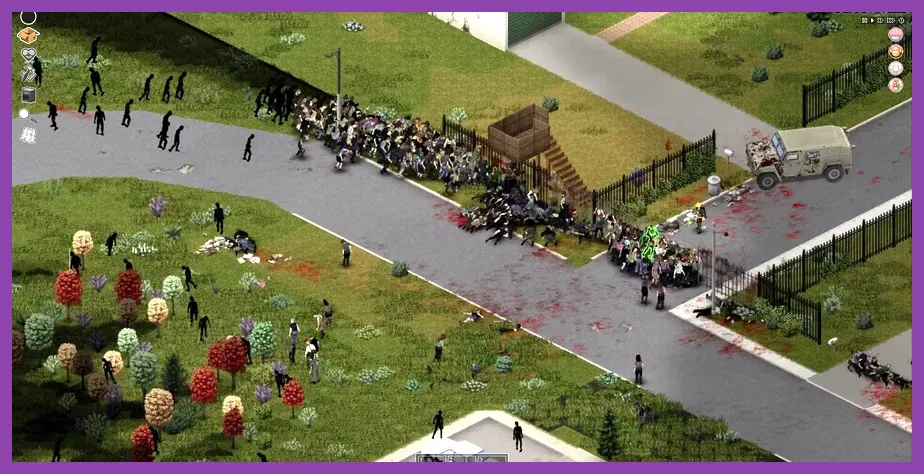
The single greatest drain on Project Zomboid's performance is pathfinding calculations for active zombies. When a horde of 500 zombies breaks into a compound, every single entity constantly calculates line-of-sight, player memory, sound triggers, and obstacle navigation.
If you are experiencing low frame rates in custom sandbox runs or heavily populated servers, tweak these environment metrics:
- Zombie Lore - Cognition: Set zombies to "Basic Navigation" rather than allowing them to open doors or use complex tracking, which drastically lowers CPU pathfinding overhead.
- Respawn Multiplier: Lower the
RespawnHourssetting or increaseRespawnUnseenHours. Constantly spawning new zombies in cleared cells forces the engine to run continuous background allocation checks. - Peak Population Day: Spread your peak population multiplier over a longer duration (e.g., Day 90 instead of Day 30) to give your hardware time to scale alongside world progression.
For more detailed technical specifications regarding hardware requirements to run massive sandbox worlds smoothly, refer to official documentation via the Project Zomboid Steam Store Page.
5. Audit and Clean Up Performance-Heavy Mods
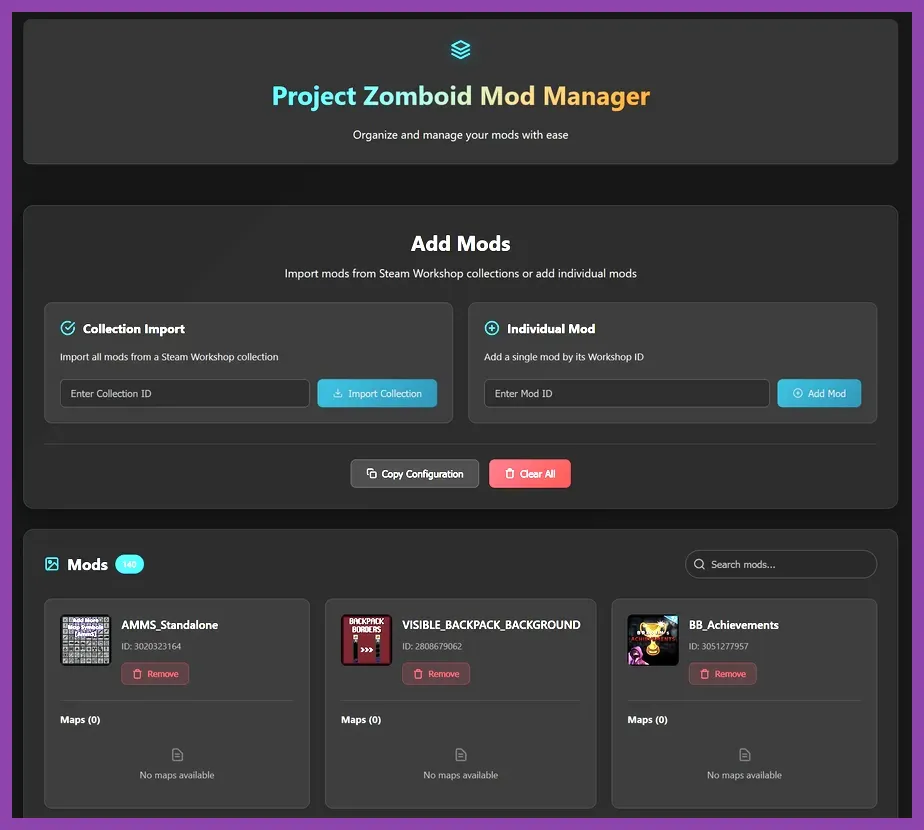
The Project Zomboid Steam Workshop features thousands of community-made mods adding everything from custom firearms like the M16 and M1911 to expansive map additions like Raven Creek. However, running outdated or poorly optimized scripts will severely tank your frame rate and introduce memory leaks.
To eliminate mod-induced lag:
- Disable major map mods if you notice stuttering while crossing cell borders. Map extensions require the game to load gigabytes of custom tile data into active memory.
- Remove unoptimized UI mods that constantly poll inventory states or draw excessive overlay elements every single frame.
- Always check compatibility notes on the Official Project Zomboid Wiki before adding large overhaul mods to an existing save file.
If you enjoy tweaking complex survival mechanics and want to explore optimization guides for other intensive titles, check out expert survival game performance breakdowns to keep your entire library running at peak frames per second.