If FORMIDO keeps crashing or running with ugly stutter, start with three moves: verify the Steam installation, update or clean-install your GPU driver, and lower shadows, effects, resolution scale, and anti-aliasing before touching texture quality. Then launch the game from a properly powered Windows profile, disable conflicting overlays, and test one change at a time. That combination fixes the majority of FORMIDO PC crashes and low-FPS problems without turning the game into a blurry mess.
There isn't one magic setting that works for every PC. A modern GPU can still hitch if FORMIDO is using the integrated graphics chip, while an older card may hold a steady frame rate after a sensible 900p or 720p profile. The trick is identifying whether you're dealing with an installation failure, a GPU bottleneck, a CPU or frametime problem, or a Windows configuration issue.
Check the basics before changing FORMIDO's graphics
Before editing launch options or deleting configuration files, confirm that your machine is actually meeting the requirements shown on the official Steam search page for FORMIDO. Requirements can change with patches, and the store listing is the safest place to compare your PC against the current build. Close the game completely, reboot Windows, and let Steam finish any queued update before testing again.
Next, open Task Manager with Ctrl+Shift+Esc while FORMIDO is running. If GPU usage sits around 95 to 100 percent, the graphics card is the limit and lowering resolution, shadows, effects, or anti-aliasing should help. If GPU usage stays below roughly 70 percent while one CPU thread is pinned, the game is probably CPU-limited. In that case, reducing resolution won't do much; close browsers, recording software, RGB utilities, and background launchers instead.
Also check temperature and clock speed. A laptop or desktop that starts at 90 FPS and falls to 45 FPS after ten minutes may be throttling rather than underpowered. Keep the machine plugged in, clear blocked vents, select a performance power mode, and avoid testing on battery. For a general Windows crash checklist, Steamoz's PC fixes that stop crashes and rescue FPS is a useful companion.
| Symptom | Likely cause | First test |
|---|---|---|
| Crash during startup | Damaged files, driver conflict, or bad configuration | Verify files, then reset the config |
| Crash after loading a level | VRAM pressure, shader issue, or unstable overclock | Remove overclocks and lower textures or effects |
| Low average FPS | GPU or CPU bottleneck | Compare GPU usage with CPU thread usage |
| Short freezes every few seconds | Shader compilation, overlay hooks, or storage delay | Disable overlays and test from an SSD |

🎮 FORM
Looking to experience this game? Grab your digital key directly on our store for $14.99.
View on Steammoz Store →Repair crashes with Steam and Windows tools
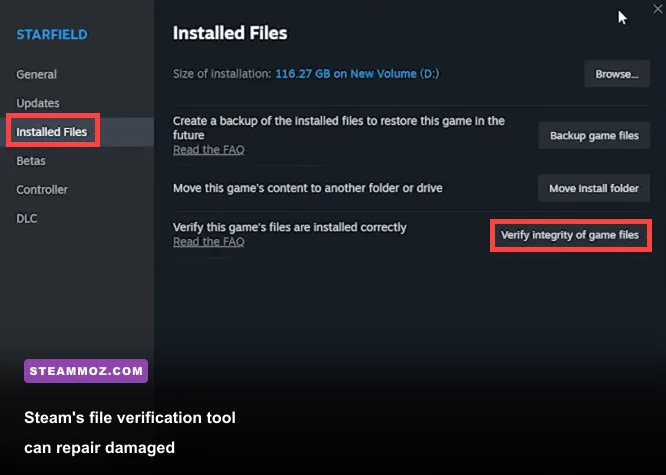
Steam's file check is the safest first repair. Right-click FORMIDO in your Library, choose Properties, open Installed Files, and select Verify integrity of game files. Steam will compare the local installation against its depot and redownload missing or damaged data. This usually takes minutes, but it can take longer on a hard drive or after a large update. Don't interrupt it when the progress appears to pause near the end.
If verification finds nothing, reset the game's local settings. The exact folder depends on how FORMIDO stores its configuration, so don't delete random files blindly. Use Steam Cloud carefully: back up saves first, then temporarily disable Cloud for FORMIDO, rename—not erase—the game's configuration folder, and launch again. Renaming lets you restore the old settings if it turns out the problem wasn't configuration-related.
Check Windows Reliability Monitor by searching for View reliability history. A recurring FORMIDO crash with a faulting module such as the GPU driver points toward driver cleanup. A crash naming a missing DLL or runtime suggests a damaged dependency. Microsoft's official Windows Update guidance is the right place to confirm that Windows itself is current.
For driver problems, install the latest stable driver directly from NVIDIA or AMD. If FORMIDO began crashing immediately after a driver update, rolling back to the previous stable release is reasonable. Remove GPU undervolts and overclocks while testing; a profile that survives one game can still fail in another.
Launch options worth testing
Don't paste a long list of internet launch commands into Steam. Start with no launch options at all. Forced DirectX modes, undocumented performance flags, and arbitrary FPS commands can create a second problem or prevent the game from starting. If the developer documents a launch option, test only that option and record whether it changes the crash.
Overlay hooks deserve more attention than exotic commands. Turn off the Steam Overlay for FORMIDO temporarily, then test Discord, GeForce Experience, Radeon Software, Xbox Game Bar, MSI Afterburner and RivaTuner one by one. If disabling one overlay stops the crash, re-enable the others and leave only the culprit disabled. This is more useful than permanently shutting down every background application.
Use this FORMIDO FPS profile before lowering everything
Run FORMIDO at your monitor's native aspect ratio and start with a sensible 60-FPS target. Chasing 144 FPS on a mid-range laptop often produces unstable frametimes, while a locked 60 FPS feels dramatically better than a fluctuating 48 to 90 FPS. If the game offers a frame-rate limit, set it to 60, 90, or 120—whichever your hardware can sustain in the busiest scene.
Lower GPU-heavy settings in this order: resolution scale, shadows, ambient occlusion, effects, reflections, and anti-aliasing. Keep textures higher when VRAM allows, because texture quality often changes image clarity more than raw frame rate. If your card has limited VRAM, drop textures one step and watch for hitching when new areas load.
| Setting | Recommended value | FPS impact | Visual trade-off |
|---|---|---|---|
| Resolution scale | 100%; use 90% or 80% if needed | Very high | Lower values soften the image |
| Shadows | Medium | High | Less contact detail and shorter shadow distance |
| Effects or particles | Medium | Medium to high | Reduced smoke, lighting, or impact detail |
| Ambient occlusion | Low or medium | Medium | Flatter corners and less grounding |
| Anti-aliasing | Medium or the lightest temporal option | Medium | More shimmer on thin geometry |
| Textures | High if VRAM permits | Low on most GPUs | Lower values make surfaces visibly muddy |
| Motion blur | Off | Small | Cleaner motion and easier troubleshooting |
Fullscreen mode can deliver steadier frametimes on some systems, while borderless mode makes Alt-Tab safer and can behave better with multiple monitors. Test both for two minutes in the same area. Don't compare a quiet corridor with a busy arena; use the most demanding repeatable section you can find.
If FORMIDO supports upscaling, use its quality preset before dropping native resolution. Quality upscaling at 100 percent output usually preserves more detail than running a much lower resolution. Avoid stacking several sharpening filters, though. Oversharpening can make fine geometry shimmer and look like a rendering bug.
Stop stutter caused by GPU selection and overlays
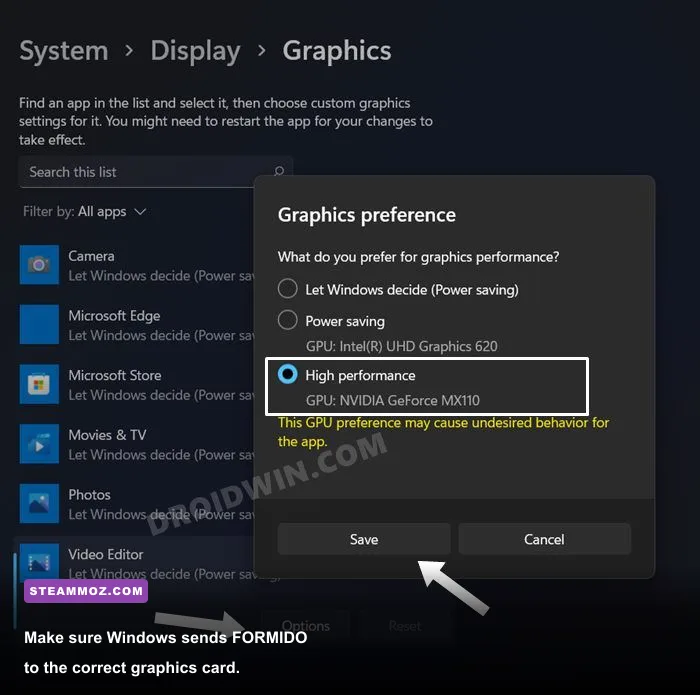
On laptops, Windows may quietly launch FORMIDO on the integrated GPU. Open Settings, System, Display, Graphics, add the game's executable, select Options, and choose High performance. In NVIDIA Control Panel, use Manage 3D settings and assign the dedicated GPU; AMD users can make the equivalent choice in Adrenalin. Restart FORMIDO after changing this—the running process won't switch GPUs.
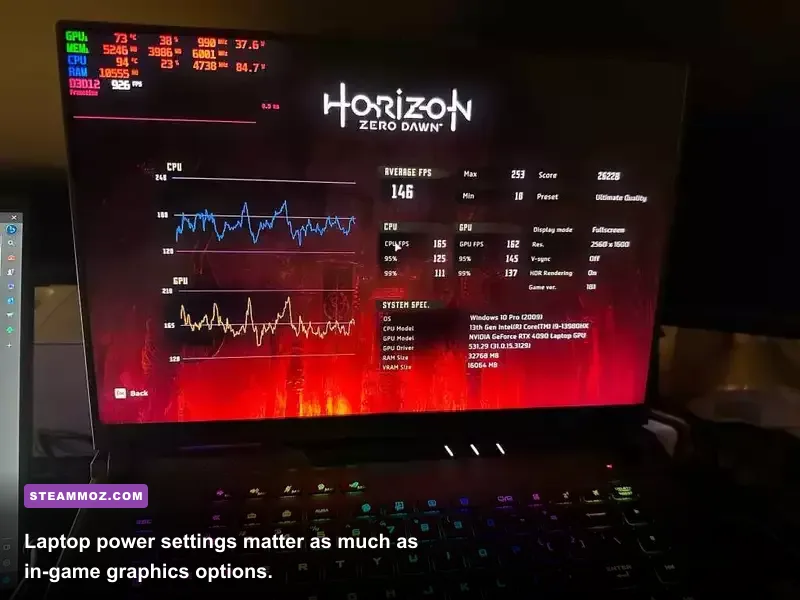
Windows power management matters too. Set the laptop to Best performance while plugged in, and use the manufacturer's performance mode if available. Keep the charger connected during testing. A low-power profile can cap clocks so aggressively that FORMIDO appears to have a mysterious FPS problem.
Measure frametimes rather than trusting the average. A stable 60 FPS produces a frame roughly every 16.7 milliseconds. If the counter says 80 FPS but frametime spikes to 80 or 100 milliseconds every few seconds, the game will feel worse than a locked 45 or 60. Use one overlay only while diagnosing; multiple monitoring tools can hook the same render path and cause the stutter you're trying to measure.
Shader compilation can also create brief freezes after a driver update, first launch, or major game patch. Let FORMIDO sit at the main menu for a minute, then play through the same area twice. If the second run is smoother, the hitching was likely cache-related. Rebuilding shader caches after a driver change is normal; repeated stutter every session points more strongly toward storage, overlays, or a damaged cache.
Build a stable low-FPS profile for older PCs
For older hardware, stability beats visual ambition. Start at 1280x720 or 1600x900, use a 60-FPS cap, set shadows and effects to Low, ambient occlusion Off, and textures to Medium. If that holds above 60 in the busiest section, raise textures first, then anti-aliasing. If the game still dips, don't immediately lower everything again—identify whether the dip is GPU or CPU driven.
| PC class | Resolution target | Suggested profile | Practical target |
|---|---|---|---|
| Integrated graphics | 1280x720 | Low effects, shadows Off, textures Low or Medium | 30 to 60 FPS with a cap |
| Entry-level dedicated GPU | 1600x900 or 1080p upscaled | Medium textures, Low shadows, Medium effects | Stable 60 FPS |
| Mainstream gaming GPU | 1920x1080 | High textures, Medium shadows, quality upscaling | 60 to 120 FPS |
| High-end GPU | Native 1440p or higher | High settings with a sensible cap | Refresh-rate dependent |
Install FORMIDO on an SSD if possible. Moving from a hard drive won't always raise the average FPS, but it can reduce loading pauses and asset-streaming hitching. Keep at least 10 to 15 percent free space on the drive, especially if Windows and the game share it. Close active downloads while testing so disk usage doesn't muddy the result.
Finally, test with a clean baseline: no overclock, one overlay, a capped frame rate, and a repeatable scene. Change only one setting between runs. If FORMIDO crashes after every graphics change, reset the configuration and work upward from Low. If it crashes even on a clean profile after verified files and a fresh driver, capture the crash time, Reliability Monitor entry, GPU model, Windows version, and reproduction steps before contacting the developer through the official Steam listing.
These fixes also apply to other demanding or temperamental PC releases. Steamoz's Bottle Pilgrim crash and FPS guide, Barotrauma settings guide, and Date Everything performance guide cover the same diagnostic approach in other games.