The best Ankora: Lost Days graphics settings are 1080p, fullscreen, medium shadows, low post-processing, and VSync enabled only when your frame rate is stable. That combination preserves the game’s colorful terrain and readable interface while giving modest PCs enough room to target 60 FPS. On Steam Deck or older integrated graphics, use 1280×800 or 1280×720, low shadows, and a locked 30 FPS target instead of sacrificing image quality everywhere.
Ankora: Lost Days is not a brutally demanding survival game, but its open outdoor spaces, vegetation, lighting, and camera movement can expose uneven frame pacing. The important distinction is between average FPS and a smooth expedition. A profile that reports 75 FPS in an empty camp can still feel rough when you cross a dense area or trigger weather effects. These settings are built around stable frame delivery, not flashy menu numbers.
The Best 1080p Settings for Maximum FPS

Start with the game’s native display resolution whenever possible. At 1920×1080, Ankora’s stylized art remains clean, text stays readable, and the camera does not look smeared during movement. Set display mode to Fullscreen if the option is available; borderless is more convenient for multitasking, but exclusive fullscreen can reduce desktop compositing overhead on older systems.
Use this as the strongest all-round preset for a desktop or gaming laptop with a dedicated GPU. The FPS figures below are sensible targets rather than universal benchmark promises: your processor, driver version, thermal limits, and background applications all matter.
| Setting | Recommended Value | FPS Impact | Visual Trade-Off |
|---|---|---|---|
| Resolution | 1920×1080 native | Very high | Best clarity; lower to 1600×900 if GPU-limited |
| Display Mode | Fullscreen | Low | Can improve consistency on older Windows systems |
| VSync | On for stable 60 FPS | None to low | Removes tearing; may add a little input latency |
| Texture Quality | High | Low on most GPUs | Keep high unless VRAM is tight |
| Shadow Quality | Medium | High | Softens shadow detail but usually looks convincing |
| Effects/Post-Processing | Low or Medium | Medium | Less bloom, blur, and atmospheric polish |
| Anti-Aliasing | Medium or the default option | Medium | Lower values produce more shimmer around foliage |
| Frame Limit | 60 FPS | Improves consistency | Prevents unnecessary GPU spikes |
The biggest win is usually shadows. Ankora’s broad outdoor scenes make shadow calculations expensive, while the game’s hand-painted look means you lose less character than you might expect by dropping them from high to medium. Textures are different: lowering them can make terrain and objects look noticeably muddy without delivering a comparable performance gain. Keep textures high if your graphics card has enough VRAM.

🎮 Ankora: Lost Days
Looking to experience this game? Grab your digital key directly on our store for $1.49.
View on Steammoz Store →Best Low-End PC Profile for a Stable 60 FPS

If you’re playing on integrated graphics or an older entry-level GPU, don’t immediately jump to the lowest preset. That often turns every surface into a blurry wash while failing to fix the real bottleneck. Use a targeted low-end profile instead: 1600×900 first, then 1280×720 only if frame time still spikes. Resolution is the emergency lever, not the first lever.
Set shadows to low, effects to low, and anti-aliasing to its lowest acceptable level. Keep textures at medium if the game allows it. The goal is to reduce the cost of dynamic lighting and screen-space effects while preserving the colorful geometry that makes Ankora readable. If your monitor is 60 Hz, cap the game at 60 FPS. An uncapped frame rate can push a laptop fan hard for no visible benefit.
| Hardware Situation | Resolution | Quality Profile | Practical Target |
|---|---|---|---|
| Modern gaming GPU | 1920×1080 | High textures, medium shadows, medium effects | 60 FPS with headroom |
| Older dedicated GPU | 1600×900 | Medium textures, low shadows, low effects | 45–60 FPS |
| Integrated graphics | 1280×720 | Low shadows/effects, medium textures | 30–45 FPS |
| Steam Deck | 1280×800 | Low shadows, low effects, capped frame rate | Locked 30 FPS |
Those ranges are performance targets, not guarantees. Ankora: Lost Days does not expose the same diagnostic depth as a major PC blockbuster, so test in a repeatable location. Walk through a busy settlement, rotate the camera across dense vegetation, and check a weather-heavy area. If the game feels smooth there, ordinary gathering and exploration should be comfortable.
For troubleshooting beyond the graphics menu, Steamoz’s PC fixes for crashes and FPS problems covers driver cleanup, overlays, and background processes that can quietly steal performance.
Which Settings Actually Cost the Most FPS?
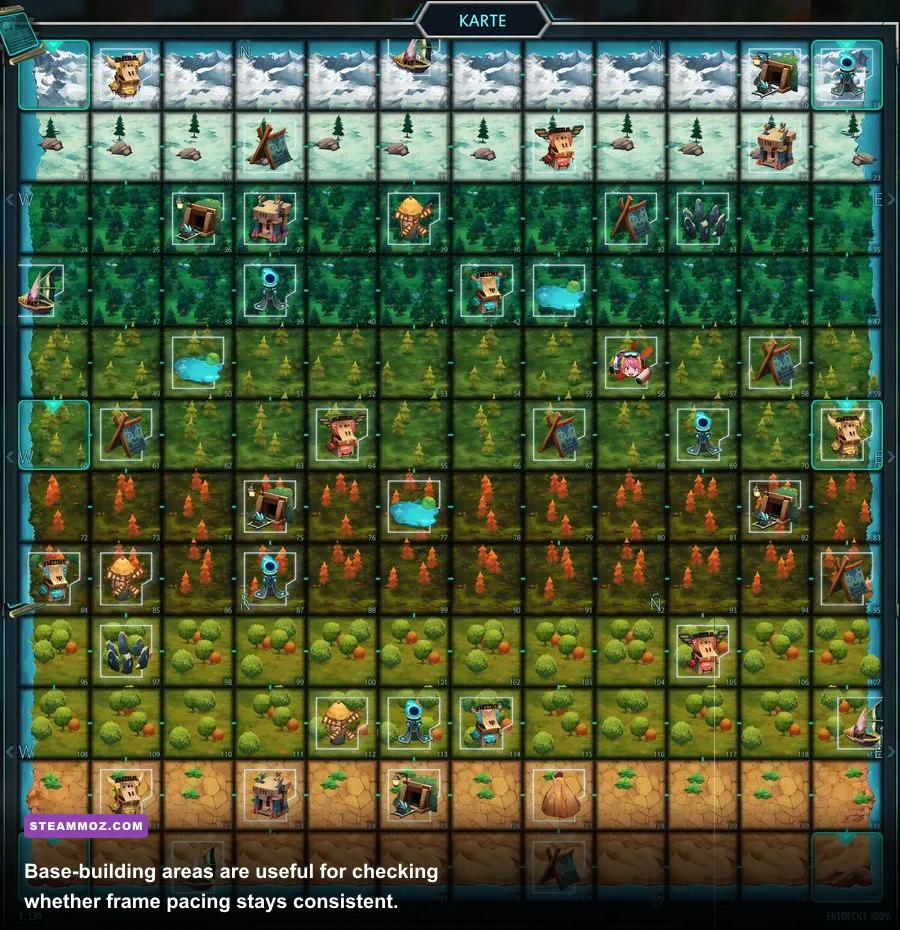
Not every slider deserves equal attention. Shadows and effects tend to affect the GPU every frame, while textures mainly consume video memory. That difference matters. A system with limited VRAM may stutter when textures are too high, but a system with adequate VRAM can often run high textures with almost no average-FPS penalty.
Shadows are the first serious cut
High shadows are attractive around shelters, trees, and uneven terrain, but they can be disproportionately expensive because outdoor scenes contain many shadow-casting objects. Medium is the sweet spot. Low is worth using on integrated graphics, where the extra headroom helps camera movement feel less sticky.
Effects control atmosphere, not readability
Post-processing usually includes visual flourishes such as bloom, depth-of-field-style softness, color treatment, and other screen effects. Low effects makes Ankora flatter, but it rarely harms navigation or crafting. If you want maximum FPS, reduce this before textures.
Anti-aliasing is a personal trade
Anti-aliasing smooths jagged edges, especially around vegetation and diagonal props. Dropping it can recover some GPU time, but shimmering may become more distracting than a small FPS dip. Medium anti-aliasing with low shadows often looks better than maximum anti-aliasing paired with unstable performance.
Resolution scaling needs restraint
If Ankora offers a render-scale or resolution-scale option, start at 90 percent rather than plunging straight to 70 percent. A 90-percent internal resolution is difficult to notice during movement, while aggressive scaling makes text, terrain patterns, and character edges visibly soft. Use it only after shadows and effects have been reduced.
Steam Deck and Laptop Settings That Prevent Stutter

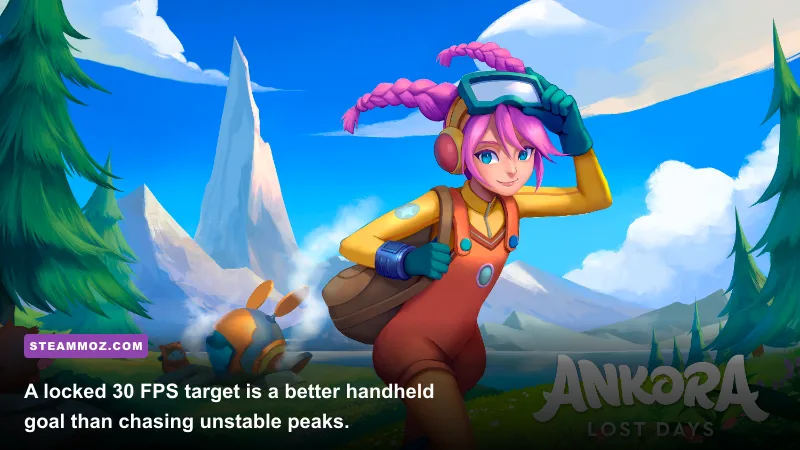
On Steam Deck, the cleanest approach is 1280×800 with low shadows, low effects, medium textures, and a 30 FPS cap. A locked 30 feels much better than a frame rate bouncing between the high twenties and mid-forties. If you prefer a sharper image, keep the native resolution and lower effects before touching textures.
Use the Deck’s built-in performance overlay to watch frame time rather than obsessing over the instantaneous FPS counter. A stable frame-time graph is the real measure of smoothness. If GPU usage sits near its limit, lower resolution or effects. If GPU usage is modest but frame time still spikes, close browser tabs, disable unnecessary overlays, and check whether the device is thermally throttling.
Laptop players should also test while plugged in. Battery modes frequently reduce CPU and GPU power, turning an apparently correct graphics profile into a stuttery one. Set Windows to a performance-oriented power mode, keep the laptop on a hard surface, and avoid testing immediately after a long gaming session when heat has already built up.
Steamoz’s Barotrauma performance settings guide has useful general advice on frame caps and frame pacing, even though the games have very different visual styles.
A Simple Testing Route for Ankora: Lost Days
Don’t judge a preset from the title screen or a quiet interior. Use the same short test every time so you know whether a change helped. Load a save near a developed shelter, move through the surrounding vegetation, rotate the camera slowly across the horizon, then travel into a busier area. Repeat the route after changing one setting.
- Set native resolution and fullscreen. Confirm the monitor is running at its normal refresh rate.
- Apply medium shadows and low effects. Leave textures high or medium depending on available VRAM.
- Cap at 60 FPS. If the game cannot hold 60, test a locked 30 rather than leaving the frame rate unlimited.
- Walk through foliage and settlements. Watch for hitching when rotating the camera or entering a new area.
- Change only one setting. This reveals whether shadows, effects, or resolution is causing the problem.
- Keep the profile that feels smooth. A stable 45 or 30 FPS beats a spiky average that looks impressive in a counter.
Shader compilation, asset streaming, and background tasks can create a brief hitch the first time you enter a location. Don’t mistake one isolated pause for a permanent graphics bottleneck. Repeat the route, then compare the second run with the original.
My Recommended Profiles and Final Verdict
For most players, the Balanced 1080p profile is the right answer: native 1920×1080, fullscreen, high textures, medium shadows, low-to-medium effects, medium anti-aliasing, VSync on, and a 60 FPS cap. It protects Ankora’s bright art style while cutting the settings that are most likely to cause dips.
| Profile | Core Settings | Best For | My Verdict |
|---|---|---|---|
| Max FPS | 720p, low shadows, low effects, low AA | Integrated graphics and old laptops | Fastest, but visibly softer |
| Balanced 1080p | 1080p, high textures, medium shadows, low effects | Most dedicated GPUs | Best overall choice |
| Visual Quality | 1080p, high textures, high shadows, medium effects | Modern gaming PCs | Prettier, but watch outdoor dips |
| Handheld Smooth | 1280×800, low shadows/effects, 30 FPS cap | Steam Deck and similar devices | Consistent and battery-friendly |
Before changing anything unusual, check the official Ankora: Lost Days Steam page for current patches and system information. The game comes from Chibig, so updates can alter performance or add display options. Steam’s community discussions are also worth checking if a new update introduces a location-specific hitch.
For broader low-spec comparisons, Steamoz’s Arise: A Simple Story PC performance guide and Date Everything settings guide offer useful examples of how to prioritize frame pacing over inflated quality presets. In Ankora, the winning move is simple: preserve textures, cut shadows first, lower effects second, and lock the frame rate your hardware can actually sustain.