If Bottle: Pilgrim keeps crashing or crawling at low FPS on your PC, start with Steam file verification, disable overlays, switch to exclusive fullscreen or borderless testing, and lower shadows, effects, and resolution scale first. Then update your GPU driver and cap the game at a stable 30 or 60 FPS. Those steps solve the most common launch, loading, stutter, and frame-pacing problems without turning the game into a blurry mess.
Bottle: Pilgrim is the kind of atmospheric indie game where hitching feels especially bad. A two-second pause during a quiet walk can break the mood more than a sudden dip during a busy action scene. The important distinction is whether you're dealing with a crash, a shader-compilation stutter, a GPU bottleneck, or a CPU frame-time spike. Each problem needs a different fix, so don't blindly set every option to Low.
Check the Real Bottleneck Before Changing Settings
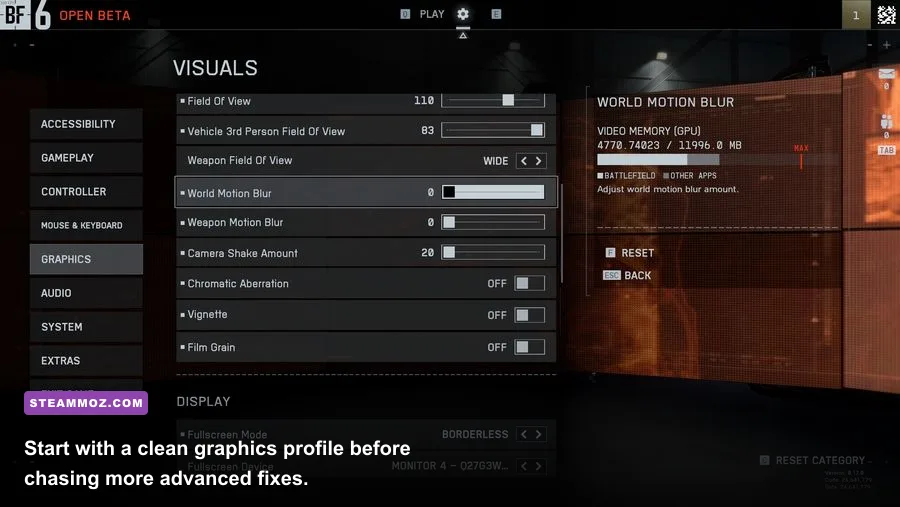
Launch Bottle: Pilgrim and watch GPU usage, CPU usage, RAM, VRAM, and frame time with Xbox Game Bar, NVIDIA Performance Overlay, AMD Adrenalin, or MSI Afterburner. A GPU pinned around 95–100% means resolution, shadows, effects, or post-processing are doing the damage. GPU usage below roughly 70% while one CPU thread is saturated points toward a processor, background-task, or frame-pacing limit.
Also check whether the game is installed on a hard drive. Streaming-heavy scenes can stutter when Windows is waiting on mechanical storage, even if the average FPS looks acceptable. Moving the installation to an SSD is often more effective than reducing texture quality. Keep at least 15% free space on the drive, because a completely full system disk can make shader compilation and Windows virtual memory much less predictable.
| Symptom | Likely Cause | First Test | Best Fix |
|---|---|---|---|
| Crash before the menu | Corrupt files, driver conflict, overlay | Verify files and disable overlays | Repair install, then clean-update driver |
| Stutter when entering new areas | Shader compilation or storage delay | Repeat the same route twice | Use SSD, wait for shaders, avoid background downloads |
| Low FPS everywhere | GPU resolution or quality bottleneck | Drop resolution scale by 10% | Reduce shadows and effects |
| High FPS but jerky motion | Uneven frame pacing | Enable an FPS cap | Cap below monitor refresh rate |
For a deeper baseline, the general workflow in our Baby Steps PC fixes guide is useful here too. Test one change at a time and record the result. Changing ten settings at once makes it impossible to know what actually helped.

🎮 Bottle: Pilgrim
Looking to experience this game? Grab your digital key directly on our store for $1.99.
View on Steammoz Store →Stop Bottle: Pilgrim Crashing at Launch
First, close Steam completely, restart Windows, and launch the game with every overlay disabled. That includes Steam Overlay, Discord Overlay, Xbox Game Bar, NVIDIA ShadowPlay, AMD Metrics Overlay, MSI Afterburner’s RivaTuner display, and motherboard utilities such as Armoury Crate or Nahimic. Overlay hooks can collide with a Unity-based game during startup, particularly after a driver or Windows update.
In Steam, open Library, right-click Bottle: Pilgrim, choose Properties, select Installed Files, and click Verify integrity of game files. Let the process finish rather than launching while it is still checking. If Steam replaces files, restart the client before testing again. You can also consult Steam’s official troubleshooting guidance if the verification repeatedly fails.
Next, remove damaged configuration data. Do not delete the whole game folder. Search Windows for %USERPROFILE%\AppData\LocalLow, then look for a folder named after Bottle: Pilgrim or its developer. Copy that folder to your desktop first. Rename the original folder to something like BottlePilgrim_backup, then launch the game. This forces a fresh settings file. If the crash disappears, your old resolution, display mode, or quality setting was probably corrupted.
For a crash that happens after a splash screen, install or repair Microsoft’s current Visual C++ Redistributable packages, especially the x64 package, from the official Microsoft download page. Update Windows as well, but avoid installing a major optional driver or beta Windows build while troubleshooting. Stability testing works best with a known-good baseline.
Use a clean GPU driver installation
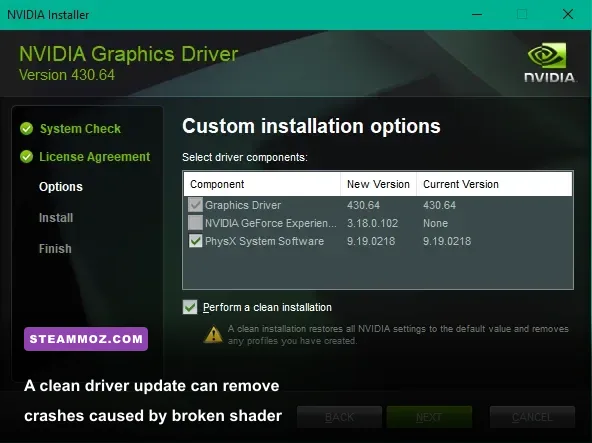
Download the latest stable driver directly from NVIDIA or AMD. Choose the clean-install option where available. If Bottle: Pilgrim began crashing immediately after a driver update, roll back one stable version instead of assuming the newest driver is automatically best. Laptop owners should also force the game onto the discrete GPU through Windows Settings, System, Display, Graphics.
Best Bottle: Pilgrim Settings for Stable FPS
Use the game’s own menu as your first control panel. Start at your monitor’s native resolution, select fullscreen or borderless fullscreen, and keep textures at High unless VRAM is nearly full. Texture quality primarily affects VRAM; it usually has a smaller direct FPS cost than shadows or screen effects. If you see blurry surfaces or texture pop-in after lowering everything, restore textures before touching performance-heavy options.
| Setting | Recommended Value | Typical FPS Impact | Visual Trade-Off |
|---|---|---|---|
| Resolution | Native; use 90% scale if needed | High | Lower scale softens the entire image |
| Textures | High, or Medium below 4 GB VRAM | Low to medium | Lower detail on surfaces and objects |
| Shadows | Medium | Medium to high | Less detailed contact shadows |
| Effects | Medium | Medium | Reduced fog, particles, and glow |
| Post-processing | Low or Medium | Low to medium | Cleaner image, less bloom and depth of field |
| Anti-aliasing | Medium or the second-highest option | Low to medium | More edge shimmer at low values |
| V-Sync | Off for testing; On if tearing appears | Variable | Can add latency or cap output |
| FPS cap | 60, 45, or 30 based on consistency | Improves stability | Lower peak motion, steadier frame time |
Shadows are usually the first serious cut. Dropping High to Medium can recover a meaningful amount of GPU time while preserving the atmosphere. Effects come next if fog, particles, or volumetric lighting are expensive. Keep anti-aliasing at Medium initially; jagged vegetation and distant geometry can look worse than a modest frame-rate loss.
If the game offers a resolution scale slider, test 100%, 90%, and 80% in that order. A 90% scale is often the sweet spot because it removes a little GPU pressure without the obvious softness of 70–75%. On a 4K monitor, however, 80% still renders far more pixels than 1080p, so dropping the output resolution to 2560×1440 may deliver a larger improvement.
Fix Stutter, Frame Pacing, and Shader Hitches
Average FPS doesn't tell the whole story. Bottle: Pilgrim can report 60 FPS and still feel rough if frame times jump from 16.6 milliseconds to 40 or 60 milliseconds. Set a cap that your PC can hold in quiet and busy areas. If 60 constantly dips to 52, try 50 or 45. A locked 45 FPS presentation is generally more comfortable than an unstable 60.
Use your GPU driver’s frame limiter only if the in-game limiter behaves badly. NVIDIA users can test Max Frame Rate in NVIDIA Control Panel; AMD users can test Radeon Chill or the driver frame limiter. Don't stack multiple limiters immediately. Start with one cap, disable V-Sync while testing, and then enable V-Sync if tearing is distracting. With a variable-refresh display, set the cap a few frames below the panel’s maximum refresh rate.
The first run after a driver update or configuration reset may stutter while shaders compile. Repeat the same route two or three times. If the hitching becomes less frequent, it was probably shader-related rather than a permanent FPS limit. Keep the shader cache enabled in your GPU driver and don't clear it after every small settings change. Clearing it repeatedly forces the game to rebuild the same data.
Close browsers with video tabs, cloud-sync clients, launchers downloading updates, and RGB-control software. Windows Defender can also scan new files during the first launch. Pause downloads and give the game one uninterrupted test session. This sounds basic, but background disk activity is a common reason an indie game feels worse on an otherwise powerful PC.
Our guides for Ankora: Lost Days performance settings and Barotrauma frame-rate tuning follow the same principle: protect frame pacing first, then restore visual quality one setting at a time.
Last-Resort Windows Fixes That Actually Help
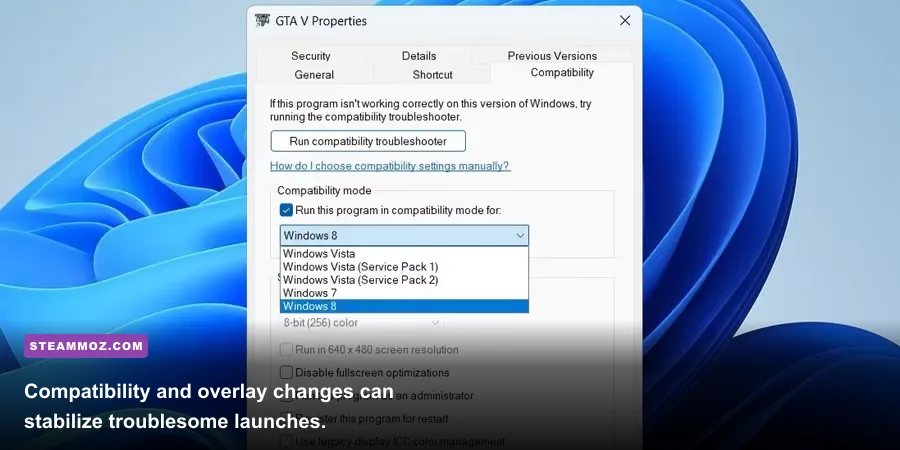
Right-click the game executable, open Properties, choose Compatibility, and test Disable fullscreen optimizations. This isn't universally better, so keep it only if it removes crashes or erratic alt-tabbing. Also test running the game as administrator only when permissions are clearly involved; administrator mode should not be your default performance fix.
Turn off Hardware-accelerated GPU scheduling temporarily in Settings, System, Display, Graphics, Default graphics settings. Restart Windows after changing it. Some systems gain smoother frame pacing with HAGS enabled, while others develop stutter or crashes. This is a controlled A/B test, not a guaranteed upgrade.
If the game still crashes, check Windows Event Viewer. Press Start, type Event Viewer, open Windows Logs, Application, and find the error at the crash time. A faulting module pointing to a GPU DLL suggests a driver problem; a missing runtime DLL suggests a dependency issue; an application-specific executable error points back toward files or configuration. Save the error details before contacting the developer.
Finally, report reproducible failures through the game’s official Steam listing and its linked community or developer channels. Include your CPU, GPU, RAM, Windows version, driver version, resolution, display mode, and the exact moment of failure. “It crashes” is hard to act on; “it crashes every time after selecting Continue at 2560×1440 borderless with an RTX 3060 driver version X” is useful evidence.
For most players, the winning Bottle: Pilgrim profile is simple: verified files, current stable drivers, overlays disabled, textures on High, shadows and effects on Medium, native resolution or 90% scale, and a frame cap your machine can actually sustain. Once the game is stable, change one setting at a time. That approach keeps the atmosphere intact and gives you a clear answer when performance starts slipping again.