To fix Genshin Impact crashing on PC, first repair the game files in HoYoPlay, update your GPU driver, disable overlays, and launch with safer graphics settings. If the crash continues, test a clean Windows boot, delete the shader cache, and check whether your PC meets Genshin Impact's current storage and memory demands. The steps below separate launcher errors, driver crashes, overheating, corrupted files, and account-specific problems instead of treating every crash the same way.
Start With the Fastest Genshin Crash Fixes
Before changing Windows registry values or reinstalling the entire game, establish exactly when Genshin Impact fails. A crash at startup points toward permissions, missing files, an anti-cheat conflict, or a graphics initialization problem. A crash after teleporting into Fontaine, Natlan, or another demanding region is more likely related to VRAM, overheating, unstable overclocks, or a driver timeout. A crash only during combat can indicate an overlay, shader compilation issue, or a specific visual effect.
1. Restart the PC and close conflicting software
Restart Windows rather than only closing the launcher. Then close MSI Afterburner and RivaTuner Statistics Server, Discord overlay, NVIDIA App overlay, AMD Adrenalin overlay, Xbox Game Bar, OBS game capture, Wallpaper Engine, and RGB control utilities. These programs hook into the rendering pipeline and can cause Genshin Impact to close without an obvious error. Do not run two hardware monitors while testing; use Windows Task Manager instead.
2. Run HoYoPlay as administrator
Right-click the HoYoPlay shortcut, choose Run as administrator, and start Genshin Impact from the launcher. This is a diagnostic step, not a permanent requirement. If it works only with elevated permissions, check the installation folder's security settings and remove compatibility modes applied to the executable. Avoid downloading replacement DLL files from third-party websites.
3. Repair the installation
In HoYoPlay, select Genshin Impact, open the launcher settings or the game's menu, and use Repair Now or Verify game files, depending on the launcher version. Let the scan finish even if it appears to pause. The repair process can redownload damaged archives created by an interrupted update or a full drive. HoYoverse's official HoYoLAB troubleshooting guidance is useful when the launcher reports a specific error code.
Also check the drive containing the game. Genshin Impact needs more than the download size during patching because it temporarily extracts and replaces files. Keep at least 30 GB of free space, preferably more on an SSD. A nearly full system drive can also prevent the launcher from updating Visual C++ components or creating shader caches.
Use a Safe Graphics Profile to Stop GPU Crashes
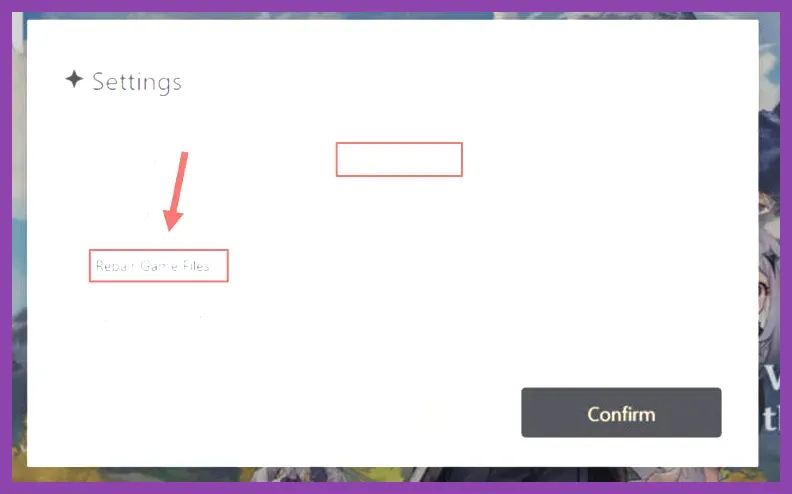
Once the files are repaired, lower the rendering load before testing a demanding area. Open Settings > Graphics from the title screen or in-game menu and apply this stable baseline: Render Resolution: 0.8, Display Mode: Fullscreen, FPS: 60 if the machine is stable or 30 for a low-end laptop, V-Sync: Off, Motion Blur: Off, Volumetric Fog: Low, Reflections: Low, Shadow Quality: Low, Visual Effects: Low, and Bloom: Off. Set Overall Quality: Custom so the individual values do not reset.
Why these settings matter
Shadows, reflections, volumetric fog, and visual effects create larger GPU and VRAM spikes than texture quality in many Genshin scenes. Texture Quality can remain at Medium on a card with 4 GB of VRAM, or High on a card with 6 GB or more, but use Low if the crash happens during area loading. Genshin Impact does not offer DLSS or FSR as a universal in-game fix, so do not rely on a third-party injector to create upscaling options.
Test for 15 minutes in the location that previously crashed. For example, teleport to Fontaine's Court of Fontaine, Sumeru City's heavily populated areas, or Natlan combat zones rather than standing in a quiet menu. Use a normal team such as Raiden Shogun, Xiangling, Bennett, and Xingqiu to trigger multiple elemental effects. If the game remains stable, increase one setting at a time. Raise Render Resolution first, then Textures, but leave Shadows, Reflections, and Volumetric Fog low until the end.
Check temperature, clocks, and memory
A crash that occurs after several minutes is often hardware instability rather than corrupted game data. Watch CPU and GPU temperatures with one monitor. Sustained GPU temperatures above roughly 85°C or CPU temperatures approaching 95°C deserve attention, especially on laptops. Remove any GPU undervolt or overclock, reset RAM to its default profile temporarily, and test again. Genshin Impact can expose an unstable XMP or EXPO memory profile even when other games appear fine.
For broader performance context, compare this workflow with Steamoz's PC settings guide for maximum FPS and Hades 2 graphics optimization guide. The principle is the same: stabilize clocks and frame pacing before chasing image quality.
Update or Roll Back Your Graphics Driver
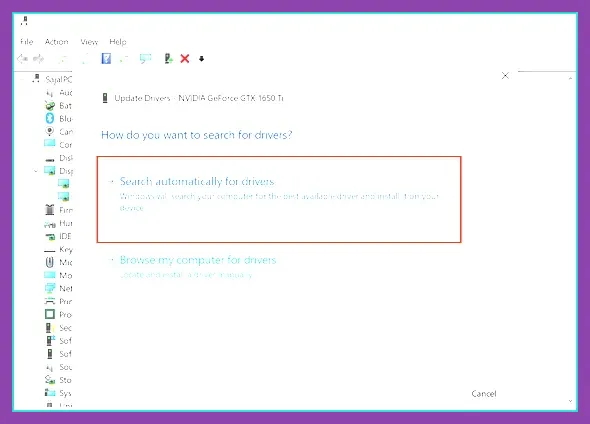
Genshin Impact crashes immediately after a major version update often because the installed driver is outdated or its shader cache is invalid. Identify your GPU in Task Manager > Performance > GPU, then install the current driver directly from the NVIDIA driver page, AMD support, or Intel's official graphics support site. Select a clean installation when the installer provides that option.
Clear the shader cache after updating
Open Windows Settings > System > Storage > Temporary files and remove DirectX Shader Cache. You can also use your GPU control panel's shader-cache cleanup option. The first launch may stutter while shaders rebuild; that is normal. Do not interrupt the process during the first visit to Mondstadt or a newly added region.
If crashes began immediately after a driver update, test the previous stable driver through Device Manager > Display adapters > Properties > Driver > Roll Back Driver, if available. A rollback is particularly worth testing when the game reaches the title screen but closes as soon as 3D gameplay loads. Never install a driver from an unofficial mirror or use a generic Windows driver for serious troubleshooting.
Use the correct laptop GPU
On a laptop with integrated Intel or AMD graphics plus an NVIDIA or AMD discrete GPU, open Windows Settings > System > Display > Graphics. Add the Genshin Impact executable, choose Options, and select High performance. Keep the laptop plugged in and set its manufacturer performance mode to Turbo or Performance. If the game is assigned to the integrated GPU, it may crash when loading areas despite appearing to launch normally.
Fix Windows, Permissions, and Overlay Conflicts
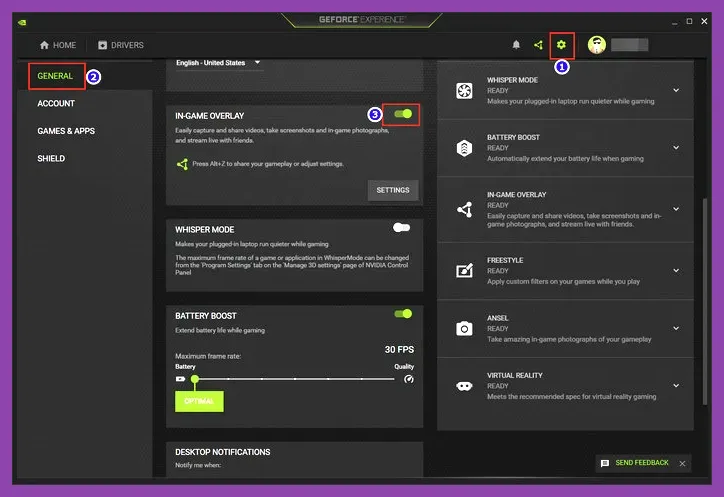
When repairing files and changing graphics settings do not help, isolate Windows-level conflicts. Open Windows Security and confirm that Genshin Impact's installation folder has not been quarantined or partially blocked. If Controlled Folder Access is enabled, allow the official launcher and game executable through it rather than disabling security permanently. Run Windows Update, then restart before testing again.
Install the required runtime components
Install or repair the latest Microsoft Visual C++ Redistributable packages for both x64 and x86. Also install the current DirectX runtime from Microsoft's official DirectX End-User Runtime page. Genshin Impact uses Windows components that may be missing after a fresh installation or damaged after a system cleanup. Do not delete random files from System32 to solve a missing-DLL message.
Disable fullscreen optimization and compatibility experiments
Find the Genshin Impact executable, open Properties > Compatibility, and test Disable fullscreen optimizations. Leave compatibility mode unchecked unless HoYoverse support specifically recommends it. If you use a custom resolution, HDR, or a high-refresh monitor, temporarily select 1920x1080 at 60 Hz in Windows and use borderless or fullscreen in-game. This removes unusual display-handshake variables from the test.
Perform a clean boot
Press Win+R, type msconfig, open the Services tab, check Hide all Microsoft services, and choose Disable all. In Task Manager's Startup tab, disable nonessential startup apps, restart, and test Genshin Impact. If the crashing stops, re-enable services in groups until you identify the conflict. Common culprits include aggressive antivirus game modes, motherboard overlays, capture tools, and third-party frame limiters.
For general Windows troubleshooting habits, Steamoz's guides on fixing low FPS on PC and optimizing gacha games offer useful background, but Genshin's PC crash fixes should always be tested with overlays disabled first.
When Reinstallation Is the Right Answer
Reinstall Genshin Impact only after repairing files, testing a safe profile, and updating drivers. A clean reinstall is justified when the launcher repeatedly redownloads the same files, the game crashes before the login screen, or the installation was moved between drives and now points to an incorrect path. Uninstall the game through HoYoPlay or Windows, then manually remove leftover Genshin Impact files from the old installation directory only after confirming that screenshots and personal files are backed up.
Use a clean installation sequence
First uninstall HoYoPlay and Genshin Impact. Restart Windows. Install HoYoPlay to an SSD with ample free space, choose a simple path such as C:\Games\Genshin Impact, and let the launcher download the complete client. Avoid pausing the download repeatedly or running disk-cleaning software during installation. After the game reaches the login screen, close unrelated software, set the safe graphics profile, and test the world before restoring overlays or custom GPU settings.
Make sure the PC is close to Genshin Impact's official requirements. The official Genshin Impact system requirements page lists the baseline hardware, but current regions and updates can demand more than an older minimum-spec machine handles comfortably. An SSD, 16 GB of RAM, and a dedicated GPU with at least 4 GB of VRAM provide a much safer starting point than the minimum configuration.
Collect evidence before contacting support
If the crash remains, record the exact trigger: startup, login, teleport, Spiral Abyss chamber, or a particular character effect. Note your CPU, GPU, RAM amount, Windows version, driver version, game version, and whether the crash produces an error code. Include the crash time and launcher repair result when contacting HoYoverse customer support. A precise report is far more useful than saying only that Genshin Impact crashes randomly.
Also test a different Windows user account or another Genshin Impact account only if account-specific data appears involved. Do not share passwords, verification codes, or full log files containing personal information. If every account crashes on the same PC, the problem is almost certainly local to Windows, the driver, the installation, or hardware.
Recommended Troubleshooting Order
Use this order to avoid wasting hours: restart Windows and disable overlays; repair files in HoYoPlay; apply the safe graphics profile; update or roll back the GPU driver; clear the DirectX shader cache; check temperatures and remove overclocks; repair Visual C++ and DirectX; test a clean boot; then reinstall to a healthy SSD. After each step, reproduce the same crash location instead of changing five variables at once.
If lowering Render Resolution to 0.8 and setting the FPS cap to 30 stops the crash, the likely cause is GPU load, heat, VRAM pressure, or unstable clocks. If repair fixes it immediately, damaged files caused the failure. If a clean boot fixes it, restore background services one at a time. This evidence-based approach identifies the cause while preserving your settings and avoiding unnecessary reinstalls.
Most players can solve Genshin Impact PC crashes without touching advanced system files. Keep the launcher updated, leave free space for patches, use official GPU drivers, and treat overlays and overclocks as variables rather than permanent necessities. Once the game survives a full teleport-and-combat test in a demanding region, raise graphics options individually and keep the setting that delivers stable exploration across Mondstadt, Fontaine, Sumeru, and Natlan.