
To optimize gacha games on Android, start with a stable 30 or 60 FPS target, lower shadows and effects before textures, keep at least 15–20% of your storage free, play on 5 GHz Wi-Fi, and control heat with a case-free setup and active cooling. For demanding games such as Genshin Impact, Honkai: Star Rail, and Wuthering Waves, these changes matter more than simply selecting the highest graphics preset.
Use the Right Graphics Profile
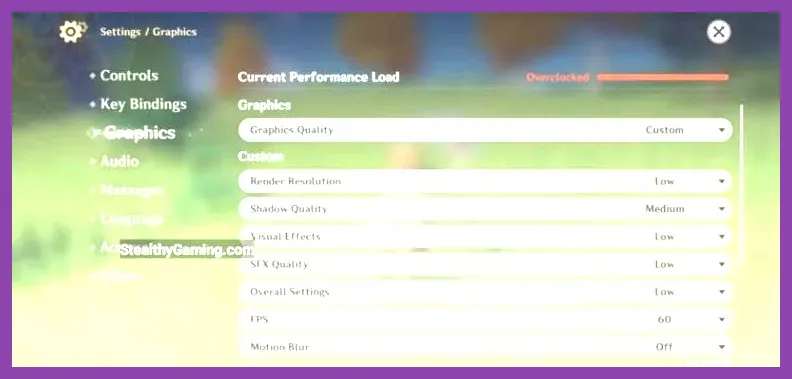
Do not copy a flagship-phone preset to a mid-range Android device. Open the game’s graphics menu, set a fixed frame-rate goal, then change one setting at a time. A steady 30 FPS feels better than a fluctuating 45–60 FPS that triggers thermal throttling after ten minutes.
Genshin Impact
For Snapdragon 7-series phones, Dimensity 800-series devices, and similar hardware, use 30 FPS, Render Resolution: Medium, Shadow Quality: Low, Visual Effects: Low, SFX Quality: Low, and Environment Detail: Medium. Keep Motion Blur: Off. On Snapdragon 8 Gen 2, 8 Gen 3, or equivalent phones, try 60 FPS, Render Resolution: High, Shadow Quality: Medium, and Visual Effects: Medium; reduce render resolution first if Fontaine or Natlan combat drops below 50 FPS. The official Genshin Impact site lists current platforms and support information.
Honkai: Star Rail
Turn on 30 FPS for longer sessions, use Medium graphics, and set Shadow Quality and Reflection Quality to Low. Those options are expensive in crowded locations such as Penacony’s Golden Hour. On a high-end device, use 60 FPS with Medium shadows, but keep bloom and reflections below High if the phone warms quickly.
Wuthering Waves
Begin with 30 FPS, Resolution: Medium, Shadow Quality: Low, and reduced special effects. The game’s open-world traversal and combat effects are substantially heavier than menu-based gacha titles. If your phone has 8GB of RAM or less, close background apps before loading Jinzhou and avoid recording gameplay simultaneously.
Control Heat, Battery, and Background Apps
Heat is the hidden performance limit on Android. When the system reaches its thermal ceiling, the CPU and GPU reduce clock speeds, causing stutter even when the game initially runs well. Remove thick cases, avoid direct sunlight, and do not play while charging unless your phone supports a dedicated bypass-charging mode.
Set Android’s battery mode to Optimized or Performance only during demanding sessions. Battery Saver can restrict background activity and lower performance, while unrestricted battery access for every app wastes power. Give unrestricted access only to the game’s launcher if login notifications or downloads require it.
Before launching a game, close video editors, social media, browsers with many tabs, and screen-recording tools. On Samsung devices, Game Booster’s Priority Mode can block notifications and close background apps. On Xiaomi, ASUS, and OnePlus phones, use the manufacturer’s gaming panel to lock brightness and prevent accidental gestures. A small USB-C fan is more useful than raising the graphics preset, especially for Wuthering Waves and Genshin Impact.
For broader Android heat troubleshooting, see Steamoz’s guide to stopping phone overheating. The same principles apply to long gacha dailies, auto-battle farming, and extended exploration.
Free Storage Before Large Updates
Large gacha games need more free space than their store listing suggests. Android must unpack compressed archives, verify files, and create temporary update data. Keep at least 15–20% of internal storage free; on a 128GB phone, that means roughly 19–25GB available before a major patch.
In Genshin Impact, open Settings > Resources > Manage Past Quest Resources and remove completed quest files when the option is available. This does not delete current characters, weapons, or account progress. In Honkai: Star Rail, use its resource-management or past-mission cleanup option after major story arcs. Do not clear Android app data unless your account is linked and you know the login method; clearing data can remove downloaded assets and create another full download.
Install games to internal UFS storage rather than a slow microSD card whenever possible. UFS 3.1 and UFS 4.0 reduce loading delays and asset streaming hitching. Disable automatic downloads over mobile data, and download voice packs you actually use. Japanese, Korean, and Chinese voice packs can each add several gigabytes depending on the game and patch.
Steamoz’s Android storage reduction tips also cover the safe distinction between clearing cache and deleting app data.
Improve Network Stability and Download Speed
Gacha combat is usually tolerant of moderate latency, but unstable packet loss can interrupt login, co-op, purchases, and server verification. Use 5 GHz Wi-Fi when near the router, or Wi-Fi 6 if both the router and phone support it. Switch to 2.4 GHz only when walls or distance make the 5 GHz signal unreliable.
Pause cloud backups, system updates, video streaming, and other game downloads before launching a fresh patch. If an update repeatedly fails, restart the router, change from mobile data to Wi-Fi, and verify that Android’s Data Saver is not restricting the game. Avoid public Wi-Fi for account logins and purchases.
Use the game’s built-in repair or file-verification tool only after confirming that the account is linked. For HoYoverse account services, check that your email is verified and that the correct server region is selected. A strong connection cannot fix a server-region mismatch or an expired login token.
Protect Accounts and Spend More Safely
Performance optimization is pointless if a reinstall costs your account. Link Genshin Impact, Honkai: Star Rail, and other live-service games to a verified email or platform account before deleting files. Record your UID, server, and login method in a secure password manager. Never share a one-time code, and avoid APK files from unofficial mirrors.
Install updates from Google Play or the publisher’s official download page. Check the developer name carefully: HoYoverse games should be published by HoYoverse or the appropriate regional listing, not a similarly named third party. Enable Google Play purchase authentication, set a monthly spending limit, and use the game’s official pity history rather than third-party tools that request login credentials.
For Android devices with aggressive memory management, pin the game in the recent-apps screen and avoid switching repeatedly between the game and external guides. If the game crashes after an update, restart the phone, clear cache, install the latest Android security patch, and lower resolution or effects before attempting a complete reinstall.
Build a Repeatable Optimization Routine
Use this five-minute checklist after every major patch: restart Android, confirm 15–20% free storage, close background apps, connect to stable Wi-Fi, and launch the game without a case if the phone is warm. Test the busiest location or a real combat domain for ten minutes rather than judging performance from the title screen.
Track three results: frame-rate stability, surface temperature, and battery drain. If FPS falls after several minutes, lower shadows and effects. If the phone stays cool but stutters during camera movement, lower render resolution. If performance is stable but battery drain is excessive, cap the game at 30 FPS and reduce brightness to around 50–70%.
Finally, keep expectations realistic. A budget phone cannot turn Wuthering Waves into a locked 60 FPS experience through software tweaks alone. A controlled 30 FPS profile, clean storage, stable network, and lower temperature will deliver smoother daily commissions and longer sessions than an unstable Ultra preset. For comparison, Steamoz’s guides to Clash of Clans performance settings and portable gaming settings show the same rule: prioritize consistency over maximum visual quality.