
The best way to optimize open-world games on Steam Deck is to target a stable 30 FPS, cap the display at 60 Hz, use FSR or in-game dynamic resolution, lower shadows and volumetric effects before textures, and test each title in a busy area rather than an empty field. For most demanding games, a 1280×800 resolution, 30 FPS cap, 10–12 W TDP limit, and medium textures provide a much smoother experience than chasing unstable 40 FPS.
Open-world performance is usually limited by streaming, CPU simulation, shader compilation, and crowds rather than raw graphics quality. That is why lowering every option to Low often makes a game look worse without eliminating traversal stutter. Use the settings below as a baseline, then adjust one option at a time. Valve’s official Steam Deck specifications explain the hardware limits behind these recommendations.
Set Steam Deck’s Performance Baseline
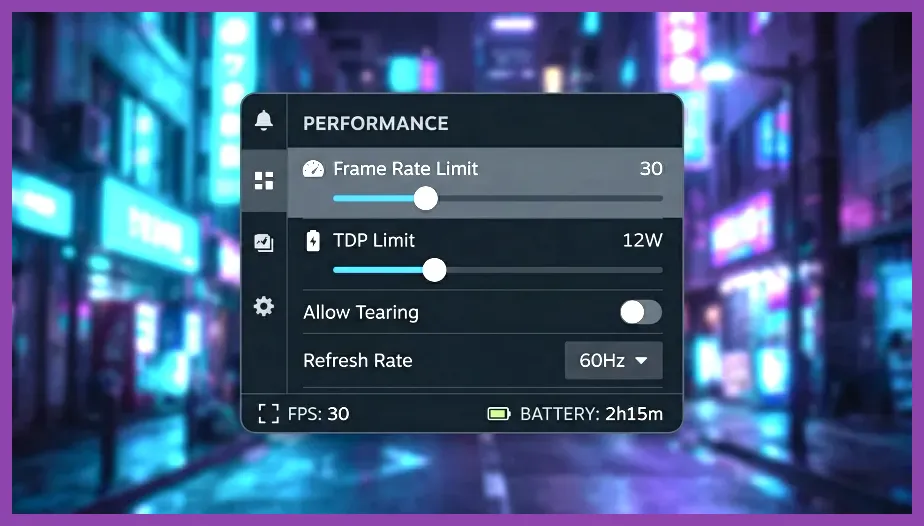
Before changing an individual game, establish a consistent SteamOS profile. Open a game, press the three-dot button, select the Performance tab, and enable “Use per-game profile.” Set the refresh rate to 60 Hz and the frame-rate limit to 30 FPS. A 30 FPS cap gives the CPU more headroom for world streaming and usually reduces fan noise, battery drain, and frame-time spikes.
Recommended baseline settings
- Resolution: Keep the game at 1280×800 unless a title behaves better at 1280×720. Do not lower resolution before reducing expensive effects.
- Frame limit: Use 30 FPS for Cyberpunk 2077, Red Dead Redemption 2, Hogwarts Legacy, and Starfield. Use 40 FPS only when testing shows the game can hold it in towns and combat.
- Refresh rate: Select 60 Hz for 30 FPS or 40 Hz for 40 FPS. A 40 FPS cap on a 60 Hz display produces uneven pacing.
- TDP limit: Start at 12 W. Reduce to 10 W only after confirming that the game remains locked at its target. Some CPU-heavy games need the full 15 W.
- GPU clock: Leave manual GPU clock disabled initially. A fixed clock can help a GPU-bound game, but it can also steal power from the CPU during streaming-heavy scenes.
- Scaling filter: Use FSR or Linear. FSR is sharper for a lower internal resolution, while Linear can look cleaner when the game already uses dynamic resolution.
Keep the SteamOS overlay visible while testing. Frame rate alone can look acceptable while frame time shows repeated spikes. Watch GPU utilization, CPU utilization, power draw, and temperature. If the GPU sits near 99 percent, lower resolution, FSR quality, shadows, or volumetrics. If one or more CPU threads are saturated while GPU use falls, reduce crowds, traffic, foliage distance, or simulation-heavy settings instead.
Use the Right Graphics Profile for Each Game
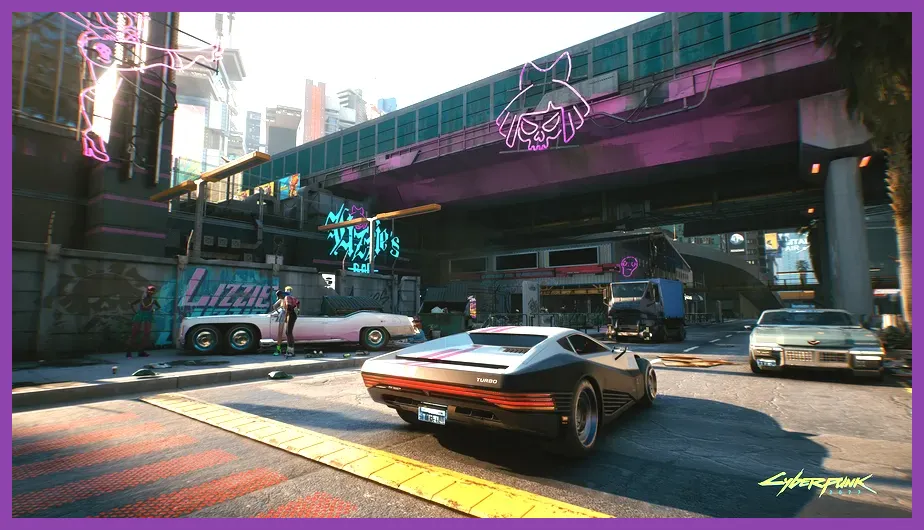
There is no universal “Low” preset that works across every open-world game. These profiles prioritize stable frame pacing and readable image quality on the Deck’s 1280×800 screen.
Cyberpunk 2077: stable 30 FPS profile
- Preset: Steam Deck or Custom
- Texture quality: Medium
- Screen-space reflections: Low
- Volumetric fog: Low
- Volumetric clouds: Medium
- Local shadow quality: Medium
- Cascaded shadow range and resolution: Low
- Level of detail: Medium
- Crowd density: Low
- Dynamic resolution: On, with a 30 FPS target
- FSR 2: Quality or Balanced
- Ray tracing: Off
Cyberpunk 2077’s most noticeable gains come from disabling ray tracing, reducing crowd density, and lowering volumetric fog. Keep textures at Medium because the Deck’s 16 GB of shared memory can still deliver a soft image when textures are pushed too low. In busy areas such as the Corpo Plaza and Japantown markets, use the 30 FPS limit rather than judging performance on an empty highway.
Elden Ring: consistency over resolution
- Texture quality: Medium
- Antialiasing quality: Low or Medium
- SSAO: Medium
- Depth of field: Off
- Motion blur: Off
- Shadow quality: Medium
- Lighting quality: Medium
- Effects quality: Medium
- Volumetric quality: Low
- Grass quality: Medium
Elden Ring generally benefits from a locked 30 FPS cap and a 60 Hz display. Keep grass at Medium because Low makes Limgrave and Liurnia look unusually bare, but lower volumetric quality and shadows to reduce GPU spikes during weather changes. Test around the Gatefront Ruins, Stormveil Castle approaches, and large Evergaol fights. These areas expose streaming and combat drops more reliably than the Church of Elleh.
Red Dead Redemption 2: reduce the expensive options first
- Graphics API: Vulkan
- Texture quality: High
- Water physics quality: Low
- Volumetrics: Low
- Near volumetric resolution: Low
- Far volumetric resolution: Low
- Lighting quality: Medium
- Global illumination: Medium
- Shadow quality: Medium
- Reflection quality: Low
- Tree tessellation: Off
- FSR: Quality, if available in your build
Red Dead Redemption 2 is unusual because High textures can look substantially better while remaining manageable, but water physics, volumetrics, reflections, and tree tessellation are costly. Vulkan is usually the better starting API on Steam Deck. Test the route from Valentine to Dakota River, then visit Saint Denis; the city’s traffic, lighting, and crowds are a far more demanding benchmark than Arthur’s camp.
Hogwarts Legacy and similar streaming-heavy games
For Hogwarts Legacy, use Medium textures, Low effects, Low shadows, Low fog, Medium view distance, and FSR 2 Balanced. Keep motion blur off and cap the game at 30 FPS. Hogsmeade and the Hogwarts castle corridors are better tests than the open countryside because they stress asset streaming. If stutter persists, install the game on the internal NVMe drive or a fast UHS-I A2 microSD card rather than a slow card.
Fix Stutter, Streaming, and Shader Problems

Open-world stutter is not always solved by lowering graphical quality. A game can pause while loading a new district, compiling a shader, or moving data from storage. First, allow the title to finish its initial shader-processing step. After a major game update or Proton change, the first trip through a location may still hitch while new shaders compile.
Use Proton deliberately
On the game’s Steam page, open Properties, select Compatibility, and test Proton Experimental or the latest stable Proton version when the default option has issues. Do not change Proton every time you see a single hitch; compare the same route for several minutes. Record which version produces fewer crashes, missing effects, or frame-time spikes. Consult the ProtonDB reports for game-specific community testing, but prioritize reports matching your SteamOS and game version.
Protect storage and background performance
- Keep at least 10 percent of the internal SSD or microSD card free.
- Pause downloads, shader pre-caching interruptions, and large background updates before benchmarking.
- Do not run several compatibility experiments at once; change one variable and repeat the same route.
- Restart the Deck after a major graphics-driver or SteamOS update if performance suddenly changes.
- Avoid aggressive TDP limits in CPU-heavy games such as Starfield, where the processor handles crowds and streaming.
For broader troubleshooting, compare these steps with Steamoz’s guides to fixing lag and low FPS in GTA 6 and optimizing games on low-end PCs. The principles are similar, but the Deck’s shared memory and 15 W power envelope make frame pacing especially sensitive.
Choose Battery, Temperature, and Display Targets

Performance optimization is also about deciding what kind of session you want. A 30 FPS profile at 10–12 W can extend battery life, while a demanding title at the full 15 W may provide fewer dips but higher fan noise. The OLED model has a 90 Hz display and better battery efficiency, but a 30 FPS cap remains the sensible target for demanding open-world games. Use 45 FPS at 90 Hz only for lighter titles that genuinely hold that rate.
Three practical profiles
| Profile | Frame target | TDP | Best use |
|---|---|---|---|
| Battery | 30 FPS | 10–11 W | The Witcher 3, Skyrim Special Edition, Fallout 4 |
| Balanced | 30 FPS | 12–13 W | Cyberpunk 2077, Elden Ring, Hogwarts Legacy |
| Maximum | 30 or 40 FPS | 15 W | Red Dead Redemption 2, Starfield, dense cities |
Keep temperatures in a sensible range rather than chasing a specific number. If the Deck reaches its thermal limit and clocks fall, lowering TDP will not solve the underlying problem; reduce GPU-heavy settings and improve airflow. Never block the intake or exhaust, and avoid playing on soft surfaces that trap heat.
For display quality, use the game’s native 1280×800 resolution when possible. If black bars are preferable to a blurred image, choose 1280×720 and enable FSR Quality. Do not stack multiple upscalers unless the game requires it: using in-game FSR together with an external scaling filter can create shimmering foliage and unstable fine detail.
Test Every Open World the Same Way
A reliable test route prevents misleading improvements. Start from a save near a busy settlement, walk or drive through the same streets, trigger a combat encounter, then travel rapidly into a new region. Repeat the route after every major change. In Cyberpunk 2077, test a vehicle ride through Japantown; in Elden Ring, move from the Gatefront Ruins toward Stormhill; in Red Dead Redemption 2, compare Valentine with Saint Denis.
- Load the same save and wait 30 seconds before measuring.
- Record average FPS and frame-time behavior for two minutes.
- Check the worst moments during combat, rain, driving, or fast travel.
- Lower only one setting, then repeat the route.
- Keep the change only if it improves frame pacing without damaging image quality.
Prioritize a locked frame rate over a higher average. A stable 30 FPS feels better than a range that jumps between 25 and 40, particularly during mounted travel, driving, or camera-heavy combat. If the game still struggles after using the correct profile, check whether a recent patch changed its requirements and compare the result with the Steam Deck performance database.
Finally, save separate per-game profiles. Cyberpunk 2077 may need a 12 W limit and FSR Quality, while Red Dead Redemption 2 may need the full 15 W and Vulkan. Once the 30 FPS baseline is stable, experiment with higher textures or a 40 FPS cap one setting at a time. That approach delivers the best balance of sharp visuals, consistent streaming, battery life, and playable performance across the Steam Deck’s open-world library. For Steam’s official compatibility guidance, use the Steam Deck Verified program as a starting point, not a substitute for testing demanding areas yourself.