If SLUDGE LIFE 2 is crashing, freezing, or dragging through Ciggy City with uneven frame pacing, start with three fixes: verify the Steam files, update or clean-install your GPU driver, and use a capped frame rate with VSync enabled. After that, lower shadows, effects, and resolution scaling before touching texture quality. Those steps solve most launch crashes and stutter, while overlay conflicts, corrupted settings, and aggressive overclocks explain many of the stubborn cases.
This guide targets the Windows PC version of Sludge Life 2, the graffiti-heavy first-person adventure from Terri Vellmann and Doseone. The game is not a demanding competitive shooter, but its open areas, transparent effects, animated props, and rapid camera movement can expose poor frame pacing. A PC that reports 60 FPS can still feel laggy if frames arrive at 16 ms, 35 ms, 16 ms, then 50 ms intervals. The goal here is stable delivery, not a flashy peak number.

Start with the fastest crash and lag fixes
Before changing obscure Windows settings, close the game completely and work through this short sequence. Launch Sludge Life 2 after each major change so you know which fix actually helped.
- Restart Steam and Windows. Background driver services, shader caches, and overlay hooks can remain stuck after a failed launch.
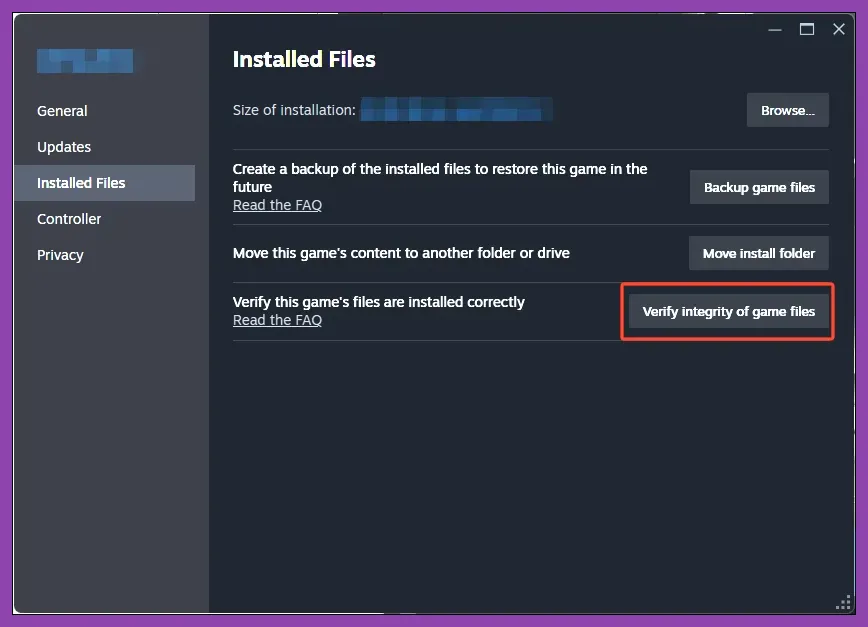
- Verify the installation. In Steam, right-click the game, choose Properties, open Installed Files, and select Verify integrity of game files. This replaces missing or altered files without deleting your saves.
- Update your GPU driver. Install the current WHQL driver from NVIDIA's official driver page or AMD's official support page. Choose a clean installation when the installer offers it.
- Disable overlays temporarily. Turn off Steam Overlay, Discord Overlay, Xbox Game Bar, AMD Adrenalin overlay, NVIDIA overlay, MSI Afterburner OSD, and recording tools. If the crash disappears, re-enable them one at a time.
- Run the game from the main executable once. Open the installation folder through Steam's Browse local files command and test the executable directly. If that works while Steam Play does not, the issue is often an overlay or launch configuration rather than the game files.
For official announcements and patches, check the Sludge Life 2 Steam page and the developer's official Terri Vellmann updates. Remove the accidental space from the Steam URL if your browser does not resolve it; the correct app address is https://store.steampowered.com/app/1614270/SLUDGE_LIFE_2/.
| Symptom | Most likely cause | First fix to try | What success looks like |
|---|---|---|---|
| Crashes before the menu | Corrupt file, driver, or overlay hook | Verify files and disable overlays | The game reaches the title screen reliably |
| Crashes after loading a save | Damaged settings or save-specific state | Reset settings, then test a new game | New and existing sessions load |
| Low average FPS | GPU load, resolution, or effects | Lower resolution scale and shadows | GPU usage falls and FPS rises |
| Short freezes while moving | Shader compilation, asset streaming, or background apps | Cap FPS and close browsers or recorders | Frame-time graph becomes flatter |
Use a stable Sludge Life 2 graphics profile
Open the game's video options and begin with a controlled baseline rather than dropping every setting to its lowest value. Keep texture quality reasonably high if your graphics card has enough VRAM; textures usually affect memory more than frame time. Shadows, reflections, effects, and post-processing are the better first targets because they can increase GPU work across the whole scene.
Set the display to your monitor's native resolution first. If your GPU is struggling, reduce resolution or render scale in small steps instead of jumping from 1440p to 720p. A 90 percent scale at 1080p renders internally at roughly 1728 by 972, which often looks cleaner than a much lower output resolution. If the game offers a fullscreen mode, test exclusive fullscreen and borderless separately. Borderless is convenient for alt-tabbing, while exclusive fullscreen can reduce desktop compositor interference on some systems.
| Setting | Recommended starting value | FPS impact | Visual trade-off |
|---|---|---|---|
| Resolution | Native monitor resolution | Very high when reduced | Lower values soften the image |
| Resolution scale | 90–100 percent | High | Below 90 percent introduces blur |
| Texture quality | High, then Medium on low-VRAM GPUs | Low to medium | Lower detail on surfaces and graffiti |
| Shadow quality | Medium | Medium to high | Less defined lighting and contact shadows |
| Effects and particles | Medium | Medium | Less density in smoke, sparks, and visual effects |
| Post-processing | Low or Medium | Medium | Cleaner but less stylized image |
| VSync | On for tearing or unstable frame pacing | Small latency cost | Much smoother presentation |
| Motion blur | Off | Negligible | Sharper movement and camera turns |
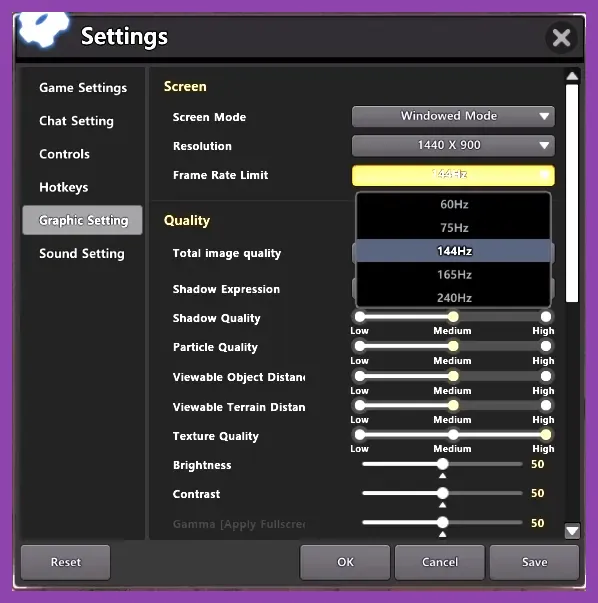
Use a frame cap that your PC can hold consistently. If your system jumps between 45 and 80 FPS, an unlocked counter will feel worse than a locked 60 or even 45. Cap through the game's menu if available; otherwise use your GPU control panel or RTSS. On a 60 Hz screen, 60 FPS with VSync is a sensible first target. On a 144 Hz monitor, try 72 or 90 FPS if 144 is not stable. The important number is the lowest sustained rate during fast movement, not the maximum in an empty alley.
For more PC tuning ideas, compare this approach with Steamoz's graphics settings guide for Smite and the practical breakdown in our Star Wars Outlaws performance guide. The games differ technically, but the rule is identical: reduce expensive effects first and protect frame pacing.
Stop launch crashes caused by Windows and drivers
If the game closes before you can reach its options, reset the environment around it. First, remove any compatibility mode you may have enabled by accident. Right-click the executable, choose Properties, open Compatibility, and make sure forced Windows compatibility modes are off unless a specific support post recommends one. Also disable Run this program as an administrator for testing. Mixing administrator and non-administrator launchers can prevent Steam overlay files from attaching correctly.
Next, check Windows Security and third-party antivirus quarantine lists. Security software can block a newly updated executable or a DLL that the game needs. Do not permanently disable protection; add the verified game folder as an exception only if you trust the installation and the alert clearly identifies the game file.
Driver updates sometimes create problems rather than solve them. If Sludge Life 2 began crashing immediately after a GPU update, use Device Manager or your GPU installer to roll back, or perform a clean installation of the previous stable driver. Remove GPU undervolts and overclocks while testing. A profile that survives a demanding benchmark can still fail during a specific shader, video-memory allocation, or alt-tab event.
Reset the game's local configuration if the crash happens after changing resolution, fullscreen mode, or graphics quality. Back up the relevant save folder first, then look in %USERPROFILE%\AppData\LocalLow, %APPDATA%, or the game's Steam userdata folder for a Sludge Life 2 configuration directory. Folder names can vary by build, so do not delete random files. Rename the suspected settings folder to something like SludgeLife2_backup and launch again. If the game creates fresh settings and works, copy saves back carefully rather than restoring the entire folder.
Do not use launch options as a magic fix. A DirectX launch flag such as -force-d3d11 can help some Unity-based PC games, but it can also do nothing or cause a different failure depending on the build. Add one option at a time through Steam's Properties and Launch Options, test it, and remove it if there is no measurable improvement. Never stack five internet-found flags and then guess which one caused the crash.
Fix stutter, input lag, and inconsistent FPS
Lag in Sludge Life 2 usually means one of three different things: low FPS, uneven frame times, or input delay. Diagnose before changing settings. If the camera feels slow but the FPS counter is stable, lower mouse smoothing if the game exposes that option and check your controller software. If the image tears while movement remains responsive, enable VSync or use a driver-level cap. If the entire scene pauses for a fraction of a second, investigate background storage and shader compilation.
Play from an SSD when possible. Moving a game from a hard drive to an SSD will not double every frame rate, but it can reduce pauses when new areas, textures, or audio assets load. Keep at least 10–15 percent free space on the drive, especially if Windows and the game share it. Pause cloud-sync clients, browser downloads, game launchers, and video recording while testing. Windows Task Manager can reveal whether the CPU, memory, disk, or GPU is hitting 100 percent.
Watch GPU utilization and frame time with a lightweight overlay, then turn that overlay off for the final test. GPU usage near 95–100 percent means resolution, shadows, effects, or post-processing are the likely bottleneck. GPU usage below that level with one CPU core repeatedly saturated points toward a CPU or background-process limit; lowering resolution will barely help. In that case, cap the frame rate, close CPU-heavy programs, and use a balanced Windows power plan.
Disable Hardware-accelerated GPU scheduling only as a comparison, not as a guaranteed cure. The setting is found under Windows Settings > System > Display > Graphics > Default graphics settings, though the wording varies by Windows version. Change it, reboot, and compare the same area for several minutes. Do the same with Game Mode. Keep the option that produces flatter frame times on your hardware.
Controller users should also test with Steam Input toggled. A conflicting controller layer can add delay, repeatedly reconnect the device, or crash a game when the active window changes. Open the game's Steam controller properties, test the default Steam Input profile, then test with Steam Input disabled. Wireless players should check battery level and temporarily connect by USB to rule out interference.
Use a clean troubleshooting order when nothing works
When the basic fixes fail, stop changing random settings and isolate the problem. First, create a fresh save or start a new game. If a new session works but one save crashes in the same spot, the issue may be tied to that save state. Back up the save, report the location and repeatable steps through the game's Steam discussions, and avoid overwriting the backup.
Second, test a clean boot. Press Win + R, enter msconfig, hide Microsoft services, disable the remaining nonessential services, and restart. Turn off startup applications in Task Manager as well. If the game becomes stable, re-enable services in batches until you identify the conflict. Common offenders include RGB utilities, aggressive monitoring software, third-party antivirus, audio enhancement suites, and capture programs.
Third, reinstall only after verifying files, resetting settings, and checking drivers. Uninstall through Steam, manually remove leftover configuration files after backing up saves, restart Windows, then install again to an SSD. A reinstall over a damaged settings directory is not a clean test. Avoid unofficial repacks, DLL downloads, or “FPS booster” utilities; they can introduce malware and make legitimate crash reports impossible to diagnose.
| Test order | Action | Keep the change if | Undo it if |
|---|---|---|---|
| 1 | Verify Steam files | Missing-file errors or launch crashes stop | Nothing changes after a clean relaunch |
| 2 | Disable overlays | Crashes vanish during alt-tab or loading | The same crash occurs with every overlay off |
| 3 | Reset graphics configuration | The menu or save loads normally | Fresh settings still crash immediately |
| 4 | Clean-install or roll back GPU driver | Crashes began after a driver change | The failure predates the driver |
| 5 | Clean boot Windows | The game becomes stable without startup tools | It crashes in a minimal environment |
| 6 | Reinstall the game | Files or local configuration were damaged | The same reproducible bug remains |
Keep notes during testing: GPU model, driver version, Windows version, resolution, whether VSync is enabled, where the crash occurs, and whether a new save behaves differently. That information is far more useful than “the game is broken.” Include the crash time, reproduction steps, and a system report when posting on the official Steam community discussions.
The best stable setup for most PCs
For a final baseline, use native resolution, Medium shadows and effects, High textures if your GPU memory allows it, motion blur off, VSync on, and a frame cap your PC can maintain without dips. Disable overlays while diagnosing, launch without experimental flags, and keep the game on an SSD. This profile preserves the bold graffiti, color, and environmental detail that make Sludge Life 2 fun while cutting the settings most likely to trigger GPU spikes.
If you still want to squeeze out smoother performance, change one option at a time and replay the same route through Ciggy City. Do not judge a setting from a quiet menu or a single rooftop. Move rapidly through dense streets, turn the camera quickly, spray several surfaces, and revisit the spot where you noticed the hitch. Consistency is the win condition here.
For broader PC troubleshooting, Steamoz's system requirements explainer is useful for separating hardware limits from software problems. Once Sludge Life 2 launches cleanly and holds a stable cap, the weird island, spray can, camera, and Ghost's graffiti tour can finally take center stage instead of your desktop.