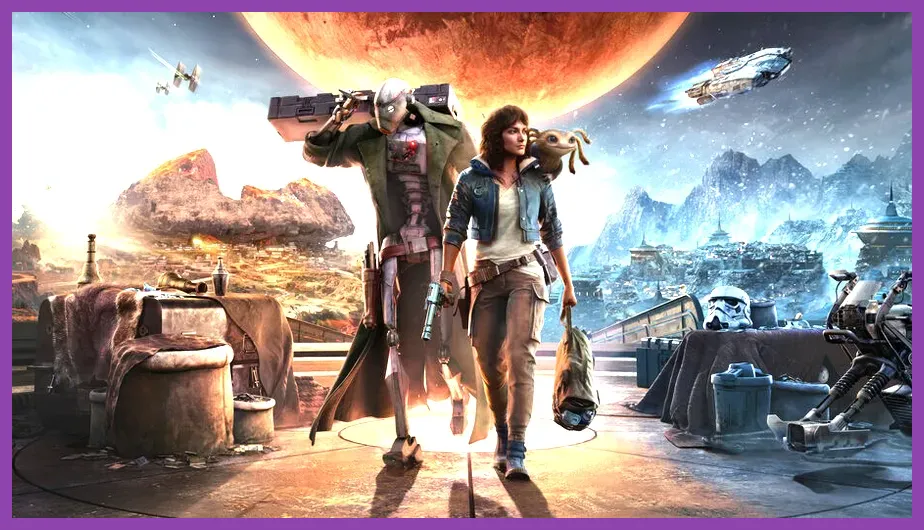
For the best Star Wars Outlaws graphics settings for performance on PC, use High textures, Medium shadows, Medium volumetric fog, High reflections, and a hardware-appropriate upscaler. Start with DLSS Quality on an RTX card, FSR 3 Quality on Radeon hardware, ray-traced reflections set to Medium or Off, and a 60 FPS frame cap. This combination preserves the Snowdrop Engine’s lighting and world detail while removing the settings that create the largest frame-time spikes in Mirogana, Mos Eisley, and Toshara’s busiest combat areas.
Star Wars Outlaws is demanding because it streams a large open world while rendering volumetric lighting, dense crowds, reflective surfaces, and ray-traced effects. A higher average FPS is useful, but consistent frame pacing is more important when Kay Vess is driving the Speeder, sneaking through an Imperial facility, or fighting alongside Nix. The profiles below are designed for 1080p, 1440p, and 4K systems, with separate advice for Nvidia, AMD, and Intel GPUs.
Best Balanced Settings for 60 FPS
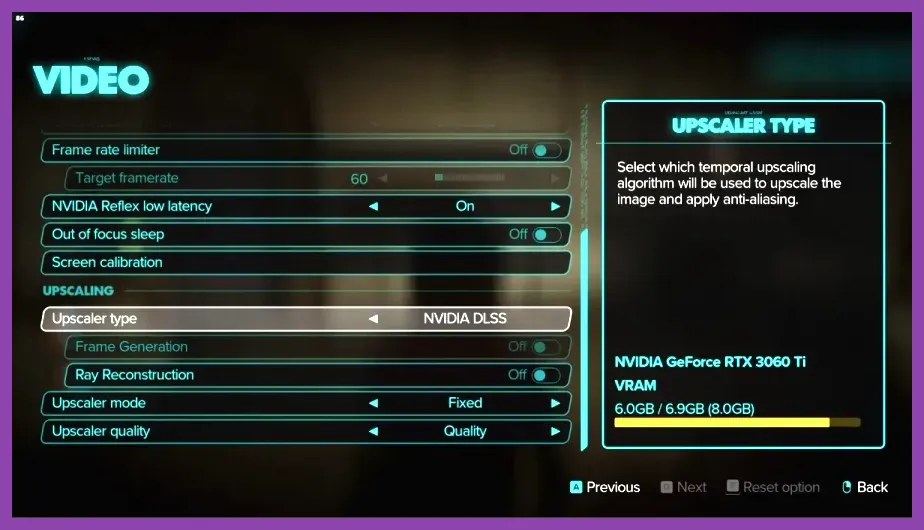
Use this profile first if your PC meets or exceeds the game’s recommended hardware target. It is intended for a modern six-core CPU, 16GB of RAM, and a graphics card with at least 8GB of VRAM. On an RTX 3060 Ti, RTX 4060 Ti, RX 6700 XT, or similar GPU, it gives a much better balance than the Ultra preset.
Display settings
- Display mode: Fullscreen or Borderless, depending on which behaves more consistently on your system.
- Resolution: Use your monitor’s native resolution. Do not lower desktop resolution as a first step.
- V-Sync: Off when using G-Sync or FreeSync; On if you see tearing on a fixed-refresh display.
- Frame-rate limit: 60 FPS for a 60Hz panel, 72 or 90 FPS for a 120Hz panel, and 117 or 141 FPS for 120Hz or 144Hz VRR displays.
- Motion blur: Off for a sharper image while aiming and driving.
- Depth of field: On if you prefer the cinematic presentation; Off for a clearer view during combat.
- Chromatic aberration and film grain: Off.
Quality settings
- Graphics quality: Custom.
- Texture quality: High. Lower this only when VRAM usage causes stutter or visible texture pop-in.
- Texture filtering: High or Ultra. It has a small performance cost and keeps ground detail sharp at oblique angles.
- Shadow quality: Medium. High shadows are expensive in settlements and usually provide a smaller visual gain than higher textures.
- Volumetric fog: Medium. This is one of the best settings to reduce GPU load around smoke, dust, and bright atmospheric lighting.
- Reflections: High. Drop to Medium if urban scenes remain below your target frame rate.
- Water quality: High, or Medium on an 8GB GPU.
- Hair quality: High. Medium is a reasonable option if crowded scenes produce inconsistent frame times.
- Crowd quality: Medium. This reduces CPU pressure in Mirogana and other populated hubs without making the world feel empty.
- Ray tracing: Medium on RTX 4070-class hardware and above; Off on mainstream GPUs targeting a locked 60 FPS.
Do not automatically choose Ultra textures on a card with 8GB of VRAM. Texture quality is primarily a VRAM setting, not a direct FPS setting, but exceeding available memory can cause hitching when the game streams the next area. If your performance feels smooth in open terrain but stutters when entering a cantina or market, lower textures one step before changing every other option.
Upscaling, Frame Generation, and Ray Tracing
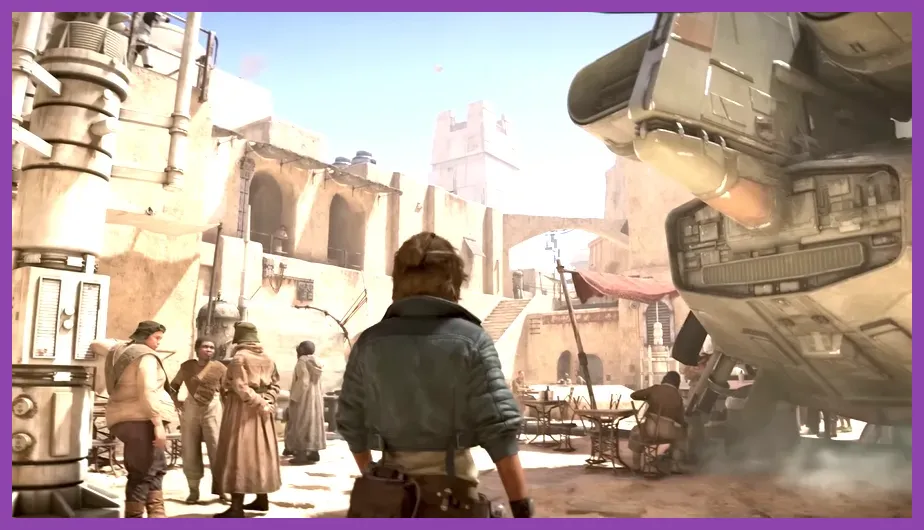
Upscaling is the most important performance control in Star Wars Outlaws. It renders the game internally below native resolution and reconstructs the final image, allowing the GPU to spend less time drawing each frame. The correct mode depends on your output resolution and graphics card.
Recommended upscaling modes
- 1080p: Use DLSS Quality, FSR 3 Quality, or XeSS Quality. Avoid Performance mode at 1080p because foliage, wires, and distant signage can look soft.
- 1440p: Use DLSS Quality on RTX cards. FSR 3 Quality is the preferred starting point for Radeon cards, while XeSS Quality is worth testing on Intel Arc hardware.
- 4K: Use DLSS Balanced or FSR 3 Balanced when native 4K is too demanding. Quality mode is preferable if your GPU can sustain the target frame rate.
- Dynamic resolution: Enable it only when you need a strict frame-rate target and can tolerate a changing image sharpness. A fixed Quality upscaler usually looks cleaner.
DLSS Quality is generally the best first choice on GeForce RTX hardware because it maintains detail in foliage and thin geometry while reducing GPU load. FSR 3 Quality is a practical alternative for Radeon users and remains useful on RTX cards when you need additional performance. Set sharpening conservatively; excessive sharpening emphasizes shimmering around vegetation and bright neon signs.
When to enable Frame Generation
Frame Generation can make motion appear smoother, but it should not be used to disguise a low base frame rate. Enable DLSS Frame Generation on compatible RTX 40-series cards, or FSR 3 Frame Generation where supported, only after the game is already producing roughly 55-60 real FPS. A generated 90 FPS output built from a 35 FPS base can still feel delayed during blaster aiming and Speeder steering.
Keep Nvidia Reflex enabled when the option is available. Reflex reduces the render queue and is especially useful with Frame Generation. If you are using a Radeon card, leave Anti-Lag enabled in the driver only if it does not conflict with another latency tool. Never stack multiple frame limiters without a reason: use the in-game limiter first, then your driver or RTSS limiter only when the in-game cap is inconsistent.
Ray tracing recommendations
Ray-traced reflections and lighting improve wet surfaces, windows, polished floors, and night scenes, but they can create a large GPU cost in settlements. Use Ray Tracing Medium on an RTX 4070, RX 7800 XT, or faster card at 1440p with an upscaler. Use Ray Tracing Off on RTX 3060, RTX 4060, RX 6600, and similar GPUs when the priority is stable performance. Keep standard reflections on High or Medium so the world does not lose all of its surface detail.
For more upscaling guidance, compare this approach with our Hades 2 best settings for max FPS guide. The same principle applies: preserve textures and image quality, then reduce expensive lighting effects before sacrificing resolution.
Best Settings by GPU and Resolution
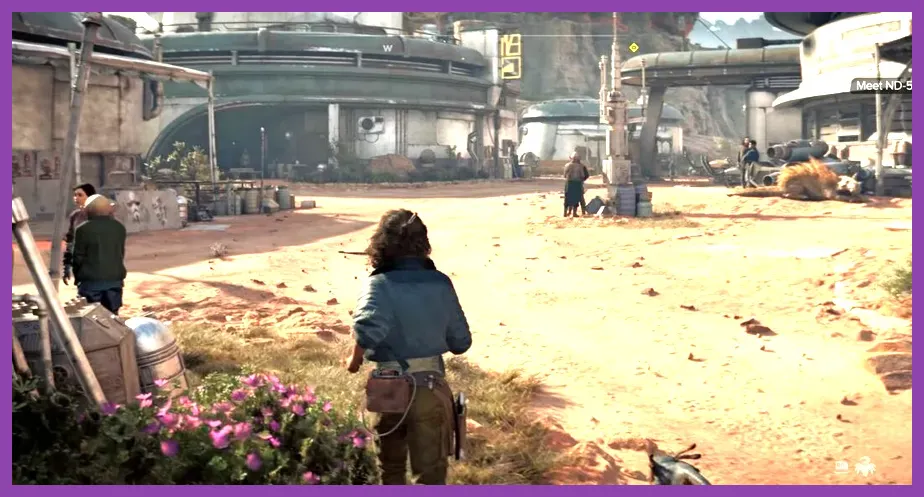
Use the following profiles as starting points rather than fixed benchmarks. Star Wars Outlaws performance changes between open countryside, Imperial bases, settlements, and cinematic scenes. Test each profile in a repeatable location, such as the crowded streets around Mirogana on Toshara, instead of judging performance only inside a quiet room.
1080p performance profile
This profile suits RTX 2060 Super, RTX 3060, RTX 4060, RX 6600 XT, RX 7600, and comparable GPUs.
- Upscaling: DLSS Quality, FSR 3 Quality, or XeSS Quality.
- Frame Generation: Off unless the base frame rate is already stable and your hardware supports it.
- Textures: High, reduced to Medium if the card has 6GB of VRAM.
- Shadows: Medium.
- Volumetric fog: Low or Medium.
- Reflections: Medium.
- Water and hair: Medium.
- Crowds: Medium.
- Ray tracing: Off.
- Target: 60 FPS, with a 45 FPS cap as a fallback for demanding areas.
1440p balanced profile
This is the recommended profile for RTX 3060 Ti, RTX 3070, RTX 4060 Ti, RX 6700 XT, RX 7700 XT, and similar hardware.
- Upscaling: DLSS Quality or FSR 3 Quality.
- Frame Generation: Off for the most direct response; On for RTX 40-series cards after confirming a 60 FPS base.
- Textures: High.
- Shadows: Medium.
- Volumetric fog: Medium.
- Reflections: High on stronger cards, Medium on RTX 3060 Ti-class GPUs.
- Water, hair, and filtering: High.
- Crowds: Medium.
- Ray tracing: Off or Medium, depending on your GPU and frame-rate target.
- Target: 60 FPS, or 72 FPS on a high-refresh VRR display.
4K quality profile
This profile is aimed at RTX 4080, RTX 4090, RX 7900 XTX, and comparable high-end cards.
- Upscaling: DLSS Quality or Balanced; FSR 3 Quality or Balanced.
- Frame Generation: On when the real frame rate stays near 60 FPS.
- Textures: High or Ultra if VRAM usage remains below the card’s limit.
- Shadows: High.
- Volumetric fog: Medium or High.
- Reflections: High.
- Water and hair: High.
- Crowds: High if your CPU has spare headroom.
- Ray tracing: Medium or High, then reduce it if city performance falls sharply.
For broader troubleshooting, our guide to DREDGE PC performance settings covers the same useful workflow of changing one major setting at a time. Do not lower ten options simultaneously; you will not know which adjustment solved the problem.
How to Fix Stutter and Low FPS
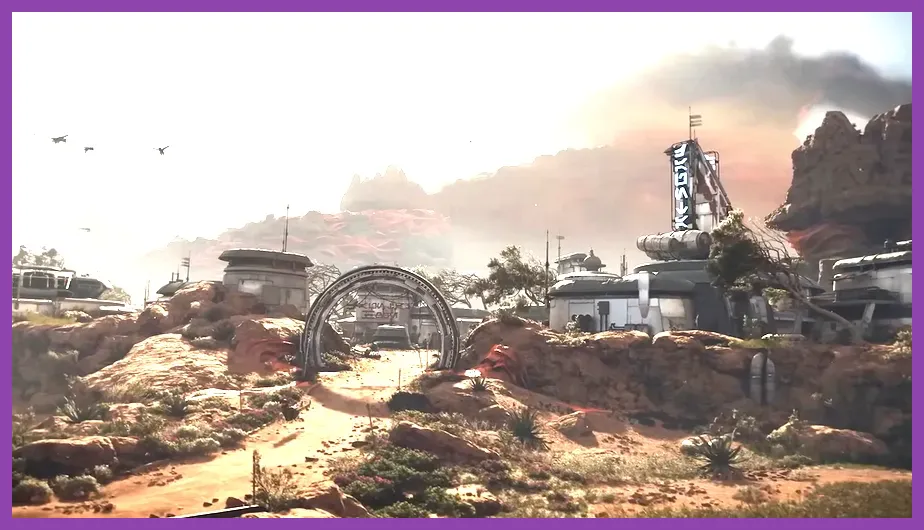
Average FPS does not explain every performance problem in Star Wars Outlaws. Traversal stutter often appears when the game streams new geometry and textures, while low GPU utilization can indicate a CPU limit in crowded locations. Use this sequence to identify the cause instead of simply selecting the Low preset.
Step 1: Confirm the bottleneck
Enable the game’s performance statistics if available, or use an overlay such as Ubisoft Connect, Nvidia App, AMD Adrenalin, or an external monitoring tool. If GPU usage stays near 95-99%, lower resolution, upscaling quality, ray tracing, fog, or reflections. If GPU usage falls well below that level while one or more CPU cores are heavily loaded, reduce crowd quality, close background applications, and use a frame cap.
Step 2: Update the software stack
Install the latest Game Ready or Adrenalin driver, update Ubisoft Connect, and allow shader compilation to finish after a driver or game update. Windows should use the High performance power mode when the laptop is plugged in. On a notebook, select the dedicated GPU rather than integrated graphics and ensure the power adapter is connected.
Check the official Star Wars Outlaws page and Ubisoft support pages for current patches and known issues. Performance can change after updates, particularly in streaming-heavy areas.
Step 3: Fix VRAM and streaming stutter
Lower Texture Quality from High to Medium if the VRAM meter approaches its limit, especially at 1440p or 4K. Close browsers, recording software, and overlays that consume memory. Install the game on an SSD; a hard drive can worsen texture streaming and increase hitching when moving quickly across Toshara or Akiva.
Step 4: Use a sensible cap
A locked 60 FPS is better than an unstable 75-90 FPS that drops during every settlement visit. With VRR, cap a few frames below the display’s maximum refresh rate. If your system fluctuates between 48 and 60 FPS, try a locked 45 or 50 FPS target rather than leaving the frame rate unlimited. This reduces sudden CPU and GPU spikes and makes aiming feel more consistent.
Our guides to fixing low FPS in GTA 6 and fixing lag in AFK Journey also recommend isolating CPU, GPU, memory, and storage problems separately. That method is more reliable than repeatedly reinstalling the game.
Visual Settings Worth Keeping High
Some options in Star Wars Outlaws deliver clear visual improvements for a relatively small performance cost. Keep Texture Filtering High because it improves the surface detail of roads, metal walkways, and rocky terrain across Toshara. Keep Textures High when VRAM allows; lowering them makes Kay Vess’s clothing, Nix, weapons, and environmental props visibly softer.
Water Quality is also worthwhile at High if you spend time around rivers and coastlines, although it can be reduced on a mid-range GPU. Hair Quality affects close-up character scenes more than ordinary exploration, so it can remain High unless you are chasing a strict frame-time budget. Depth of Field is purely a presentation choice: leave it enabled for cinematic dialogue scenes or disable it if you want maximum clarity while scanning for enemies.
Shadows, volumetric fog, reflections, and ray tracing should be your main performance levers. Shadows affect large portions of the world, fog becomes expensive in dusty and brightly lit scenes, and reflections multiply the cost of rendering city surfaces. Ray tracing is the easiest setting to disable when a powerful-looking preset fails to maintain 60 FPS. Crowd Quality is the main CPU-side adjustment, particularly in Mirogana’s markets, cantinas, and landing areas.
Finally, benchmark the exact activity you care about. Walk through a populated hub, drive the Speeder across open terrain, enter an Imperial base, and fight with Kay Vess’s blaster while Nix is active. If all four scenarios hold your chosen cap, your Star Wars Outlaws graphics settings are ready. For official PC specifications and platform information, consult the official Ubisoft Store listing and the Nvidia Star Wars Outlaws driver coverage.