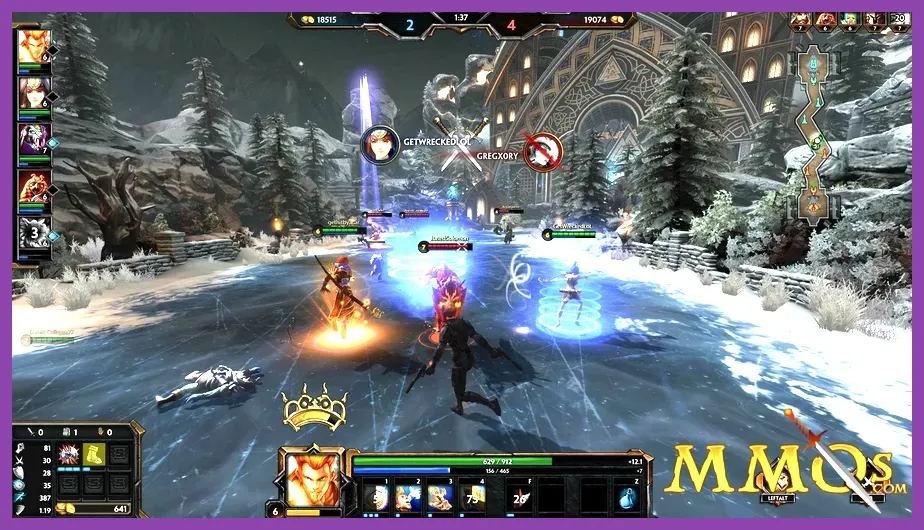
For the best SMITE performance on PC, use Fullscreen at your monitor’s native resolution, disable V-Sync, set a stable frame limit, keep Textures and Character Detail on High, and reduce Shadows, Particles, Post Processing, Foliage, and anti-aliasing first. This balanced profile prioritizes consistent frame times and readable god abilities rather than simply forcing every option to Low.
The recommendations below apply primarily to the original PC version of SMITE. SMITE 2 uses Unreal Engine 5 and has a different graphics menu, so do not copy these values blindly between the two games. Before changing anything, confirm the game version through the official SMITE Steam page and update your GPU driver.
Best SMITE Graphics Settings for Maximum FPS
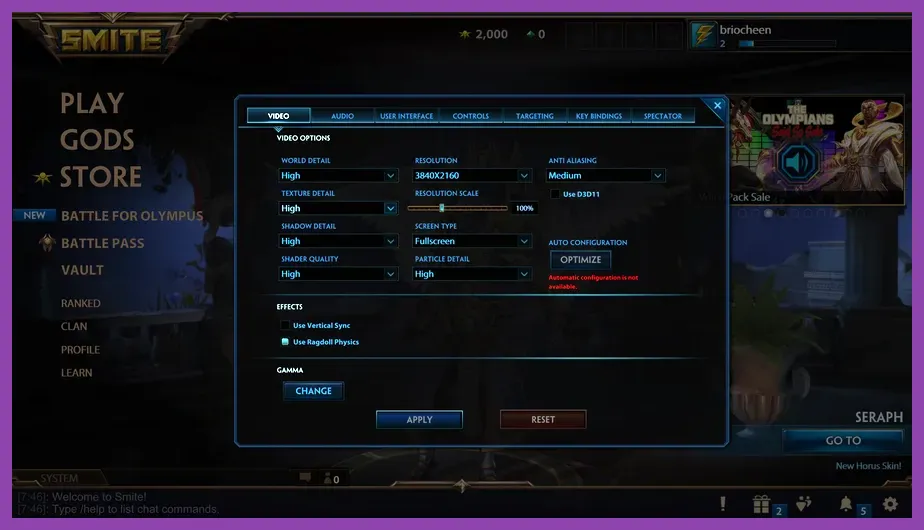
Start with this competitive performance preset. It is designed for 1080p monitors and mid-range systems using hardware such as a GTX 1060, RX 580, GTX 1660, RTX 2060, or better. At 1440p, keep the same quality choices but expect a substantially higher GPU load from resolution alone.
| Setting | Recommended value | Performance reason |
|---|---|---|
| Display Mode | Fullscreen | Reduces desktop compositor overhead and helps frame pacing. |
| Resolution | Native monitor resolution | Preserves UI and god ability clarity. |
| V-Sync | Off | Removes the traditional refresh-rate cap and added input latency. |
| Frame Rate Limit | Refresh rate or slightly below | Avoids unnecessary GPU heat and unstable frame times. |
| Anti-Aliasing | Low or Off | Reduces GPU cost while keeping targets identifiable. |
| Texture Detail | High | Uses VRAM rather than heavily reducing FPS on most modern GPUs. |
| World and Environment Detail | Medium | Removes distant scene complexity without destroying visibility. |
| Character Detail | High | Keeps god models and skins readable during fights. |
| Shadow Detail | Low | One of the most expensive settings during crowded engagements. |
| Particle Detail | Low or Medium | Reduces the cost of ultimates, relic effects, and minion waves. |
| Post Processing | Low | Limits bloom, sharpening, and other effects that add little competitive value. |
| Foliage | Low | Improves performance around jungle camps and lane scenery. |
Do not automatically set Textures to Low. Texture quality usually affects VRAM usage more than raw GPU calculations. If your graphics card has 4GB or more of VRAM, High textures are a sensible starting point. Drop them to Medium only if you see texture pop-in, hitching, or sudden memory-related stutter. Character Detail should also remain High where possible because lowering it can make enemy gods look less distinct at the exact moment you need to identify them.
Best Settings for Competitive Visibility and Input Delay
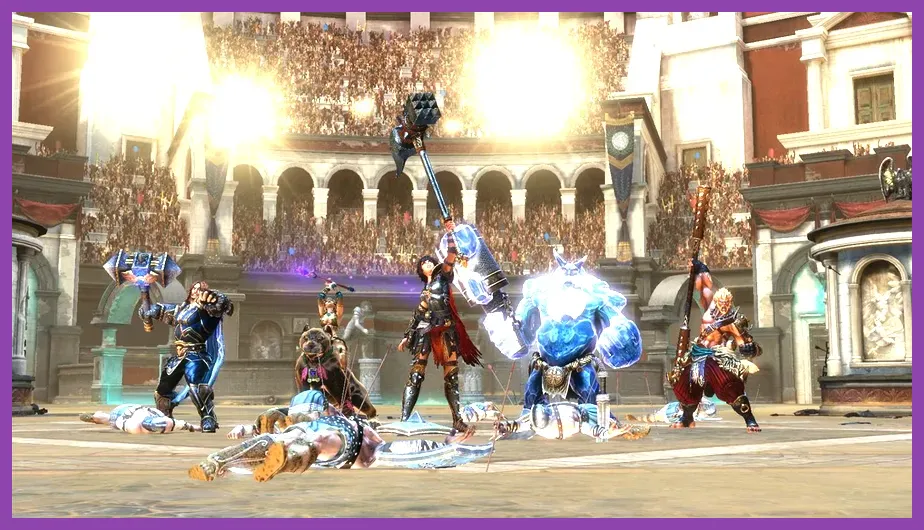
Maximum FPS is not the same as maximum competitive performance. SMITE is a third-person action MOBA where a clear silhouette, reliable ability telegraph, and predictable input response matter more than cinematic lighting. A stable 120 FPS is generally preferable to a fluctuating 180 FPS that falls to 70 during a five-player Conquest engagement.
Frame limit and V-Sync
Set the frame limit to your monitor’s refresh rate if temperatures and frame pacing remain stable. For a 144Hz display, try 144 FPS first; if the game frequently touches the limit and produces uneven delivery, use 141 FPS through your GPU driver or an external limiter. On a 60Hz monitor, a 60 FPS cap is appropriate. If you use G-SYNC or FreeSync, disable in-game V-Sync and cap the frame rate a few frames below refresh rate, such as 141 on 144Hz, to keep the display inside its variable-refresh range.
Players with severe tearing may prefer V-Sync, but it can increase latency. Test both options in a controlled Arena match. The goal is not a benchmark number; it is consistent mouse response when a team fight begins around Fire Giant or Gold Fury.
Anti-aliasing, post-processing, and shadows
Use Low anti-aliasing before sacrificing textures or character detail. Excessive anti-aliasing can soften god outlines, while completely disabling it may create distracting stair-step edges around structures. Keep Post Processing Low to reduce bloom and image effects that can obscure ground indicators. Low shadows are especially valuable because SMITE must render shadows from gods, minions, jungle geometry, and objectives at once. If Low makes the map too flat, Medium shadows are the first quality upgrade worth testing.
For broader PC optimization advice, compare these choices with Steamoz’s Overwatch 2 max-FPS settings guide. The same principle applies: protect visibility-critical details and cut expensive background effects first.
SMITE Settings for Low-End PCs and Laptops
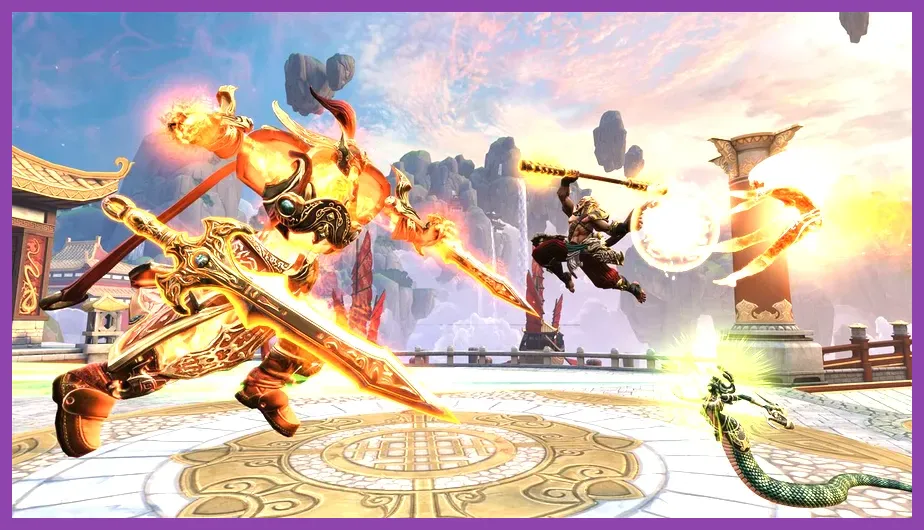
On integrated graphics or older cards such as the GTX 750 Ti, GT 1030, RX 550, or Intel UHD graphics, begin at 1280x720 or 1600x900 instead of immediately lowering every quality option. Resolution is the largest direct GPU lever, but an excessively low resolution makes SMITE’s minimap, item shop, and ability indicators difficult to read.
- Use Fullscreen and disable V-Sync. Close browser tabs, launchers, recording software, and overlays before testing.
- Set Textures to Medium. Use Low only if the system has limited shared memory or produces texture-related hitching.
- Set World, Environment, Shadows, Particles, Foliage, and Post Processing to Low. These settings reduce the workload that spikes during lane waves and team fights.
- Keep Character Detail at Medium. Low can make enemies harder to read; use Low only when the frame rate remains unstable.
- Cap the frame rate at a sustainable number. A locked 60, 45, or even 30 FPS is better than constant swings if the laptop cannot maintain a higher target.
Use the practice environment for a first check, but do not treat it as the final benchmark. Test a complete Arena match or a Conquest clash near a tower, minion wave, and jungle entrance. If FPS falls only during intense effects, lower Particles and Post Processing again. If performance is poor everywhere, lower resolution or check whether the laptop is running on its integrated GPU instead of its dedicated graphics processor.
Thermal throttling is another common laptop problem. Plug in the charger, select a high-performance power plan, clean blocked vents, and avoid testing on a bed or soft surface. If the frame rate starts high and declines after several minutes, the issue may be temperature rather than graphics quality. Steamoz’s battery and heat troubleshooting coverage is aimed at mobile gaming, but its advice on background processes and heat management is still useful.
Best Quality Settings for Mid-Range and High-End PCs
With an RTX 3060, RX 6600 XT, RTX 4060, RX 7600, or faster GPU, you can raise quality without compromising competitive responsiveness. Keep Fullscreen, V-Sync Off, and a sensible frame cap. Then use High Textures, High Character Detail, Medium World Detail, Medium Environment Detail, Medium Particles, Medium Post Processing, and Medium Shadows. Increase only one setting at a time so you can identify which option causes a frame-time spike.
High textures are the safest visual upgrade because they make terrain, structures, and god skins sharper without the same repeated rendering cost as shadows. Character Detail on High is similarly worthwhile. High shadows and High particles are less attractive for competitive play: they can consume performance exactly when multiple gods cast abilities together. If your GPU has ample headroom, set Particles to High for a more dramatic presentation, but return to Medium if ultimate-heavy fights become inconsistent.
At 1440p, use native resolution if your GPU can maintain the selected target. If not, test 1600x900 or 1920x1080 with your monitor scaling rather than using a heavily blurred custom resolution. Avoid chasing 4K unless you have a powerful modern GPU and a 60Hz target. SMITE’s UI and character outlines benefit from a clean native image, but stable frame pacing remains more important than pixel count.
Players who frequently stream or record should reserve additional headroom. OBS encoding, Discord overlays, browser video, and GPU monitoring tools can create intermittent stutter. Cap SMITE below the maximum your system can produce, then leave roughly 10 to 15 percent GPU capacity for those background tasks. This is also why a 141 FPS cap can feel better than an uncapped 165 FPS average on a 165Hz monitor.
How to Test and Fix SMITE FPS Drops
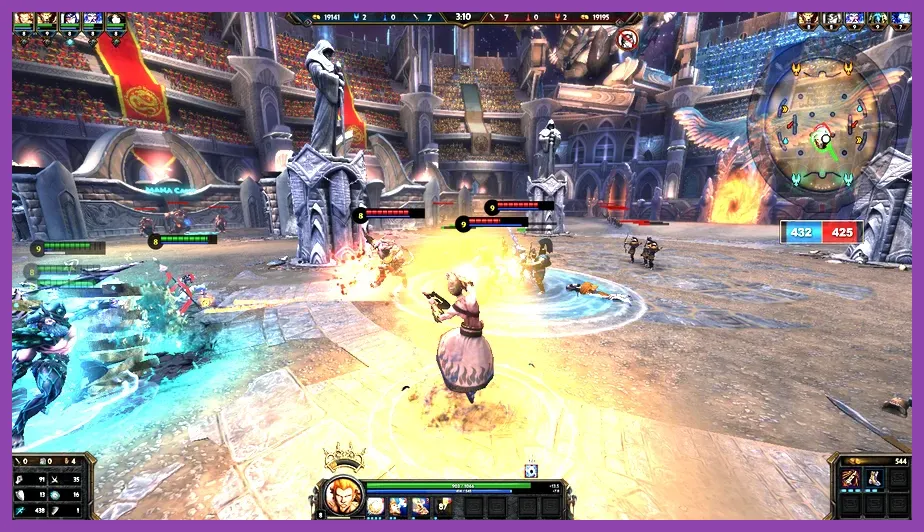
Change settings in a repeatable order rather than relying on how the main menu feels. Record your average FPS, one-percent-low behavior, GPU utilization, CPU utilization, and temperatures during the same type of match. The important result is the worst normal scenario: a late-game Conquest fight near the Fire Giant, a packed Arena center, or a clash involving several ultimates.
A practical troubleshooting sequence
- Confirm the display mode and GPU. Make sure SMITE is using the dedicated GPU and that Windows is not applying a battery-saving graphics profile.
- Update drivers and verify files. Use the Hi-Rez support portal for current troubleshooting guidance, then verify SMITE’s files through Steam.
- Lower Shadows, Particles, and Post Processing. These are the first settings to change when FPS drops during ability-heavy fights.
- Watch the bottleneck. Near 99 percent GPU usage means lower resolution or GPU-heavy quality settings. Low GPU usage with a saturated CPU points toward a processor, background-task, or frame-pacing limit.
- Check temperatures. A CPU or GPU that reduces clock speed under heat can cause drops even on a capable system.
- Retest after every change. Keep the setting that improves one-percent lows without making enemy gods or ability indicators difficult to read.
For official patch notes and client information, use the official SMITE news page and the SMITE website. Performance can change after renderer updates, driver releases, or major seasonal patches, so revisit your benchmark after significant updates.
Recommended SMITE Performance Presets
Competitive 1080p: Fullscreen, native resolution, V-Sync Off, frame limit matched to refresh rate, Textures High, Character Detail High, World and Environment Medium, Shadows Low, Particles Low, Post Processing Low, Foliage Low, and Low anti-aliasing.
Balanced 1080p: Fullscreen, native resolution, V-Sync Off, frame limit matched to refresh rate, Textures High, Character Detail High, World and Environment High, Shadows Medium, Particles Medium, Post Processing Medium, Foliage Medium, and Low or Medium anti-aliasing.
Low-end 720p: Fullscreen, 1280x720, V-Sync Off, 60 FPS cap or the highest stable target, Textures Medium, Character Detail Medium, World and Environment Low, Shadows Low, Particles Low, Post Processing Low, Foliage Low, and anti-aliasing Off.
Apply the Competitive preset first, then raise World Detail, Environment Detail, and Shadows only if your lowest combat FPS remains stable. These SMITE best graphics settings for performance deliver the strongest combination of frame consistency, low input delay, and readable combat effects without making the game look unnecessarily flat.