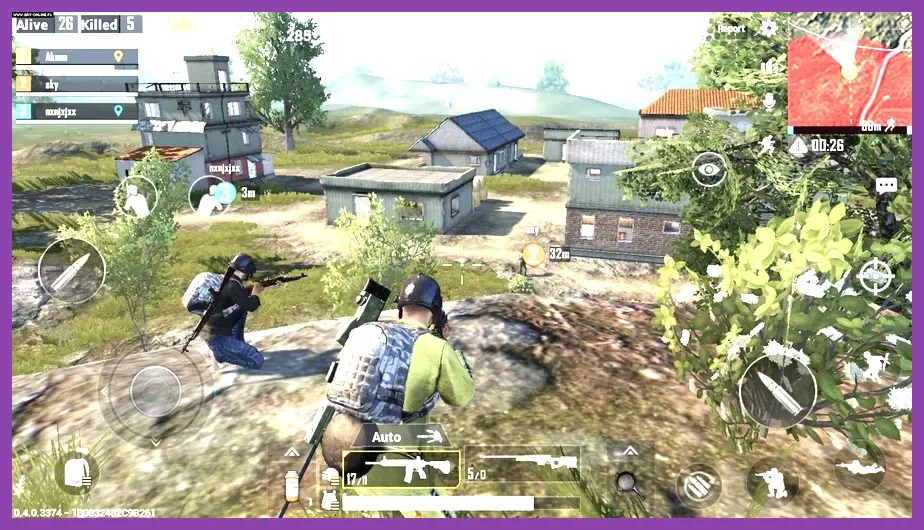
The fastest PUBG Mobile battery drain fix is to use Graphics: Smooth, reduce the frame rate to High or Ultra, disable Auto-adjust graphics, remove the phone case, and stop charging during hot matches. Then restrict background apps, lower screen brightness, and check battery health. These changes preserve stable performance without forcing your phone to render unnecessary visual detail.
PUBG Mobile is unusually demanding because a full match combines continuous 3D rendering, network activity, touch input, speaker output, GPS-like location services on some devices, and a bright display. A phone that loses 20 to 30 percent in one classic match is usually running too hot, pushing an unnecessarily high frame rate, or dealing with battery wear. Use the steps below in order so you can identify the real cause instead of applying random battery-saver settings that create input lag.
Use the Best PUBG Mobile Graphics Profile
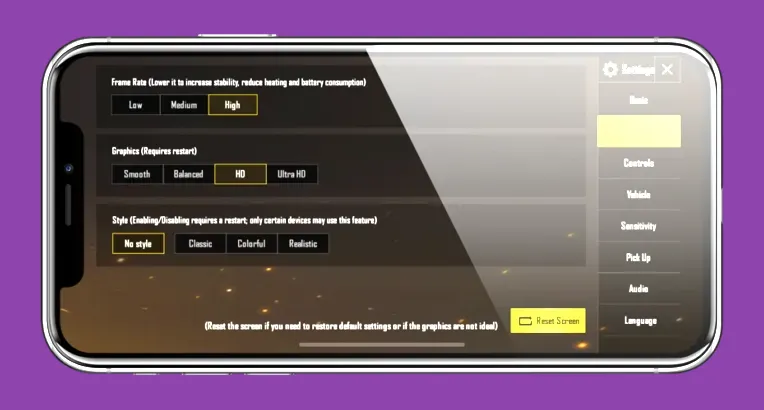
The in-game graphics menu is the most important part of a PUBG Mobile battery drain fix. Open PUBG Mobile, tap the arrow in the bottom-right corner, choose Settings, and open the Graphics & Audio tab. The names of the highest frame-rate options vary by device, game version, and display refresh rate, so choose the highest option your phone can sustain rather than automatically selecting 90 FPS or 120 FPS.
Battery-first profile for most phones
- Graphics: Smooth
- Frame Rate: High, Ultra, or Extreme; choose High if the phone becomes hot
- Style: Classic or Colorful, whichever you prefer; this has less impact than resolution and frame rate
- Anti-Aliasing: Off
- Auto-adjust graphics: Off after testing stability
- Brightness: Around 60 to 70 percent rather than maximum
Smooth graphics lowers the rendering workload while keeping enemies, buildings, vehicles, and loot readable. Anti-aliasing costs additional GPU power and is rarely worth enabling on a small display. Auto-adjust graphics can protect frame rate during a hot drop, but it may repeatedly change image quality and does not solve the heat source. If your phone supports 90 FPS, test it for one complete Erangel match before deciding it is worthwhile. A stable 60 FPS generally uses less energy than an unstable 90 FPS profile that triggers thermal throttling.
Competitive profile with controlled drain
For a newer Snapdragon 8-series, Dimensity 9000-series, iPhone 13 or newer, or another high-performance device, use Smooth plus Extreme or the available 90 FPS option. Only use 120 FPS if PUBG Mobile exposes it for your model and you genuinely need the lower input latency. Higher frame rates make camera movement feel smoother, but they can raise power consumption through both the GPU and the display. A 120Hz screen does not mean you must run the game at 120 FPS.
Keep Shadows disabled when your version exposes that setting, and avoid HDR or Ultra HD during long sessions. HDR and Ultra HD prioritize image quality, not battery efficiency. For more general Android game optimization, compare these settings with Steamoz’s Android optimization guide.
Stop Heat Before It Creates More Drain
Heat is not just a comfort problem. As the phone approaches its thermal limit, the processor reduces clock speed, PUBG Mobile drops frames, and the battery can discharge faster while the device struggles to maintain performance. The most effective cooling fix is simple: remove a thick case, play in a room below roughly 26°C, and keep the phone out of direct sunlight.
Change your charging and playing routine
Avoid playing classic matches while fast charging. Fast charging already produces heat, and PUBG Mobile adds sustained CPU and GPU load. If you must play while connected, use a slower charger or a charging mode that limits power, place the phone on a hard surface, and use a clip-on semiconductor cooler. Do not cover the rear of the phone with clothing or hold it against a pillow.
Try a 5-minute cooldown after every two or three matches. The cooldown is especially useful after hot drops in Bootcamp on Sanhok, School on Erangel, or Midstein on Livik, where rapid camera movement, nearby players, effects, and repeated combat keep the renderer busy. Training Ground can also expose heat problems because you can repeatedly fire weapons without waiting between encounters.
Recognize thermal throttling
Enable PUBG Mobile’s performance monitor if it is available in your build and watch for a pattern: the first match feels smooth, the second becomes warm, and later matches show unstable FPS or touch delay. That pattern indicates heat, not a weak internet connection. Lowering from Extreme to Ultra, reducing screen brightness, and cooling the device should improve the later-match performance. If the frame rate remains low even when the phone is cool, investigate storage, background apps, or battery health next.
Reduce Screen, Network, and Background Power Use
The display is often the largest single power consumer during PUBG Mobile sessions. Set brightness manually instead of leaving it at 100 percent, turn off automatic brightness if it repeatedly boosts the panel outdoors, and use a shorter screen timeout outside the game. Do not enable the phone’s strongest system-wide battery saver during ranked play unless necessary: aggressive saver modes can reduce CPU speed, delay notifications, or interfere with touch responsiveness.
Android battery settings
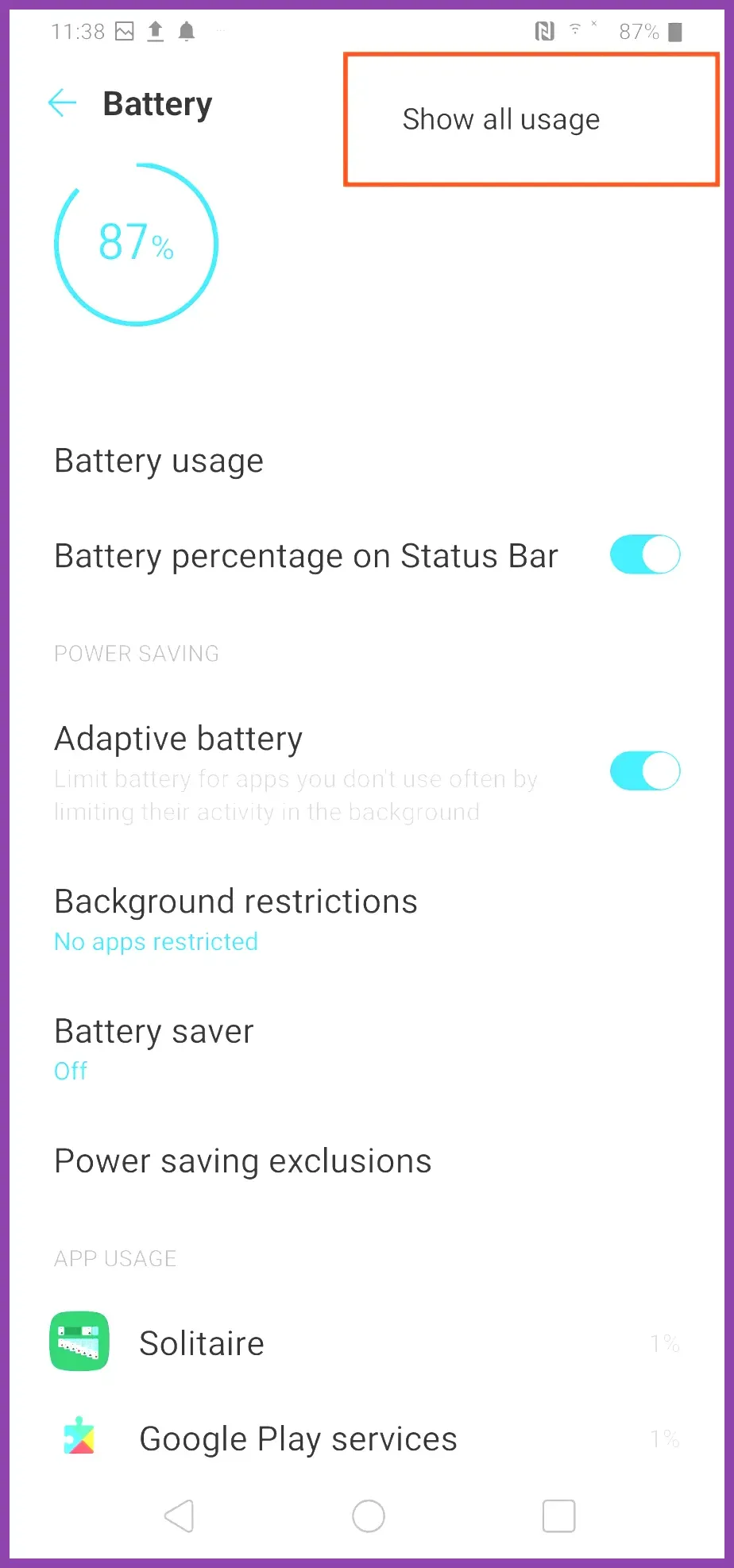
On Android, open Settings > Battery > Battery usage and inspect PUBG Mobile alongside apps such as TikTok, YouTube, Chrome, Discord, Facebook, and Instagram. Close video, browser, and social apps before launching the game. For apps that do not need real-time updates, use Restricted background battery access. Keep PUBG Mobile itself on Unrestricted or the manufacturer’s performance setting only if the game is being suspended or disconnected; unrestricted access can increase standby drain, so do not apply it to every app.
Disable Bluetooth, NFC, hotspot, and location access when you are not using them. Bluetooth should remain enabled if you play with wireless earbuds or a controller, because repeatedly reconnecting accessories can be less reliable than leaving the connection active. Use Wi-Fi when it is stable. A weak mobile signal forces the modem to work harder and can increase heat, especially inside buildings or while traveling between towers.
iPhone battery settings
On iPhone, open Settings > Battery to see whether PUBG Mobile is the dominant consumer. Turn off unnecessary Background App Refresh under Settings > General, reduce brightness from Control Center, and avoid Low Power Mode if it causes frame-rate drops. Low Power Mode is useful for emergencies, but a stable in-game Smooth and High profile is normally a better gaming compromise.
Do not confuse network lag with battery drain. PUBG Mobile’s ping depends on server distance, Wi-Fi quality, and congestion; battery consumption depends mainly on rendering, display brightness, modem activity, and heat. If you are also troubleshooting inconsistent frame rates in other games, Steamoz’s guides for lag and low FPS and game crashes cover similar diagnostic principles.
Choose the Right FPS for Your Phone

Frame rate is the main performance trade-off in PUBG Mobile. At 60 FPS, the game renders up to 60 frames each second. At 90 FPS, it can render 50 percent more frames; at 120 FPS, it can render twice as many as 60 FPS. The exact battery impact depends on the chipset, panel, game build, and thermal design, but the direction is consistent: a higher cap demands more work.
Recommended profiles by device age
- Older mid-range Android phones: Smooth and Medium or High. Prioritize a cool, stable match over visual quality.
- Recent mid-range phones: Smooth and High or Ultra. Move to Extreme only if the phone stays comfortable after two matches.
- Flagship phones: Smooth and Extreme or 90 FPS. Use 120 FPS only for short competitive sessions and monitor temperature.
- iPhone models with 60Hz displays: Smooth and the highest stable 60 FPS option. A 90 or 120 FPS setting cannot improve a 60Hz panel.
- iPhone Pro and high-refresh Android models: Test 90 FPS first, then compare battery loss and heat against 60 FPS.
Use the same landing route for a fair comparison: for example, drop at Pochinki, survive one early fight, rotate toward Rozhok, and record battery percentage after 20 minutes. Repeat with only the frame-rate setting changed. This test is more useful than comparing a quiet final-circle match with a crowded Bootcamp landing.
Repair Updates, Cache, and Installation Problems

A damaged resource download can cause repeated shader compilation, stutter, crashes, and extra power use. First update PUBG Mobile through the official store, restart the phone, and allow the game to complete all resource downloads on Wi-Fi. Do not begin a match while maps, HD texture packs, or voice packs are still downloading in the background.
Safe cleanup steps
On Android, open Settings > Apps > PUBG MOBILE > Storage and choose Clear cache, not Clear data, unless you are prepared to sign in again and redownload resources. On iPhone, iOS does not provide a universal clear-cache button; use the game’s own repair option if present, or reinstall after confirming that your account is linked to a supported login method. Never uninstall before verifying your account, especially if you normally use a guest profile.
Use the game’s login and repair tools rather than unofficial “GFX tools,” modified APKs, or booster apps. These tools can create instability, compromise account security, and conflict with PUBG Mobile’s rules. Check the official PUBG Mobile website for current announcements and supported updates. If you need broader Android troubleshooting, the official Android battery guidance is safer than installing a cleaning utility.
Check Battery Health and Apply a Final Routine
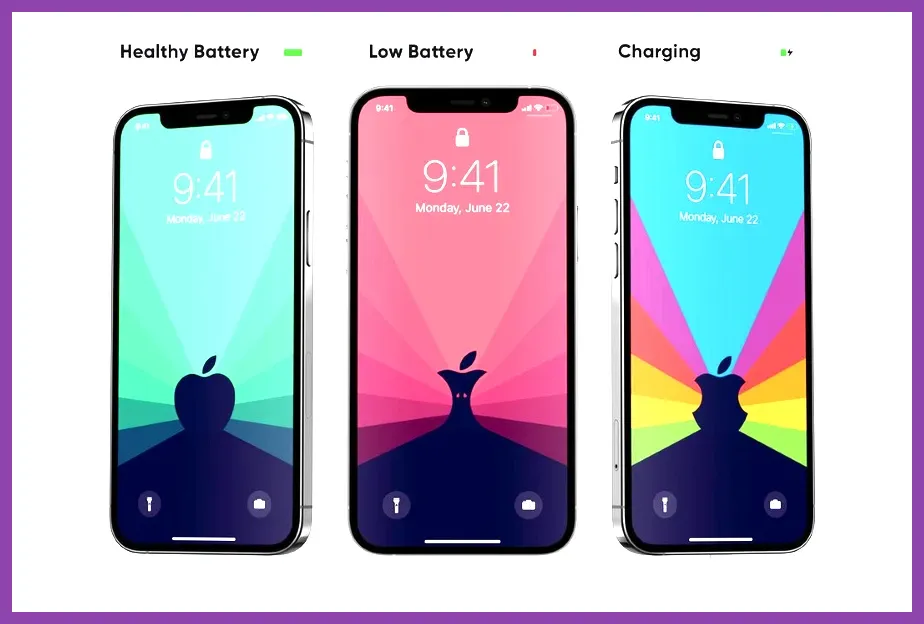
If PUBG Mobile still drains the phone rapidly after the graphics and heat changes, check the battery itself. On iPhone, open Settings > Battery > Battery Health & Charging and inspect Maximum Capacity and any performance message. Apple identifies a significantly degraded battery as one that may need service; its official battery and performance documentation explains the readings. Android menu names vary, but many phones show battery diagnostics under Settings > Battery or in the manufacturer’s device-care application.
A worn battery can drop percentage quickly under PUBG Mobile’s high-load conditions even when the game is configured correctly. Sudden shutdowns near 20 percent, a battery percentage that falls in large jumps, swelling, or unusual heat during light use are service warnings. Stop using a visibly swollen phone and seek qualified repair rather than continuing to game while charging.
The five-minute pre-match checklist
- Unplug the phone or switch to a cooler, lower-power charging mode.
- Remove the case and place the phone on a hard, ventilated surface.
- Close video, browser, social, and screen-recording apps.
- Set PUBG Mobile to Smooth with High, Ultra, Extreme, or 90 FPS based on sustained temperature.
- Set brightness around 60 to 70 percent and disable Bluetooth, hotspot, and location features you do not need.
After applying the checklist, measure drain across a consistent 20-minute session. A modest drop is normal because PUBG Mobile is a demanding competitive shooter; the goal is not zero battery use. The goal is stable frame pacing, less heat, and a slower decline than your original profile. If the phone remains hot in the lobby, loses charge while idle, or drains quickly in other 3D games, the battery or operating system is the likely culprit rather than PUBG Mobile alone. For more mobile performance advice, see Steamoz’s crash troubleshooting guide and keep your device software current through its official support channel.