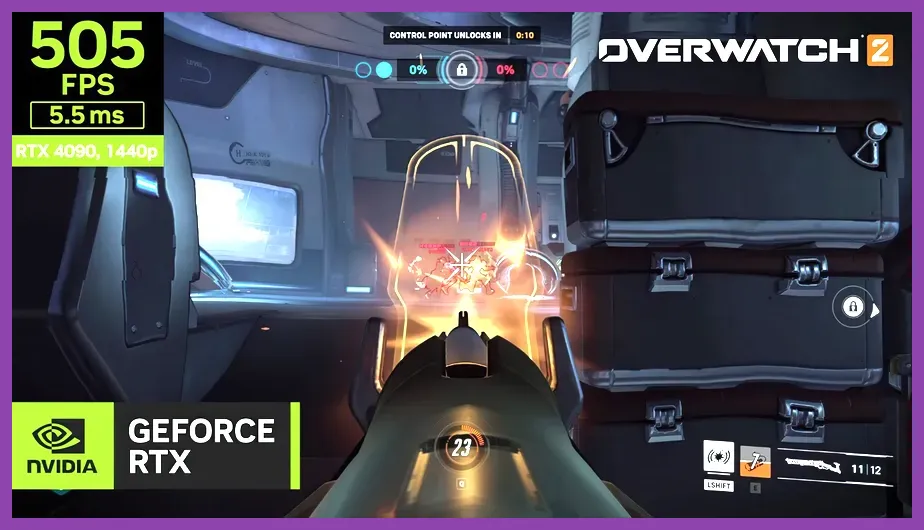
For the highest FPS in Overwatch 2, use Fullscreen mode, set Render Scale to 100%, turn Dynamic Render Scale off, disable VSync, Triple Buffering, Dynamic Reflections, Ambient Occlusion, and local effects, then enable Reduce Buffering. Start with the Low graphics preset, keep Textures and Model Detail at Medium for visual clarity, and cap your frame rate just below your monitor’s refresh rate. This profile prioritizes stable frametimes and low input latency over cinematic image quality.
Best Overwatch 2 Video Settings for Maximum FPS
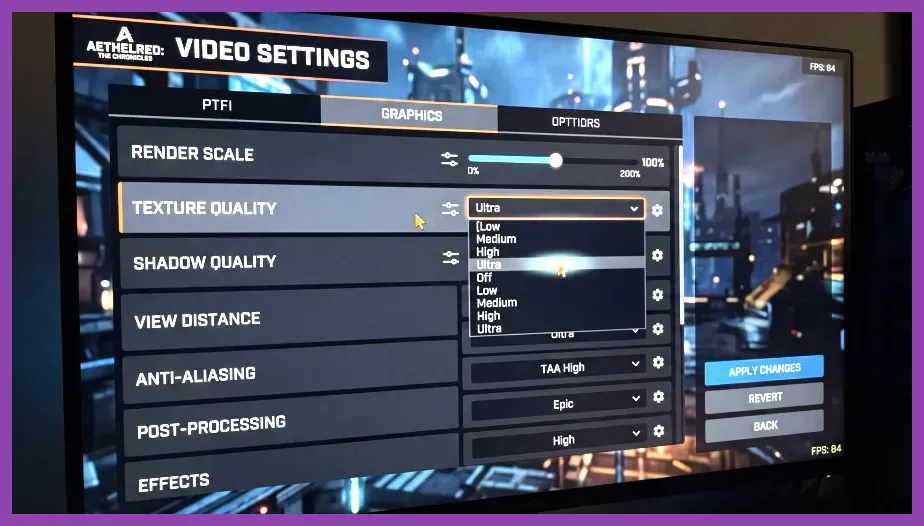
Open Options > Video and apply the following baseline profile. These settings work well on mainstream gaming PCs and are especially useful for competitive heroes such as Tracer, Soldier: 76, Cassidy, Ana, and Kiriko, where consistent mouse response matters more than shadows or reflections.
- Display Mode: Fullscreen
- Target Display: Your primary gaming monitor
- Resolution: Native resolution, such as 1920x1080 or 2560x1440
- Field of View: 103
- Dynamic Render Scale: Off
- Render Scale: 100%
- Frame Rate: Custom, capped below your display refresh rate
- VSync: Off
- Triple Buffering: Off
- Reduce Buffering: On
- NVIDIA Reflex: Enabled; use Enabled + Boost if GPU usage is not consistently maxed out
- Graphics Quality: Custom
Fullscreen avoids some desktop-compositing overhead and makes troubleshooting easier. Native resolution keeps enemy outlines and projectile effects sharp; dropping resolution should be your final step, not the first adjustment. A 103 FOV gives a broad competitive view, but it also renders more of the arena. If your system is struggling, lowering FOV to 90 or 95 can produce a small GPU improvement, although most players should keep 103.
For frame-rate limits, a 144Hz monitor can use a 141 FPS cap, while a 165Hz monitor can use 162 FPS. For 240Hz, try 237 FPS. These caps leave a small performance buffer that can reduce sudden frametime spikes during ultimates such as D.Va’s Self-Destruct, Illari’s Captive Sun, or Ramattra’s Annihilation. If your PC cannot hold the cap, choose a lower fixed number that it maintains consistently.
Low, Medium, and Competitive Quality Profiles
Maximum FPS profile
Set Texture Quality to Low, Texture Filtering Quality to 1x, Local Fog Detail to Low, Dynamic Reflections to Off, Shadow Detail to Low, Model Detail to Low, Effects Detail to Low, and Lighting Quality to Low. Set Antialias Quality to Off or FXAA Low, Refraction Quality to Low, Screenshot Quality to 1x, Ambient Occlusion to Off, Local Reflections to Off, and Damage FX to Low.
This is the correct starting point for older GPUs, laptops, and systems that dip below their target refresh rate. The largest gains usually come from shadows, reflections, fog, lighting, effects, and ambient occlusion. Those options add visual complexity without improving target visibility enough to justify their GPU cost in ranked play.
Recommended competitive profile
Use Texture Quality: Medium, Texture Filtering: 4x, Model Detail: Medium, and Effects Detail: Medium. Keep Local Fog, Dynamic Reflections, Shadow Detail, Lighting Quality, Ambient Occlusion, and Local Reflections on Low or Off. Set Damage FX to Low so explosions and ability effects do not obscure targets as heavily.
Medium Model Detail is useful because it preserves the shape and animation readability of heroes including Genji, Widowmaker, Mercy, and Venture. Medium textures also make map edges, weapon models, and ability indicators easier to read. If your GPU has at least 6GB of VRAM, these two settings are usually affordable. The FPS difference between Low and Medium textures is often smaller than the cost of dynamic reflections or high shadows.
Balanced high-refresh profile
Players with a modern GPU can raise Texture Quality to High and Texture Filtering to 8x while leaving shadows, reflections, and fog on Low. Keep Render Scale at 100% unless you have substantial headroom. Overwatch 2 is fast enough that visual upgrades should be added one at a time while watching the in-game frame-rate graph, rather than applying the High preset wholesale.
Upscaling, Reflex, and Latency Settings
Overwatch 2’s High Quality Upsampling option can help when the GPU is the limiting component. Choose AMD FSR 2.2 on compatible systems, then test Quality first. Quality preserves more detail than Balanced or Performance and is normally the best compromise at 1440p. At 1080p, upscaling can soften hero outlines, so native 100% Render Scale is preferable if your frame rate is already stable.
If the menu offers NVIDIA DLSS on your hardware, use Quality rather than Performance for competitive play. Upscaling is most useful when GPU usage sits near 95-100%. It will not fix a CPU bottleneck caused by simulation, background processes, or a low-power laptop processor. Disable Dynamic Render Scale when testing because it can change image resolution during heavy fights and make FPS comparisons unreliable.
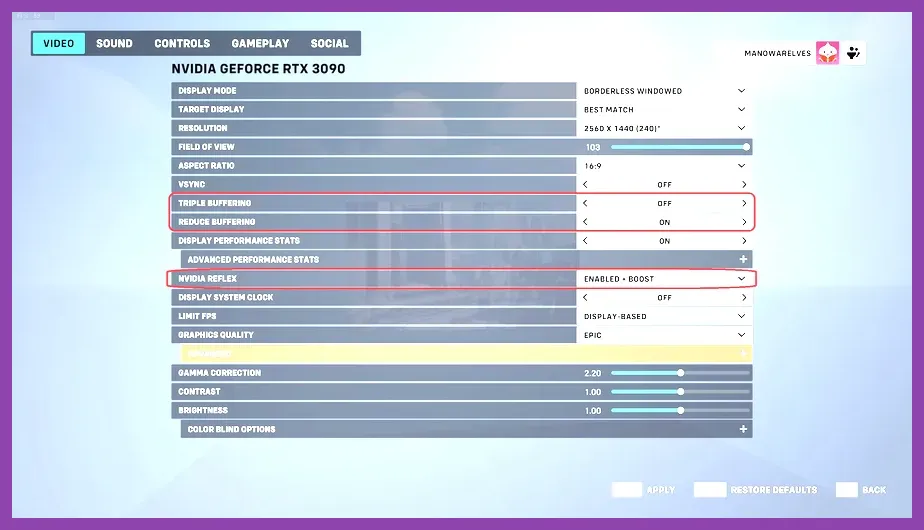
Reduce Buffering should be On for most players. It reduces the queue of rendered frames between the game and display, improving responsiveness. NVIDIA Reflex should be set to Enabled on supported GeForce GPUs. Use Enabled + Boost only when you need the lowest possible latency and accept higher power consumption and heat. AMD users should still enable Reduce Buffering and use the driver’s Anti-Lag feature only if it does not conflict with another frame-limiting tool.
Disable VSync if your priority is minimum latency. If screen tearing is distracting and you use G-SYNC or FreeSync, enable adaptive sync in the monitor and driver, keep in-game VSync Off, and cap FPS below refresh. This combination generally gives smoother motion without allowing the GPU to run needlessly beyond the panel’s refresh ceiling. Blizzard’s official Overwatch news page and Blizzard performance support documentation are useful references when a patch changes rendering behavior.
How to Test and Stabilize Your FPS
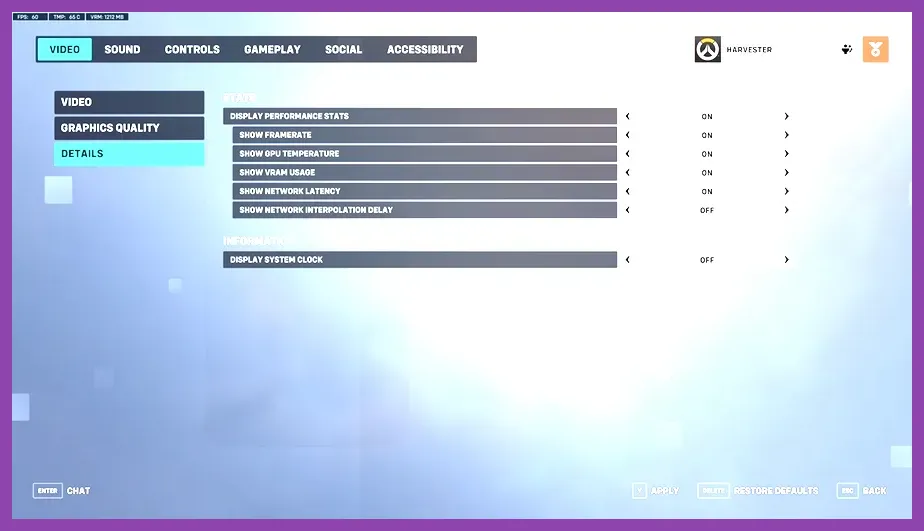
Do not judge a setting by the average FPS shown in a short Team Deathmatch. Enter the Practice Range, enable the performance display under Options > Video > Details, and watch FPS, GPU usage, CPU usage, and frame time. Test for at least five minutes while using abilities and moving between the firing range, hero-selection area, and crowded bot groups.
Run a second test in a real match or replay with heavy visual activity. Explosions from Junkrat, Torbjörn’s Molten Core, Sigma’s Gravitic Flux, and multiple overlapping ultimates expose unstable settings faster than an empty training area. The goal is not merely a high average; it is a stable one-percent-low result. A locked 141 FPS on a 144Hz display feels better than an average of 190 FPS that repeatedly falls to 90 during team fights.
If GPU usage remains above 95%, lower Effects Detail, Lighting Quality, Refraction Quality, or Render Scale. If GPU usage stays low while FPS falls, reduce Model Detail, close browser tabs and recording software, select the Windows High Performance power plan, and check CPU temperatures. Laptop players should test while plugged in and confirm that the manufacturer’s performance mode is active.
Keep graphics drivers and Overwatch 2 updated, but retest after major patches because new maps, hero effects, and rendering changes can alter performance. The Overwatch 2 Steam page lists current PC requirements, while the official Overwatch website provides patch and game information.
Final Max-FPS Checklist
- Use Fullscreen, native resolution, 103 FOV, and 100% Render Scale.
- Turn Dynamic Render Scale, VSync, Triple Buffering, reflections, ambient occlusion, and local reflections Off.
- Turn Reduce Buffering On and use NVIDIA Reflex Enabled when supported.
- Start with Low settings, then raise Textures and Model Detail to Medium if FPS remains stable.
- Cap FPS below refresh: 141 for 144Hz, 162 for 165Hz, and 237 for 240Hz.
- Use FSR 2.2 or DLSS Quality only when the GPU is the bottleneck.
- Test in the Practice Range and a real match, focusing on frame-time consistency.
These settings deliver the best practical balance for ranked Overwatch 2: low visual clutter, fast input response, clear hero silhouettes, and enough GPU headroom for the most demanding team fights. For more PC optimization coverage, see Steamoz’s system requirements guide and performance troubleshooting tips.