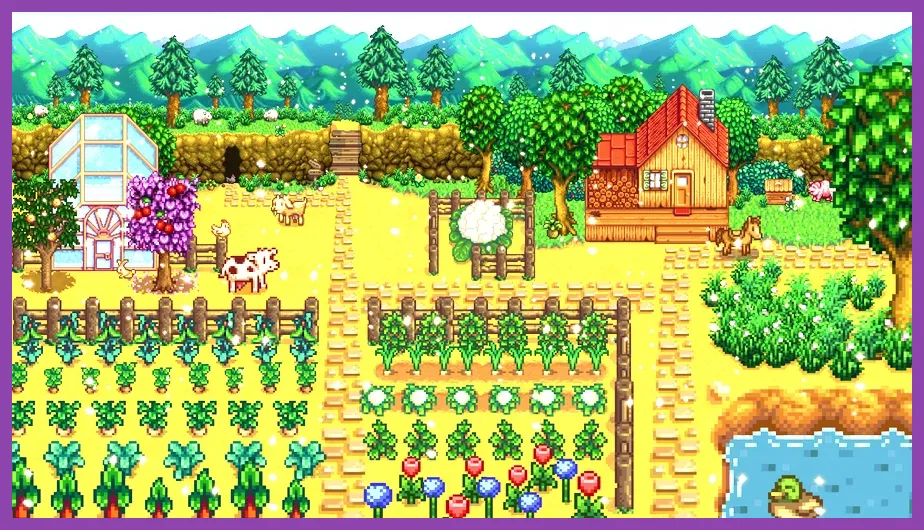
For the best Stardew Valley 1.6 performance on PC, use Fullscreen or Borderless Windowed at your monitor’s native resolution, set Zoom Level to 100%, UI Scale to 100%, VSync to On, and Lighting Quality to Low or Medium. Keep the game at 60 Hz unless you specifically need a different refresh rate, then close unnecessary overlays and test SMAPI mods individually. Stardew Valley is lightweight, so stutter is usually caused by scaling, mods, drivers, or background software rather than demanding 3D graphics.
These recommendations target stable frame pacing, fast input response, and reliable loading on laptops, integrated graphics, Steam Deck-style hardware, and older desktop PCs. The base game should run comfortably on modest hardware, but a farm filled with machines, animals, chests, decorative objects, recolor packs, and automation mods can behave very differently from a new Spring 1 farm.
Best Stardew Valley 1.6 Settings
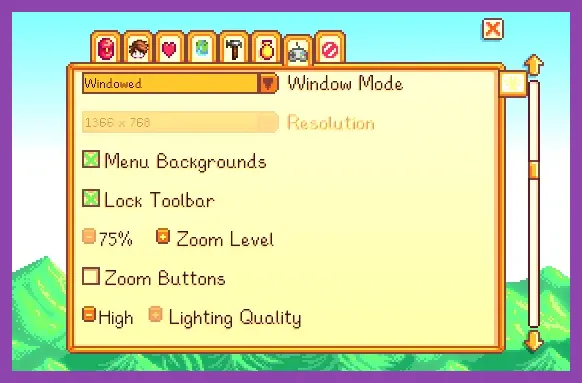
Open the in-game menu with Esc, select the controller-shaped Options tab, and adjust the graphics controls before changing Windows settings. Start with this balanced profile:
- Window Mode: Fullscreen for the lowest overhead, or Borderless Windowed if you frequently switch applications.
- Resolution: Your display’s native resolution. Lower it only if the game remains unstable after reducing lighting quality and disabling overlays.
- Zoom Level: 100%. Lower zoom does not always produce a major performance gain, but it reduces the amount of the farm rendered on screen.
- UI Scale: 100%. Use 75% or 80% on a small display only if menus are too large; UI scaling is mainly a readability option.
- VSync: On for consistent frame pacing and to prevent tearing. Turn it Off only when troubleshooting input latency or unusual stutter.
- Lighting Quality: Medium as the starting point; Low on integrated graphics, Steam Deck, or a mod-heavy installation.
- Flash Effects: Off if flashes cause discomfort or momentary slowdowns during festivals, storms, or combat.
If your version exposes a separate frame-rate or refresh option, match it to the display rather than forcing an unnecessarily high target. Stardew Valley’s pixel-art presentation does not benefit much from pushing a 144 Hz or 240 Hz target, while a stable 60 FPS-like presentation feels smooth and leaves more headroom for SMAPI and background processes.
After applying the profile, sleep through one in-game day and test the areas that normally cause trouble. The Bus Stop, Pelican Town during a festival, Ginger Island, the Volcano Dungeon, and a heavily automated farm are better tests than an empty cabin. For broader PC tuning context, compare these recommendations with Steamoz’s Smite graphics settings guide.
Fullscreen, Resolution, Zoom, and UI Scale
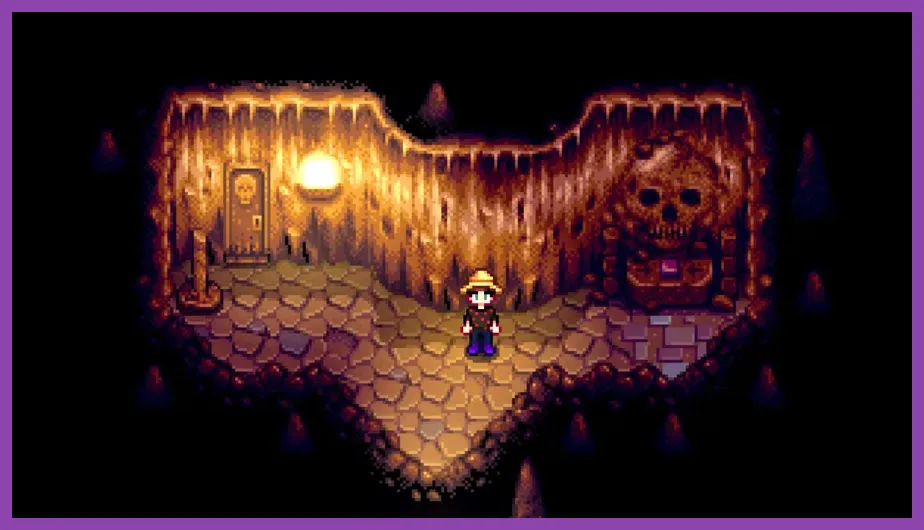
Display mode has a larger practical effect than most visual settings. Fullscreen gives Stardew Valley direct control of the display and is the safest choice when you want the fewest desktop interruptions. It can also avoid some compositor behavior on older Windows systems. Choose Borderless Windowed when rapid Alt-Tab switching matters more than absolute consistency.
Native resolution is normally the correct option because Stardew Valley uses crisp pixel art. Running a 1080p monitor at 720p can make sprites and text look soft without guaranteeing a large performance improvement. If your laptop has an unusually weak integrated GPU, test 1280x720 or 1600x900, but compare a crowded farm and a festival rather than judging the result inside the farmhouse.
Zoom Level changes how much of the map is visible. At 100%, you get the standard viewing area and a useful balance between visibility and workload. Lowering zoom can help marginal hardware because fewer tiles and objects are visible, but it is not a substitute for fixing a problematic mod. On a large farm, 75% zoom may actually make the scene feel busier because more machines, fences, grass, and animals appear at once.
UI Scale affects menus, dialogue, the toolbar, and inventory presentation rather than the world’s core rendering load. Keep it at 100% unless text is uncomfortable to read. Players using a 4K monitor may prefer 125% or 150% for legibility, but the best performance choice is the smallest scale that remains clear. Do not sacrifice readable tooltips when managing the Community Center bundles, Junimo chests, or the enormous late-game crafting catalog.
Lighting Quality and VSync Explained
Lighting Quality is the most important visual-quality control in the Stardew Valley options menu. Choose High on a modern desktop if your farm remains smooth, Medium for a reliable general profile, and Low when using integrated graphics, a low-power laptop, or extensive visual mods. The difference is most noticeable around torches, lamps, windows, weather, caves, and nighttime transitions rather than in ordinary daytime farming.
Use High lighting only after checking a full gameplay loop. Walk through the Mines, enter the Skull Cavern, visit the Volcano Dungeon on Ginger Island, and return to a farm containing animals and processing machines. Those locations combine movement, effects, enemies, and map transitions. If frame pacing becomes uneven when a Serpent, flying enemy, or explosion appears, Medium or Low lighting is the correct compromise.
VSync synchronizes rendered frames with your monitor’s refresh cycle. On is the safest setting for most players because it eliminates horizontal tearing and prevents the game from rendering frames your display cannot show. It also helps keep frame delivery consistent when scrolling through Pelican Town or moving quickly through the Mines.
Turn VSync Off only for a controlled test. If input feels delayed, compare the same tool actions in a quiet area and during combat. Do not diagnose performance from the character’s walking animation alone; test watering crops, swinging the Galaxy Sword, placing items in a chest, and moving between map screens. If Off causes tearing or erratic pacing, restore On. A stable presentation is more useful in Stardew Valley than chasing an unnecessary frame-rate number.
SMAPI Mods That Affect Performance
Unmodded Stardew Valley 1.6 is usually easy to run. Performance problems on capable PCs often come from the mod stack, especially when a save has years of accumulated content. SMAPI itself is not automatically a problem; it is the framework that loads mods and reports errors. The key is identifying which mod performs repeated map scans, adds animated effects, expands locations, or injects large quantities of custom objects.
Use SMAPI’s Log Before Removing Everything
Launch the game through SMAPI and watch for red errors, repeated warnings, or unusually long load times. A single missing asset can trigger constant retries, while outdated content packs may repeatedly patch maps or characters. Update Stardew Valley 1.6-compatible versions from the mod author, then remove obsolete files rather than placing newer copies beside them.
Begin troubleshooting with visual and world-expansion mods. High-resolution recolors, animated water packs, custom farm maps, large NPC expansions, and packs that add hundreds of decorative objects deserve the first test. Temporarily move one suspect mod out of the Mods folder, launch the same save, and visit the same location at the same time of day. Changing several mods at once hides the cause.
Reduce Background Rendering Pressure
Keep Lighting Quality at Low or Medium when using seasonal recolors, dynamic lighting packs, animated farm animals, or large custom maps. Avoid stacking multiple recolors that edit the same tilesheet. If the game stutters only when opening the inventory or chest menu, test UI, portrait, and tooltip mods rather than lowering resolution.
Never delete a mod from an important save without checking its documentation. Some mods add buildings, machines, items, or map assets that the save expects. Make a backup of the save folder first, then follow the author’s uninstall instructions. This is especially important for farms built around automation, custom crops, or expanded regions such as Stardew Valley Expanded.
Windows, Steam Deck, and Laptop Performance
Once the in-game profile is correct, remove external causes of stutter. In Steam, open Stardew Valley’s Properties and use Verify integrity of game files after a failed update or damaged installation. Keep the game and SMAPI on the internal drive when possible. An SSD will not transform frame rate, but it can shorten loading and reduce delays during repeated area transitions.
Disable overlays one at a time while testing: Steam Overlay, Discord Overlay, Xbox Game Bar, AMD Radeon Software, NVIDIA App, and recording tools can all add hooks to a lightweight game. Do not disable every service permanently; isolate the one that changes the result. Also close browser tabs playing video, RGB utilities, hardware monitors, and cloud-sync clients while testing a busy farm.
On a laptop, connect the charger and select a balanced or performance power mode. Windows may reduce CPU speed on battery, creating pauses when SMAPI processes many assets. In the GPU control panel, assign Stardew Valley or the SMAPI executable to the dedicated GPU only if the integrated GPU produces instability. For Steam Deck, keep native resolution, use 60 Hz, leave VSync enabled, and start with Medium lighting. Lower lighting before reducing text and UI clarity.
For multiplayer farms, every player should use compatible versions of Stardew Valley, SMAPI, and shared content packs. The host’s machine handles the save’s world state, but mismatched mods can create delays, errors, or visible desynchronization that looks like graphics stutter. Remove decorative and animation-heavy mods first when four-player sessions become inconsistent.
Recommended Profiles by Hardware
Modern desktop: Fullscreen, native resolution, 100% Zoom, 100% UI Scale, VSync On, and High Lighting Quality. Use this profile for an unmodded game or a moderate collection of cosmetic mods. If a festival or Volcano Dungeon becomes uneven, move Lighting Quality to Medium before lowering resolution.
Older laptop or integrated graphics: Fullscreen, native resolution or 1280x720, 75-100% Zoom, 100% UI Scale, VSync On, and Low Lighting Quality. Keep overlays closed and avoid stacking animated recolors with expanded maps. This profile prioritizes consistent movement and tool input over lighting effects.
Mod-heavy farm: Borderless Windowed if needed, native resolution, 100% Zoom, 100% UI Scale, VSync On, and Medium or Low Lighting Quality. Update SMAPI and every 1.6-compatible content pack, then test the farm, town, Mines, Ginger Island, and a festival after each major change.
Finally, keep a clean baseline save or a temporary new farm for comparison. If that farm is smooth but your five-year save stutters, the problem is likely object density, mod content, or save-specific data rather than your GPU. For more system-focused guidance, Steamoz also explains how to read PC game system requirements.
The official Stardew Valley Steam page lists the current PC release, while ConcernedApe’s official Stardew Valley site provides developer news and updates. For patch-specific changes, check the official Stardew Valley forums before assuming a performance issue is caused by your graphics card.