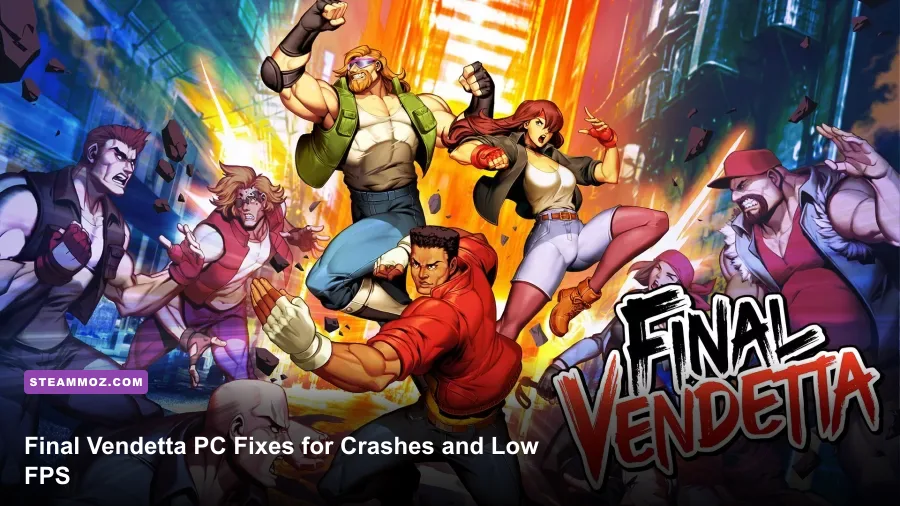
If Final Vendetta keeps crashing, hitching, or dropping below a smooth 60 FPS on PC, start with a clean fullscreen launch, verify the Steam installation, disable overlays, and cap the game to your monitor's refresh rate. Then lower resolution before visual effects, update your GPU driver, and reset Final Vendetta's local configuration if the crash happens during startup. This order fixes the most common problems without sacrificing the crisp pixel-art presentation that makes Bitmap Bureau's beat-'em-up so good.
Final Vendetta isn't a demanding 3D game. It's a side-scrolling arcade brawler built around readable animation, tight hit timing, and a target of smooth 60 FPS play. That makes a sudden stutter especially noticeable: a missed frame can turn a dodge into a hit, interrupt a combo, or make a boss attack appear to teleport. The good news is that most PC problems come from display conflicts, overlays, corrupted files, or bad frame pacing rather than weak hardware.
Run these fixes before changing everything
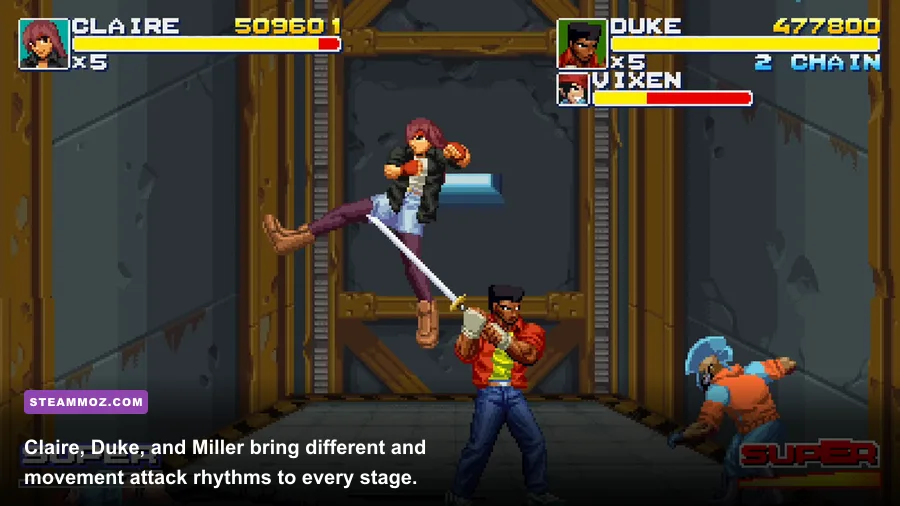
Don't begin by randomly lowering every setting. First, close Final Vendetta and Steam, restart Windows, and launch the game with your normal controller already connected. If the game crashes before the title screen, the controller and overlay checks matter more than texture quality.
- Verify the installation: In Steam, right-click Final Vendetta, choose Properties, open Installed Files, and select Verify integrity of game files. Wait for Steam to replace missing or damaged files.
- Disable Steam Overlay: Open the game's Properties, select General, and turn off Enable the Steam Overlay while in-game. Also disable overlays from Discord, Xbox Game Bar, NVIDIA App, AMD Software, MSI Afterburner, and RivaTuner for the first test.
- Use one display: Temporarily unplug extra monitors or set Windows to the monitor you actually play on. Mixed refresh rates, HDR, and duplicated displays can create a black screen or unstable fullscreen handoff.
- Check Windows scaling: Right-click the game's executable, open Properties, select Compatibility, then Change high DPI settings. Let Windows handle high-DPI scaling rather than forcing an old compatibility mode.
- Test borderless mode: If exclusive fullscreen crashes or flickers, switch to borderless/windowed mode. If windowed mode is stable but sluggish, return to fullscreen after updating the graphics driver.
Do not run the executable as administrator as your first move. Elevated permissions can create a different save or configuration path and may interfere with Steam's normal launch behavior. Use that option only if the game cannot write its settings and every standard launch fails.

🎮 Final Vendetta
Looking to experience this game? Grab your digital key directly on our store for $6.24.
View on Steammoz Store →Best Final Vendetta settings for a locked 60 FPS
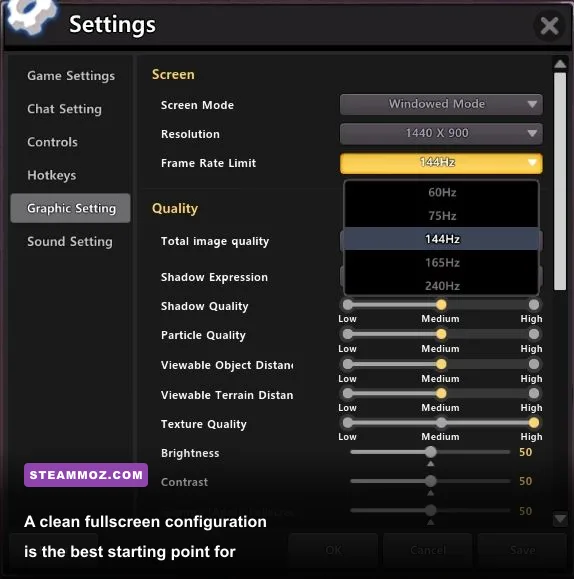
Final Vendetta's pixel art doesn't need aggressive visual compromises. Start at your monitor's native resolution, select fullscreen or borderless, and keep the image-sharpening or pixel-display options at their default values. The priority is consistent frame pacing, not chasing a three-digit counter in a game designed around arcade timing.
| Setting | Recommended value | FPS impact | Visual note |
|---|---|---|---|
| Display mode | Fullscreen first; borderless if unstable | Low | Fullscreen usually reduces desktop compositor interference. |
| Resolution | Native monitor resolution | Low to medium | Lower this only after disabling overlays and fixing drivers. |
| VSync | On for tearing; off for testing | Low | Turning it off helps identify whether input delay or pacing is the issue. |
| Refresh rate | 60 Hz or a stable multiple | Low | A 60 FPS target suits Final Vendetta's arcade timing. |
| Pixel-art filters | Default or nearest-neighbor style | Minimal | Filters change sharpness more than performance. |
| Post-processing | Low or off if available | Low | Useful only when a laptop GPU is already under load. |
| Frame limiter | 60 FPS, if available | Positive for consistency | A stable cap is better than fluctuating 60-144 FPS. |
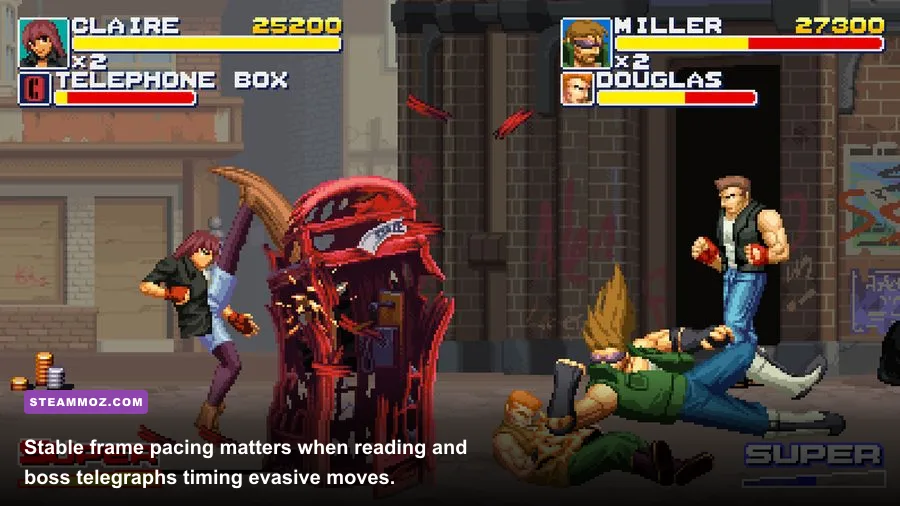
There is an important distinction between low FPS and bad frame pacing. If the counter says 60 but the game feels like it pauses every few seconds, the culprit may be an overlay, background capture, USB polling, or a refresh-rate mismatch. If the entire game visibly slows during a crowded fight, test a lower resolution and disable post-processing. If the animation remains smooth but controls feel delayed, test VSync off, then compare it with an external 60 FPS cap in your GPU control panel.
For NVIDIA hardware, open NVIDIA Control Panel, select Manage 3D settings, add Final Vendetta, and use Power management mode: Prefer maximum performance only for testing. For AMD hardware, make the equivalent per-game profile in Adrenalin. Don't force image sharpening, frame generation, or unusual latency modes onto a 2D brawler; those features can add complexity without improving the experience.
Fix startup crashes, black screens, and instant exits
A crash before the main menu usually points to a file, driver, permission, or display-mode problem. Work through these steps in order so you know which change actually helped.
Reset the display configuration
If Final Vendetta crashes immediately after changing resolution or display mode, its saved configuration may be incompatible with the current monitor. Use Steam's file verification first. If that doesn't work, browse the game's local files through Steam's Installed Files menu and look for a configuration file or folder created by the game. Rename the configuration folder rather than deleting it, then launch again. Renaming preserves a backup of key bindings and settings while forcing the game to build fresh defaults.
Because configuration locations can differ between Windows builds, avoid downloading random replacement DLLs or deleting every folder under Documents. Those files may include saves. If a reset is necessary, back up any save directory first, then change only the graphics configuration. A clean default launch at 1280x720 or 1920x1080 is a useful diagnostic; you can restore your preferred resolution afterward.
Update or roll back the GPU driver
Install the current stable driver from the official NVIDIA driver page or AMD support page. Choose a clean installation if your driver package offers that option. Intel integrated graphics users should use the latest driver listed by Intel Download Center.
If the crashes began immediately after a driver update, rolling back to the previous stable driver is reasonable. Don't install beta drivers while diagnosing Final Vendetta. Also check that the laptop is using its dedicated GPU: Windows Settings > System > Display > Graphics lets you add the game's executable and select High performance.
Remove compatibility traps
Turn off Windows compatibility modes, forced 640x480 settings, and any custom launch options you added while experimenting. In Steam, open Final Vendetta's Properties and clear the Launch Options field. Third-party wrappers, ReShade presets, DLL injectors, and aggressive frame-limit tools should stay disabled until the unmodified game launches reliably.
Stop stutters that happen during fights
When Final Vendetta runs well in menus but hitches as enemies enter the screen, monitor what changes at the exact moment of the stutter. Use Task Manager's Performance tab or a trusted monitoring tool and watch GPU usage, CPU usage, RAM, VRAM, disk activity, and frametime. A quick spike tells you more than an average FPS number.
| Symptom | Likely cause | What to test | Expected result |
|---|---|---|---|
| 60 FPS counter, visible hitch | Overlay or capture hook | Disable Steam, Discord, Game Bar, and GPU overlays | Even frametimes during enemy spawns |
| FPS falls only on a laptop | Power or thermal limit | Plug in the charger and use Windows Best Performance | Higher sustained clock speeds |
| Short pauses with disk spikes | Background scan or update | Pause downloads and add the Steam library to trusted exclusions where appropriate | Fewer streaming interruptions |
| Slow-motion gameplay | Frame rate below the intended target | Lower resolution and close background apps | Normal game speed during large encounters |
| Stutter after alt-tab | Fullscreen handoff or HDR conflict | Use borderless mode and disable HDR for testing | Cleaner return to the game |
Recording software deserves special attention. Xbox Game Bar, OBS, NVIDIA ShadowPlay, and AMD Instant Replay can all hook into a game even when you aren't actively recording. Disable them temporarily, reboot, and run a full stage. If the hitch disappears, re-enable features one at a time and keep the one that causes the problem off.
Close browsers with video tabs, launchers downloading patches, RGB utilities, and motherboard monitoring suites. These programs rarely reduce average FPS dramatically, but they can interrupt a lightweight game with short CPU or disk spikes. Windows Game Mode is worth testing both on and off; it helps some systems and changes nothing on others.
Choose the right PC performance profile
Final Vendetta can run on modest hardware, but an old laptop may be limited by power management rather than raw graphics capability. Keep the game at a stable target instead of treating every dip as a failure. The table below gives practical profiles for troubleshooting, not official minimum specifications.
| PC situation | Display profile | Background changes | Goal |
|---|---|---|---|
| Modern desktop GPU | Native resolution, fullscreen, VSync on | Overlays off during testing | Locked 60 FPS with clean frame pacing |
| Integrated graphics laptop | 1920x1080 first; 1280x720 if needed | Plugged in, Best Performance mode | Stable 60 FPS without thermal throttling |
| Older office PC | 1280x720, borderless or fullscreen | Close browsers and launchers | Eliminate slow-motion drops |
| High-refresh monitor | 60 Hz test profile | Disable forced driver enhancements | Remove mismatch and pacing variables |
Don't use your monitor's 144 Hz mode as proof that Final Vendetta should run at 144 FPS. The game's design is rooted in 60 FPS arcade responsiveness, and a stable 60 Hz test removes a major variable. Once the game is smooth, you can try a higher-refresh desktop mode and compare input feel. If it becomes inconsistent, return to the stable profile.
Controller problems can look like performance problems. If animation is smooth but inputs arrive late or repeat, test a different USB port, disconnect Bluetooth devices, and launch with only one controller connected. Steam Input can also alter controller behavior. Compare Steam Input enabled and disabled for Final Vendetta rather than changing both Steam and manufacturer software simultaneously.
Use official files and keep the fix clean
Final Vendetta is published on Steam, so the official Steam listing is the safest place to check updates, system information, and community reports tied to the current build. For developer news, check Bitmap Bureau's official website and the publisher's Numskull Games website rather than downloading unofficial patches.
It also helps to compare your troubleshooting method with other PC performance guides. Our advice for Disney Epic Mickey Rebrushed's smooth 60 FPS settings covers the same useful distinction between average FPS and frame pacing, while the steps in Ghost Recon Breakpoint's stutter fixes show why overlays and background capture should be isolated early. For another low-demand game that benefits from a careful frame cap, see For The King II's performance settings.
Finally, test for at least one complete stage after every major change. The best validation run includes a crowded fight, a boss encounter, an alt-tab, and a return to the title screen. If Final Vendetta survives that sequence at a locked 60 FPS, your setup is probably fixed. Keep the configuration that works, avoid stacking extra launch commands, and resist the temptation to reinstall Windows or replace hardware for a game that usually needs only a clean display path and stable frame pacing.