For the best Disney Epic Mickey: Rebrushed performance on PC, start at 1080p, use the High preset, disable Motion Blur, cap the game at 60 FPS, and lower Shadows and Effects before touching Texture Quality. That combination keeps the remake sharp while protecting frame rate in crowded Wasteland areas, projector stages, and paint-heavy fights. If your GPU is close to the Steam minimum, use Medium settings with Shadows on Low and a 30 FPS cap rather than chasing an unstable 60.
Rebrushed looks deceptively light during its calmer platforming sections. Mickey can stand in a relatively empty room and run perfectly, then enter a hub packed with geometry, animated objects, transparency, and lighting effects and expose a much weaker 1% low. That is why a good profile should target consistent frame delivery, not merely the largest number shown by an FPS counter.
This guide focuses on the PC version of Disney Epic Mickey: Rebrushed, including practical 1080p and 1440p profiles, the settings that actually cost performance, and troubleshooting steps for stutter, blurry image quality, and uneven frame pacing. For context on how system requirements can mislead, compare our PC requirements breakdown for Dishonored.

🎮 Get Disney Epic Mickey: Rebrushed
Ready to dive in? Grab your copy today for just $15.99.
Check OfferThe Best Rebrushed Settings for 60 FPS
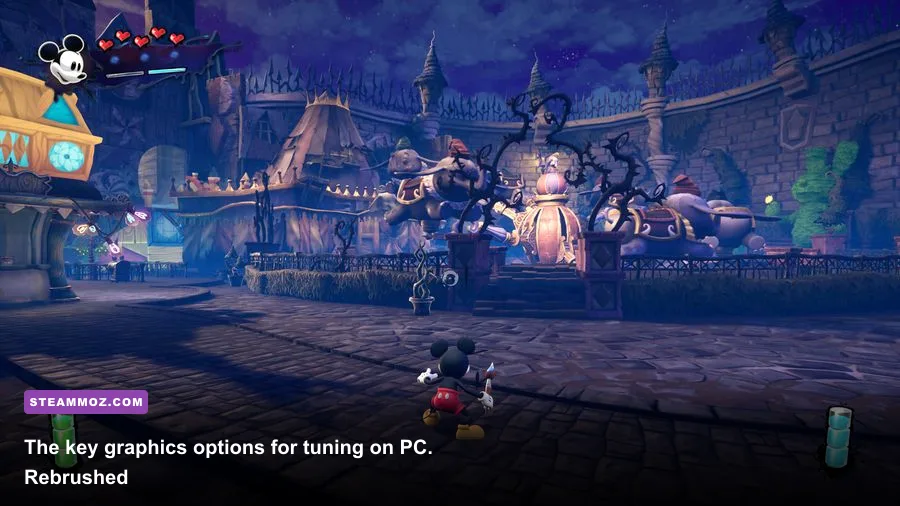
Begin by selecting the High graphics preset, then make targeted changes instead of dropping every option to Low. High is the sensible starting point because Texture Quality usually improves surface detail without hammering modern graphics cards, while Shadow Quality, Effects Quality, and Post Processing are more likely to create sudden GPU spikes.
Set Window Mode to Fullscreen if the option is available on your build. Exclusive fullscreen can reduce desktop compositor interference, although borderless is perfectly acceptable if you frequently switch between the game and another application. Set V-Sync to Off when using a variable-refresh monitor, then apply a 60 FPS cap through the game or your GPU driver. A cap just below your display's refresh rate is usually better for VRR; for a 60Hz screen, 60 FPS is the clean target.
| Setting | 1080p balanced profile | 1440p quality profile | Performance impact |
|---|---|---|---|
| Resolution | 1920x1080 | 2560x1440 | Very high |
| Window Mode | Fullscreen | Fullscreen or Borderless | Low |
| Frame Rate Limit | 60 FPS | 60 FPS | Stabilizes frame pacing |
| V-Sync | Off with VRR, On without it | Off with VRR, On without it | Low to moderate |
| Anti-Aliasing | High | High | Moderate |
| View Distance | High | High | Moderate |
| Texture Quality | High | High | VRAM-dependent |
| Effects Quality | Medium | High | High in busy scenes |
| Shadow Quality | Medium | Medium | High |
| Post Processing | Medium | High | Moderate |
| Foliage Quality | High | High | Low to moderate |
| Shading Quality | High | High | Moderate |
| Motion Blur | Off | Off | Improves clarity, minimal FPS gain |
The most important recommendation is the 60 FPS cap. Rebrushed is a third-person platformer, not a competitive shooter, so an unwavering 60 feels considerably better than a workload that swings between 52 and 90 FPS. A cap also reduces unnecessary heat and fan noise. If your system cannot hold 60 in the busiest locations, test a locked 30 FPS profile before deciding the game is running badly; a stable 30 is playable, while an inconsistent 40-55 often feels worse.
At 1440p, keep Textures and View Distance High, but reduce Shadows and Effects first if the GPU struggles. Those cuts are less noticeable during normal movement than dropping the internal resolution or Anti-Aliasing. At 4K, even a powerful mid-range card may need a 30 FPS target unless the game provides a reliable upscaling option in your installation.
🎮 Disney Epic Mickey: Rebrushed
Looking to experience this game? Grab your digital key directly on our store for $15.99.
View on Steammoz Store →Which Graphics Options Cost the Most FPS?
Not every slider deserves equal attention. Texture Quality mostly determines how much VRAM the game reserves for surfaces. If you have enough VRAM, moving Textures from Medium to High can be a cheap visual upgrade. If VRAM is exhausted, however, the problem may appear as hitching, delayed texture loading, or sudden pauses rather than a simple average-FPS drop.
Shadows are a classic performance trap. Rebrushed's environments contain stylized architecture, props, and characters that can all contribute to the shadow workload. High shadows look attractive in static screenshots, but Medium usually preserves the scene's depth while reducing the cost of rendering and filtering those shadow maps. Low is the first choice for older GPUs, especially at 1440p.
Effects Quality controls the expensive moments: paint splashes, thinner surfaces, glowing objects, particles, and other translucent effects. You may not notice the difference while walking through a quiet hallway, but a paint-heavy encounter can push the GPU over its comfortable limit. Medium is the best compromise for the Steam minimum-class hardware.
Post Processing can affect bloom, ambient effects, depth treatment, and the final image pass. Turning it down may make the picture look slightly flatter, but it is a useful second-stage cut after Shadows and Effects. Motion Blur should be disabled for almost everyone. It does not solve stutter, it softens Mickey's movement, and it makes camera turns harder to read.
| Option | What it changes | When to lower it | What you give up |
|---|---|---|---|
| Textures | Surface detail and material sharpness | When VRAM is limited or hitching appears | Sharper walls, props, and character materials |
| Shadows | Shadow resolution and filtering | When average FPS is low outdoors | Shadow softness and fine contact detail |
| Effects | Particles, paint, thinner, and transparency | When fights cause major dips | Some visual density during action |
| Post Processing | Final image effects and atmospheric polish | When GPU usage stays near 100% | Bloom and cinematic presentation |
| View Distance | How far objects remain detailed | When open hubs cause CPU or GPU dips | Remote prop and geometry detail |
| Anti-Aliasing | Jagged-edge smoothing | When resolution scaling is already high | Cleaner edges and less shimmer |
View Distance is more complicated than a normal GPU slider. Increasing it can raise draw calls and CPU work, particularly in larger hubs. If GPU usage is below roughly 90 percent while frame rate falls, lower View Distance before cutting Textures. That pattern suggests a CPU or scene-complexity limit rather than a purely graphics-card problem.
Anti-Aliasing should stay High unless you need every last frame. Lowering it can introduce shimmering around thin geometry and platform edges, which is especially distracting in the game's hand-painted environments. If the image looks soft, check that the game is using your monitor's native resolution before blaming Anti-Aliasing.
Best Settings for Minimum and Recommended PCs
The official Steam listing for Disney Epic Mickey: Rebrushed lists Windows 10, 8GB of RAM, an Intel Core i5-6600K or AMD Ryzen 5 2600, and a GeForce GTX 960 4GB or Radeon RX 470 as minimum-class hardware. Its recommended tier moves to 16GB of RAM, an Intel Core i7-8700 or Ryzen 5 3600, and a GeForce GTX 1070 or Radeon Vega 56. Treat those requirements as a starting point, not a guarantee of a locked 60 FPS at High.
A GTX 960, RX 470, or similarly aged card should target 1080p Medium. Use High Textures only if the card has enough VRAM and you aren't seeing hitching. Turn Shadows and Effects to Low or Medium, disable Motion Blur, and cap at 30 FPS if busy areas won't hold 60. The goal is consistent input response and camera movement, not a screenshot-friendly preset that collapses during a fight.
A GTX 1070, Vega 56, RTX 2060, RX 5600 XT, or similar GPU should handle 1080p High comfortably in most situations, although a 60 FPS lock remains smarter than an uncapped profile. Recommended hardware is also where 1440p becomes realistic: begin with High, then lower Shadows to Medium if the frame rate dips in hubs.
Modern cards such as an RTX 3060, RX 6600 XT, or better should have plenty of raster performance for 1080p High and a credible 1440p target. That doesn't eliminate shader compilation or streaming stutter. Keep the game on an SSD, close overlays you don't need, and give the first visit to a new area time to settle. If you are diagnosing broader PC hitching, our guide to fixing crashes and PC lag covers several useful Windows-side checks.
| Hardware class | Resolution and target | Recommended profile | Likely compromise |
|---|---|---|---|
| Steam minimum class | 1080p, 30 FPS | Medium, Shadows Low, Effects Medium | Lower detail and a 30 FPS cap |
| Older mid-range GPU | 1080p, 60 FPS | Medium/High mix, Shadows Medium | Effects reduced during busy fights |
| Recommended class | 1080p High, 60 FPS | High preset, Shadows Medium | Occasional scene-dependent dips |
| Modern mid-range GPU | 1440p, 60 FPS | High, Effects High, Shadows Medium | Shadow quality before resolution |
| High-end GPU | 1440p or 4K | High or Ultra where available | 4K may require a 30 FPS target |
RAM matters more than the minimum number suggests. Eight gigabytes can launch the game, but 16GB gives Windows and the game more breathing room, especially if a browser, launcher, recording tool, or Discord is open. Use our graphics-settings performance guide for the same broader principle: preserve image quality where it is cheap, and cut the settings that create frame-time spikes.
How to Test and Fix Stutter in Rebrushed
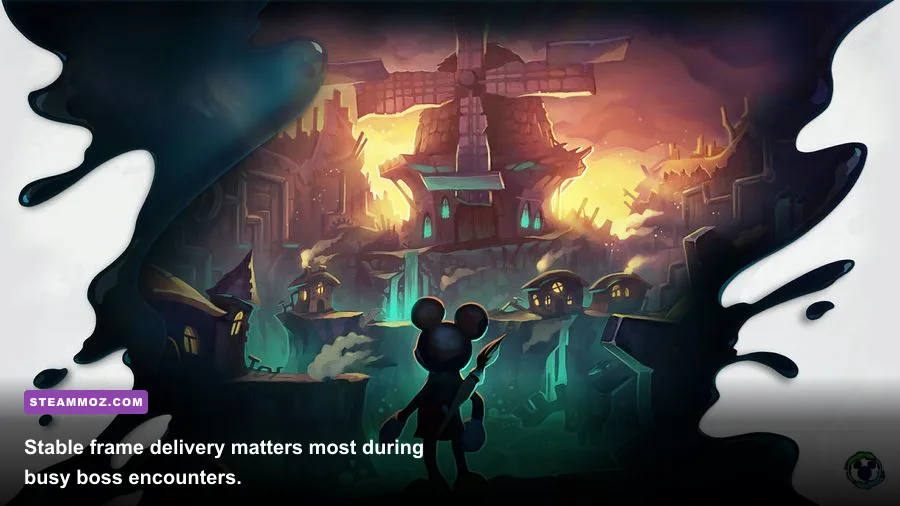
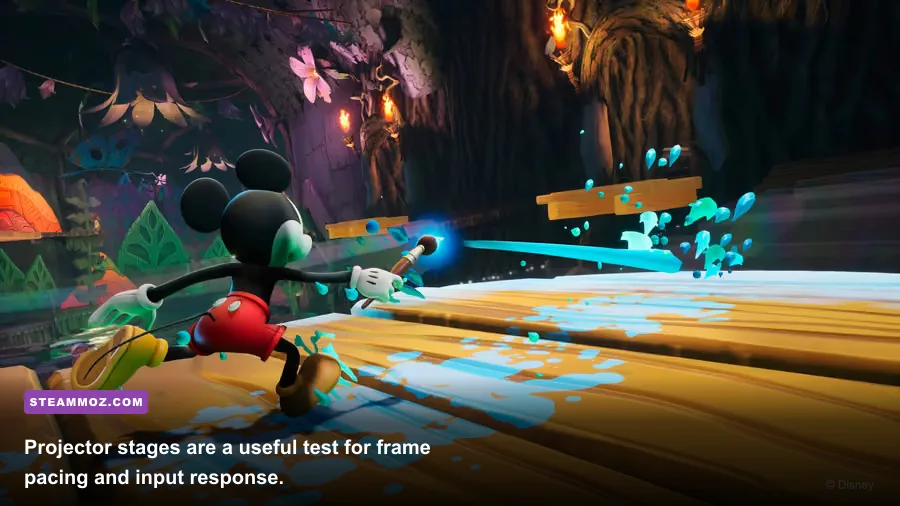
Don't judge a profile from the opening area alone. Use a repeatable route through a hub, enter a projector level, and trigger a few paint and thinner interactions. Projector stages are useful because scrolling camera movement makes uneven frame pacing obvious, while larger Wasteland areas reveal whether View Distance and shadows are overloading the system.
Watch frame time rather than average FPS. A flat 16.7ms frame time equals a stable 60 FPS; repeated jumps to 25ms or 33ms are the hitching you feel, even if the counter reports 60 most of the time. MSI Afterburner with RivaTuner Statistics Server, AMD Adrenalin's overlay, or NVIDIA's performance overlay can expose those spikes. Use the same route after every setting change so you aren't comparing a quiet hallway with a busy encounter.
- Update the graphics driver: Install a current WHQL driver from NVIDIA or AMD. If stutter began immediately after a driver update, a clean installation or rollback can be worth testing.
- Verify the installation: In Steam, open Properties, Installed Files, and choose “Verify integrity of game files.” Corrupted or incomplete files can create crashes and strange loading behavior.
- Use an SSD: Rebrushed streams a lot of environmental detail as you move between spaces. An SSD won't manufacture GPU performance, but it can reduce asset-loading delays compared with an old mechanical hard drive.
- Cap the frame rate: Try 60 FPS first, then 30 FPS if frame time remains unstable. Avoid an uncapped profile while diagnosing problems because it makes GPU load and heat harder to interpret.
- Reduce settings in the right order: Lower Effects, Shadows, and Post Processing before Textures. If the GPU is not fully utilized, lower View Distance and close background applications.
- Check temperatures: A card that begins fast and slows after several minutes may be throttling. Clean blocked vents, improve airflow, and check CPU and GPU temperatures during a busy section.
Shader compilation can also make the first pass through an area feel rougher than later visits. Give the game a few minutes after changing drivers or settings, then repeat the route. If stutter persists everywhere, test Fullscreen versus Borderless, disable third-party overlays, and turn off recording software temporarily. Don't stack several variables at once; otherwise you'll never know which change helped.
Steam Deck owners should begin at 1280x800 with a 30 FPS cap, Medium settings, Shadows Low, Effects Medium, and Motion Blur Off. The Deck's 800p output and 30 FPS target are a better fit than chasing an unstable 40 or 60. If you need more battery life, reduce brightness and frame rate before destroying the image with extremely low textures.
The Final Performance Verdict
The best all-round Disney Epic Mickey: Rebrushed setup is 1080p High with Medium Shadows, Medium Effects, High Textures, High View Distance, Motion Blur Off, and a locked 60 FPS. It keeps the remake's colorful materials and expressive character work intact while trimming the options most likely to produce frame-time spikes. For minimum-spec systems, 1080p Medium at 30 FPS is the honest target; for recommended systems, 1080p High or 1440p with Medium Shadows should deliver the strongest balance.
Don't waste time lowering every setting equally. Rebrushed's visual identity comes from its painted surfaces, bold colors, and readable silhouettes, so Texture Quality and Anti-Aliasing are worth protecting. Shadows and Effects are the practical sacrifices. Make those changes, test in a busy hub rather than an empty corridor, and judge success by consistency during movement and combat.
Finally, keep your expectations tied to the hardware listed on the official THQ Nordic game page, not just the performance of a quiet opening scene. A stable 60 makes Mickey's brush swings, platforming corrections, and camera movement feel precise. That is the upgrade that matters most.