For the best Ghost Recon Breakpoint graphics settings for max FPS, start with Vulkan, 1080p, a 100% resolution scale, High textures, Medium shadows, Low volumetric fog, and disabled motion blur, depth of field, and screen-space reflections. On a GTX 1060 6GB, RX 580, or similar card, that mix usually produces a far steadier 60 FPS than the Ultra preset without making Auroa look flat or blurry.
Breakpoint is unusually sensitive to frame pacing. A headline average of 60 FPS means very little if the game drops into the 40s whenever you drive into a new province, enter a crowded base, or swing the camera through dense jungle. The goal here is not a pretty benchmark screenshot. It is a clean tactical image while aiming, scouting with your drone, and fighting Wolves at close range.
These recommendations apply to the PC version and are intended for current Windows installations using the latest GPU driver. Before changing anything, check the official Ghost Recon Breakpoint game page and update Ubisoft Connect. If you also play demanding shooters, our Cthuloot max-FPS settings guide covers the same kind of frame-time tuning.
The best Breakpoint settings for a fast, clear image

First, select the Vulkan executable from the launcher if it is available. Vulkan is not automatically faster on every system, but it commonly reduces CPU overhead and produces better frame pacing on modern Nvidia and AMD hardware. Older cards or systems with unstable Vulkan drivers should compare it directly with DirectX 11 in the built-in benchmark.
Use exclusive fullscreen rather than borderless when possible. Set the display resolution to your monitor's native resolution, then control performance with resolution scale or a modest resolution drop. Do not begin by lowering resolution to 720p. Breakpoint's foliage and distant geometry become noticeably soft, while CPU-limited scenes may barely improve.
| Setting | Recommended value | FPS impact | Visual trade-off |
|---|---|---|---|
| API | Vulkan | Variable, often smoother | Compare against DX11 if crashes appear |
| Display mode | Fullscreen | Low to medium | Usually improves consistency |
| Resolution | Native 1080p or 1440p | Very high | Lowering it makes the image softer |
| Resolution scale | 100%; 90% for a GPU bottleneck | High | 90% is a strong compromise |
| V-Sync | Off with VRR; On only for tearing | Small average cost | On can add input latency |
| Frame limit | Refresh rate minus 2 or 3 FPS | Improves stability | Prevents unnecessary GPU spikes |
| Motion blur | Off | Small | Sharper aiming and camera movement |
| Depth of field | Off | Small to medium | Removes cinematic blur while aiming |
For a 144Hz monitor, cap the game at 141 FPS only if your hardware can stay close to that target. Otherwise, a locked 60 or 72 FPS is better than an erratic 90-140 FPS range. With G-SYNC or FreeSync, disable in-game V-Sync and cap below the panel's maximum refresh rate using your driver or RTSS. This keeps the GPU from slamming into 99% usage and gives mouse input a cleaner feel.

🎮 Breakpoint
Looking to experience this game? Grab your digital key directly on our store for $0.99.
View on Steammoz Store →Use this balanced preset for 60 FPS
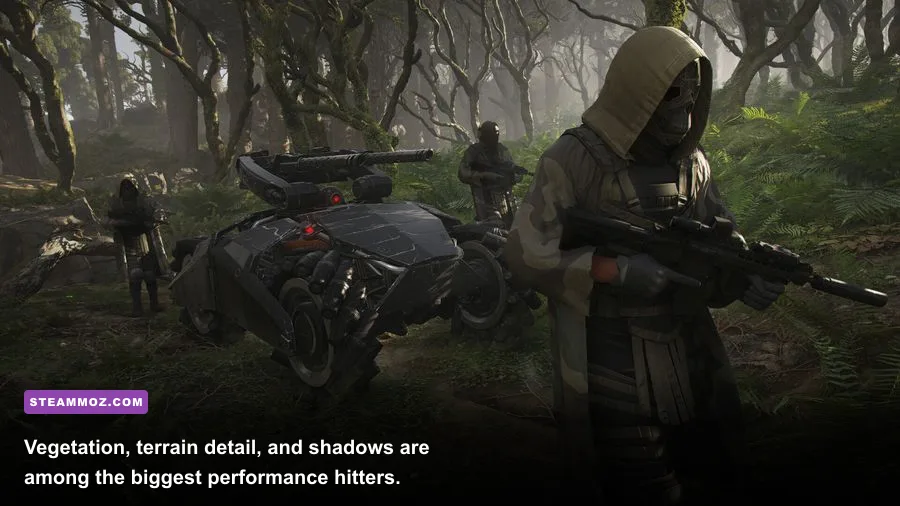
The balanced profile is the safest choice for the official campaign, Ghost War-style firefights, and co-op sessions. Set textures to High if your GPU has 6GB or more VRAM; use Medium on 4GB cards. Texture quality mostly affects VRAM capacity rather than raw GPU speed, but running out of VRAM can cause ugly hitching when Breakpoint streams a new area.
Set anisotropic filtering to 16x. It costs very little on current hardware and keeps roads, weapon surfaces, and ground textures readable at an angle. This is one of the worst settings to reduce for a tiny performance gain. Anti-aliasing deserves more care: Temporal Anti-Aliasing usually gives the cleanest foliage, while lower options can shimmer badly across Auroa's long sightlines.
| Setting | Balanced value | Performance reason | What you retain |
|---|---|---|---|
| Texture quality | High | Good detail with manageable VRAM use | Weapon and environment clarity |
| Anisotropic filtering | 16x | Negligible cost on most GPUs | Sharp roads and ground surfaces |
| Anti-aliasing | TAA or the highest stable option | Controls foliage shimmer | Cleaner distant edges |
| Terrain quality | High | Medium can help CPU-limited scenes | Natural hills and rock detail |
| Level of detail | High | Major CPU and GPU workload | Distant objects remain convincing |
| Vegetation quality | Medium | Reduces dense foliage rendering | Most close-range cover still looks good |
| Shadows | Medium | Large cost in forests and bases | Readable lighting and stealth depth |
| Ambient occlusion | Medium | Moderate GPU cost | Contact shadows around rocks and buildings |
Vegetation and level of detail are the two sliders that often decide whether a CPU-limited system feels smooth. Ultra settings ask the processor to track more distant objects, foliage, and geometry even when you're simply moving through Erewhon. Medium vegetation does not remove every bush; it mainly reduces the density and draw distance of less important growth. Keep terrain on High unless you are already CPU-bound.
For comparison, our Epic Mickey Rebrushed 60 FPS settings guide explains why texture quality and resolution scale should not be treated as the same performance lever. Breakpoint benefits from exactly the same distinction.
The settings that secretly eat your frame rate
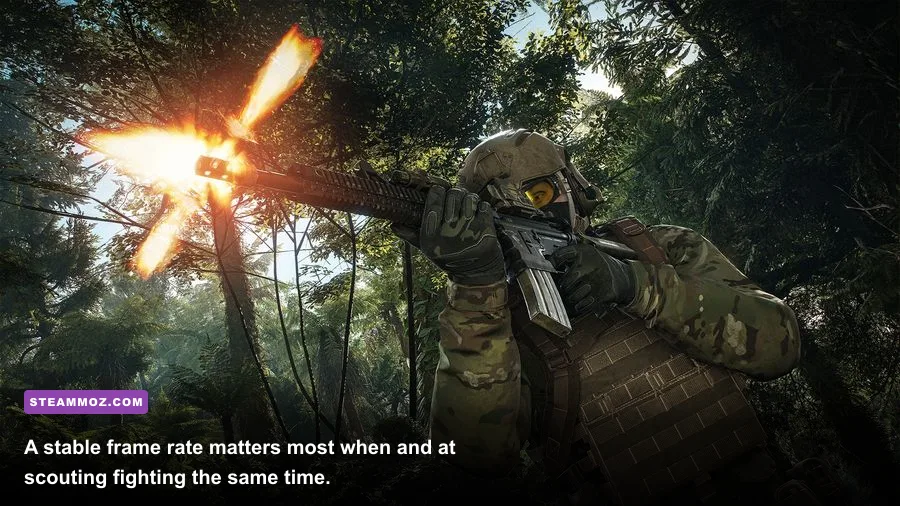
Shadows, volumetric fog, screen-space reflections, and ambient occlusion can make Breakpoint look dramatically richer, but their cost becomes obvious during a storm, at night, or inside a heavily guarded compound. If you are chasing maximum FPS, lower these in that order rather than sacrificing texture quality first.
Set shadows to Medium for the best compromise. Low shadows can make enemies and cover look unnaturally flat, while High and Very High add a heavy cost to scenes filled with trees and artificial lights. Volumetric fog should be Low or Off on a mid-range GPU. It affects light shafts and atmospheric haze, not the core visibility of enemies, so it is a painless cut during dense firefights.
- Screen-space reflections: Disable first if GPU usage is constantly above 95%. Water, wet roads, and polished floors lose reflections, but combat clarity barely changes.
- Ambient occlusion: Medium adds useful contact depth around rocks, vehicles, and walls. Disable it only when every frame matters.
- Volumetric fog: Low is preferable to High for a competitive profile. High fog can cause major drops near smoke, weather, and bright light sources.
- Bloom and lens effects: Optional. Turning them off makes muzzle flashes and bright lamps less distracting.
- Screen-space sharpening: Keep it enabled at a moderate level if you use 90% resolution scale, but avoid aggressive sharpening halos around foliage.
There is no prize for preserving a reflection in a puddle while losing 15 frames during a base assault. Breakpoint's most useful visual information is enemy contrast, weapon visibility, and stable camera motion. Prioritize those.
Best presets for low-end, mid-range, and high-end PCs

Breakpoint's official PC targets make a useful starting point: Ubisoft lists hardware around an Intel Core i5-4460 or AMD Ryzen 3 1200 with a GTX 960 4GB or R9 280X for minimum 1080p play, while recommended configurations move toward a Core i7-6700K or Ryzen 5 1600 and GTX 1060 6GB or RX 580. Those targets are not guarantees of a locked frame rate, especially in the open world, but they explain why the High preset is a better baseline than Ultra for most players.
| PC class | Resolution and target | Preset starting point | Critical changes |
|---|---|---|---|
| Older 4GB GPU | 1080p, 30-45 FPS | Low or custom | 90% scale, Low fog, shadows Low, textures Medium |
| GTX 1060 / RX 580 class | 1080p, stable 60 FPS | Custom balanced | High textures, Medium shadows, Medium vegetation |
| RTX 2060 / RX 6600 class | 1080p high-refresh or 1440p 60 | High custom | 90-100% scale, reflections Off, fog Low |
| RTX 3060 Ti / RX 6700 XT class | 1440p, 60-100 FPS | High | Keep textures High, tune LOD and shadows |
| RTX 4070 / RX 7800 XT class | 1440p high refresh | Very High custom | Ultra textures, Medium-High effects, cap FPS |
On a low-end machine, reduce resolution scale to 90% before dropping every quality slider to Low. At 1080p, that renders internally at roughly 1728x972 and often looks much better than a fully Low profile. If you still cannot hold your target, lower shadows and vegetation next, then level of detail. Keep textures at Medium or High until VRAM usage becomes the source of stutter.
On a high-end PC, Ultra is still not automatically the smart choice. Breakpoint can become CPU-limited while driving or looking across a large outpost, meaning a faster GPU will sit underused. High textures, Medium shadows, High terrain, and High LOD usually deliver nearly the Ultra presentation with cleaner frame pacing.
Fix stutters, shader hitching, and sudden FPS drops
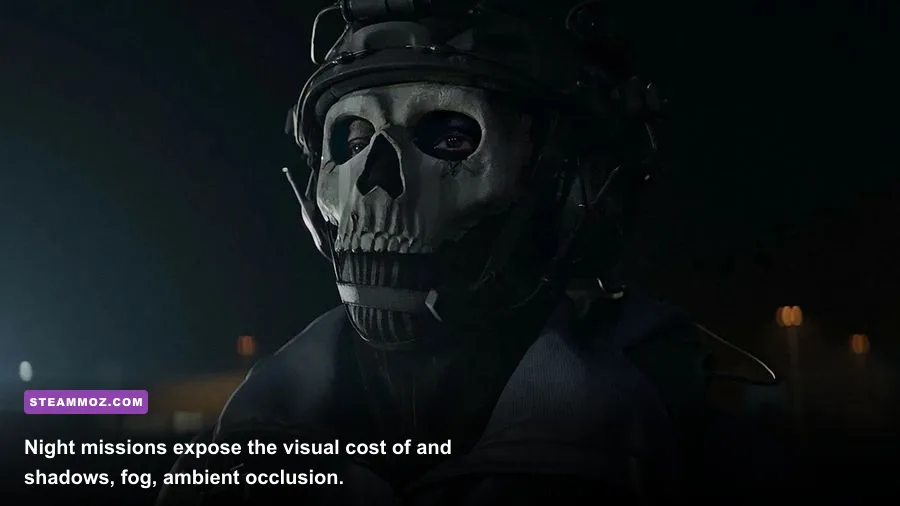
Average FPS is only half the story. If Breakpoint feels jerky despite a respectable counter, watch GPU and CPU usage while driving from Smuggler Coves toward Mount Hodgson or entering a large enemy base. GPU usage near 95-99% means reduce resolution scale, reflections, fog, or shadows. GPU usage below roughly 80% with severe drops points toward a CPU, streaming, driver, or background-process limit.
Install the game on an SSD if possible. Breakpoint streams a large amount of terrain, buildings, foliage, and mission data while you move across Auroa. An SSD will not magically raise your average FPS, but it can reduce asset-streaming pauses and texture pop-in. Keep at least 15 percent free space on the drive and close browsers, recording tools, RGB utilities, and overlays you do not need.
- Run the benchmark after every major change. Use the same resolution, API, and profile so results mean something.
- Restart after switching API modes. Vulkan and DX11 can behave differently after a driver update, and a clean restart removes misleading cached behavior.
- Update the GPU driver. Use the official Nvidia driver page or AMD support page, then test before adding overlays.
- Check VRAM usage. If it is pinned at the limit, lower textures one step and restart the game.
- Cap the frame rate. A 60 FPS cap that holds is better than 83 FPS followed by repeated 48 FPS dips.
- Check power settings. Desktop users should use the normal high-performance GPU profile; laptop users need AC power and the discrete GPU selected.
If crashes or black screens begin after choosing Vulkan, switch back to DX11 rather than forcing it. You can also consult the official Ubisoft Breakpoint support hub. For broader PC troubleshooting, Steamoz's PC crash and FPS fixes guide has useful steps for overlays, drivers, and corrupted files.
A competitive profile for clearer aiming

For stealth and firefights, clarity beats spectacle. Use 1080p native resolution, 100% scale if your GPU allows it, TAA, High textures, Medium shadows, Low volumetric fog, and disabled motion blur, depth of field, bloom, and screen-space reflections. Keep ambient occlusion at Medium if the frame rate remains stable; it helps separate boots, vehicles, and cover from dark terrain.
Do not confuse a cinematic look with useful visibility. Motion blur can hide a target when you snap from a drone view to your rifle. Depth of field can soften distant enemies and make aiming through a scope feel less consistent. Bloom can wash out lamps and explosions during night assaults. Turn those effects off, then raise sharpening only until foliage edges look defined without white outlines.
Finally, test the profile in three places: a dense forest, a populated base, and a vehicle drive between provinces. Shoot from the shoulder, aim down sights, deploy the drone, and spin the camera quickly. If the game remains within your chosen frame-time target in all three tests, you have a real Breakpoint performance profile—not just a menu setting that looked good in Erewhon.
The best Ghost Recon Breakpoint graphics settings are therefore a controlled compromise: preserve textures, anisotropic filtering, and enough terrain detail to keep Auroa convincing; cut fog, reflections, excessive shadows, and cinematic effects that drain frames without improving tactical information. Lock the result to a frame rate your PC can actually sustain, and the game immediately feels more responsive.
For more demanding PC tuning, see our Dragon Ball Z: Kakarot max-FPS settings guide and For the King II performance guide. Both reinforce the same rule: stable frame pacing wins every firefight that a flashy but inconsistent preset loses.