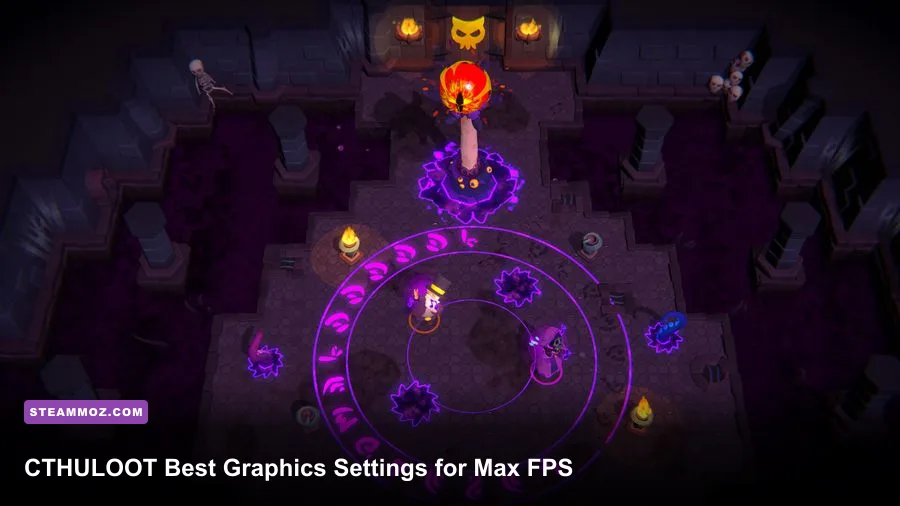
For the best CTHULOOT performance, start with 1080p, exclusive fullscreen, a sensible frame-rate cap, medium shadows, low volumetric effects, and high textures only if your GPU has enough VRAM. Those changes usually deliver the biggest frame-time improvement without gutting the game's unsettling lighting, enemy silhouettes, or environmental detail. Work from the profile below, then adjust one setting at a time while testing the same busy area.
CTHULOOT is the kind of game where a technically impressive screenshot can hide a rough experience. A steady 60 frames per second matters more than a brief 100 FPS reading in an empty corridor, especially when combat effects, enemies, fog, and streaming combine in one room. This guide is built around that reality: stable frame pacing first, image quality second, and maximum numbers only when your hardware can actually hold them.
Use this CTHULOOT baseline for maximum FPS
Open the game's video menu and make the baseline changes before touching advanced quality options. Set the display resolution to 1920x1080 if you are chasing the highest frame rate, choose exclusive fullscreen when the option exists, and disable V-Sync if you are using a variable-refresh monitor. If you see tearing, turn on V-Sync as a fallback or use your GPU driver's adaptive option rather than stacking multiple synchronization systems.
Resolution scale deserves special attention. Keep it at 100% for a clean native image. If CTHULOOT drops below your target during fights, lower it to 90% before destroying texture quality; the slight softness is usually less distracting than muddy surfaces and unreadable environmental detail. At 80%, the game can gain substantial GPU headroom on older cards, but fine objects and distant silhouettes will look noticeably blurred.
| Setting | Recommended value | Approximate FPS impact | Visual trade-off |
|---|---|---|---|
| Display mode | Exclusive fullscreen | Low to medium gain | Usually improves presentation and reduces desktop interference |
| Resolution | 1920x1080 for max FPS | Very high | Lower resolution is softer but dramatically lighter on the GPU |
| Resolution scale | 100%; test 90% if needed | High | Lower values reduce sharpness across the entire image |
| V-Sync | Off with VRR; on only if required | Negligible average FPS impact | Off can introduce tearing; on can add latency |
| Frame-rate limit | Refresh rate minus 2 or 3 FPS | Improves consistency | Caps peak FPS but reduces heat and stutter |
| Motion blur | Off | Small performance gain | Sharper camera movement and clearer combat feedback |
For a 60Hz display, cap at 60 FPS or 58-59 FPS through your driver. A 120Hz screen should use 117 or 118 FPS if the machine can sustain it. On a 144Hz monitor, 141 FPS is the sensible ceiling. The point is not to win a benchmark; it is to stop the GPU from bouncing between an uncapped peak and a sudden low during a crowded encounter.
Before changing anything else, confirm that your operating system and GPU driver are current. The CTHULOOT Steam listing is the best place to check the developer's current build, patch notes, and system requirements. Steam's official troubleshooting guidance is also useful if the game refuses to launch after a driver update.

🎮 CTHULOOT
Looking to experience this game? Grab your digital key directly on our store for $7.49.
View on Steammoz Store →The settings that cost the most FPS
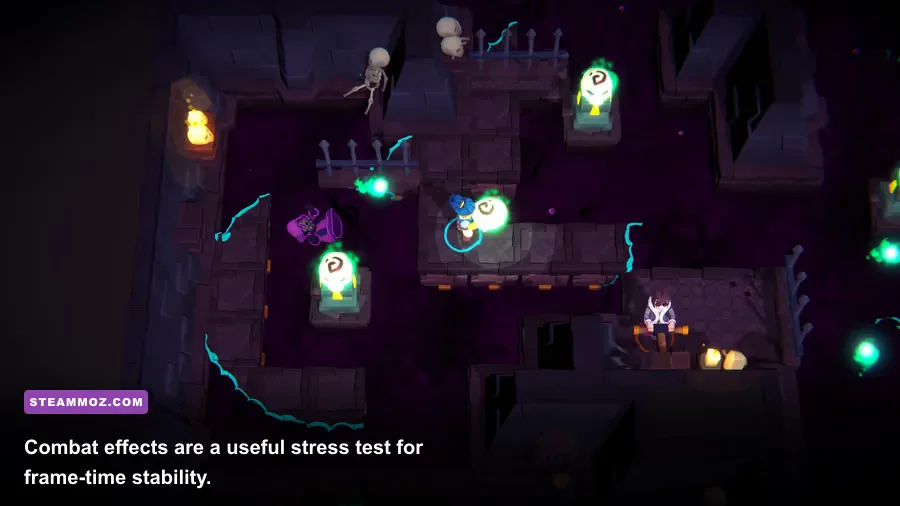
Not every quality slider deserves equal treatment. Shadows, volumetric effects, ambient occlusion, and reflections tend to punish the GPU far more than textures. That distinction matters in CTHULOOT because its atmosphere leans heavily on darkness, fog, and light sources. Lower the expensive effects first, and you can often preserve the sharpness of objects and surfaces that make exploration readable.
Shadows and volumetric effects
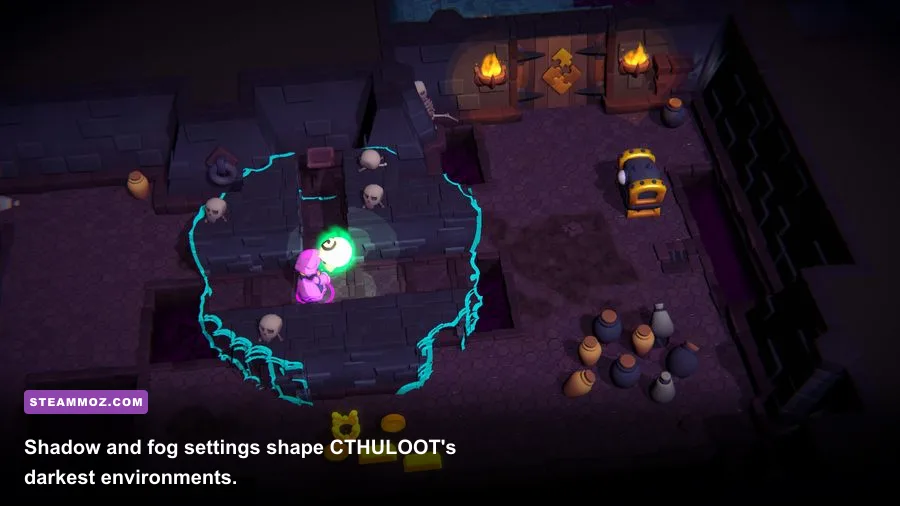
Set shadows to Medium as your starting point. High shadow quality increases shadow-map resolution and can add extra cascades or sampling, which becomes expensive when multiple lights cover the same space. Low shadows are a last resort: they save frames, but they flatten rooms and make the lighting feel less deliberate. Medium is the performance sweet spot for most 1080p systems.
Volumetric fog, god rays, clouds, or similar effects should be Low when you need maximum FPS. These effects are often calculated at reduced resolution and then filtered, but dense scenes can still create large GPU spikes. The image may lose some mist depth, yet enemy outlines become easier to read. That is a useful trade in tense encounters rather than a pure downgrade.
Textures, effects, and ambient occlusion
Texture quality mostly consumes VRAM instead of raw shader performance. If your graphics card has 8GB or more VRAM, High textures are worth trying at 1080p or 1440p. On a 4GB card, use Medium to avoid hitching when CTHULOOT streams new rooms. Texture stutter is not fixed by lowering the frame-rate cap; it comes from memory pressure and asset transfers.
Effects quality controls particles, flashes, debris, and combat clutter. Medium is ideal for a max-FPS profile because Low can make impacts look strangely bare while High may cause heavy bursts to dip during multiple simultaneous effects. Ambient occlusion adds contact shadows around corners and objects. Keep it at Medium if you want depth; turn it Low or Off only when your GPU remains saturated after reducing volumetrics and shadows.
| Graphics option | Max-FPS setting | Why it matters | Recommended compromise |
|---|---|---|---|
| Shadows | Low or Medium | High GPU cost from shadow maps and lighting coverage | Medium for a convincing atmosphere |
| Volumetrics | Low | Dense fog and light shafts create major GPU spikes | Medium if the GPU has headroom |
| Textures | Medium or High | Primarily uses VRAM; insufficient VRAM causes hitching | High on 8GB-plus cards |
| Effects | Medium | Controls combat particles and screen-filling effects | Medium for readable impacts |
| Ambient occlusion | Low or Medium | Adds depth but costs shader time | Medium at 60 FPS |
| Reflections | Low or Medium | Can render the scene again in reflective surfaces | Low in GPU-limited scenes |
| Anti-aliasing | Medium or temporal option | Reduces jagged edges but may blur motion | Medium with 100% resolution scale |
Best CTHULOOT profiles for 60, 120, and 144 FPS
Your ideal settings depend on the target you can maintain, not the refresh rate printed on the box. A locked 60 FPS profile is often the best choice for a mainstream gaming laptop, while a 120 FPS profile requires a stronger CPU as well as a faster GPU. If performance collapses only when enemies or effects appear, you may be CPU-limited or hitting a streaming hitch rather than simply needing lower resolution.
60 FPS balanced profile
Use 1080p, 100% resolution scale, Medium textures, Medium shadows, Low volumetrics, Medium effects, Medium ambient occlusion, Low reflections, and a 60 FPS cap. This profile protects CTHULOOT's mood while cutting the settings most likely to create sudden drops. It is the profile to use first on a mid-range desktop or gaming laptop.
120 FPS competitive-response profile
Although CTHULOOT is not an esports shooter, a higher frame rate makes camera movement and input feel cleaner. Choose 1080p, 90-100% resolution scale, Medium textures, Low shadows, Low volumetrics, Low effects, Low ambient occlusion, and Low reflections. Cap at 117 or 118 FPS on a 120Hz display. If the GPU remains underused but the frame rate still falls, reduce background CPU load and investigate a processor limit.
144 FPS maximum profile
For the highest possible number, use 1080p, 80-90% resolution scale, Low shadows, Low volumetrics, Low effects, Low ambient occlusion, Low reflections, Medium textures, and a 141 FPS cap. This is the aggressive profile: excellent for testing responsiveness, but not the prettiest way to experience CTHULOOT. Restore High textures first if your VRAM allows it, then raise shadows before increasing volumetrics.
| Target | Resolution scale | Quality profile | Best hardware class |
|---|---|---|---|
| Stable 60 FPS | 100% | Medium textures and shadows; Low volumetrics | Mainstream desktop or gaming laptop |
| Stable 120 FPS | 90-100% | Medium textures; Low lighting effects | Modern mid-range GPU and capable CPU |
| Maximum FPS | 80-90% | Mostly Low; Medium textures where VRAM permits | Older GPU, high-refresh display, or laptop mode |
| 1440p quality | 100% initially | Medium shadows and volumetrics; High textures | Strong GPU with at least 8GB VRAM |
For comparison, the same logic applies to other PC tuning guides: preserve the settings that affect clarity and reduce the ones that inflate rendering cost. Our Star Wars Outlaws graphics settings guide uses the same principle, while the broader STALKER 2 coverage is a useful reminder that a stable frame time can matter more than a flashy average FPS figure.
How to fix stutter, hitching, and sudden drops
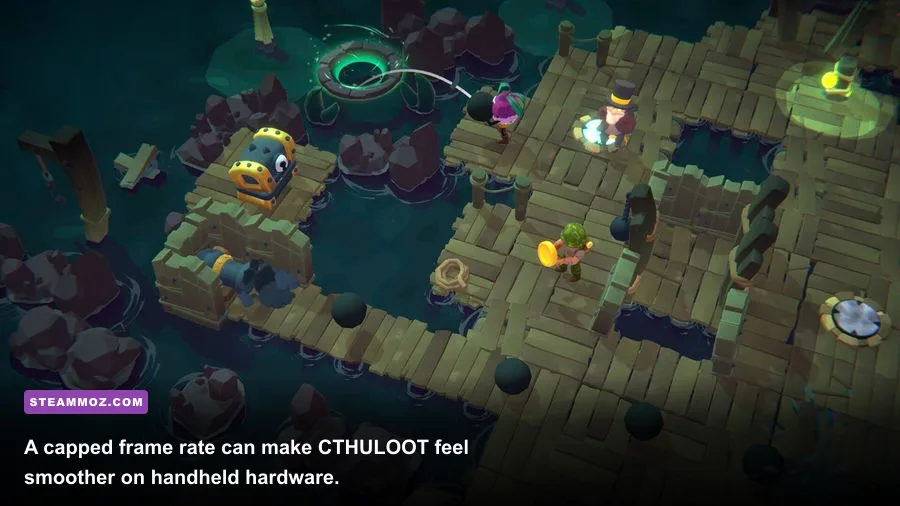
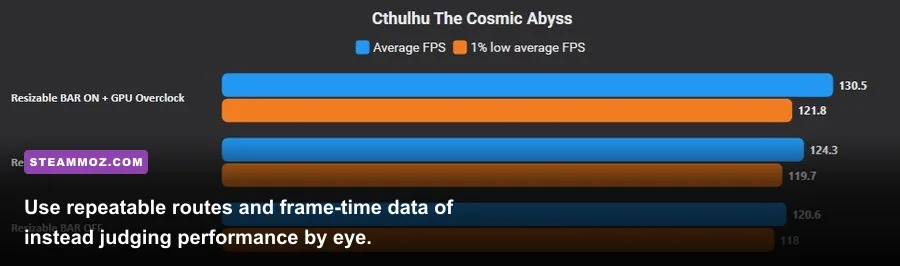
A low average FPS and bad frame pacing are different problems. If the counter says 60 but movement feels uneven, watch the frame-time graph with an overlay such as Steam's performance monitor, NVIDIA FrameView, or AMD's metrics. A stable 60 FPS is roughly 16.7 milliseconds per frame. Spikes to 30ms, 50ms, or higher are the hitch you feel, even when the average number looks healthy.
First, close browsers, recording software, RGB utilities, and hardware monitoring tools you don't need. Overlays can conflict with full-screen presentation and consume CPU time. Next, install CTHULOOT on an SSD if possible. An HDD may still launch the game, but room transitions and asset streaming are more likely to produce pauses. Keep at least 10-15 percent free space on the drive so the operating system and shader cache are not fighting for room.
If the game stutters for a few minutes after a driver update, let it build its shader cache rather than repeatedly restarting during the same route. Shader compilation can happen as new effects appear. If stutter persists across every session, test a clean GPU-driver installation, verify the game files through Steam, and remove unofficial launch commands before adding new ones.
Windows power mode should be set to Best performance while plugged in. Laptop players should connect the charger, use the dedicated GPU, and avoid silent or battery-saving profiles. Those modes can lower CPU clocks and cause exactly the kind of inconsistent frame pacing that lowering graphics settings won't solve. Also check temperatures: sustained CPU or GPU temperatures near the device's thermal limit can trigger clock reductions after several minutes.
| Symptom | Likely cause | First fix | What not to do |
|---|---|---|---|
| Low FPS everywhere | GPU limit or excessive resolution | Lower resolution scale and volumetrics | Only lower textures and expect miracles |
| Stutter entering new rooms | Streaming, shader cache, or slow storage | Use an SSD and allow shader caching | Keep changing every setting at once |
| FPS drops during combat | Effects, shadows, or CPU load | Lower effects and shadows; close overlays | Assume average FPS explains the problem |
| Sharp drops after 15 minutes | Thermal throttling or power mode | Improve cooling and use plugged-in performance mode | Raise settings because the initial test looked fine |
| High FPS but visible tearing | Sync mismatch | Use VRR or cap just below refresh rate | Run unlimited FPS on a fixed-refresh panel |
| Hardware situation | Resolution | Target cap | Core settings |
|---|---|---|---|
| Steam Deck | 1280x800 | 30 or 40 FPS | Low effects, shadows, volumetrics, and reflections |
| Entry-level laptop | 720p-1080p | 30-60 FPS | 80-90% scale; Low lighting settings; Medium textures if stable |
| Mid-range desktop | 1080p | 60-120 FPS | Medium shadows, High textures if VRAM allows, Low volumetrics |
| High-end desktop | 1440p | 90-144 FPS | High textures; tune shadows and volumetrics around GPU headroom |
Remember that Steam Deck performance can change with every game update. Check the official Steam Deck compatibility information and the game's latest community reports before assuming a new patch broke your hardware. For other optimization ideas, Steamoz's Valheim performance and progression coverage offers a useful example of separating genuine system improvements from placebo tweaks.
The fastest way to tune CTHULOOT yourself
Make a backup of your settings, load a busy save, and test for two minutes. Record average FPS, 1% low FPS, GPU utilization, CPU utilization, and frame-time spikes. If GPU usage sits near 95-99 percent, lower resolution scale, volumetrics, shadows, or reflections. If GPU usage is low while FPS remains poor, check CPU load, background applications, power mode, and thermal throttling instead.
Change one option at a time and keep notes. Start with volumetrics, then shadows, reflections, effects, and ambient occlusion. Leave textures until last because they are mainly a VRAM decision. Once the worst drops are gone, raise one setting at a time until the frame-time graph becomes inconsistent. The last change is your hardware's practical limit.
The best CTHULOOT settings aren't necessarily the lowest ones. For most players, the winning setup is 1080p, 100% scale, Medium textures, Medium shadows, Low volumetrics, Medium effects, Low reflections, and a frame cap matched to the monitor. That combination protects the game's dark visual identity while removing the settings most likely to turn a tense encounter into a slideshow.