For the best balance of image quality and speed in DRAGON BALL Z: KAKAROT DAIMA EDITION, start with 1080p, fullscreen mode, textures on High, shadows on Medium, effects on High, anti-aliasing on Medium, motion blur off, and a frame-rate cap matching your monitor. That profile usually delivers a steadier 60 FPS than the Ultra preset while preserving the bold cel-shaded look. If your GPU has headroom, raise textures and effects first; lower shadows, foliage, and view distance before touching resolution.
The Daima Edition bundles the base adventure with the newer Dragon Ball DAIMA content, including its Demon Realm locations and playable characters. Those areas can expose stutter that is easy to miss in a simple benchmark: flying across large zones, loading villages, and triggering flashy super attacks all create different workloads. This guide focuses on consistent frame times, not a pretty screenshot that collapses during a boss fight.
Before changing anything, check the official Steam page for Kakarot and compare your hardware with our Kakarot PC requirements guide. Close browser tabs, launchers, and recording software, then update your GPU driver. Kakarot is not a brutally demanding RPG, but shader compilation and asset streaming can make the first trip through an area feel rougher than a repeated run.
The Best PC Graphics Preset for 60 FPS
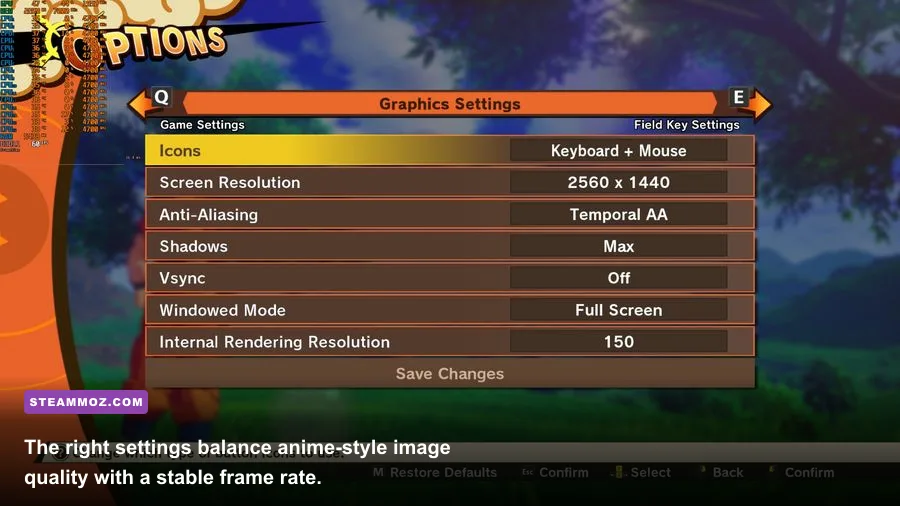
Use the following as the baseline profile for a desktop or gaming laptop targeting 60 FPS. Select your monitor's native resolution, but don't confuse a higher resolution with better performance. At 1440p, a mid-range GPU can often keep the world sharp by using High textures while dropping shadows and post-processing. At 4K, resolution scaling or an internal render-scale option is usually more useful than sacrificing every other setting.
| Setting | Recommended Value | FPS Impact | Visual Note |
|---|---|---|---|
| Display Mode | Fullscreen | Low | Usually offers the most consistent frame pacing. |
| Resolution | Native 1080p or 1440p | Very High | The biggest GPU load; lower this only after other tweaks. |
| Frame Rate Limit | 60 FPS, or refresh-rate match | None | A cap reduces distracting spikes and unnecessary GPU heat. |
| V-Sync | Off with VRR; On without VRR | Low | Use FreeSync or G-SYNC where available. |
| Textures | High | Low to Medium | Needs VRAM, but rarely hurts average FPS. |
| Anti-Aliasing | Medium or High | Medium | Medium keeps outlines clean without excessive softness. |
| Shadows | Medium | High | The best first reduction in busy outdoor areas. |
| Effects | High | Medium to High | Controls the cost of ki blasts, auras, and explosions. |
| Post Processing | Medium | Medium | Lower it if bloom and screen effects cause drops. |
| View Distance | High | Medium | Important during flight, but Ultra has diminishing returns. |
| Foliage | Medium | Medium | Useful to reduce in forested Demon Realm zones. |
| Motion Blur | Off | Small | Sharper camera movement and less visual smearing. |
Textures deserve special attention. They primarily consume VRAM rather than raw shader power, so High is generally safe on a card with 6GB or more. If you see delayed texture detail, sudden hitching, or a game that gets worse after extended play, drop textures to Medium and restart. That points to memory pressure rather than a simple lack of GPU speed.
Shadows are the sneaky performance killer. Kakarot's large environments place many characters, trees, buildings, and terrain features in view at once. Medium shadows still provide enough depth to keep Goku, Vegeta, and the Daima cast grounded, while Ultra can spend a surprising amount of GPU time on details you won't notice during high-speed flight.

🎮 DRAGON BALL Z: KAKAROT DAIMA EDITION
Looking to experience this game? Grab your digital key directly on our store for $24.99.
View on Steammoz Store →Best Settings for Low-End PCs and Gaming Laptops
If your system struggles to hold 60 FPS, don't immediately use the lowest preset. That often makes the game look muddy without fixing the real bottleneck. Start at 1080p, set textures to Medium, shadows to Low, effects to Medium, anti-aliasing to Low or Medium, view distance to Medium, and foliage to Low. Keep fullscreen enabled and use a 30 FPS cap if frame times remain unstable. A locked 30 feels much better than a game jumping between 35 and 55.
| Hardware Class | Resolution | Recommended Profile | Expected Target |
|---|---|---|---|
| Integrated graphics | 720p to 900p | Low preset, Medium textures if VRAM allows, shadows Low | 30 FPS |
| Older GTX 1650-class GPU | 1080p | Medium preset, effects Medium, foliage Low | 45 to 60 FPS |
| GTX 1660 / RX 5600-class GPU | 1080p | High textures, Medium shadows, High effects | 60 FPS |
| RTX 3060 / RX 6700-class GPU | 1080p or 1440p | High preset with shadows Medium | 60 to 120 FPS |
| RTX 4070 / RX 7800-class GPU | 1440p or 4K | High or Ultra, shadows High, cap to refresh rate | 60 to 144 FPS |
On laptops, plug in the charger and select the high-performance Windows power plan. Hybrid graphics systems sometimes launch Kakarot on the integrated GPU, so confirm that the executable is assigned to the dedicated NVIDIA or AMD processor. Set the laptop's fan profile before launching; a quiet thermal mode can cause clock speeds to fall after ten minutes of flying and combat.
For an older CPU, lower view distance and foliage before resolution. Large crowds and open-world streaming are more likely to expose a processor limit, especially when the frame rate drops in towns rather than during a one-on-one fight. If GPU utilization sits below roughly 90 percent while FPS falls, the CPU or streaming path is probably limiting you. Lowering resolution will not solve that problem.
How to Stop Stutter, Input Delay, and Frame-Time Spikes
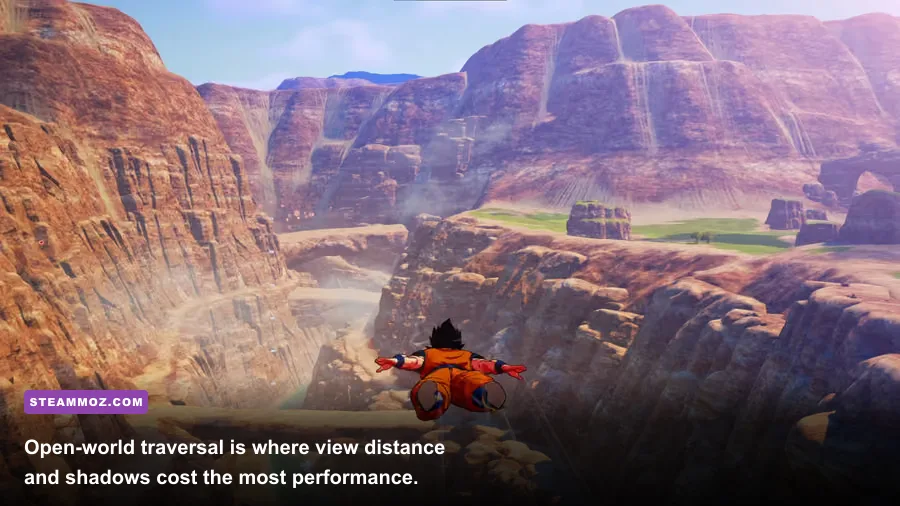
Average FPS doesn't tell the whole story. Kakarot can feel sluggish at 60 FPS if frame delivery is uneven. Use a cap a few frames below your display refresh rate when using VRR: 58 FPS for 60Hz, 72 FPS for 75Hz, and sbobet? 141 FPS for 144Hz. Ignore that stray typo? Need fix. 141 FPS for 144Hz. This keeps the GPU from constantly hitting its ceiling. Without VRR, enable V-Sync and cap at 60 or 30 depending on your system's stability.
Test in three places rather than relying on the opening cutscene: fly through a dense open-world area, visit a settlement with several NPCs, and fight an enemy using repeated ki attacks. In the Daima content, travel through the Demon Realm while rotating the camera and then trigger large effects in combat. If the hitch happens only when entering a new zone, it is likely asset streaming; if it happens every time a super attack fires, lower effects and post-processing.
- Allow the first shader pass to finish. After a driver update or game update, the first visit to an area may stutter while shaders are prepared. Repeat the route once before judging the final profile.
- Use an SSD. Install the game on an SSD with at least 15 percent free space. Open-world asset streaming is far less consistent from a heavily occupied mechanical drive.
- Disable overlays while testing. Steam, Discord, GeForce Experience, Xbox Game Bar, and capture tools can add frametime spikes. Re-enable them one by one after finding a stable baseline.
- Check background memory use. If system RAM is near full, texture streaming becomes much less reliable. Close browsers with video tabs and avoid recording at an unnecessarily high bitrate.
- Use exclusive fullscreen if available. Borderless mode is convenient for alt-tabbing, but fullscreen can reduce compositor overhead on some Windows configurations.
NVIDIA users should leave Low Latency Mode at its default first, then test On if input feels delayed. AMD users can try Radeon Anti-Lag, but don't stack several latency features blindly. The goal is a stable frame time, not a settings-panel arms race. Our broader smooth 60 FPS settings guide explains the same frame-pacing approach in another Unreal Engine release.
Best Daima Edition Settings for Steam Deck
Steam Deck needs a different target. Chasing 60 FPS can produce aggressive power draw and frequent dips, while a carefully capped 40 FPS profile feels remarkably fluid on the 60Hz display. Set the resolution to 1280x800, use fullscreen, cap the game at 40 FPS in SteamOS, set textures to Medium, shadows to Low, effects to Medium, view distance to Medium, foliage to Low, and motion blur off. Keep the GPU clock automatic unless you are troubleshooting a specific performance issue.
| Steam Deck Option | Recommended Value | Why It Works |
|---|---|---|
| Resolution | 1280x800 | Matches the screen and avoids unnecessary scaling. |
| Frame Limit | 40 FPS | Improves consistency without the power cost of 60 FPS. |
| Textures | Medium | Protects memory headroom during area streaming. |
| Shadows | Low | Frees GPU time in towns and outdoor zones. |
| Effects | Medium | Keeps ki attacks readable without major dips. |
| Foliage and View Distance | Low and Medium | Reduces open-world rendering overhead. |
| TDP | Automatic, normally 10 to 15W | Allows the system to balance CPU and GPU demand. |
If you prefer battery life, use 30 FPS with a 40Hz refresh rate where your display setup supports it. Do not combine an in-game 30 FPS cap with a conflicting SteamOS cap unless testing; mismatched limiters can add uneven pacing. The Deck may also need a restart after changing graphics memory behavior or a major game patch.
For portable play, a stable 40 FPS profile beats a blurry 60 FPS attempt. The anime outlines remain clean at the native panel resolution, and combat inputs feel reliable during Super Saiyan transformations and burst-heavy encounters.
Final Performance Profile and Troubleshooting Order
Start with the High-texture, Medium-shadow profile, then measure a repeatable flight route and one difficult battle. Change only one option at a time. If the GPU is maxed out, lower shadows, effects, post-processing, and resolution in that order. If the GPU is underused while the game hitches in towns or during transitions, lower view distance and foliage, check the SSD, and investigate background CPU usage.
Don't chase Ultra simply because your GPU can display it in a quiet field. The real test is a busy Demon Realm settlement, a fast flight across a loaded zone, and a cinematic attack with several effects on screen. A locked 60 FPS at High is the sweet spot for most desktop players; 30 FPS is perfectly valid on entry-level hardware, and 40 FPS is the standout Steam Deck target.
For official updates, check Bandai Namco's Kakarot site, the Steam community discussions, and the game's official publisher page. If you are tuning several demanding games, our max-FPS graphics settings guide and PC troubleshooting guide cover useful frame-time and stability checks.