Yes—most modern gaming PCs can run Dragon Ball Z: Kakarot comfortably. The official minimum is an older quad-core CPU, 4 GB of RAM, and a GTX 750 Ti or Radeon R7 260X, while the recommended target asks for an Intel Core i7-3770 or Ryzen 5 1600, 8 GB of memory, and a GTX 1060 6 GB or Radeon RX 590. For a genuinely smooth 1080p experience, aim above the minimum, install the game on an SSD, and use a sensible mix of medium and high settings rather than blindly maxing everything.
That distinction matters because Kakarot can look deceptively easy to run. Much of the adventure is bright cel-shaded terrain and relatively simple menus, but the game also streams large regions, draws distant landmarks while Goku flies, and throws enormous energy effects across the screen during boss battles. The published requirements are still useful, but they describe a baseline—not a guarantee of locked 60 frames per second in every transformation-heavy fight.
This guide breaks down the Dragon Ball Z: Kakarot system requirements, explains what each component actually means, and gives practical PC settings for low-end, mainstream, and high-end hardware. If you’re weighing the game against other demanding PC releases, Steamoz’s Breathedge system requirements guide offers a useful comparison point.
Dragon Ball Z: Kakarot minimum PC requirements
The minimum configuration is built around hardware that was already mainstream several years ago. You need a 64-bit version of Windows 7, an Intel Core i5-3570 or AMD FX-8350 processor, 4 GB of RAM, and either an NVIDIA GeForce GTX 750 Ti with 2 GB of VRAM or an AMD Radeon R7 260X with 2 GB of VRAM. DirectX 11 support is required, and the installation needs 36 GB of available storage.
| Component | Minimum requirement | What it means in practice |
|---|---|---|
| Operating system | Windows 7 64-bit | Windows 10 or 11 is the safer modern choice |
| Processor | Intel Core i5-3570 / AMD FX-8350 | A four-core desktop CPU from an older generation |
| Memory | 4 GB RAM | Enough to launch, but tight with background applications |
| Graphics card | GTX 750 Ti 2 GB / Radeon R7 260X 2 GB | Suitable for reduced settings and sensible resolution targets |
| DirectX | DirectX 11 | Required graphics API; current Windows installations include it |
| Storage | 36 GB available space | Reserve extra room for updates and shader caches |
Don’t read “minimum” as “1080p ultra.” A GTX 750 Ti-class card can make the game playable, but you should expect to lower shadows, effects, and resolution scaling first. The 2 GB VRAM limit is especially important. Textures may not be the biggest problem at medium settings, yet high-resolution output and effects can produce stutter when the card runs out of available video memory.
The FX-8350 also deserves a warning. Its eight advertised cores don’t translate directly into modern gaming performance, and its weaker per-core speed can show up during busy hub areas or while the game streams terrain during flight. It can meet the requirement, but a newer four-core CPU such as a Core i3-10100 or Ryzen 3 3100 will generally feel more consistent.
Four gigabytes of system RAM is technically enough according to the listing, but it leaves almost no breathing room for Windows, Steam, browser tabs, recording software, or antivirus scans. If your PC has only 4 GB, close everything unnecessary before launching. An upgrade to 8 GB is one of the cheapest and most worthwhile improvements you can make.

🎮 DRAGON BALL Z: KAKAROT
Looking to experience this game? Grab your digital key directly on our store for $14.99.
View on Steammoz Store →Recommended PC specs for a smoother 1080p experience
Bandai Namco’s recommended specification raises the bar to an Intel Core i7-3770 or AMD Ryzen 5 1600, 8 GB RAM, and an NVIDIA GeForce GTX 1060 with 6 GB VRAM or AMD Radeon RX 590. The operating-system, DirectX 11, and 36 GB storage requirements remain the same.
| Component | Recommended requirement | Practical target today |
|---|---|---|
| Operating system | Windows 7 64-bit | Windows 10/11 64-bit with current GPU drivers |
| Processor | Core i7-3770 / Ryzen 5 1600 | Modern Core i5 or Ryzen 5 for steadier frame pacing |
| Memory | 8 GB RAM | 16 GB is preferable if you multitask or use mods |
| Graphics card | GTX 1060 6 GB / Radeon RX 590 | Comfortable 1080p high-settings class hardware |
| Graphics API | DirectX 11 | Use the latest stable driver package |
| Storage | 36 GB available space | An SSD provides faster loading and smoother streaming |
The recommended GPU is a much more comfortable place to start. A GTX 1060 6 GB or RX 590 has enough memory for high textures and enough rendering power for 1080p without forcing every other option down. It won’t necessarily guarantee 60 FPS at 4K, but that was never the realistic purpose of this specification.
For a new PC, don’t copy the decade-old recommended CPU literally. The i7-3770 is a four-core, eight-thread chip from 2012, and the Ryzen 5 1600 is also several generations behind current processors. Their importance here is simply that Kakarot is not an unusually CPU-heavy modern game. Any current Core i3 or Ryzen 3 with four or more capable cores should handle it well; a Core i5 or Ryzen 5 gives you more room for streaming, Discord, and background tasks.
Sixteen gigabytes of RAM isn’t required, but it has become the sensible baseline for a Windows gaming machine. It prevents the system from aggressively paging to storage and helps eliminate the random hitching that players sometimes mistake for a graphics-card problem.
Before buying, check the official Steam listing for the current requirements and edition details. The base game and later DLC content can alter the amount of storage you’ll want available, even if the listed requirement remains 36 GB.
How demanding is Kakarot at 1080p, 1440p, and 4K?
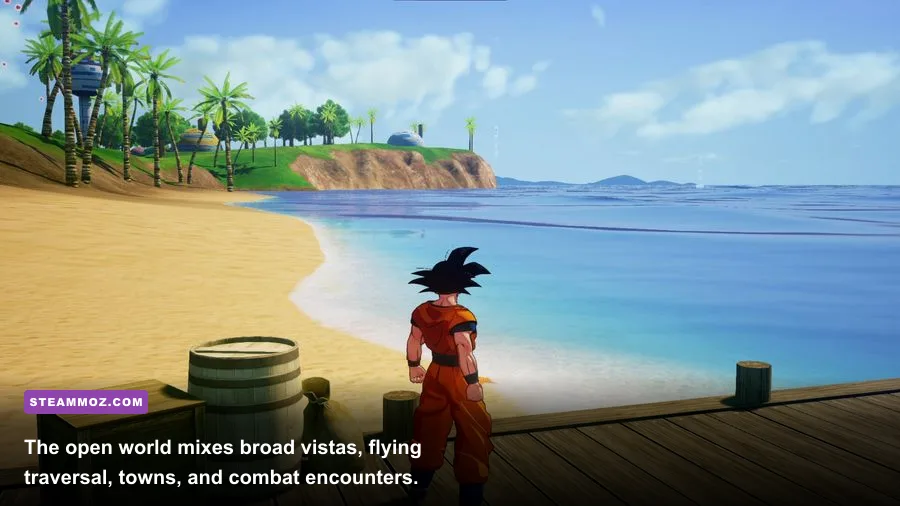
Dragon Ball Z: Kakarot is primarily a 1080p game on the hardware named in its recommended requirements. At that resolution, a GTX 1060 6 GB, RX 590, or newer equivalent should deliver a smooth experience with high or high-medium settings. At 1440p, the GPU has to render 78 percent more pixels than at 1080p, so the same card may need medium settings or a reduced resolution scale. At 4K, you’re entering a completely different performance class.
| Resolution | Recommended GPU class | Expected approach | Main limitation |
|---|---|---|---|
| 1280×720 | GTX 750 Ti / R7 260X | Low to medium settings, 30–60 FPS target | 2 GB VRAM and older CPU performance |
| 1920×1080 | GTX 1060 6 GB / RX 590 | High settings with a 60 FPS target | Heavy effects can cause brief dips |
| 2560×1440 | GTX 1660 Super / RX 5600 XT | Medium-high settings, 60 FPS target | Pixel count and shadow cost |
| 3840×2160 | RTX 3060 Ti / RX 6700 XT or better | High settings with selective reductions | Energy effects and resolution load |
The game’s combat camera can expose dips more clearly than exploration. A normal flight over the East Ravine may be perfectly smooth, then a fight against Frieza, Cell, or Buu fills the frame with aura particles, beams, explosions, and destructible terrain. Those moments are usually GPU-limited at higher resolutions. If you’re chasing a stable 60 FPS, lower effects and shadows before reducing textures.
CPU performance matters more in towns and populated areas. West City, Lucca Village, and other busy locations contain NPCs, objects, and streaming work that can create small frame-time spikes on old processors. A high average frame rate doesn’t tell the whole story; consistent frame pacing makes flying and melee combos feel much better.
There is no reason to buy an extreme graphics card solely for the game at 1080p. A modern RTX 3060, RX 6600, Arc A580, or equivalent is already more than capable. Spend the extra budget on an SSD, 16 GB of RAM, or a better monitor instead.
Best graphics settings for stable performance
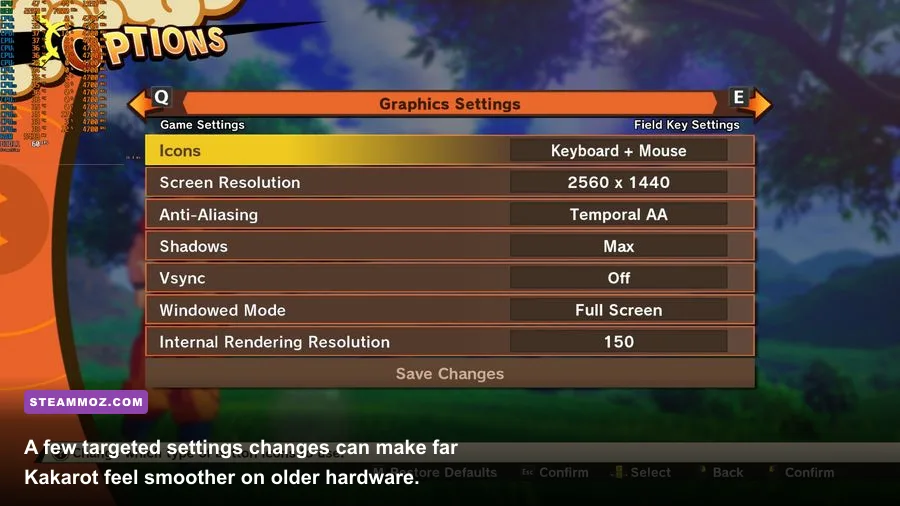
The best Kakarot settings depend on whether you want the sharpest anime presentation or the most reliable frame rate. The visual hierarchy is straightforward: resolution and resolution scale affect clarity and raw GPU load; shadows and effects have the biggest performance impact during combat; textures mainly consume VRAM. Start with the profile that matches your hardware, then adjust one setting at a time.
| Setting | Recommended value | FPS impact | Visual note |
|---|---|---|---|
| Resolution | Native 1920×1080 | Very high | Keep native if possible; lower only as a last resort |
| Resolution scale | 100% | Very high | Dropping to 90% can rescue performance with modest softness |
| Texture quality | High on 4 GB+ VRAM; medium on 2 GB | Low to medium | High textures improve surfaces and character detail |
| Shadow quality | Medium | Medium to high | A frequent source of outdoor and battle dips |
| Effects quality | High on recommended GPUs; medium on minimum | High in boss fights | Controls aura, beams, dust, and explosions |
| Anti-aliasing | Medium or high | Medium | Reduce it if distant foliage or edges are too expensive |
| Ambient occlusion | Medium | Medium | Adds contact depth but is not essential to the art style |
| V-sync | Off with VRR; on for tearing | Variable | Use FreeSync or G-Sync when available |
| Motion blur | Off | Small | Cleaner fast camera movement and sharper combat |
Low-end profile: GTX 750 Ti and similar cards
Use 1280×720 or 1600×900 if native 1080p refuses to hold your target. Set textures to medium, shadows to low, effects to medium, ambient occlusion to low or off, and anti-aliasing to medium. Keep motion blur disabled. A locked 30 FPS is better than an unstable 45–60 FPS if your card repeatedly stutters during supers and transformations.
Close Chrome, streaming overlays, RGB control panels, and unnecessary launchers. With 4 GB of system memory, background software isn’t harmless—it competes directly with the game. If you still see hitching, install the game on an SSD and check that Windows is using the correct dedicated GPU rather than integrated graphics.
Mainstream profile: GTX 1060, RX 590, GTX 1660, or RX 6600
Run native 1080p, 100 percent resolution scale, high textures, medium shadows, high effects, and medium or high anti-aliasing. This is the sweet spot for the recommended specification. If boss battles dip below 60, reduce effects first, then shadows. Lowering textures usually sacrifices more visual quality than performance unless VRAM is already full.
High-end profile: RTX 3060 and above
At 1080p, high settings should be easy. At 1440p, begin with high textures, medium-high shadows, high effects, and a 100 percent scale. For 4K, test 80–90 percent resolution scaling before dropping every setting to medium. The game’s cel-shaded characters retain their identity at slightly reduced internal resolution, while the performance gain can be substantial.
For more general troubleshooting habits, Steamoz’s PC fixes for crashes and FPS problems covers the same driver, overlay, and installation checks that apply here.
CPU, GPU, RAM, and storage explained
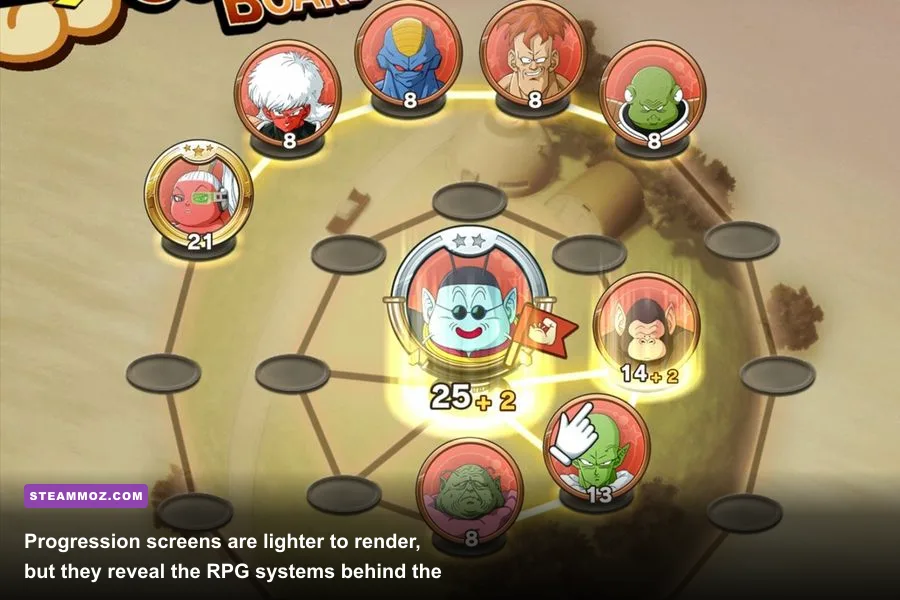
The graphics card is the most important component for image quality, but every part of the listed specification has a job. The GPU renders the game’s anime-style lighting, particle effects, terrain, and destruction. VRAM determines how comfortably it can hold textures and render targets. That’s why a 6 GB GTX 1060 is a much better high-setting choice than a nominally similar 2 GB card, even if both can launch the game.
The CPU handles game logic, enemy behavior, world streaming, NPCs, and draw-call preparation. Kakarot doesn’t behave like a competitive shooter that needs extremely high frame rates, so an older i5 can work. However, weak single-thread performance may cause uneven frame pacing while you’re flying quickly across the map or entering a dense settlement.
RAM affects multitasking and streaming stability. The 4 GB minimum is best viewed as a bootable floor. Eight gigabytes works, while 16 GB is the comfortable modern target. If memory usage reaches the limit, Windows may use the page file on your drive, producing pauses that look like texture loading or shader compilation.
An SSD won’t magically increase your average FPS, but it can reduce loading times and make world streaming less awkward. Keep at least 10–15 percent free space on the drive, and don’t install the game on a nearly full mechanical hard drive if you have an SSD available. The 36 GB requirement is not a good reason to leave only a few hundred megabytes free after installation.
| Hardware situation | Likely symptom | Best upgrade or fix |
|---|---|---|
| 2 GB VRAM | Texture swapping, stutter, forced medium textures | Lower textures and effects; upgrade GPU if possible |
| 4 GB system RAM | Background-app slowdowns and streaming hitching | Move to 8 GB minimum, ideally 16 GB |
| Old quad-core CPU | Dips in towns and during rapid traversal | Reduce background tasks; use a newer CPU platform |
| Mechanical hard drive | Long loading and occasional traversal pauses | Install on an SSD with free space |
| Integrated graphics | Low FPS and severe effects drops | Use a dedicated GPU that meets the minimum |
Performance tips before you launch
Start by updating your graphics driver through NVIDIA, AMD, or Intel’s official support pages. Don’t assume an old driver is fine because other games run correctly; shader and profile fixes can matter for specific DirectX 11 titles. Also install pending Windows updates, reboot, and verify the game files through Steam if you have missing textures, crashes, or inexplicable loading errors.
- Confirm the dedicated GPU: On laptops, set DRAGON BALL Z: KAKAROT to the high-performance GPU in Windows Graphics settings. Battery-saving graphics can be dramatically slower.
- Use exclusive fullscreen or the most stable window mode: If borderless mode introduces stutter, test fullscreen. If alt-tabbing causes problems, borderless may be more convenient.
- Cap the frame rate: A stable 60 FPS cap is usually preferable to an uncapped result that swings from 90 to 48 during attacks. Use the in-game limiter or your driver’s frame-rate control.
- Disable overlays: Test with Steam, Discord, Xbox Game Bar, GeForce Experience, and recording overlays disabled. Re-enable them one at a time if performance returns.
- Watch temperatures: A laptop or dusty desktop can throttle after several minutes. Check CPU and GPU temperatures while flying and during a major boss encounter, not just in the title screen.
- Verify storage: Keep the installation on an SSD when possible, and avoid running a large download or disk scan in the background.
For visual stutter, lower effects and shadows before touching texture quality. For long pauses while moving around the map, investigate storage, RAM pressure, CPU load, and thermal throttling. For consistently low FPS, lower resolution scale and effects, then check whether the GPU is sitting near 100 percent usage. This simple diagnosis is more useful than changing every setting at once.
The official Bandai Namco game page is also worth checking for patches and current product information. If you’re comparing the game’s requirements with other RPGs, Steamoz’s Dragon’s Dogma: Dark Arisen tips provide a different kind of open-world performance and progression reference.
Bottom line: the PC specs you should actually target
The official minimum requirements will get Dragon Ball Z: Kakarot running, but they’re not the configuration I’d recommend buying around. A GTX 750 Ti or R7 260X with 4 GB of RAM can handle a reduced presentation, yet the limited VRAM and memory leave little room for error. Expect to tune settings carefully and accept either lower image quality or a 30 FPS cap.
The real sweet spot is a modern six-core Core i5 or Ryzen 5, 16 GB RAM, an SSD, and a GTX 1060 6 GB, GTX 1660, RX 590, RX 6600, or better. That combination gives you comfortable 1080p performance, enough VRAM for high textures, and much steadier frame pacing than the bare minimum. For 1440p, step up to the GTX 1660 Super, RTX 3060, RX 5600 XT, RX 6600 XT, or a comparable card. For 4K, plan on an RTX 3060 Ti or RX 6700 XT-class GPU and be ready to use resolution scaling.
In short, Kakarot is unusually accessible for a large anime action RPG. You don’t need a monster PC to enjoy Goku’s journey from the Saiyan saga through the Buu arc, and the recommended requirements remain modest by current standards. Just remember that “can launch” and “smooth 1080p at 60 FPS” are different promises. Match your settings to your weakest component, keep effects and shadows under control, and the game’s explosive battles should run exactly as they ought to—fast, bright, and gloriously over the top.