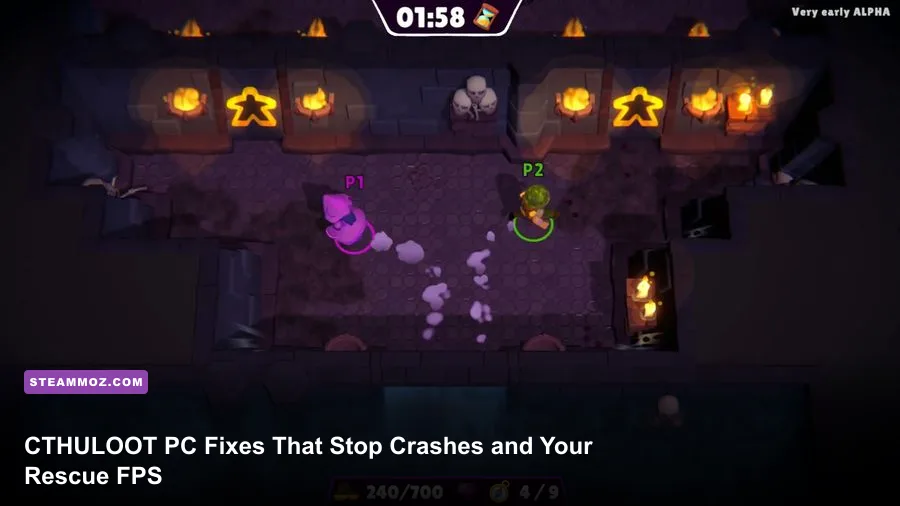
If CTHULOOT keeps crashing or running at an awful frame rate on PC, the fastest route is to verify its Steam files, update the graphics driver, force the correct GPU, then lower shadows, effects, volumetric lighting, and resolution scale before touching advanced Windows tweaks. Cap the game at a stable frame rate rather than chasing an unstable peak, and test one change at a time so you can identify the real culprit.
That order matters. A crash during startup usually points to damaged files, an incompatible overlay, missing runtime software, or a driver problem. Low FPS in crowded or visually busy areas is more often a GPU, CPU, thermal, or shader-compilation issue. Treating every problem as “just lower resolution” wastes time and can leave the actual fault untouched.
First, identify what kind of CTHULOOT problem you have
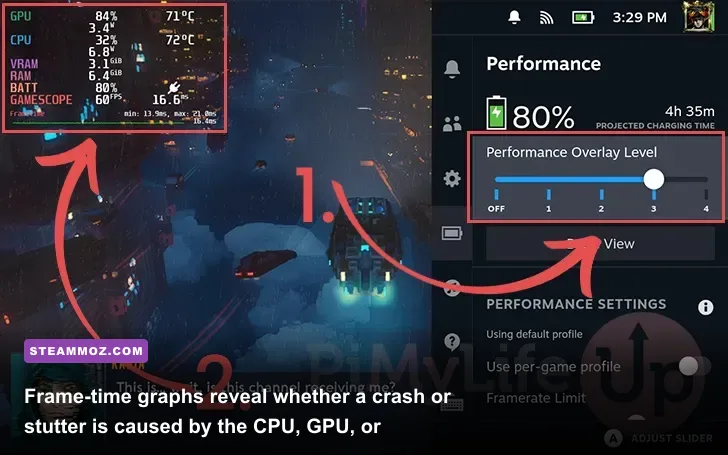
Before changing settings, reproduce the problem in the same place for roughly five minutes. Use a save or area that reliably causes the slowdown, then watch GPU usage, CPU usage, temperatures, RAM, VRAM, and frame time with Steam’s performance overlay, Xbox Game Bar, MSI Afterburner, or another trusted monitor. Average FPS alone is not enough: a game showing 60 FPS can still feel terrible if frame time repeatedly spikes from 16.7 milliseconds to 80 or 100 milliseconds.
| Symptom | Most Likely Cause | Best First Test | What Success Looks Like |
|---|---|---|---|
| Crash before the main menu | Corrupt files, driver conflict, missing runtime | Verify files and disable overlays | CTHULOOT reaches the menu consistently |
| Crash while loading a save | Damaged shader cache, save issue, memory pressure | Test a new game and clear shader cache | New and existing saves load without closing |
| Low FPS everywhere | Wrong GPU, excessive resolution, weak hardware | Check GPU assignment and resolution scale | GPU load rises and FPS improves predictably |
| Stutter after entering new areas | Shader compilation, asset streaming, storage speed | Use an SSD and let shaders finish compiling | Repeated passes become smoother |
| Sudden slowdown after playing | Thermal throttling, background apps, VRAM saturation | Check temperatures and close recording tools | Clock speeds remain stable over time |
A crash that happens only after an hour is different from a crash that happens every time you press Play. Note the exact trigger, whether an error message appears, and whether the monitor goes black or the whole PC restarts. A full reboot suggests power, temperature, or hardware instability rather than an ordinary game-file problem.

🎮 CTHULOOT
Looking to experience this game? Grab your digital key directly on our store for $7.49.
View on Steammoz Store →Repair the Steam installation before reinstalling
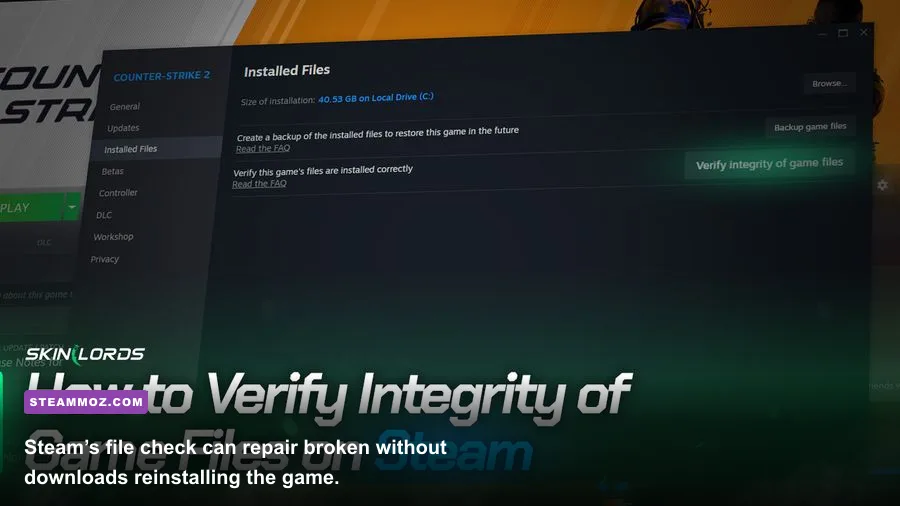
Open Steam, right-click CTHULOOT in your Library, choose Properties, select Installed Files, and click Verify integrity of game files. Steam compares the local installation with the current depot and replaces missing or damaged files. This is the cleanest first fix after an interrupted update, failed mod removal, or sudden crash.
Do not launch several repair tools at once. Wait for Steam to finish, restart the client, and test CTHULOOT with every overlay disabled. Turn off Steam Overlay, Discord Overlay, NVIDIA App or GeForce Experience overlay, AMD overlay, Xbox Game Bar capture, MSI Afterburner’s on-screen display, and third-party reshade injectors. Overlay hooks sit between the game and the renderer; a new driver or game patch can make a previously harmless hook crash instantly.
Also check the game’s launch options. Remove experimental commands unless the developer specifically recommends them. Avoid stacking forced DirectX, Vulkan, compatibility, or memory flags copied from an old forum post. If you use mods, move them out temporarily and test a completely vanilla install. A mod that changes textures, post-processing, or input can cause both crashes and VRAM spikes.
For a useful second reference, keep the CTHULOOT Steam listing open for patch notes and developer announcements. Steam’s own official file-verification instructions are also worth following if your client displays a different menu layout.
Use a stable FPS profile instead of maxing every option
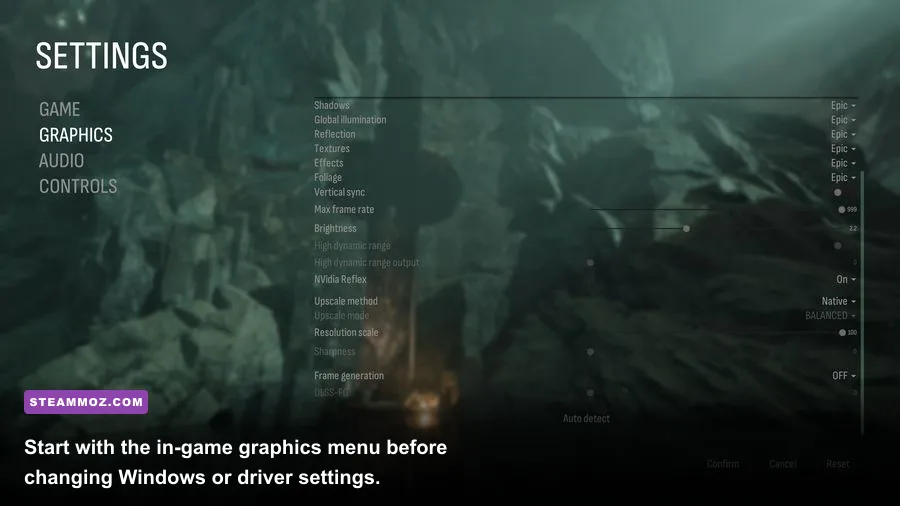
Start at your monitor’s native resolution, then reduce resolution scale only if the GPU is near 95–100 percent usage. Lowering everything at once makes the image muddy and hides which option is expensive. Shadows, volumetric effects, ambient occlusion, reflections, and anti-aliasing are usually the best performance levers. Texture quality is different: it mainly consumes VRAM, so reducing it helps stutter and texture pop-in more than average FPS.
| Setting | Recommended Starting Value | Typical FPS Impact | Visual Trade-Off |
|---|---|---|---|
| Resolution | Native; use 90% scale if needed | Very high when reduced | Lower scale softens the entire image |
| Resolution scale | 90–100% | High | Best emergency GPU adjustment |
| Shadow quality | Medium | Medium to high | Less contact detail and shorter shadow distance |
| Volumetric lighting or fog | Low or Medium | Medium to high | Less depth in mist, beams, and dark rooms |
| Ambient occlusion | Medium | Low to medium | Reduced grounding around corners and objects |
| Reflections | Low or Medium | Medium | Less accurate shiny-surface detail |
| Effects and particles | Medium | Medium during combat | Fewer sparks, smoke effects, and screen-space effects |
| Textures | High if VRAM allows; otherwise Medium | Low average FPS, high VRAM impact | Lower-detail surfaces at Medium |
| Anti-aliasing | Medium or the second-highest option | Low to medium | More shimmer or jagged edges when reduced |
| Motion blur | Off | Small | Cleaner image during camera movement |
For a modest gaming PC, try 1080p, 90 percent scale, medium shadows, low volumetrics, medium ambient occlusion, medium effects, and medium textures. For a stronger GPU, keep native resolution and high textures but still use medium shadows and volumetrics first. On a laptop, a locked 30 or 45 FPS can feel much better than swinging between 55 and 90 FPS. On a 60 Hz display, cap at 60 or 58 FPS; on a 120 Hz display, try 60 or 90 before attempting an inconsistent 120.
Use the game’s frame limiter if it behaves correctly. Otherwise, NVIDIA Control Panel or AMD Adrenalin can provide a consistent cap. Disable frame generation while troubleshooting. It can raise the displayed FPS, but it won’t repair CPU bottlenecks, input latency, shader stutter, or a crash caused by an unstable base render path.
The same logic applies to other demanding PC games. Our guide to Zenless Zone Zero performance settings explains why resolution, shadows, and effects should be tuned separately, while this PC requirements breakdown shows why minimum specs rarely guarantee a smooth experience.
Fix the GPU, driver, and Windows-side causes
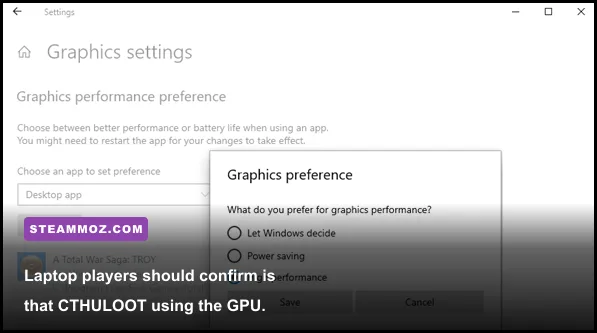
Laptop owners should verify the dedicated GPU first. In Windows, go to Settings > System > Display > Graphics, add the CTHULOOT executable if it is not listed, select Options, and choose High performance. Plug the laptop into AC power and set the manufacturer’s performance mode. Battery or quiet modes can cut clock speeds enough to look like a broken game.
Update your graphics driver from the official NVIDIA driver page or AMD support page. If CTHULOOT began crashing immediately after a driver update, use the clean-install option or roll back to the previous stable driver. Intel Arc users should use Intel’s official driver support rather than a random driver mirror. Reboot after installation; a driver installer finishing is not the same as the renderer being fully reset.
Update Windows and install pending Microsoft Visual C++ Redistributable packages from the official Microsoft documentation. Don’t download individual DLL files from unofficial sites. Those files are often outdated, mismatched, or malicious. If the game reports a missing DirectX component, use Microsoft’s supported installer rather than copying a DLL into the game folder.
Windows power management matters too. Set the plugged-in power mode to Best performance while testing, but don’t treat that as a magic FPS switch. It cannot compensate for a saturated VRAM pool or a CPU that is already at its thermal limit. Close browser tabs with video playback, cloud-sync clients actively uploading, RGB utilities, capture software, and hardware-monitoring programs you don’t need.
Stop stutter caused by shaders, storage, and memory
Shader stutter is especially deceptive because average FPS may look acceptable after the hitch has already ruined the experience. The first time CTHULOOT displays a new effect, the engine may compile a shader. Let the game sit at the menu for a few minutes after a driver update, then revisit the same areas. If repeated passes become smoother, the problem was likely shader preparation rather than weak hardware.
Install CTHULOOT on an SSD with generous free space. An almost-full drive can slow temporary files and asset streaming, while a failing or very slow hard drive can cause long pauses that feel like crashes. Leave at least 10–15 percent free space on the game drive. Don’t move the game between drives while Steam is updating it, and pause downloads during testing.
Watch VRAM rather than assuming a graphics card is powerful enough because it has a high model number. When VRAM fills, texture streaming can produce hitching, delayed surfaces, or a crash during area transitions. Lower textures one step, reduce reflections, restart the game, and test again. A restart matters because some engines do not fully release allocations during a settings change.
System RAM is another pressure point. Close memory-heavy applications and make sure Windows has a system-managed page file. Disabling virtual memory to “improve gaming” can turn a recoverable memory spike into a hard crash. If the whole system freezes, audio loops, or reboots, return any GPU, CPU, or RAM overclock to stock settings before blaming CTHULOOT.
Use this clean testing sequence
Change only one variable per test. This sequence gives you a reliable diagnosis instead of a pile of random tweaks:
- Restart the PC and launch CTHULOOT with every overlay, mod, and capture tool disabled.
- Verify the Steam installation, then test the same save or area again.
- Confirm the dedicated GPU in Windows Graphics settings and monitor GPU usage.
- Update or clean-install the driver; clear the shader cache only after recording your current settings.
- Apply the balanced profile: native resolution, 90 percent scale, medium shadows, low volumetrics, medium effects, and medium textures.
- Cap the frame rate to a number the system can hold for ten minutes, not the highest number it reaches for three seconds.
- Test a new game. If a new save works but one old save crashes, preserve the save and report the issue instead of deleting everything.
| Test Result | Likely Diagnosis | Next Action |
|---|---|---|
| Verification fixes the crash | Missing or corrupted installation data | Keep overlays off until the next patch is confirmed stable |
| Low resolution raises FPS greatly | GPU-limited rendering | Keep native textures and reduce shadows, volumetrics, or scale |
| Low resolution barely changes FPS | CPU, streaming, or frame-cap bottleneck | Close background tools, check CPU clocks, and use an SSD |
| Only a new driver causes crashes | Driver regression or shader-cache conflict | Clean-install or roll back the driver |
| PC reboots under load | Thermal, power, or hardware instability | Return overclocks to stock and inspect temperatures and PSU health |
When to report the problem instead of tweaking harder
If CTHULOOT still crashes after a verified vanilla install, current driver, disabled overlays, stock hardware settings, and a fresh save, collect useful evidence. Include your CPU, GPU, RAM amount, Windows version, driver version, display resolution, graphics preset, crash location, exact error text, and whether the crash reproduces on a new game. Attach crash logs if the developer requests them, but remove personal folder paths and account information.
Don’t claim that a low-spec system is “broken” just because a minimum requirement launches the game. Minimum specifications generally target startup and low settings, not a locked 60 FPS. Conversely, a powerful PC should not accept repeated desktop crashes as normal. A reproducible crash after clean testing is valuable bug data, and the developer can often fix it faster when the report identifies a specific scene, setting, or driver.
For more PC troubleshooting habits, compare this process with Steamoz’s Total War: Warhammer 3 optimization discussion and Valheim guide. The games are different, but the principle is the same: stable frametimes and repeatable tests beat a flashy benchmark number every time.
Most CTHULOOT players should see the biggest improvement from four moves: verify the files, disable overlays, select the correct GPU, and lower volumetric lighting plus shadows before sacrificing textures or resolution. Once the game runs reliably, raise one setting at a time and stop when frametimes become uneven. That approach keeps the image sharp, avoids placebo tweaks, and gives you a clear answer if a future patch breaks performance again.