To fix Destroy All Humans crashing and low FPS on PC, start with a clean GPU-driver install, verify the Steam files, disable overlays, and use a capped 60 FPS profile with shadows, foliage, and effects reduced first. The 2020 remake is not especially demanding by modern standards, but its Unreal Engine 4 streaming, crowded outdoor areas, and saucer destruction effects can cause stutter even when the average frame rate looks healthy.
Work through the fixes in order rather than changing fifteen settings at once. That matters here because a crash during a mission can come from corrupted files or an overlay, while a hitch when Crypto-137 enters Rockwell or turns the saucer's Death Ray on is usually a frame-time or shader problem. The aim is stable delivery, not a meaningless 200 FPS number.

Check Your PC Before Changing Graphics
First, confirm that the game is running on the dedicated GPU. On laptops, Windows can quietly assign Destroy All Humans to integrated graphics, producing single-digit performance during saucer missions. Open Settings > System > Display > Graphics, add the game's executable, choose High performance, and restart Steam.
The official Steam listing gives the useful baseline: a 64-bit Windows installation, 8 GB of RAM, and a graphics card around the GeForce GTX 660 class for minimum play. The recommended tier moves toward 16 GB of RAM and a GTX 1060-class GPU. Those figures are a floor, not a promise of locked 60 FPS at Ultra, particularly if you're playing at 1440p or 4K.
| Component | Minimum target | Recommended for stable 60 FPS | What it affects |
|---|---|---|---|
| Operating system | 64-bit Windows 10 or newer | Fully updated Windows 10/11 | Driver compatibility and launch behavior |
| Memory | 8 GB RAM | 16 GB dual-channel RAM | Streaming stutter and background-task headroom |
| Graphics card | GTX 660-class, 2 GB VRAM | GTX 1060/RX 580-class or better | Resolution, shadows, effects, and saucer scenes |
| Processor | Older quad-core CPU | Modern four- or six-core CPU | Crowds, vehicles, physics, and frame-time consistency |
| Storage | Working HDD | SSD with free space | Level streaming and texture hitching |
If your hardware is close to minimum, don't chase Ultra settings. A locked 30 FPS at 1080p can feel much better than an unstable 45 FPS with heavy frame-time spikes. If your PC has a capable GPU but the game still crawls, compare your result with the broader troubleshooting approach in our smooth 60 FPS settings guide.
🎮 Destroy All Humans
Looking to experience this game? Grab your digital key directly on our store for $5.99.
View on Steammoz Store →Use This Graphics Profile for Smooth Performance
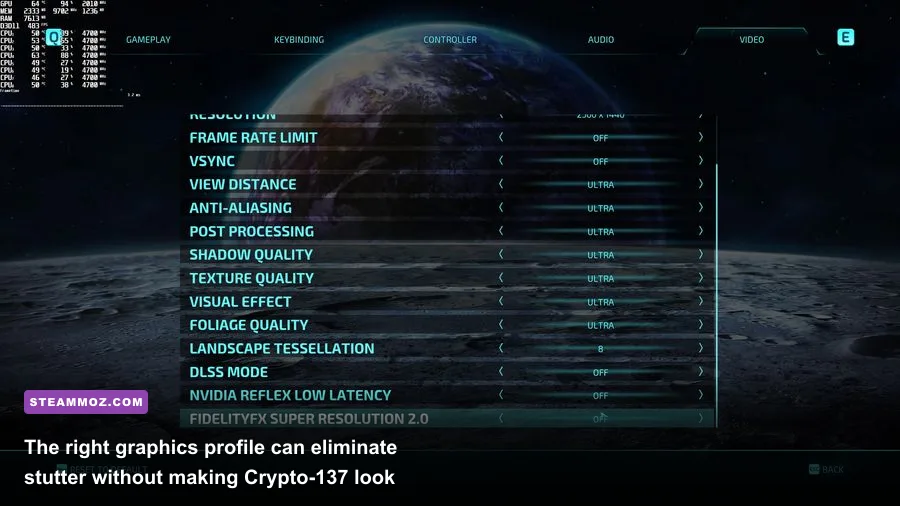
Launch the game, set the correct resolution, and select fullscreen first. Borderless mode is convenient for alt-tabbing, but exclusive fullscreen can reduce desktop-compositor interference on some systems. Apply changes, quit to desktop, and relaunch before judging performance. Unreal Engine games can build or cache assets during the first few minutes, so the opening run is not always representative.
Start at 1080p with the following profile. The important choices are not the texture setting alone; they are the options that multiply work across crowds, foliage, shadows, and explosions. The Disintegrator Ray, Psychokinesis effects, and saucer weapons can all produce short but obvious spikes when these settings are left at maximum.
| Setting | Recommended value | Approximate FPS impact | Visual trade-off |
|---|---|---|---|
| Resolution | 1920x1080 | Baseline | Best balance for GTX 660/1060-class cards |
| Display mode | Fullscreen | Small consistency gain | Less convenient than borderless for multitasking |
| Textures | High, or Medium below 4 GB VRAM | Low to medium | High keeps Crypto-137 and environments sharper |
| Shadows | Medium | Medium to high | Softens distant shadows but protects outdoor FPS |
| Effects | Medium | Medium to high | Reduces weapon, fire, and destruction spikes |
| Foliage | Medium | Medium | Less grass density in open areas |
| View distance | High | Medium on CPUs | Preserves distant geometry and mission visibility |
| Anti-aliasing | Medium or High | Low to medium | Lower values show more shimmer on foliage |
| Motion blur | Off | Small gain | Sharper camera movement and aiming |
| V-Sync | Off, then cap externally | Variable | Avoids extra latency; use it if tearing is severe |
For a 60 Hz display, cap the game at 60 FPS through the NVIDIA App, NVIDIA Control Panel, AMD Software, or RTSS. A 58-60 FPS cap is often smoother than letting the engine bounce between 72 and 48. On a 144 Hz monitor, try a stable 72 or 90 FPS only after 60 is completely consistent. The game benefits more from even frame pacing than from a high refresh-rate target.
Keep textures high if VRAM allows it, then lower shadows and effects before touching texture quality. Blurry surfaces won't solve a CPU bottleneck. If your problem is intermittent hitching rather than low average FPS, our stutter-focused PC settings breakdown covers the same frame-time logic in more detail.
Fix Crashes Before the Game Reaches the Menu
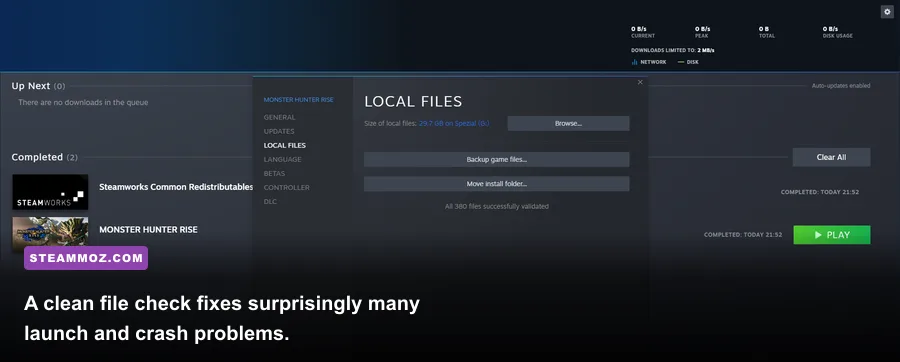
For a crash on startup, a crash after pressing Play, or an immediate desktop exit, begin with Steam's file verification. Right-click Destroy All Humans in your Library, open Properties > Installed Files, and select Verify integrity of game files. Let Steam finish completely. If it replaces files, restart the PC before launching again.
- Disable Steam Overlay: Open the game's Properties and turn off Enable the Steam Overlay while in-game. Also disable Discord Overlay, Xbox Game Bar, GeForce Experience/NVIDIA Overlay, AMD overlay, MSI Afterburner OSD, and ReShade temporarily.
- Run the game normally: Avoid compatibility-mode experiments and don't force an administrator launch unless Windows permissions are clearly involved. Mixed privilege levels between Steam and overlay tools can cause hooks to fail.
- Update or clean-install the GPU driver: Choose the clean installation option in the NVIDIA or AMD installer. If crashes began immediately after a driver update, test the previous stable driver instead.
- Remove aggressive overclocks: Return the GPU, CPU, and RAM to stock settings. An overclock that survives benchmarks can still fail when the game's shader, physics, and streaming workloads change quickly.
- Clear temporary shader data: Use Windows Disk Cleanup for DirectX Shader Cache, then reboot. The first launch afterward may stutter while caches rebuild; don't interrupt it.
Windows Security can also quarantine a file or block access to the installation folder. Check Protection History rather than blindly disabling antivirus protection. Add an exclusion only for the trusted Steam library folder if you have confirmed the file is legitimate. Keep Windows and the Microsoft Visual C++ redistributables current, too.
If the game crashes only when loading a particular mission or save, test a new game. A damaged save can behave differently from a broken installation. Back up your saves before experimenting, and avoid deleting them as a first resort. The official Steam community discussions are useful for checking whether a newly reported crash is widespread rather than unique to your PC.
Stop Stuttering in Rockwell and Saucer Missions
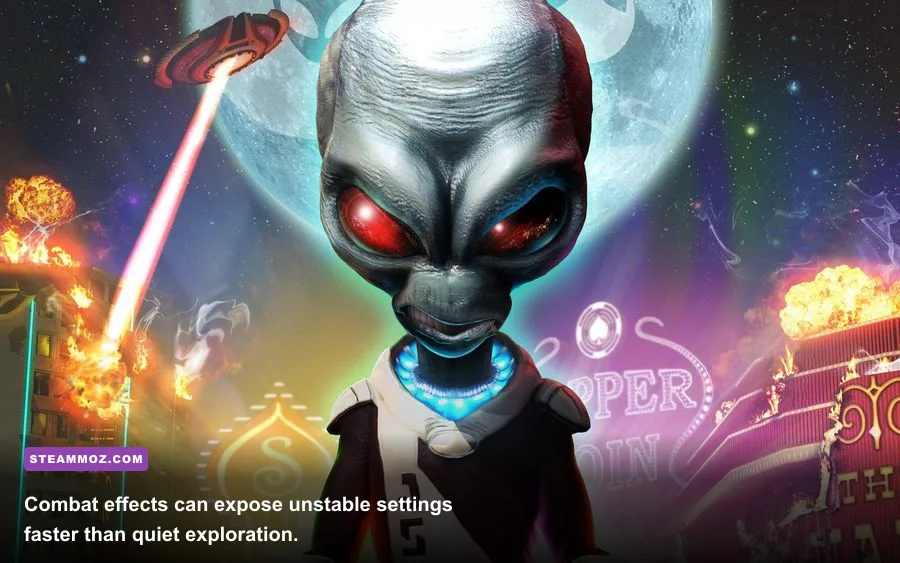
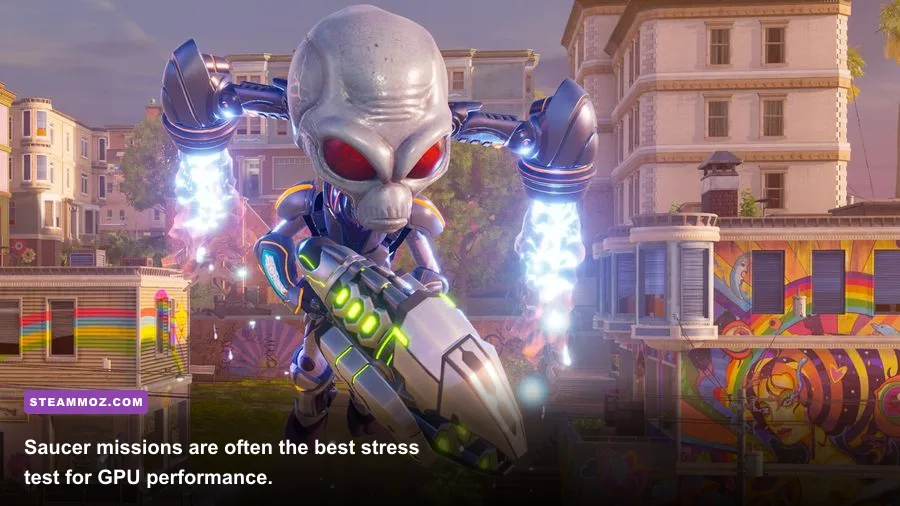
Destroy All Humans is most likely to hitch when the game streams a busy area, not during a quiet interior scene. Rockwell combines civilians, military units, vehicles, destructible objects, and foliage. Saucer missions add wide views, fire, buildings, and large-scale destruction. Those scenes expose CPU limits and storage latency at the same time.
Install the game on an SSD if possible, leaving at least 15 percent free space. An HDD can run the game, but its seek latency makes streaming hitches much more visible. Close browsers, launchers, recording software, and RGB utilities while testing. Windows Game Mode can stay enabled; background recording should be disabled unless you specifically need it.
| Symptom | Likely cause | First fix to test | Best diagnostic |
|---|---|---|---|
| Low FPS everywhere | Wrong GPU, high resolution, or weak hardware | Select dedicated GPU and use 1080p Medium | GPU utilization and clock speed |
| Hitches entering new areas | Asset streaming, shader cache, or HDD | Move installation to SSD and rebuild shader cache | Frame-time graph during area transitions |
| FPS drops during explosions | Effects, shadows, or CPU physics load | Lower Effects and Shadows to Medium | GPU usage versus CPU thread usage |
| Crash after alt-tab | Overlay, fullscreen transition, or driver hook | Use fullscreen and disable overlays | Windows Reliability Monitor |
| Stutter after every driver update | Rebuilding shader cache | Play several minutes, then restart | Compare second run to first run |
Use MSI Afterburner or another trusted monitor to watch GPU utilization, VRAM, RAM, CPU temperatures, and frame time. If GPU usage sits near 95-99 percent, lower resolution, effects, shadows, or anti-aliasing. If GPU usage falls while one CPU thread is saturated, lowering resolution won't help; reduce view distance, close background apps, and cap the frame rate.
Don't confuse normal asset caching with a permanent fault. The first trip through a region can hitch, while the second is smooth. If every pass stutters in exactly the same places, the SSD, driver, overlays, or shader cache deserve attention. Our crash-and-lag troubleshooting guide follows a similar isolation process without resorting to risky registry edits.
Advanced Fixes for Persistent Crashes and Bad Frame Pacing

If the standard steps fail, isolate the fault rather than piling on launch commands. Open Windows Reliability Monitor by searching for “reliability history.” A LiveKernelEvent points toward the graphics driver or hardware; an application error naming the game executable suggests files, runtime components, or a repeatable game-side fault. Event Viewer can add detail, but Reliability Monitor is usually easier to read.
Test with a clean boot if another program is injecting into the game. Search Windows for System Configuration, hide Microsoft services, disable nonessential startup services, reboot, and launch only Steam and Destroy All Humans. Re-enable items in groups afterward. This is especially worthwhile if you use capture software, third-party overlays, controller remappers, or aggressive motherboard utilities.
For laptops, plug in the charger and set Windows power mode to Best performance while testing. Check temperatures: a CPU or GPU that reaches its thermal limit can downclock and look like a software FPS problem. Clean vents, improve airflow, and remove a laptop cooling profile that is forcing silent mode. Don't disable thermal protection or raise voltage just to hold a frame-rate target.
Try an external cap before using experimental engine configuration edits. An RTSS cap or driver-level limit gives you a reversible result. Launch options copied from unrelated Unreal Engine games can make this title less stable, and deleting configuration folders can erase carefully tuned settings. Back up any configuration file before changing it.
If you use a 4K display, test 2560x1440 or 1920x1080 at the desktop and in-game. A GTX 1060-class card may deliver a comfortable 60 FPS at 1080p but struggle badly with 4K effects and shadows. Conversely, a modern GPU paired with an older quad-core processor may still dip in Rockwell because the scene is CPU-limited. The fix depends on which component is actually busy.
A Stable Final Profile for Crypto-137
Once the game runs without crashes, make one change at a time and replay the same demanding section. The opening Rockwell missions are good tests because they combine crowds and combat; a saucer mission is better for effects and wide-distance rendering. Record average FPS and, more importantly, the worst frame-time spikes.
| PC class | Resolution and cap | Graphics profile | Expected experience |
|---|---|---|---|
| Minimum-era PC | 1080p, 30 FPS | Medium textures, Low shadows/effects, Medium foliage | Playable and much steadier than uncapped settings |
| Mainstream gaming PC | 1080p, 60 FPS | High textures, Medium shadows/effects, High view distance | Best balance for most players |
| Modern mid-range PC | 1440p, 60-90 FPS | High textures, High view distance, Medium/High effects | Sharp image with occasional scene-based dips |
| High-end PC | 1440p or 4K, capped target | High settings, reduce shadows first if frame time spikes | Excellent visuals, but no reason to leave FPS uncapped |
For comparison, our For the King II FPS settings guide explains why capped frame rates often feel better than unstable maximums, while the Hakuoki PC crash guide covers the same overlay and file-verification checks for a different kind of PC issue.
Finally, keep the game updated through Steam and check the official Steam page for announcements. If you still crash after verification, a clean driver install, overlay removal, stock hardware settings, and a clean-boot test, report the reproducible mission, GPU driver version, Windows build, and Reliability Monitor error through the official Destroy All Humans website. That information is far more useful than simply saying the game “runs badly.”