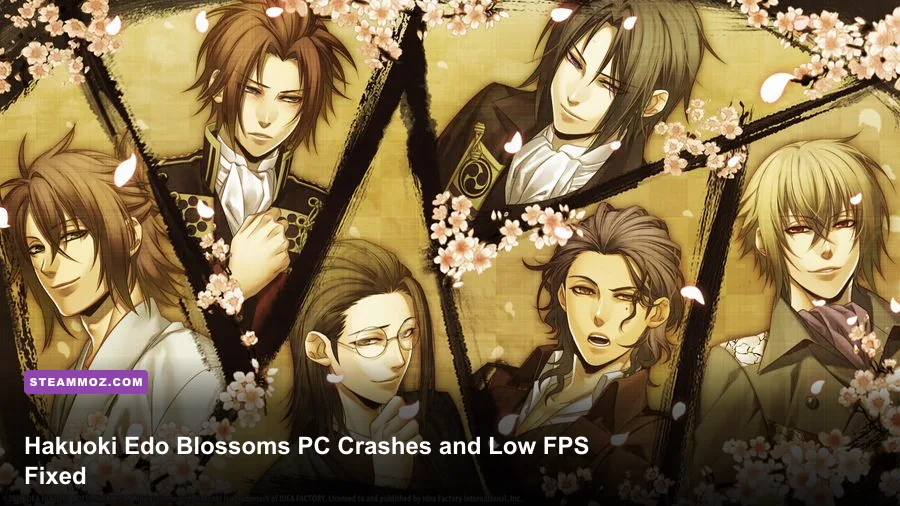
To fix Hakuoki: Edo Blossoms crashing or running at low FPS on PC, start with Steam’s file verification, disable every overlay, force a conservative windowed resolution, and run the game with Windows compatibility and high-DPI settings adjusted. The port is not demanding enough to justify modern hardware struggling, so persistent stutter usually points to a display-mode conflict, overlay hook, damaged file, laptop GPU selection, or a frame-pacing problem rather than weak components.
This is the direct route: close MSI Afterburner and RivaTuner, Discord and Xbox Game Bar overlays, verify the installation, reboot, then launch Hakuoki in a borderless or windowed mode at 1280×720. If that works, move up to 1920×1080 and fullscreen. Don’t start by randomly lowering every setting; Edo Blossoms is a story-heavy visual novel, and its biggest PC problems tend to come from the wrapper around the game, not from rendering complexity.
Before changing anything, check the official Steam listing for the correct edition and make sure Steam is not still downloading an update. Also keep your saves safe. Steam Cloud is useful, but backing up the local save folder before troubleshooting is the smarter move if you have already completed several character routes.
Start with the fixes that solve most crashes
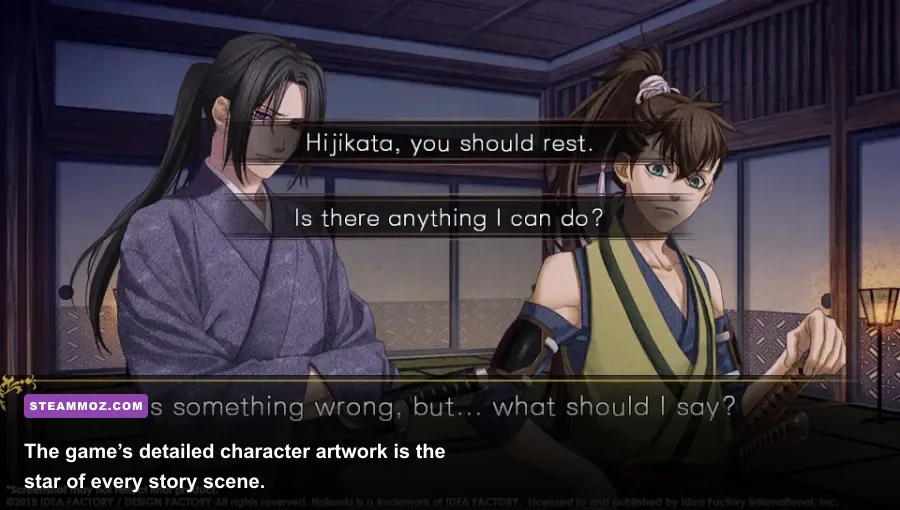
Work through these in order, launching the game after each major change. That matters because stacking ten fixes at once makes it impossible to tell which setting actually solved the problem.
1. Verify Hakuoki’s installed files
In Steam, right-click Hakuoki: Edo Blossoms, choose Properties, open Installed Files, and select Verify integrity of game files. Steam will replace missing or corrupted data. This is especially useful if the crash started after an interrupted update, a hard shutdown, moving the library to another drive, or using a third-party launcher.
Verification doesn’t delete your progress, but don’t confuse it with uninstalling and reinstalling. If Steam reports that one or more files were reacquired, restart Windows before testing again. A locked DLL or overlay process can survive the first launch even after Steam has repaired the installation.
2. Turn off overlays and injectors
Disable Steam Overlay under the game’s Properties, then temporarily turn off Discord Overlay, Xbox Game Bar, AMD Radeon Overlay, NVIDIA App overlay, Overwolf, ReShade, Special K, and RivaTuner Statistics Server. Older visual-novel ports can react badly to software that intercepts DirectX presentation calls, particularly when switching between fullscreen and desktop applications.
You don’t need to uninstall those tools. Exit them completely from the system tray, launch the game, and test a full chapter transition. If the crash disappears, re-enable utilities one at a time. RivaTuner is a common culprit when its frame limiter hooks a title that already has its own timing behavior.
3. Run the executable with compatibility options
Open the installation directory through Steam’s Browse local files command. Right-click the game executable, select Properties, then open Compatibility. Test Windows 7 compatibility mode first, followed by Disable fullscreen optimizations. Under Change high DPI settings, enable Override high DPI scaling behavior and select Application.
These options can stop a launch crash caused by Windows scaling, especially on 125%, 150%, or 200% desktop scaling. They can also prevent the game from opening as a tiny black window or freezing after an Alt-Tab. If Windows 7 mode makes the game worse, undo only that setting and keep the DPI override.
4. Check security software and permissions
Windows Security or third-party antivirus can quarantine an executable component without making the failure obvious. Look at Protection history and add the Hakuoki installation folder as an exclusion only if you trust the Steam installation. Avoid downloading replacement DLL files from random “fix” websites; that’s a fast way to turn a harmless compatibility issue into a malware problem.
Install the game outside heavily restricted folders if you use an unusual library location. You should not need administrator mode permanently. If launching as administrator fixes the crash, the more useful solution is usually correcting folder permissions or the security software rule rather than running every game with elevated privileges.
| Symptom | Most likely cause | First fix to try | What success looks like |
|---|---|---|---|
| Crash before the title screen | Overlay, damaged file, or DPI conflict | Verify files, disable overlays, apply DPI override | Title screen loads consistently |
| Black screen after launching | Fullscreen handshake or incompatible resolution | Use windowed mode and 1280×720 | Story window appears within a few seconds |
| Crash during route transitions | Injected software or corrupted asset | Exit injectors and verify files | Chapter and save menus load normally |
| Game closes after Alt-Tab | Exclusive fullscreen conflict | Use borderless/windowed mode | Returning to the game no longer closes it |

🎮 Hakuoki: Edo Blossoms
Looking to experience this game? Grab your digital key directly on our store for $5.99.
View on Steammoz Store →Fix low FPS and uneven frame pacing
Hakuoki: Edo Blossoms does not need a powerful gaming PC. That makes “low FPS” slightly misleading: the game can feel jerky even when the counter reports a high average because the frame delivery is uneven. Animated transitions, menu movement, screen fades, and the Windows compositor can expose this immediately.
Use a stable display profile first
Begin at 1280×720 in windowed mode. Once the game is stable, try 1920×1080 windowed or borderless. Only then test exclusive fullscreen. On some systems, fullscreen produces a black screen or inconsistent pacing while borderless looks identical and behaves better with Alt-Tab.
If your monitor runs at 120Hz, 144Hz, or higher, don’t assume Hakuoki will automatically benefit. Older ports may render at a low internal cadence or synchronize poorly with a high-refresh desktop. Set Windows temporarily to 60Hz, test the game, and then restore your normal refresh rate. If the stutter vanishes at 60Hz, you’ve identified a synchronization issue rather than a lack of GPU power.
Choose the correct GPU on a laptop
On hybrid laptops, Windows may assign the game to the integrated GPU even when an NVIDIA or AMD chip is available. Go to Settings > System > Display > Graphics, add the Hakuoki executable, choose Options, and select High performance. NVIDIA users can make the same change in NVIDIA Control Panel under Manage 3D settings > Program Settings; AMD users should select the high-performance profile in Adrenalin.
This usually won’t transform a visual novel from 30 FPS to 300 FPS. It can, however, prevent clock-speed or power-management behavior from causing pauses when the game changes scenes. Keep the laptop plugged in and use a performance power mode while testing.
Don’t overcorrect with aggressive driver settings
For this particular game, forcing fast sync, enhanced sync, low-latency modes, image sharpening, or custom frame generation is more likely to complicate troubleshooting than help. Return the driver profile to application-controlled defaults. If you use NVIDIA, leave Vertical sync at Use the 3D application setting initially. If you use AMD, disable Enhanced Sync for the test.
After the game works, add one change at a time. A gentle 60 FPS cap can improve pacing, but apply it through the driver only after testing the native behavior. Do not combine a driver cap, RTSS cap, and third-party overlay; three timing systems competing over a simple port is asking for stutter.
| Setting or profile | Recommended value | FPS impact | Visual or stability note |
|---|---|---|---|
| Resolution | 1920×1080, then 1280×720 for testing | Low | Lower resolution is mainly a diagnostic step |
| Display mode | Borderless or windowed | Low | Usually safer than exclusive fullscreen on modern Windows |
| Windows refresh rate | 60Hz for troubleshooting | Medium for pacing | Re-test higher refresh rates after stability returns |
| Steam Overlay | Off during testing | Low average, high crash risk | Re-enable only if it is not involved |
| Driver sync features | Application controlled | Low | Avoid stacking multiple frame limiters |
| High-DPI scaling | Application override | None | Prevents blurry, tiny, or misplaced windows |
Windows settings that quietly cause trouble
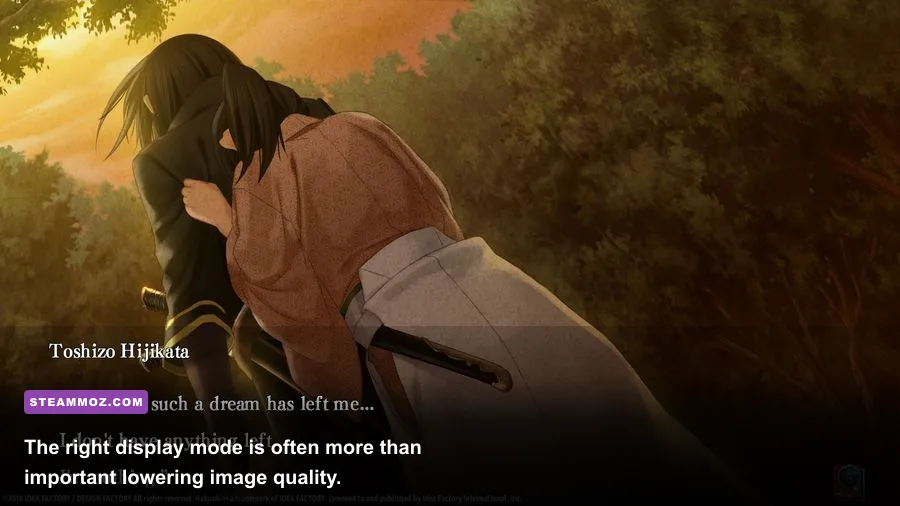
Several problems blamed on “low FPS” are actually focus or scaling problems. If dialogue appears to pause, the mouse feels delayed, or the screen flashes during a transition, check the operating-system layer before touching your graphics driver.
Set Windows scaling deliberately
At 150% or higher scaling, older interfaces can calculate their client area incorrectly. That may create a cropped window, an invisible button, or a crash when the game changes resolution. Test at 100% scaling if you can, but the per-executable DPI override is less disruptive because it leaves the rest of Windows unchanged.
Also disable Windows’ automatic HDR for the game while troubleshooting. HDR is not needed for Hakuoki’s illustrated scenes, and an SDR title being tone-mapped through an HDR desktop can introduce odd brightness changes or display handshakes. Turn HDR back on afterward if you use it for other games.
Use a sensible power profile
Set Windows power mode to Best performance while testing and make sure Battery Saver is off. This is less about raw horsepower and more about preventing a laptop from repeatedly changing clocks during quiet scenes. Once you confirm stable playback, you can return to a balanced profile and see whether the issue returns.
Update the pieces that matter, not everything at random
Install current GPU drivers from NVIDIA or AMD if your driver is very old, and run Windows Update. If the problem began immediately after a driver update, a clean driver installation or rollback is more sensible than repeatedly reinstalling Hakuoki.
Older games can also need Microsoft’s supported Visual C++ runtime packages. Use Microsoft’s official Visual C++ Redistributable downloads, install the x86 package when offered, and reboot. Never replace a missing runtime with a DLL copied from a file-sharing site.
Save files, cloud conflicts, and route-transition crashes
If Hakuoki launches but crashes when loading a save, opening a chapter, or moving between scenes, the installation may be fine. A damaged save, conflicting Steam Cloud copy, or write-permission problem can produce a very specific failure.
Test with a new save before deleting anything
Start a new game and play through the first few dialogue advances. If the new session works while an existing save crashes, don’t overwrite your progress. Exit the game, back up the local save folder, and temporarily disable Steam Cloud for Hakuoki. Launch again and test the backed-up saves locally.
Steam Cloud can restore the broken copy when you least expect it. If the cloud prompt appears, choose the version with the newest known-good timestamp only after checking the local backup. The exact save path can vary by build, so use Steam’s file browser and search the installation and user-data folders for recently modified Hakuoki files instead of deleting folders blindly.
Keep the game’s install path simple
A short library path such as C:\Games\SteamLibrary can avoid permission and unusual-character issues. This is not normally necessary on a standard Steam installation, but it’s worth testing if the game is installed inside a deeply nested folder, on an external drive, or on a drive that disconnects or sleeps.
Never download unofficial “100% save” files as a crash fix. They can use a different game build, contain malformed data, or simply hide the real problem. If you want to preserve route progress, make manual backups before changing cloud settings.
A clean troubleshooting order for your PC
Here’s the profile I’d use before considering a reinstall: Windows updated, GPU driver stable, 60Hz desktop, 1920×1080 borderless if it works, Steam and Discord overlays off, no ReShade or RTSS, Hakuoki files verified, and DPI scaling overridden to Application. That setup removes nearly every variable that commonly collides with an older visual-novel port.
| Stage | Action | Keep the change if | Undo it if |
|---|---|---|---|
| 1. Installation | Verify Steam files | Steam reacquires files or launch improves | Nothing changes after a clean reboot |
| 2. Software hooks | Disable overlays and injectors | Crashes or freezes stop | The same failure remains in a clean session |
| 3. Display | Use 1280×720 windowed at 60Hz | Black screen or pacing improves | Artifacts or scaling get worse |
| 4. Windows | Disable fullscreen optimizations and override DPI | Window behavior becomes consistent | Input or image quality degrades |
| 5. GPU | Assign the high-performance laptop GPU | Stutter disappears while plugged in | There is no measurable change |
| 6. Saves | Back up saves and test Steam Cloud off | Only one route or save caused the crash | Every new game still fails |
When a reinstall is actually worthwhile
Reinstall only after verification, overlay testing, and a save backup. Uninstall through Steam, manually check that the old installation folder is gone, reboot, and reinstall to a local internal drive. Don’t immediately copy every old configuration file back into the fresh folder. First launch the untouched installation in windowed mode and confirm that the title screen, settings, a new game, and a save/load cycle all work.
If a clean install still crashes on a new game, the evidence points away from corrupted content. At that stage, test a different Windows user account, temporarily disable third-party antivirus, and inspect Windows Event Viewer under Windows Logs > Application. The faulting module can identify a graphics driver, overlay, runtime, or security tool.
What not to do with this low-demand visual novel
Don’t chase a higher FPS number with unofficial patches unless you have already documented the problem and found a trustworthy community fix. Hakuoki’s core experience is its writing, character art, music, and route structure—not a demanding 3D engine. A stable 60Hz setup is preferable to a theoretically faster configuration that crashes during an important scene.
Don’t force compatibility modes, administrator privileges, custom launch arguments, and driver overrides all at once. Change one variable, test a full transition, and record the result. That method feels slower for five minutes and saves hours later.
For broader PC tuning habits, Steamoz’s guide to graphics settings that actually matter is useful reading, while the Breathedge performance guide covers the same principle from another angle: identify the bottleneck before lowering everything. If you’re returning to older PC releases generally, our piece on making an older game behave on modern hardware is also worth a look.
Finally, report reproducible failures through the game’s Steam Community discussions with your Windows version, GPU, display mode, refresh rate, crash location, and whether a new save works. “It crashes” gives developers almost nothing to work with. “It closes during the chapter transition after switching from 150% DPI fullscreen, but works at 1280×720 windowed with overlays disabled” is the kind of detail that can expose the real pattern.
In most cases, the winning combination is refreshingly simple: verify the files, remove overlay hooks, use borderless or windowed mode, apply the Application DPI override, select the discrete laptop GPU, and test saves separately from the installation. Hakuoki: Edo Blossoms should run comfortably on modest hardware. When it doesn’t, treat the issue as an older-port compatibility problem first—and a GPU problem only after the evidence points there.