Dinosaur Fossil Hunter crashing or running at low FPS on PC usually comes down to three things: outdated drivers, an overly ambitious graphics preset, or a damaged configuration/file set. Start by verifying the Steam installation, update your GPU driver, launch the game on the dedicated graphics card, then use a custom profile with shadows, foliage, post-processing, and view distance reduced before lowering textures. That order fixes the most common problems while preserving the detailed fossils and museum displays that make Pyramid Games’ simulator worth playing.
This guide targets both symptoms: hard crashes during startup, loading, excavation, or museum work, and sluggish performance when you move through large outdoor dig sites. Dinosaur Fossil Hunter is not a competitive game, so a locked 30 or 60 frames per second is perfectly playable. What matters most is consistent frame pacing; a stable 45 FPS feels much better than a wildly fluctuating 35-75 FPS.
Check the PC baseline before changing settings

First, compare your hardware with the requirements listed on the official Steam page for Dinosaur Fossil Hunter. The published minimum configuration lists an Intel Core i5-4590 or comparable processor, 8 GB of RAM, and a GeForce GTX 970-class graphics card. The recommended specification moves up to an Intel Core i7-8700, 16 GB of RAM, and a GeForce GTX 1080-class GPU. These are useful reference points, not a guarantee of a particular frame rate: resolution, background programs, laptop power limits, and driver versions all change the result.
Install the game on an SSD if possible. An SSD won't magically double your FPS, but it can shorten loading and reduce the feeling of hitching as an excavation area streams in. Keep at least 15 GB of free space on the drive so Steam and Windows can update files cleanly. Close browsers with many tabs, video capture tools, RGB utilities, and hardware monitoring overlays for the first test. Overlay conflicts are a surprisingly common cause of crashes in older Unreal Engine PC releases.
| Component | Published minimum reference | Recommended target | Practical advice |
|---|---|---|---|
| CPU | Core i5-4590 class | Core i7-8700 class | Outdoor scenes benefit from stronger single-core performance. |
| Memory | 8 GB RAM | 16 GB RAM | Close browsers and launchers if you only have 8 GB. |
| GPU | GTX 970 class | GTX 1080 class | Use the dedicated GPU on laptops, not Intel or AMD integrated graphics. |
| Storage | Free space required | SSD preferred | Keep room for updates and Windows' temporary files. |
| Operating system | 64-bit Windows | Updated Windows 10/11 | Install pending Windows and chipset updates after backing up saves. |
For comparison, the same disciplined approach helps with other demanding PC games. Our guides to Kholat graphics settings and Kujlevka performance settings cover similar issues involving unstable frame pacing and older PC configurations.

🎮 Dinosaur Fossil Hunter
Looking to experience this game? Grab your digital key directly on our store for $5.99.
View on Steammoz Store →Fix crashes before chasing higher FPS
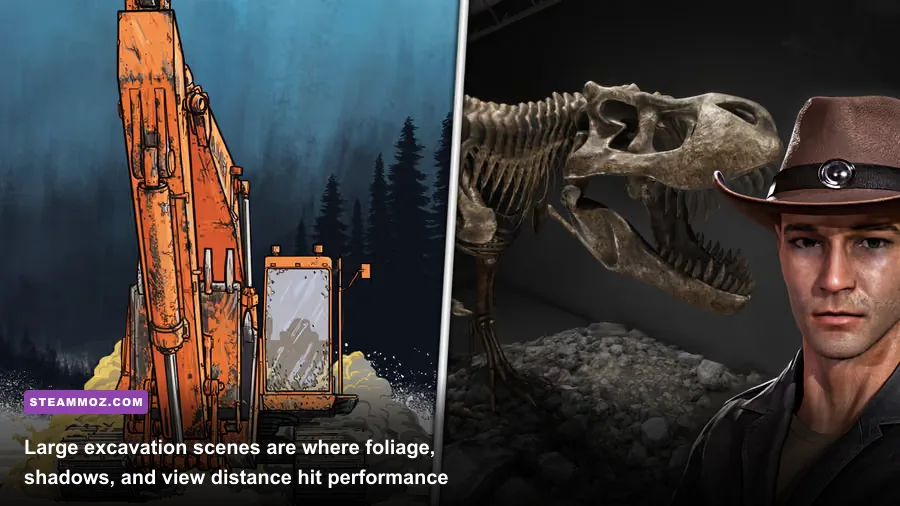
Begin with Steam’s file check. Open Steam, right-click Dinosaur Fossil Hunter in your library, choose Properties, select Installed Files, and click Verify integrity of game files. Let the process finish completely. If Steam replaces a file, restart Steam and test the game before changing anything else. A crash that began after an interrupted update, power cut, or failed mod installation often disappears here.
Next, update the driver for your actual GPU. Nvidia users should use the current Game Ready driver; AMD users should use the current Adrenalin package. Choose the clean-install or factory-reset option only if a normal update does not help. Do not install random “FPS booster” utilities. They frequently add overlays, inject DLL files, or alter settings in ways that create more crashes than they solve.
Disable overlays one at a time. Turn off the Steam Overlay in the game's Properties page, then test with Xbox Game Bar, Discord Overlay, Nvidia ShadowPlay, AMD recording, MSI Afterburner/RivaTuner, and Overwolf disabled. You don't have to leave every overlay off permanently. The goal is to identify the conflict. If the game becomes stable, re-enable them individually and keep the guilty one disabled for this title.
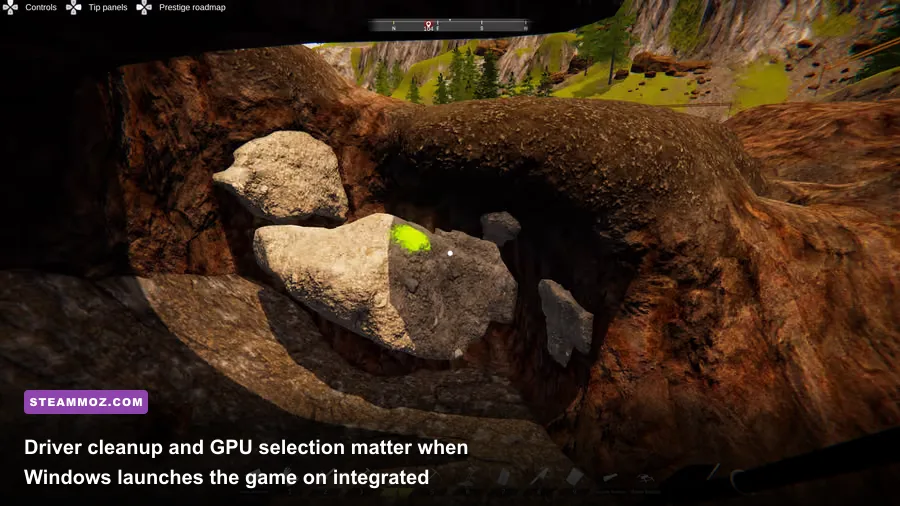
Windows laptops deserve a separate check. Go to Settings > System > Display > Graphics, add the game executable if it is not listed, choose Options, and set it to High performance. Plug in the charger, select the manufacturer's Performance mode, and check that the laptop is not using a quiet or battery profile. A laptop that silently switches to its integrated GPU can look like a broken game when it is actually running on hardware designed for desktop work.
If the crash happens before the main menu, reset the local configuration rather than deleting your saves. Close the game and back up the Dinosaur Fossil Hunter folder under your Windows user profile's AppData or Saved Games location if present. Rename the configuration folder to something like DinosaurFossilHunter_backup, then launch again. The game will create fresh settings. Restore save files only after confirming that the new configuration is stable. Never delete the entire folder without a backup.
For official patch information, check Pyramid Games’ official website and the game's Steam Community discussions. If crashes persist, include your GPU model, driver version, Windows build, crash location, and whether overlays were enabled when reporting the issue. “It crashes” is difficult for developers to reproduce; “it crashes when entering the museum after changing display mode” is actionable.
Use this low-FPS graphics profile first
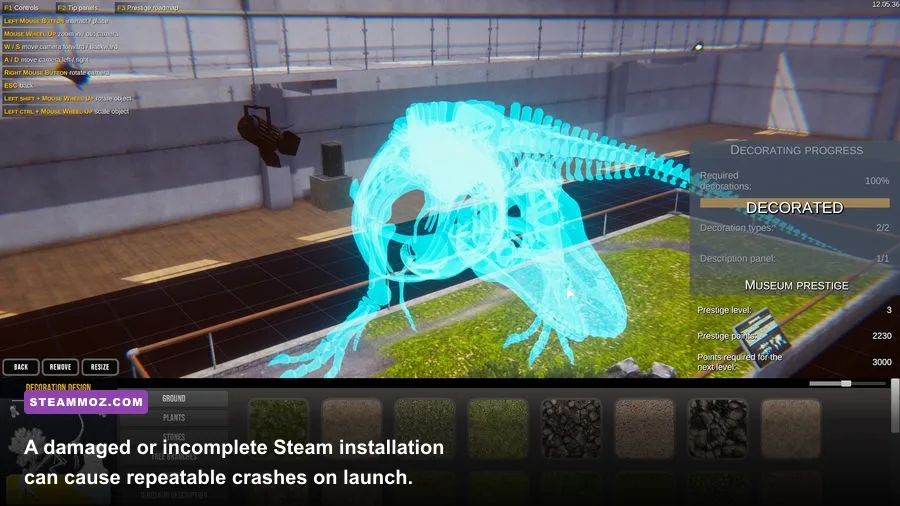
Don't immediately set every option to Low. Textures often have a modest FPS impact but make fossils, tools, and museum objects look muddy when reduced. Start with the options that affect how many objects the CPU and GPU must draw: shadows, foliage, effects, post-processing, and view distance. Set a frame cap through the game, your GPU control panel, or RTSS only after finding a stable baseline.
| Setting | Recommended value | Typical FPS impact | Visual trade-off |
|---|---|---|---|
| Resolution | Native first; 90% scale or 1080p second | Very high | Lowering it boosts performance fastest but softens the image. |
| Textures | High with 6-8 GB VRAM; Medium below that | Low to medium | Controls fossil and environment detail more than raw frame rate. |
| Shadows | Medium | High | Lower settings reduce contact shadow detail around dig tools and rocks. |
| Foliage | Low or Medium | High outdoors | Less grass and vegetation; usually an excellent FPS trade. |
| View distance | Medium | High | Far scenery and objects appear later, especially across excavation areas. |
| Effects | Medium | Medium to high | Reduces dust, ambient effects, and visual clutter during digging. |
| Post-processing | Low or Medium | Medium | Less bloom, depth of field, and image filtering; gameplay stays readable. |
| Anti-aliasing | Medium or the lowest temporal option | Medium | Lower values produce more jagged edges but improve clarity per frame. |
| VSync | Off for testing; on if tearing bothers you | Variable | Can add latency or lock FPS to display refresh behavior. |
Run the same test route after every change: load an outdoor dig site, walk through a vegetation-heavy section, rotate the camera across the excavation, and return to a museum interior. Record the average FPS and the worst-looking stutters. If outdoor performance improves after lowering foliage and shadows while indoor performance barely changes, you've found a scene-complexity bottleneck rather than a general installation problem.
For a 60 Hz monitor, try a 60 FPS cap if your system can hold it. If it cannot, test 45 FPS or 30 FPS instead of allowing constant swings. On a 120 Hz or 144 Hz display, a 60 FPS cap is still sensible for this simulator. A cap lowers unnecessary GPU load, reduces heat, and often prevents clocks from bouncing between power states.
Stop stutter caused by Windows, drivers, and heat
Low average FPS and stutter are not always the same problem. If the counter says 60 FPS but the game hitches every few seconds, watch frametime rather than only the average. A GPU running at 99% suggests a graphics bottleneck; a CPU thread pinned near maximum with the GPU underused points toward view distance, foliage, background processes, or an older processor. This distinction tells you which slider matters.
Use Windows Game Mode, but test Hardware-accelerated GPU scheduling rather than assuming it helps. Open Settings > System > Display > Graphics > Default graphics settings, change the scheduling option, restart Windows, and test the identical save and route. Results vary by GPU driver and Windows version. If stutter worsens, revert the setting. Also disable unnecessary startup applications in Task Manager so cloud sync, launchers, and update services don't fight the game for CPU time.
Check temperatures with a trusted monitor. If the GPU or CPU reaches its thermal limit, clocks drop and FPS falls after several minutes. Clean dust from the laptop vents or desktop filters, make sure fans can breathe, and avoid playing on a bed or soft surface. Don't undervolt or overclock while diagnosing crashes. A factory-clocked system gives you a reliable baseline; aggressive tuning can make a software problem look like hardware instability.
On Nvidia hardware, open Nvidia Control Panel for the game's profile and set Power management mode to Prefer maximum performance only for testing. On AMD, use the per-game profile without forcing global Radeon features. Turn off forced sharpening, enhanced sync, frame generation, and third-party scaling until the base game is stable. Extra driver features can be useful, but adding them before solving a crash makes the troubleshooting chain unnecessarily messy.
Users who have fought similar instability in other titles may recognize the pattern. Our Hunt: Showdown crash-fix guide and Koa and the Five Pirates of Mara PC fixes both emphasize controlled testing instead of changing ten variables at once.
Repair save and configuration problems safely
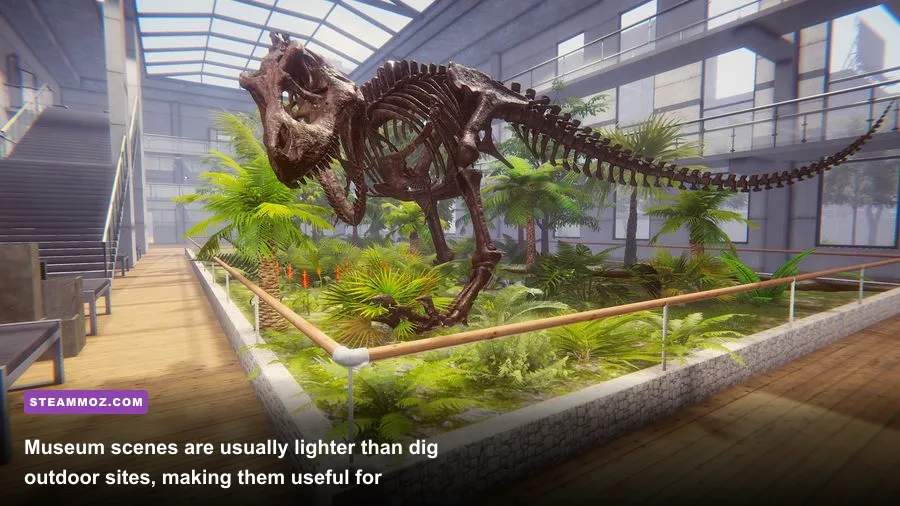
A crash tied to one excavation, museum room, or fossil-preparation sequence usually points to a local save or asset problem rather than insufficient hardware. First, make a manual backup of every save and configuration folder you can find. Steam Cloud can restore a bad file as easily as a good one, so temporarily disable cloud synchronization only after the backup and only while testing. Re-enable it once you know which save is healthy.
Load an older save if the game provides one. If every save crashes in the same location, start a new game and test the first available museum or dig area. A new game that runs normally strongly suggests that the original save is damaged. Don't overwrite the backup while experimenting. If the game crashes everywhere, the configuration, driver, installation, or hardware is more likely than a single save.
Change one display option at a time from a fresh configuration. Exclusive fullscreen, borderless windowed mode, and a different resolution can behave differently depending on Windows scaling and multi-monitor setups. Disconnect a second monitor temporarily, set Windows display scaling to its normal value, and test at 1920x1080 if your native ultrawide or 4K mode crashes during loading. Once stable, restore your preferred resolution and reconnect extra displays.
Avoid installing unofficial DLL replacements or “performance packs” from download sites. They can be bundled with malware and may break Steam verification. If you suspect a missing runtime, repair the Microsoft Visual C++ Redistributables and DirectX components from Microsoft's official downloads rather than grabbing a mystery installer. Keep the game folder free of injectors, reshade files, and old mod remnants until the base installation works.
Follow this test order for a reliable fix
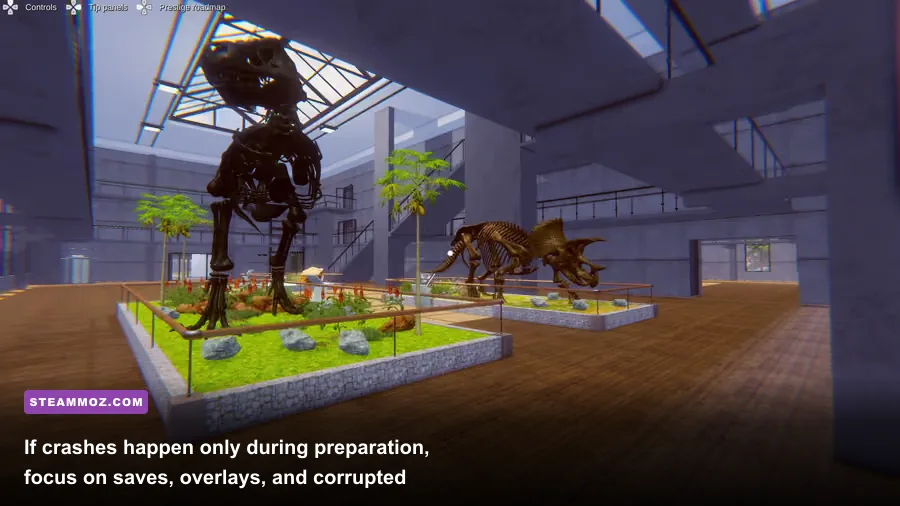
Here is the fastest sequence I use because each step answers a different question. Don't skip straight to reinstalling; a complete reinstall rarely fixes a driver, overlay, thermal, or corrupted-user-config problem.
- Restart Steam and Windows. This clears a stuck update process and releases locked files.
- Verify the game files. Wait for Steam to report completion, then launch with overlays disabled.
- Update or clean-install the GPU driver. Confirm the game is using the dedicated GPU.
- Reset the configuration. Rename the local settings folder after backing it up; don't delete saves blindly.
- Use the custom performance profile. Lower shadows, foliage, view distance, effects, and post-processing before textures.
- Test a repeatable route. Compare an outdoor excavation, a vegetation-heavy turn, and a museum interior.
- Cap the frame rate. Choose the highest cap the game can hold consistently: 60, 45, or 30 FPS.
- Check temperatures and background load. Investigate throttling if performance degrades after ten or fifteen minutes.
- Test a new save. If only one location or save crashes, keep the backup and report the reproducible trigger.
- Reinstall last. Uninstall through Steam, delete leftover files only after backing up saves, restart, and install fresh on an SSD.
| Symptom | Most likely cause | First action | Best confirmation test |
|---|---|---|---|
| Crash before menu | Driver, overlay, or config | Disable overlays and reset settings | Fresh config reaches the main menu |
| Crash after an update | Damaged Steam file | Verify integrity | Steam reacquires one or more files |
| Low FPS outdoors | Foliage, shadows, view distance | Use Medium/Low custom profile | Museum FPS stays higher than dig-site FPS |
| Stutter with normal average FPS | Frametime spikes or background load | Cap FPS and close overlays | Frametime graph becomes flatter |
| Crash in one location | Save or streamed asset issue | Back up saves and test older/new save | Other locations remain stable |
| FPS drops after several minutes | Thermal throttling | Check CPU/GPU temperatures | Clock speed falls as temperature rises |
If nothing changes after verification, driver work, a fresh configuration, and a clean reinstall, collect your DxDiag, GPU driver version, system specifications, crash timing, and the exact save or dig site involved. Post that information on the official Steam discussion board or contact Pyramid Games support. Include whether the crash occurs with a new save and whether lowering every setting changes it. That evidence separates a performance ceiling from a reproducible game bug.
The best final setup for most mid-range PCs is simple: native 1080p, textures on High or Medium, shadows and foliage on Medium, view distance on Medium, effects and post-processing on Medium or Low, VSync tested both ways, and a firm 30, 45, or 60 FPS cap. Dinosaur Fossil Hunter should feel calm and deliberate, not like a benchmark chase. Stabilize frame times first, then raise texture quality and view distance until the fossils look great without bringing the crashes or stutter back.