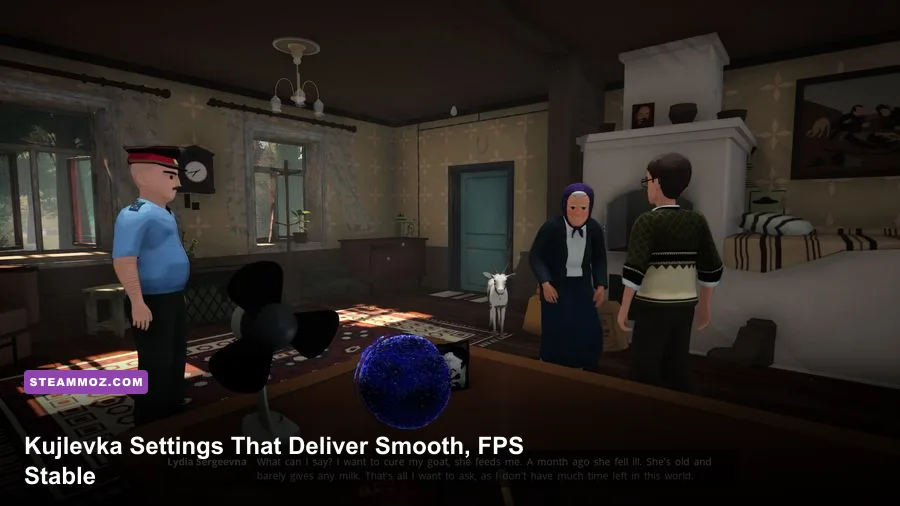
The best Kujlevka graphics settings for max FPS are 1080p or 900p resolution, fullscreen mode, VSync off, medium textures, low shadows, and reduced post-processing. That combination preserves the game’s grimy Soviet sci-fi atmosphere while cutting the options most likely to cause frame-time spikes. If you have a modern mid-range GPU, start with the Balanced 60 FPS profile below; older GTX-class cards should use the Performance profile and cap the game at 30 or 45 FPS rather than chasing unstable 60.
Kujlevka is not a twitch shooter, so raw peak FPS is less important than clean frame pacing. The game’s slow exploration, dialogue scenes, CRT-like presentation, and sudden alien encounters feel substantially better when the camera remains steady. The useful target is a locked frame rate your PC can hold in the busiest rooms, not a counter that jumps between 45 and 90 FPS.
These recommendations apply to the current PC version available through Kujlevka on Steam. Menu names and performance can shift after patches, so treat the profiles as a practical starting point and validate them in your own save.
Best Kujlevka settings for a stable 60 FPS
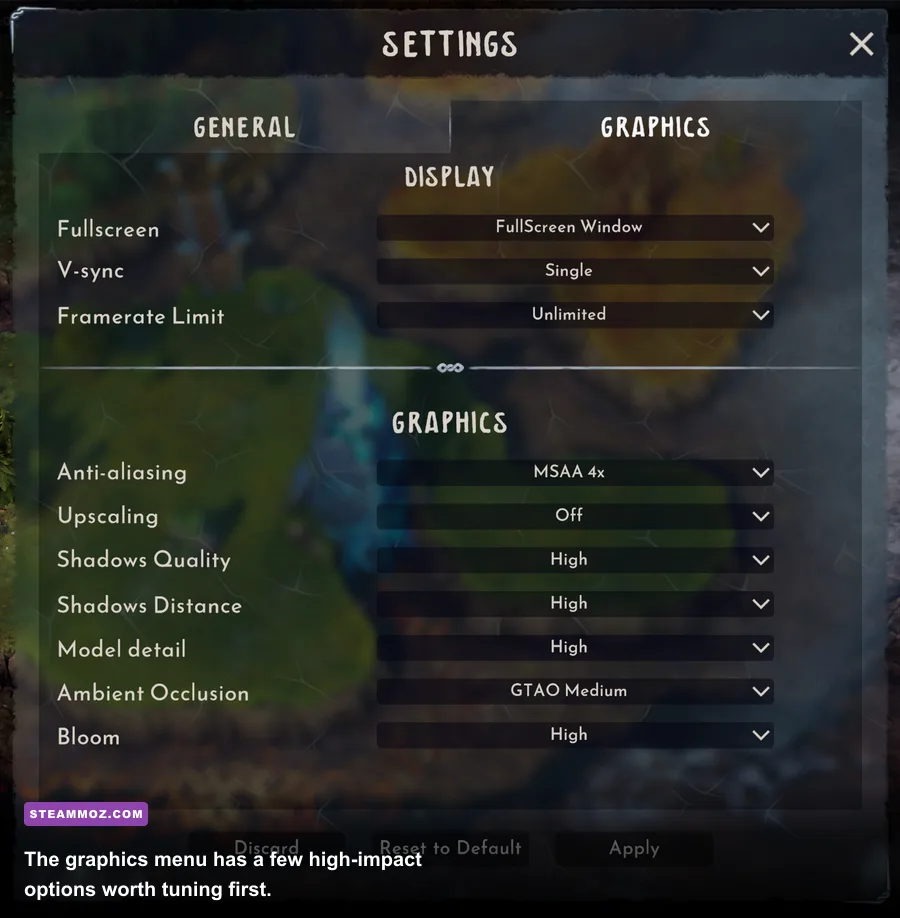
Begin by changing resolution before touching texture quality. Rendering at native 1440p can make Kujlevka look wonderfully crisp, but dropping to 1920x1080 usually produces a much larger performance gain than lowering textures. On a 1440p monitor, 1080p with fullscreen scaling is generally a better compromise than keeping 2560x1440 and turning every visual option to Low.
Use exclusive fullscreen if the game exposes it. Borderless windowed mode is convenient for multitasking, but Windows compositing can add latency and make frame pacing less consistent on older systems. Disable VSync while testing, then enable it only if you see obvious horizontal tearing. If VSync introduces uneven delivery, use your GPU driver’s frame limiter instead and cap a few frames below your display refresh rate.
| Setting | Recommended Value | FPS Impact | Visual Trade-Off |
|---|---|---|---|
| Display Mode | Fullscreen | Low to medium gain | Usually improves consistency and input response |
| Resolution | 1920x1080 | Very high | Less sharp than native 1440p or 4K |
| Texture Quality | Medium | Low, unless VRAM is limited | Some surfaces lose fine detail |
| Shadow Quality | Low | High | Shorter, softer, or less detailed shadows |
| Anti-Aliasing | Medium or the second-highest option | Medium | Minor shimmer may remain on thin geometry |
| Post-Processing | Low or Medium | Medium | Less bloom, blur, and cinematic softness |
| VSync | Off while testing | Variable | Possible tearing without a frame cap |
| Frame Rate Limit | 60 FPS | Improves stability | Prevents unnecessary GPU load |
Textures are the setting people often lower too aggressively. Kujlevka’s walls, furniture, machinery, and paper-heavy interiors carry much of its visual identity, but texture quality mostly consumes VRAM rather than shader time. Keep it at High if your graphics card has comfortable VRAM headroom and you are not seeing hitching when entering new rooms. Medium is the safer universal choice; Low should be reserved for cards with very limited memory.
Shadows are the first serious performance lever. Dynamic light sources inside corridors and rooms create a lot of small shadow calculations, and the visual return from High is modest because the game is intentionally dark and grainy. Low shadows may look less grounded around furniture, but the improvement to minimum FPS is often more valuable than the extra definition on a cabinet or doorway.

🎮 FORM
Looking to experience this game? Grab your digital key directly on our store for $14.99.
View on Steammoz Store →What to lower first when Kujlevka stutters
If Kujlevka feels smooth in an empty corridor but stutters when you enter a populated room, do not immediately blame resolution. That pattern usually points to shadow rendering, post-processing, asset streaming, or a VRAM limit. Change one option at a time, reload the same area, and compare the worst moment rather than the opening menu or a quiet hallway.
1. Cut shadows before textures
Move shadows from High to Low first. This reduces the cost of dynamic lighting and frequently helps the one-percent lows, which are the dips you feel as a brief hitch. Medium shadows are a reasonable compromise for GPUs around the GTX 1060 or RX 580 class, while Low is the right call for older GTX 900-series hardware or integrated graphics.
2. Reduce post-processing and effects
Post-processing can include bloom, depth of field, screen-space effects, motion blur, and color treatment depending on the build. Keep the atmospheric color grading if possible, but disable motion blur for a cleaner image and lower any effects preset that combines blur with ambient occlusion. The game’s horror mood comes from sound, darkness, and environmental detail; it does not need aggressive blur to sell a frightening corridor.
3. Drop resolution only after the expensive effects
Resolution is still the biggest lever when the GPU is fully loaded. A simple test is to watch GPU usage while walking through the same area. If usage sits close to 99 percent, use 1600x900 or 1280x720 before gutting every other setting. If GPU usage is low during the hitch, lowering resolution will not solve the underlying CPU, streaming, or shader problem.
4. Keep an eye on background software
Close browsers with video tabs, hardware-monitoring overlays, RGB utilities, and recording software before deciding that the game itself is broken. Kujlevka’s small indoor spaces can make a periodic background interruption feel more obvious than it would in a fast-moving action game. Disable the Steam overlay temporarily for testing, but do not treat an overlay as the permanent fix unless it clearly removes the hitch.
| Symptom | Likely Bottleneck | First Change | What Not to Lower First |
|---|---|---|---|
| GPU usage stays at 99% | GPU rendering load | Resolution or shadows | Textures, unless VRAM is full |
| Brief hitch entering rooms | Streaming or shader compilation | Restart after changing settings; close overlays | Only resolution |
| Sharp drops near several lights | Dynamic shadows and effects | Set shadows to Low | Texture quality |
| Blurry image with acceptable FPS | Upscaling or low resolution | Raise resolution to 900p or 1080p | Anti-aliasing first |
| Uneven motion at a high average FPS | Frame pacing or VSync conflict | Use a stable cap and test VSync | Every visual setting at once |
For more general PC troubleshooting, compare the approach in Steamoz’s Final Vendetta PC fixes guide and the frame-pacing advice in our Ghost Recon Breakpoint settings guide. The games are very different, but the diagnostic principle is the same: identify whether the limit is GPU, CPU, memory, or frame delivery before changing everything.
Three Kujlevka performance profiles worth using
There is no prize for running an atmospheric adventure at an unstable 100 FPS. Pick the profile that matches your display and hardware, then make small adjustments. The Balanced profile is the best starting point for most players because it keeps the environmental texture work intact while trimming the costly lighting options.
| Profile | Resolution and Cap | Visual Settings | Best For |
|---|---|---|---|
| Quality 60 | Native resolution, 60 FPS cap | Textures High, shadows Medium, effects High | Modern GPUs with ample VRAM |
| Balanced 60 | 1080p, 60 FPS cap | Textures High or Medium, shadows Low, effects Medium | Most mid-range gaming PCs |
| Performance 60 | 900p or 1080p, 60 FPS cap | Textures Medium, shadows Low, effects Low, AA Medium | Older dedicated GPUs |
| Stable 30 | 1080p, 30 FPS cap | Textures Medium, shadows Low, effects Low | Integrated graphics and low-end laptops |
| Steam Deck | 1280x800, 40 or 30 FPS cap | Textures Medium, shadows Low, effects Low | Consistent handheld battery-friendly play |
The Quality 60 profile only makes sense if the game is already holding 60 FPS in its busiest interiors. High shadows and effects can look attractive in screenshots, but they are poor choices if they cause repeated dips during exploration. If your average counter says 75 FPS but the game repeatedly falls into the high 40s, Balanced 60 will feel better.
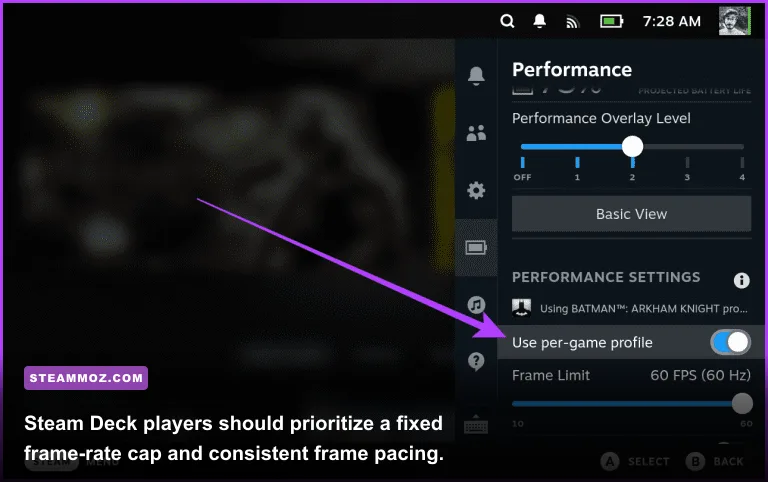
For a low-end laptop, Stable 30 is not a defeat. A locked 30 FPS removes the distracting oscillation between 27, 38, and 52 FPS, and Kujlevka’s deliberate pace suits that target. Set the cap in your driver or an external limiter if the in-game limiter behaves inconsistently. Avoid running uncapped on battery power; it creates heat and fan noise without improving the experience.
Steam Deck users should test both 40 FPS and 30 FPS. A 40 Hz refresh target feels noticeably more responsive, but only use it if the Deck can maintain the target in the station’s darker, busier areas. Otherwise, 30 FPS with a firm cap gives better battery life and fewer visible dips. SteamOS’s performance overlay is useful here because the average FPS alone will not reveal unstable frame times.
Image quality, latency, and frame pacing fixes
Once the game is fast enough, fix the image rather than continuing to chase numbers. Disable motion blur if the option exists. Blur can make slow camera movement look softer and can hide detail in the game’s handwritten notes, screens, and industrial props. Keep anti-aliasing at Medium unless it is clearly responsible for a large GPU hit; thin cables, railings, and door frames benefit from it more than they do from an extra shadow preset.
Do not stack multiple synchronization systems without a reason. VSync in the game, a driver-level limiter, and a display’s adaptive-sync mode can interact in ways that produce latency or uneven frame delivery. A strong starting setup is adaptive sync enabled on the monitor, in-game VSync off, and a frame cap a few frames below refresh rate. On a 60 Hz display, cap at 60 if the game behaves well; if tearing appears, test VSync or a 58-59 FPS cap.
If you use an NVIDIA card, test the game with the driver’s default power behavior first rather than forcing unusual latency settings globally. AMD users should likewise avoid applying a global Radeon profile until they have confirmed that the game needs it. Kujlevka is a Unity-based narrative game, and a universal driver tweak that helps one title can create odd presentation problems in another.
Use the game’s native resolution whenever possible. Aggressive sharpening or third-party scaling can make film grain, dark gradients, and text look harsh. If 1080p is too demanding, 1600x900 is often a cleaner middle ground than 720p on a 1080p panel. On a 1440p display, 1920x1080 remains preferable to a very low internal resolution because it preserves readable environmental clues.
For comparison, Steamoz’s For the King II FPS guide covers the same balance between frame caps and visual clarity, while Gone Viral’s smooth-60 settings shows why minimum frame rate matters more than a flashy peak figure. The lesson carries over neatly to Kujlevka: stable delivery wins.
Hardware checks and a reliable test routine
Before changing settings, check the PC listed on the official Steam store page. Compare your CPU, GPU, RAM, and operating system with the developer’s current requirements rather than relying on an old benchmark video. If your machine only barely clears the minimum specification, expect to target 30 FPS at 720p or 900p, particularly on integrated graphics.
Storage matters too. Install Kujlevka on an SSD when possible, especially if you notice hitches during room transitions. An SSD will not magically raise the average FPS, but it can reduce the time required to stream assets and make loading behavior less disruptive. Keep at least several gigabytes of free space on the drive and update the GPU driver if you have recently moved to a new Windows build.
- Launch the game with your monitor at its native refresh rate.
- Set fullscreen, choose 1080p, disable VSync, and apply the Balanced 60 profile.
- Load a save with several explored rooms rather than testing only the opening sequence.
- Walk through a corridor, enter a room with multiple lights, inspect objects, and trigger a dialogue scene.
- Record the average FPS, the lowest sustained result, and whether frame delivery feels even.
- Lower shadows first, then effects, then resolution. Change only one setting between tests.
- After finding a target, cap the frame rate and play for at least 15 minutes to check heat-related throttling.
Use Steam’s official news and update feed to check for patches if performance changes suddenly after an update. You can also monitor the game’s developer and publisher announcements for version-specific fixes. Avoid downloading random configuration files from forums until you have backed up your saves and confirmed exactly what each command changes.
The final recommendation is simple: start at 1080p, use Medium textures, set shadows and post-processing to Low or Medium, disable motion blur, and lock the most demanding area to a stable target. Kujlevka’s atmosphere comes from its oppressive rooms, strange broadcasts, and carefully framed details—not from ultra shadows. Preserve those details, cut the expensive lighting overhead, and the game becomes far smoother without losing the unsettling visual character that makes the lunar station worth exploring.