If Hunt: Showdown 1896 is crashing or crawling during Through the Bone Briar, start with a clean GPU-driver install, verify the game files, delete the shader cache, and use a sensible competitive graphics profile. Then cap FPS below your monitor's refresh rate and lower Object Quality, Lighting Quality, and Shadow Quality before touching texture quality. Those steps target the most common causes of post-update crashes, shader stutter, and inconsistent frame time without making the bayou look like a blurry PS2 game.
Through the Bone Briar is an event layered onto Hunt's existing maps and systems, not a separate executable with its own PC requirements. That matters: if the game began crashing after the event update, a damaged shader cache, driver conflict, corrupted configuration file, or unstable overclock is more likely than the event itself. Start with the low-risk fixes below, testing one change at a time so you know what actually helped.

Check Your PC Before Changing Hunt's Settings
Hunt: Showdown 1896 is much more demanding than the older version of Hunt because its visual pipeline, map detail, and lighting have moved forward. Crytek lists 12GB of RAM as the baseline, but 16GB is a far more comfortable target when Steam, Discord, a browser, and recording software are open. An SSD is also strongly recommended; streaming compounds and texture data from a hard drive can create hitching that looks like low GPU performance.
| Component | Minimum target | Recommended practical target |
|---|---|---|
| Operating system | 64-bit Windows 10 | Windows 10 or Windows 11, fully updated |
| Processor | Intel Core i7-7700 or AMD Ryzen 5 2600 | Intel Core i7-8700 or AMD Ryzen 5 3600 |
| Memory | 12GB RAM | 16GB dual-channel RAM |
| Graphics card | GeForce GTX 1650 Super or Radeon RX 580 | GeForce RTX 2060 Super or Radeon RX 6600 XT |
| Storage | Enough free space for Hunt and updates | SSD with at least 20GB free for patches and shader work |
These are useful reference points from the official Steam listing, not a guarantee of 60 frames per second. Hunt can become CPU-limited when several hunters, AI enemies, fire effects, and compound geometry are visible together. A powerful RTX card won't rescue a processor that is already maxing out one or two game threads.
🎮 Hunt: Showdown 1896 - Through the Bone Briar
Looking to experience this game? Grab your digital key directly on our store for $3.84.
View on Steammoz Store →Fix Crashes After the Bone Briar Update
1. Verify the installation
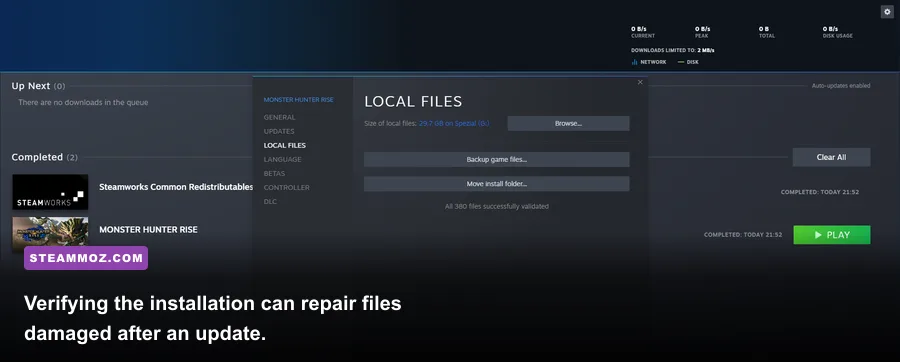
In Steam, right-click Hunt: Showdown 1896, select Properties, open Installed Files, and choose Verify integrity of game files. Let Steam finish before launching. This is especially important if the update was interrupted, the game crashed while patching, or you copied the installation between drives.
2. Perform a clean graphics-driver install
Install the latest Game Ready driver for Nvidia or the current Adrenalin package for AMD. If the crashing started immediately after a driver update, roll back to the previous stable driver instead. During installation, use the clean-install option where available. Avoid running third-party “driver booster” utilities; they often create more variables than they remove.
For Nvidia users, the official GeForce driver page is the safest source. AMD users should use the official AMD support page. Restart Windows after the install, even if the installer doesn't insist.
3. Rebuild shader data
New event content and updated materials can expose a bad shader cache. Close Hunt and Steam, then use Windows Disk Cleanup to remove DirectX Shader Cache. Nvidia users can also clear the Nvidia shader cache through Windows storage settings; AMD users can use Adrenalin's Reset Shader Cache option. The first match afterward may stutter while shaders rebuild. That temporary hitching is normal; repeated crashes are not.
4. Reset Hunt's configuration
Corrupted settings can crash the game before you reach the main menu. Back up your Hunt configuration folder, then rename it rather than deleting it. Launch the game so it generates fresh files, and reapply settings manually. If the crash disappears, restore controls and sensitivity gradually instead of copying every old configuration file back at once.
Disable overlays for the first test: Steam Overlay, Discord Overlay, Xbox Game Bar, Nvidia ShadowPlay, AMD recording, MSI Afterburner, and ReShade. Also return GPU and CPU overclocks to stock. Hunt is a useful stability test because a profile that survives lighter games can still fail during long matches with heavy foliage, volumetric effects, and multiple sound sources.
If you still crash to desktop, collect the crash report and contact Crytek's official Hunt website or its support channels. Avoid downloading random replacement DLL files. They rarely solve the underlying issue and can introduce malware or mismatched runtime versions.
Use These Settings for Stable 60 FPS
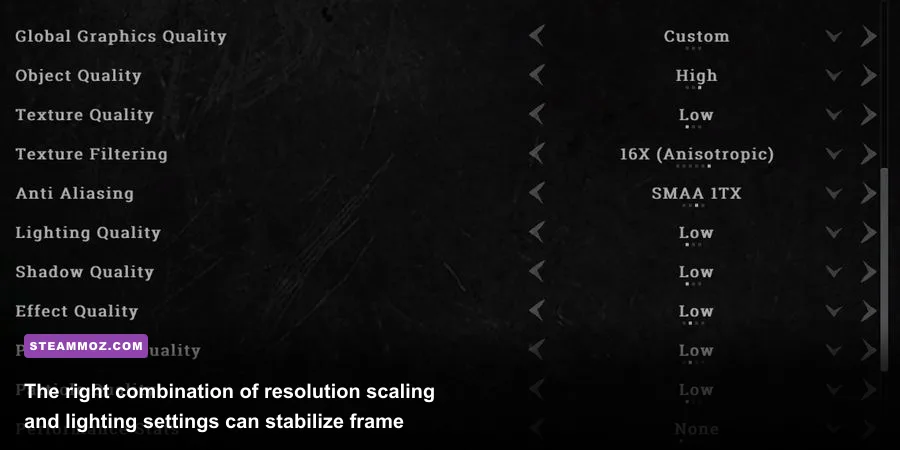
Apply the settings below as a starting point, then adjust based on your GPU usage. If GPU usage sits near 95-99% while the CPU has headroom, reduce resolution scale, anti-aliasing, lighting, or shadows. If GPU usage is low and frame rate still collapses inside compounds, lower Object Quality and view-related options, close background applications, and use a frame cap.
| Setting | Recommended value | FPS impact | Visual trade-off |
|---|---|---|---|
| Display mode | Fullscreen | Low | Usually steadier focus and fewer desktop interruptions |
| Resolution scale | 100%; 90% for GPU-limited systems | High | Lower values soften distant hunter silhouettes |
| Object Quality | Medium | High in compounds | Less geometric detail at distance |
| Lighting Quality | Low or Medium | Medium to high | Less expensive dynamic lighting |
| Shadow Quality | Low | Medium | Reduced shadow definition and range |
| Texture Quality | High if VRAM allows | Low to medium | Keep this higher for clearer surfaces |
| Texture Filtering | 8x or 16x | Very low | Improves ground and wall clarity |
| Anti-aliasing | Low or the least expensive available option | Medium | More shimmer on foliage at lower values |
| Motion blur | Off | Small | Cleaner target tracking while turning |
| V-Sync | Off with a frame cap | Variable | Less latency; use V-Sync if tearing is severe |
DLSS or FSR can help if your graphics card is the bottleneck, but upscaling isn't free performance in every situation. Use Quality first, then Balanced only if you cannot hold your target. Sharpening can recover some clarity, though excessive sharpening makes branches and wire fences shimmer. For competitive play, a stable 60 FPS is preferable to an erratic 90 that drops into the 40s whenever you enter a compound.
Players chasing 120Hz should start at 1080p, keep Texture Quality high enough for their VRAM, and use Low Shadow and Lighting Quality. Don't blindly copy a pro profile: visibility depends on your monitor, gamma, and whether your GPU or CPU is limiting the game.
Stop Stutter and Sudden FPS Drops
Stutter is a frame-time problem, not simply an FPS problem. A counter showing 70 FPS can still feel awful if individual frames arrive at 8ms, then 35ms, then 12ms. Use Steam's FPS counter or an overlay such as MSI Afterburner to watch frame time, GPU utilization, VRAM, and system memory while moving through a busy compound.
Cap the frame rate intelligently
Set a cap you can hold during the worst moments. For a 60Hz display, try 60 FPS; for 144Hz, 90 or 100 may feel better than an unstable 144. If you use G-Sync or FreeSync, cap a few frames below refresh—141 for 144Hz is a common starting point—and keep V-Sync configured consistently rather than mixing several limiters.
Target the real bottleneck
GPU usage near 99% means lower resolution scale and GPU-heavy effects first. GPU usage around 60-80% with a core pegged at 100% points to a CPU limit, so reduce Object Quality, view distance-related options, and background load. Close browsers, launchers, RGB tools, and recording software. Windows Game Mode can stay enabled, but test Hardware-accelerated GPU scheduling both ways; results vary by driver and hardware.
Keep at least 15-20% free space on the game drive and use the Windows power mode that prevents aggressive downclocking while plugged in. Check CPU and GPU temperatures too. Thermal throttling often appears as a gradual FPS collapse after ten minutes, not an immediate crash. Laptop players should use the AC adapter and the manufacturer's performance mode.
Validate the Fix Without Ruining Your Loadout
Don't test a new profile during a valuable Through the Bone Briar run. Enter the training mode or a low-stakes match, move through an exterior area, then fight around a dense compound with fire, AI, and multiple sightlines. Repeat the same route after each major change. This gives you a much better comparison than staring at the menu, where the workload is dramatically lighter.
| Symptom | Most likely cause | First action | Next action |
|---|---|---|---|
| Crash before menu | Driver, overlay, or corrupted configuration | Clean driver install and disable overlays | Rename the configuration folder |
| Crash during map loading | Damaged files or shader cache | Verify Steam files and clear shader cache | Check RAM, VRAM, and page-file space |
| Short hitching after update | Shaders compiling | Play one test session without changing settings | Rebuild cache only if it persists |
| Low FPS in compounds | CPU or object/lighting workload | Lower Object Quality and Lighting Quality | Cap FPS and close background apps |
| Blurry image but high FPS | Low resolution scale or aggressive upscaling | Return scale to 100% or DLSS Quality | Lower shadows instead of resolution |
Finally, keep the game and Windows current, but don't stack three different fixes at once. The official Steam Community discussions can reveal whether other players are seeing the same patch-specific crash. For broader PC troubleshooting, Steamoz's guides on crash and low-FPS fixes, stutter reduction, and performance settings cover the same diagnostic habits in other demanding PC games.
The winning order for Hunt is simple: verify files, clean the driver, rebuild shaders, reset broken configuration data, then tune the settings around your bottleneck. Keep Texture Quality higher when possible, cut Object Quality and shadows first, and cap the frame rate at a level your PC can genuinely sustain. That should make Through the Bone Briar's dark forests dangerous for the right reasons—not because your frame time fell apart.