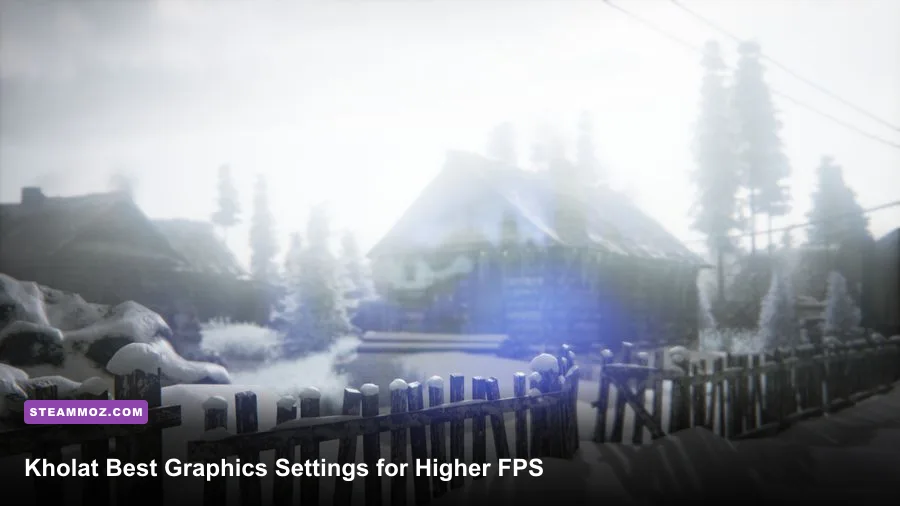
For the best Kholat graphics settings for max FPS, use 1080p fullscreen, disable V-Sync and Motion Blur, keep textures on High, then lower Shadows, Effects, Foliage, Post Processing, and View Distance to Medium. That profile preserves the game’s eerie snow, readable landmarks, and sharp textures while cutting the settings that cause the biggest frame-time spikes on older GPUs.
Kholat is not a twitch shooter, but unstable performance still hurts. A hitch while crossing a ravine can throw off your compass reading, interrupt the atmosphere, and make the game feel far rougher than its age suggests. The PC version uses Unreal Engine 4, and its large snowy environments lean heavily on dynamic lighting, fog, foliage, and shadow rendering. The good news is that you don’t need to turn the whole game into a blurry mess to get a steadier 60 FPS.
Start With This Kholat FPS Profile
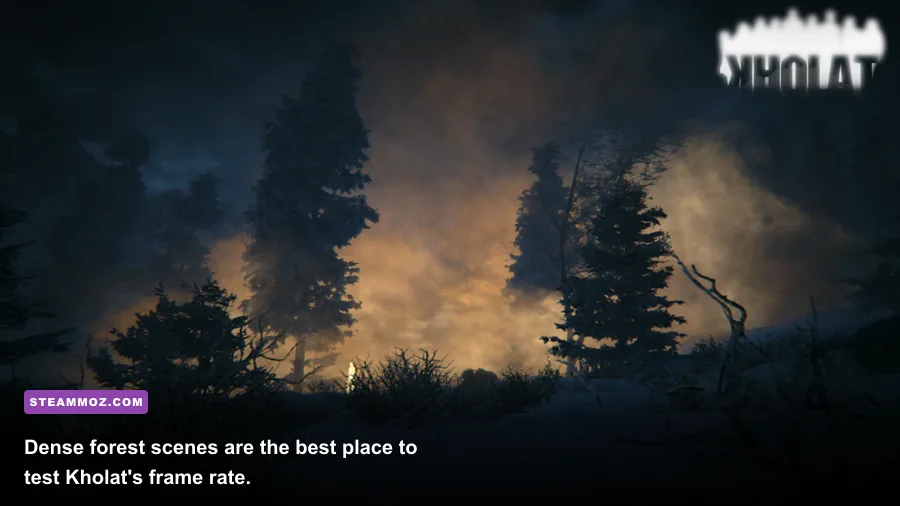
This is the profile I’d use first on a mainstream gaming PC with a GTX 1060, RX 580, or anything in that performance neighborhood. It targets a stable 60 FPS at 1920x1080 rather than chasing a high average followed by ugly dips. Kholat’s snowfields can run well, while forests, blizzards, and torch-lit areas create the toughest loads.
| Setting | Recommended Value | FPS Impact | Visual Trade-Off |
|---|---|---|---|
| Resolution | 1920x1080 | Very high | Keeps text, map details, and distant landmarks sharp |
| Window Mode | Fullscreen | Low to medium | Usually improves frame pacing and input consistency |
| V-Sync | Off | None on average FPS | May introduce tearing; use adaptive sync if available |
| Anti-Aliasing | Medium | Medium | Controls jagged branches without excessive softness |
| Texture Quality | High | Low, unless VRAM is limited | Preserves snow, rock, and clothing detail |
| Shadow Quality | Medium | High | Less detailed cast shadows around trees and structures |
| Effects Quality | Medium | High | Reduces the cost of snow, smoke, and environmental particles |
| Foliage Quality | Medium | Medium to high | Thins grass and small vegetation |
| Post Processing | Medium | Medium | Less expensive fog, bloom, and screen effects |
| View Distance | Medium | Medium | Distant detail fades sooner, but navigation remains usable |
| Motion Blur | Off | Small | Cleaner camera movement and map reading |
If your PC has 8GB or more of VRAM, High textures are a safe choice because texture quality mainly affects memory usage rather than raw GPU computation. A 4GB card should still try High first, but drop to Medium if you see sudden hitching when entering a new region. That symptom points more toward VRAM pressure or streaming than a weak processor.

🎮 FORM
Looking to experience this game? Grab your digital key directly on our store for $14.99.
View on Steammoz Store →Which Settings Give You the Biggest FPS Gains?
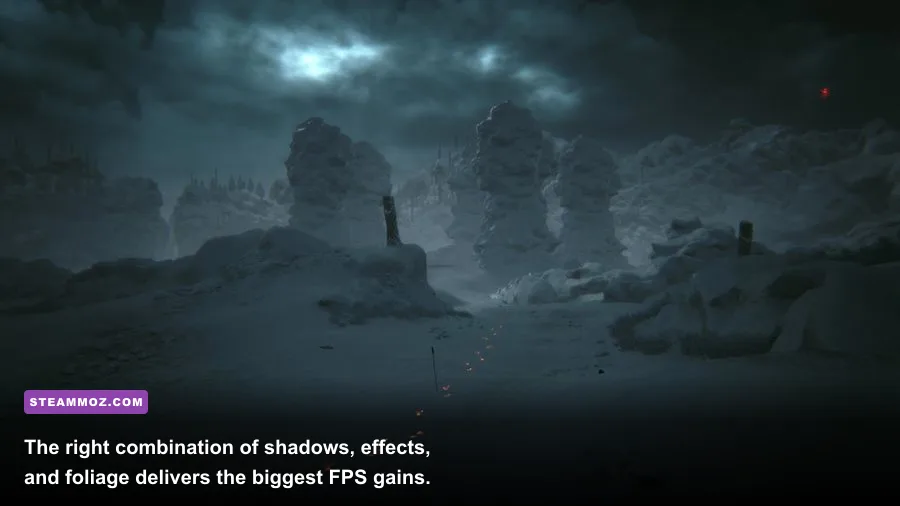
Start with shadows. Kholat’s outdoor lighting calculates long, soft shadows across uneven snow and dense trees, so Shadow Quality can produce a surprisingly large improvement. Moving from High to Medium often gives a better result than lowering textures from High to Medium. Low shadows are useful for an emergency performance profile, but they flatten the scene and make the wilderness look noticeably less convincing.
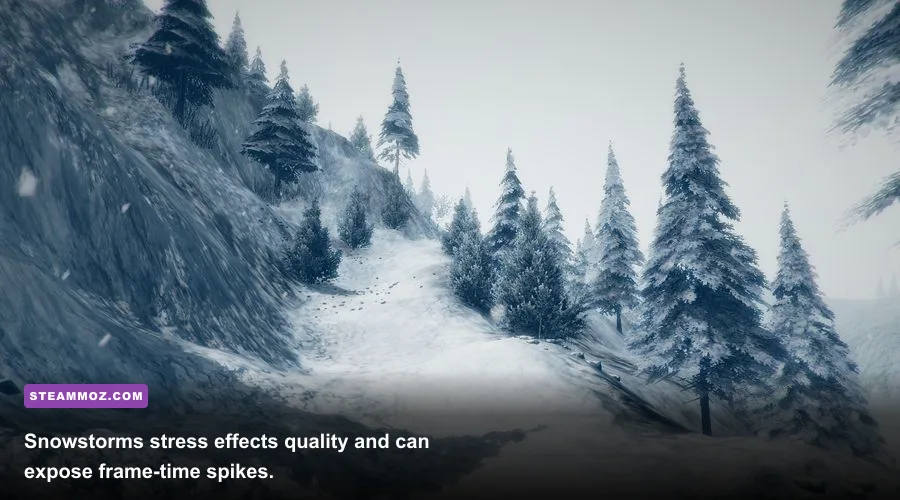
Effects Quality is next. It affects particle-heavy scenes such as blowing snow, mist, smoke, and other environmental effects. If your average FPS looks fine but drops sharply during a storm, lower Effects before touching resolution. This keeps the entire game crisp while reducing the exact effect that causes the dip.
Foliage and View Distance work together. Foliage Quality controls the amount and complexity of nearby vegetation, while View Distance determines how much terrain detail remains visible farther away. Medium on both is the sweet spot. Lowering View Distance to Low can recover performance on a dual-core or older laptop, but it also makes distant trees and terrain pop into view as you move.
| Priority | Setting to Change | Expected Benefit | Best Reason to Lower It |
|---|---|---|---|
| 1 | Shadow Quality | Large GPU and frame-time reduction | Outdoor forests and uneven terrain cause dips |
| 2 | Effects Quality | Large improvement in storms and particle-heavy scenes | Snow or fog produces sudden stutter |
| 3 | Foliage Quality | Moderate improvement in wooded areas | GPU load rises among dense trees |
| 4 | Post Processing | Moderate improvement and cleaner image | Fog, bloom, or camera effects feel expensive |
| 5 | View Distance | Moderate improvement in open areas | Older CPUs struggle with distant scene detail |
| 6 | Texture Quality | Usually little average FPS gain | Only lower it for low VRAM or streaming stutter |
| 7 | Resolution | Largest possible GPU gain | Use only after quality settings are exhausted |
Best Visual Settings for a Mid-Range PC
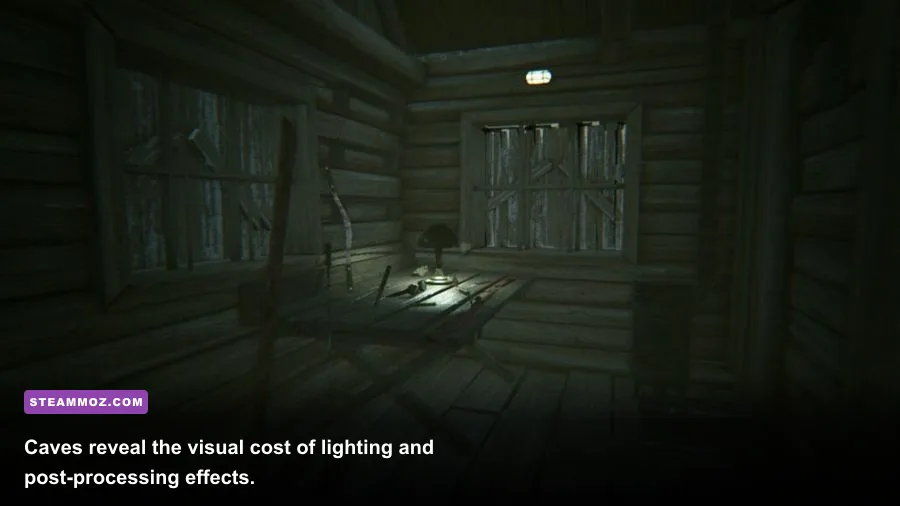
Players with a GTX 1660, RTX 2060, RX 5600 XT, or similar card can push Kholat higher without sacrificing consistency. Use 1080p, High textures, Medium shadows, High anti-aliasing, and Medium-to-High effects. I’d still leave Motion Blur disabled; it does nothing for atmosphere that the snow, darkness, and excellent sound design don’t already handle better.
Anti-Aliasing is worth testing personally. At Medium, thin branches and wires may shimmer slightly, but the image stays clearer while moving. High reduces those crawling edges at a modest performance cost, although it can soften distant detail. If you’re playing at 1440p, High anti-aliasing becomes more attractive because the higher pixel density naturally hides some jagged edges.
Post Processing is a taste setting as much as a performance setting. High can make fog and lighting feel richer, but it also adds a softer, more processed look. Medium is usually the better competitive-style option even in a single-player horror game: landmarks remain easier to read, the compass feels cleaner, and dark scenes don’t become a soup of bloom.
For 1440p, begin with the same profile and reduce resolution scale only if the game exposes that option. If it doesn’t, dropping to 1080p is preferable to stacking Low settings everywhere. Kholat’s environment benefits from texture clarity, and a clean 1080p image looks better than a muddy 1440p presentation with every expensive feature disabled.
Low-End Laptop and Older GPU Settings
Kholat’s listed minimum PC requirements include an Intel Core i3-class processor, 4GB of RAM, and a GTX 460 or Radeon HD 6850-class GPU. Those specifications are old, so modern integrated graphics can sometimes match the minimum on paper while still struggling with shared memory and thermal limits. For this hardware, aim for a locked 30 FPS rather than an unstable 45 or 60.
Use 1600x900 or 1280x720 if 1080p cannot hold your target. Set Shadows, Effects, Foliage, Post Processing, and View Distance to Low, keep Textures at Medium if memory allows, and use Medium Anti-Aliasing. If the game offers a resolution scale slider, 85% at 1080p is a sensible compromise. Avoid reducing textures first; low-resolution surfaces make Kholat’s rocks and snow look rough without necessarily solving the main GPU bottleneck.
| Hardware Class | Resolution Target | Quality Profile | Practical FPS Goal |
|---|---|---|---|
| Integrated or very old GPU | 1280x720 | Low settings, Medium textures if possible | 30 FPS locked |
| GTX 460 / HD 6850 class | 1600x900 | Low effects and shadows, Medium textures | 30 to 45 FPS |
| GTX 960 / RX 470 class | 1920x1080 | Medium preset with High textures | 45 to 60 FPS |
| GTX 1060 / RX 580 class | 1920x1080 | Custom Medium-High profile | Stable 60 FPS |
| RTX 2060 / RX 5600 XT and above | 2560x1440 | High textures, Medium-High effects | 60 FPS with headroom |
On a laptop, plug in the charger, select the high-performance Windows power mode, and make sure Kholat uses the dedicated GPU rather than integrated graphics. Thermal throttling can look like a graphics-setting problem: the opening area runs smoothly, then performance collapses after several minutes as the laptop heats up.
Fix Kholat Stutter, Tearing, and Frame-Time Spikes
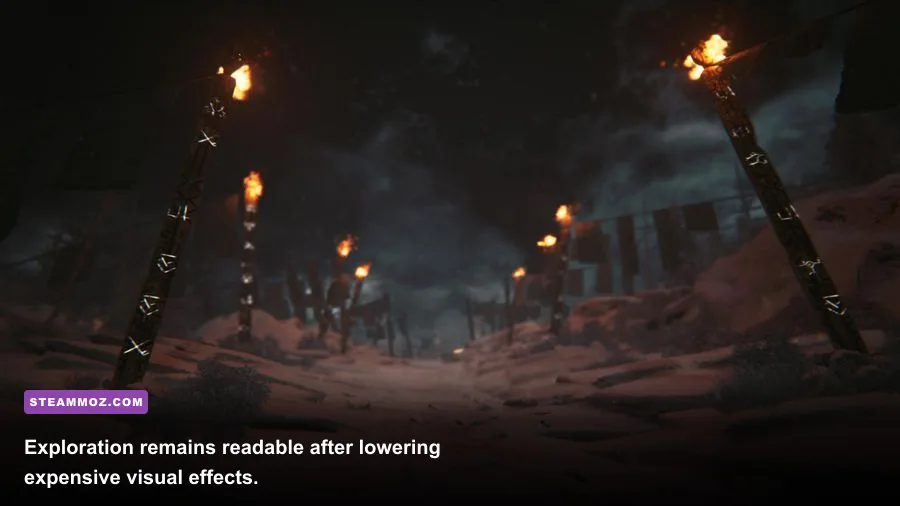
Average FPS doesn’t tell the whole story in Kholat. A reported 60 FPS can still feel poor if frame times jump whenever the game streams a new forest section. First, install the game on an SSD if possible and close browsers, recording tools, and overlays. Steam’s overlay, Discord, and GPU capture software are convenient, but older Unreal Engine games can react badly to several hooks running at once.
V-Sync is a straightforward trade-off. Off gives the lowest latency and highest uncapped number, but visible tearing can be distracting during slow camera pans. If your monitor supports FreeSync or G-SYNC Compatible mode, enable that at the display level, cap the game a few frames below refresh, and leave in-game V-Sync off. Without adaptive sync, a stable 60 FPS cap with V-Sync on generally looks better than a wildly fluctuating 80-120 FPS.
After changing settings, test the same route for several minutes rather than judging the menu or opening scene. Walk through a forest, cross an exposed snowfield, enter a structure or cave, and trigger a storm-heavy section. Those locations reveal different bottlenecks. If GPU usage is close to 99%, lower resolution, shadows, or effects. If GPU usage is low while FPS remains poor, the CPU, asset streaming, background tasks, or frame pacing is more likely responsible.
My Final Kholat Performance Setup
For most modern PCs, my final recommendation is 1080p fullscreen, High textures, Medium anti-aliasing, Medium shadows, Medium effects, Medium foliage, Medium post processing, Medium view distance, Motion Blur off, and V-Sync off with an adaptive-sync cap. That combination protects Kholat’s core visual identity while targeting a dependable 60 FPS instead of an impressive but unstable benchmark number.
Don’t be afraid to adjust one setting at a time. Kholat is a slow-burn exploration game, so visual consistency matters more than squeezing out every last frame. If you’re optimizing several games, our guide to Zenless Zone Zero performance settings covers the same kind of GPU-first tuning, while Sludge Life 2 PC lag fixes has useful troubleshooting habits for older Unreal-style PC releases.
For reference, compare your hardware against the official Kholat Steam page, then check the IMGN.PRO developer site for publisher information and support links. Kholat’s official Steam community can also help identify version-specific issues, while the official Unreal Engine site provides useful background on the technology behind the game’s lighting and environment rendering.
One last warning: don’t use a random “ultra” preset just because your GPU can handle it in a quiet snowfield. The demanding moments are the foggy woods and particle-heavy storms. Tune those first, lock the frame rate you can actually sustain, and Kholat becomes far more convincing—and much less frustrating—on almost any gaming PC.