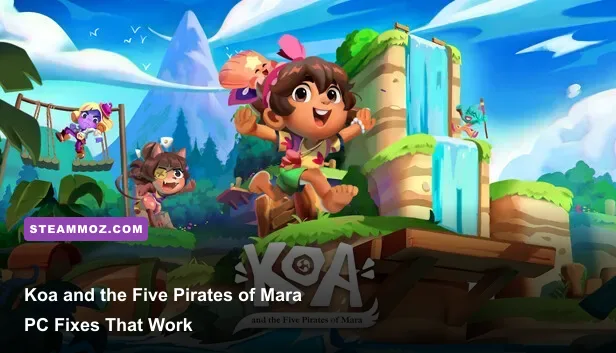
If Koa and the Five Pirates of Mara keeps crashing, freezing during loading, or dipping below a smooth frame rate on PC, start with three changes: verify the Steam installation, use a clean GPU-driver profile, and lower shadows, effects, and resolution before touching texture quality. The game is a colorful 3D adventure rather than a demanding open-world blockbuster, so persistent crashes usually point to corrupted files, overlays, drivers, permissions, or an unstable configuration—not a need to replace your entire PC.
This guide targets the problems players actually run into: launch crashes, crashes after selecting a save, black screens, random desktop exits, stutter while sailing between islands, and low FPS in villages or visually busy areas. The order matters. Test one change at a time, keep notes, and don’t stack six “fixes” together before you know which one worked.
Before changing anything, check the game’s current listing on the official Steam page for updated requirements and patch information. Steam’s URL can change by regional formatting, so searching the exact game title from the store is safer than relying on a copied shortcut.
Start with the fixes that eliminate most crashes
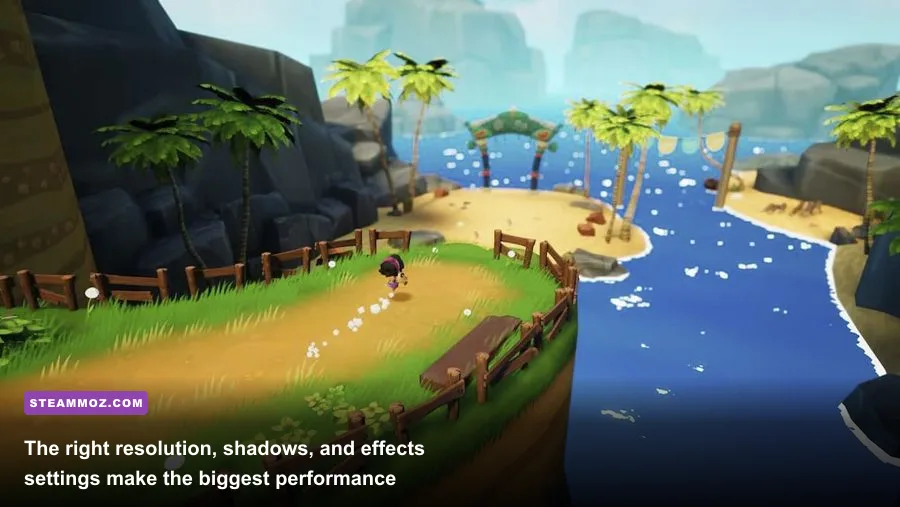
Crashes are easiest to diagnose when you first remove damaged files and background hooks. Open Steam, right-click the game, choose Properties, select Installed Files, and run Verify integrity of game files. Let the process finish even if it appears to pause near the end. A missing asset, incomplete update, or damaged executable can cause a crash long after launch—especially when the game reaches a particular island, cutscene, or save object.
Next, fully close Steam and restart Windows. Don’t simply sign out or suspend the PC. A reboot clears a stuck graphics process and resets driver memory that can survive after the game closes. If the title crashes immediately, launch Steam once as administrator only for testing. If that changes the result, the real solution is usually fixing folder permissions or security software rather than permanently running every game with elevated privileges.
Disable overlays before blaming the game
Turn off the Steam Overlay in the game’s Properties menu, then disable Xbox Game Bar, Discord overlay, AMD Software overlay, NVIDIA overlay, MSI Afterburner’s RivaTuner overlay, and RGB or motherboard monitoring tools. These programs inject themselves into the rendering pipeline. They’re useful, but a small Unity-based game can react badly to several capture layers fighting over presentation.
Test with one clean launch. If Koa now reaches the main menu and loads a save, re-enable overlays individually. That identifies the offender without sacrificing every convenience feature. Recording software is another common culprit; use desktop capture rather than game-specific hooking until the game is stable.
Reset the game’s local configuration
If verifying files does nothing, close the game and back up its save folder before removing configuration files. Look under %USERPROFILE%\AppData\LocalLow for a folder named after the developer or game. You can paste %USERPROFILE%\AppData\LocalLow into File Explorer’s address bar. Rename the relevant Koa folder to something like Koa-backup, then launch again.
Renaming is safer than deleting. It forces fresh settings while preserving a fallback copy. If the crash disappears, the problem was probably an invalid resolution, damaged preferences file, or graphics option saved from a previous driver. Restore saves cautiously; copy only save data back, not the old settings files. Cloud synchronization can reintroduce broken data, so if Steam asks which save to keep, choose carefully and preserve the local backup.
| Symptom | Most likely cause | First test | What success looks like |
|---|---|---|---|
| Crash before the menu | Driver, overlay, or damaged executable | Verify files and disable overlays | The game reaches the title screen |
| Crash while loading a save | Broken configuration or save asset | Rename the LocalLow settings folder | A new game loads normally |
| Black screen with audio | Display mode or resolution conflict | Use borderless/windowed mode | Picture appears without changing hardware |
| Desktop exit after several minutes | Heat, unstable overclock, or driver reset | Return GPU and RAM to stock settings | Longer sessions remain stable |

🎮 Koa and the Five Pirates of Mara
Looking to experience this game? Grab your digital key directly on our store for $6.99.
View on Steammoz Store →Fix black screens, loading crashes, and startup failures
A black screen with sound usually means the game is running but presenting an invalid display mode. Press Alt+Enter once to switch between fullscreen and windowed mode. If that works, open the video options and select borderless windowed, your monitor’s native resolution, and a sensible refresh rate. Avoid forcing a custom resolution through NVIDIA Control Panel, AMD Adrenalin, or a third-party launcher while troubleshooting.
Steam launch options can also help isolate the problem. In Properties > General > Launch Options, try -screen-width 1920 -screen-height 1080 -screen-fullscreen 0 as a temporary test. Replace 1920 and 1080 with your monitor’s native resolution if necessary. These options are not a universal performance cure, and you should remove them once the game opens normally. A forced startup mode can hide the actual configuration problem.
Update the driver, then consider a clean installation
Install the newest stable driver for your NVIDIA, AMD, or Intel GPU from the manufacturer’s official support page. Choose the clean-install option when offered. If the crash began immediately after a driver update, rolling back to the previous stable version is reasonable. Don’t use a beta driver while diagnosing a game that already exits unexpectedly.
Also install pending Windows updates and restart afterward. Check that Windows Security or third-party antivirus hasn’t quarantined an executable or blocked access to the game folder. Add the Steam library and Koa executable as an exclusion only if you trust the installation, and remove that exclusion later if it isn’t needed.
Remove overclocks and test memory stability
Koa may expose a marginal overclock that other games tolerate. Return GPU core, VRAM, CPU, and RAM profiles to stock settings in BIOS or your tuning utility. That includes aggressive XMP or EXPO profiles if crashes occur across multiple games. A desktop exit without an error message is often less mysterious when the system is failing under a borderline memory setting.
Watch temperatures with a reputable monitor. If the GPU or CPU is overheating, lowering graphics settings may reduce symptoms but won’t repair the cooling problem. Clean blocked vents, confirm that fans spin, and test again. For a deeper stability comparison, try another demanding game; if both titles crash, troubleshoot the PC rather than Koa alone.
Use this graphics profile for stable 60 FPS
Once the game launches, don’t immediately set every option to Ultra. The visual style relies heavily on clean colors, geometry, and textures. Shadow quality and screen-space effects tend to cost more than texture quality, while lowering textures can make the world look noticeably muddy without fixing a CPU bottleneck.
Start at your display’s native resolution with a frame-rate target your hardware can sustain. On a 60 Hz monitor, a locked 60 FPS is better than a wild 85-to-45 FPS swing. On a 120 Hz or 144 Hz display, test 90 or 120 only after confirming that frame pacing is stable. If the game offers V-Sync, use it when you see tearing; if it introduces sluggish input, disable it and cap FPS through your GPU driver.
| Setting | Recommended value | FPS impact | Visual trade-off |
|---|---|---|---|
| Resolution | Native; 1920×1080 for a performance test | Very high | Lower resolution is softer but gives the biggest GPU gain |
| Display mode | Borderless windowed for troubleshooting | Low | Usually more stable for alt-tab and capture tools |
| Textures | High if VRAM allows | Low to medium | Lower values make surfaces visibly blurry |
| Shadows | Medium | Medium to high | Edges and contact shadows become less defined |
| Effects or post-processing | Medium | Medium | Reduces glow, bloom, and some scene atmosphere |
| Anti-aliasing | Medium or the second-highest option | Medium | Lower settings produce more jagged foliage and geometry |
| View distance | High, then Medium if CPU-limited | Medium | More distant detail disappears sooner |
| V-Sync | On for a 60 FPS target | Small | Removes tearing but can add latency |
Use the busiest part of the game as your benchmark. Stand in a restored village, rotate the camera around crowds and buildings, then travel across the water and enter a new island. Looking at an empty beach tells you almost nothing. If FPS remains low in every location, lower resolution first. If it falls only in villages, reduce shadows and view distance, then investigate CPU usage.
Tell GPU limits apart from CPU limits
GPU usage near 95–100 percent means the graphics card is full. Lower resolution, shadows, anti-aliasing, and effects. GPU usage that sits low while FPS remains poor usually means a CPU-side limit, shader compilation, background software, or a frame cap. Lowering textures won’t fix that.
Frame-time consistency matters more than a headline average. A game reporting 60 FPS can still feel rough if individual frames arrive at 16 ms, 40 ms, then 10 ms. Close browsers with video tabs, pause downloads, and avoid recording while testing. Set Windows to a high-performance power mode on a desktop, but don’t use an aggressive laptop mode that creates excessive heat.
Stop stutter during sailing and island transitions
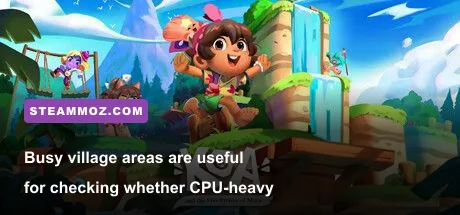
Short hitches while sailing, entering a new area, or turning toward a dense village are often asset-streaming or shader-compilation stutters. They aren’t fixed by blindly dropping every option to Low. First, install the game on an SSD if possible. A hard drive can turn brief loading spikes into visible pauses when the game requests new environment data.
Leave enough free space on the drive—roughly 10 to 15 percent is a sensible maintenance target—and make sure Windows’ page file is enabled. Don’t place the page file on a nearly full disk. Close texture-heavy applications and browser tabs, then test the same route twice. The first pass may compile shaders; the second pass can be smoother.
If stutter remains, cap the frame rate below the unstable ceiling. A stable 60 FPS target is preferable to an uncapped result that constantly swings between 58 and 120. For a 144 Hz monitor, try 72 or 90 FPS. Use the game’s own limiter if available; otherwise use NVIDIA Control Panel’s Max Frame Rate or AMD’s equivalent per-game profile.
When shader cache changes help—and when they don’t
GPU shader caches can become corrupted after driver changes. Clearing the cache is worth testing, but it will make the first launch or first trip through an area stutter again while shaders rebuild. NVIDIA users can clear the DirectX shader cache through Windows’ Disk Cleanup or driver settings; AMD users can use the reset shader cache option in Adrenalin. Restart the PC afterward and allow the game a few minutes to rebuild data.
Don’t clear the cache before every session. That guarantees repeated compilation and makes performance look worse. If stutter appears only once per location and then settles, that’s different from a persistent hitch every time the camera moves.
Make low-end and laptop hardware behave better
On an older desktop or laptop, prioritize consistency over visual presets. Use 1080p if the GPU can hold it; otherwise test 1600×900 before jumping all the way to 720p. Medium textures, medium shadows, reduced effects, and a locked 30 or 45 FPS target can produce a much better experience than unstable 60 FPS. A fixed 30 FPS is not glamorous, but it feels far better than constant drops into the low twenties.
Plug laptops into AC power, set the game to use the dedicated GPU in Windows Graphics Settings, and update the laptop manufacturer’s chipset and graphics drivers. Disable battery-saver modes. If the laptop has both integrated and discrete graphics, confirm the game executable is assigned to the high-performance GPU rather than relying on automatic switching.
| Hardware situation | Starting profile | Target | Next adjustment |
|---|---|---|---|
| Modern mid-range GPU | 1080p High, medium shadows | 60 FPS | Lower effects if busy scenes dip |
| Older dedicated GPU | 1080p Medium, medium effects | 45–60 FPS | Lower resolution before textures |
| Integrated graphics | 900p or 720p Low/Medium | 30 FPS | Reduce shadows and view distance |
| Gaming laptop running hot | 1080p Medium, capped FPS | Stable 30–60 FPS | Improve cooling and reduce power mode |
Keep an eye on VRAM and system RAM. If memory fills, Windows may start swapping assets, causing hitching and long load times. Shut down launchers and browsers, avoid high-resolution texture packs from unrelated tools, and don’t run multiple overlays. If the game consistently uses more memory over time and becomes less responsive, restart it between long sessions while waiting for a patch.
Last-resort checks before reinstalling
Reinstalling is useful only after the cheaper tests. First, move the installation to another Steam library or SSD. This separates a damaged drive or permission issue from the game itself. If you reinstall, back up saves and configuration files first, then delete leftover settings only after confirming that cloud saves are safe.
Check Windows Event Viewer under Windows Logs > Application after a crash. A faulting module associated with the GPU driver points toward drivers or overlays; a game executable entry suggests the game or its files; a memory or hardware error deserves broader system testing. Event Viewer won’t always provide a perfect answer, but it prevents random guesswork.
Finally, report repeatable crashes through the developer’s official Chibig website or the game’s Steam community channels. Include your GPU, CPU, RAM, Windows version, driver version, exact location, whether overlays were disabled, and the steps that reproduce the crash. The official Steam discussions can also reveal whether a patch has introduced a known issue.
For more PC troubleshooting ideas, Steamoz’s guides to Final Vendetta crashes and low FPS, For the King II performance settings, Gone Viral’s smooth-60-FPS setup, and Ghost Recon Breakpoint stutter fixes cover the same diagnostic principles in different engines.
The winning Koa setup is usually straightforward: verified files, no overlays, current or known-stable GPU drivers, borderless native resolution, medium shadows and effects, a sensible FPS cap, and an SSD with room to breathe. Apply those changes in that order and you’ll quickly learn whether the problem is a broken installation, unstable PC configuration, or simply a graphics preset that asks too much from your hardware.