The best IronBorn graphics settings for max FPS are a custom mix, not the Low preset: use your monitor’s native resolution, set Textures to High, Shadows to Medium, Effects to Medium, Volumetric Lighting to Low, Foliage to Medium, View Distance to High, and disable Motion Blur, Film Grain, Chromatic Aberration, and Depth of Field. Add a 60, 90, or 120 FPS cap that your PC can actually hold. This profile keeps IronBorn sharp while cutting the settings responsible for most GPU and frame-time spikes.
That balance matters because IronBorn can feel smooth while standing in an empty courtyard, then hitch badly when a crowded battlefield, smoke effects, firelight, and distant geometry appear together. The headline FPS number doesn't tell the whole story. A locked 60 FPS with consistent frame pacing feels dramatically better than a counter bouncing between 48 and 82 FPS. The recommendations below are built around that idea.
Before changing anything, check the game's current build on its official Steam listing and compare your system against the developer's published information. IronBorn's performance can shift after patches, driver updates, and shader-cache rebuilds. If you're troubleshooting another demanding PC release, our guides to Baten Kaitos HD Remaster performance and Destroy All Humans stutter fixes cover the same frame-pacing principles.
My recommended IronBorn FPS profile

Start with the profile below at 1080p. It is aimed at a typical gaming PC with a six-core processor, 16GB of memory, and a graphics card around the GeForce GTX 1660 Super, RTX 2060, Radeon RX 5600 XT, or newer. Those aren't official requirements; they're useful reference points for choosing a target. If you have a faster GPU, increase image quality selectively rather than moving straight to Ultra.
| Setting | Recommended value | Approximate FPS impact | Visual trade-off |
|---|---|---|---|
| Display mode | Exclusive Fullscreen | 0-5% | Usually improves focus and makes frame limiting more predictable. |
| Resolution | Native 1920x1080 | Baseline | Best clarity; lower only if the GPU is fully saturated. |
| Upscaling | Quality, if available | +8-18% | Small loss of fine detail, especially on distant structures. |
| Textures | High | 0-4% | Preserves armor, stone, wood, and weapon detail. |
| Shadows | Medium | +8-15% versus Ultra | Less shadow distance and softer contact detail. |
| Effects | Medium | +5-12% versus High | Fewer particles during fire, smoke, and impact-heavy scenes. |
| Volumetric Lighting | Low | +8-20% versus High | Fog shafts and atmospheric haze look less dense. |
| Foliage | Medium | +4-10% versus Ultra | Less grass density and shorter vegetation draw distance. |
| View Distance | High | 0-8% | Keeps fortifications and terrain readable without the Ultra cost. |
| Ambient Occlusion | Medium | +3-7% versus High | Contact shadows remain visible around walls and objects. |
| Anti-aliasing | High or TAA | 0-6% | Reduces stair-stepping; lower settings can shimmer in motion. |
| Motion Blur | Off | Small | Cleaner camera movement and clearer target tracking. |
| Film Grain | Off | Small | Removes artificial noise without changing gameplay visibility. |
| Chromatic Aberration | Off | Small | Sharper edges, particularly at 1080p. |
| Depth of Field | Off | 1-4% | Less cinematic background blur during exploration. |
Textures are the easy win. They mostly consume VRAM rather than hammering the GPU every frame, so High is usually worthwhile if your card has 6GB or more. Drop to Medium when you see texture pop-in, delayed surface loading, or sudden hitching after entering a new zone. Do not confuse a VRAM problem with a raw FPS problem: lowering shadows won't fix a card that is running out of video memory.
Use a frame cap instead of chasing a peak number
For a 60Hz display, cap IronBorn at 60 FPS. For a 120Hz or 144Hz monitor, target 90 or 120 FPS only if the game stays within roughly 10 percent of that number during its busiest scenes. A cap at 72 FPS is often a better choice than an unstable 90 on a 90Hz display. If the game offers a built-in limiter, use it first; external limiters can work, but they may add a frame of latency depending on the injection method.

🎮 FORM
Looking to experience this game? Grab your digital key directly on our store for $14.99.
View on Steammoz Store →Which settings cost the most performance?

IronBorn's worst offenders are usually volumetric lighting, shadows, effects, and resolution. They hit different parts of the system, which is why blindly lowering every option produces an ugly image without necessarily curing stutter. Volumetrics and effects are GPU-heavy. Shadows can involve both the GPU and CPU because the engine must render and update extra shadow-casting objects. View Distance and foliage become more important when the processor is struggling to prepare a busy scene.
Test one setting at a time in the same demanding location. A quiet interior is a poor benchmark. Use a large outdoor area with visible terrain, several structures, active combat, and any weather or smoke effect available. Walk the same route for 30 seconds, repeat it after changing one option, and watch the 1% low rather than only the average FPS. A move from 74 average FPS to 70 may be a good trade if the 1% low climbs from 38 to 57.
| Performance symptom | Likely bottleneck | First setting to change | What to avoid lowering first |
|---|---|---|---|
| GPU usage stays near 99% | Graphics-card limit | Resolution, volumetrics, effects | Textures, unless VRAM is full |
| GPU usage drops during crowds | CPU or engine thread limit | View Distance, foliage, shadows | Anti-aliasing |
| Short hitches entering new areas | Shader compilation or asset streaming | Wait for cache; lower textures if VRAM is tight | Frame-rate cap |
| Constant stutter with adequate FPS | Frame pacing, overlays, background tasks | Disable overlays and use a cap | Every visual setting at once |
| Blurry image while FPS is high | Upscaler or aggressive TAA | Use native resolution or Quality upscaling | View Distance |
Volumetric Lighting is the first switch I would touch on a mid-range card. High-quality fog and light shafts look excellent around IronBorn's fortress interiors, but the effect covers huge screen areas and can become expensive when sunlight, smoke, and particles overlap. Low does not remove the atmosphere; it simply makes the haze less layered. Medium is the sensible compromise if your GPU has room.
Shadows are next. Ultra shadow distance can make a courtyard look richer, but it is rarely worth losing a stable frame rate during combat. Medium retains the important silhouettes beneath walls, towers, and characters. If Medium looks too flat, raise Ambient Occlusion one step before returning Shadows to High. That usually restores grounding around objects for less cost.
Best settings for low-end and high-end PCs

IronBorn benefits from three practical profiles. The Low-End profile targets 30-45 FPS at 900p or 1080p with an upscaler. The Balanced profile targets a locked 60 FPS at 1080p. The High-Refresh profile targets 90-144 FPS by prioritizing responsiveness over cinematic effects. Pick the profile that matches your monitor and then tune from there.
| Component or target | Low-End profile | Balanced profile | High-Refresh profile |
|---|---|---|---|
| Reference hardware | GTX 1060 6GB / RX 580 | GTX 1660 Super / RX 5600 XT | RTX 3070 / RX 6800 or newer |
| CPU and memory | 4-6 cores, 16GB RAM | 6 cores, 16GB RAM | 6-8 modern cores, 32GB preferred |
| Resolution | 1600x900 or 1080p Quality upscale | Native 1080p | Native 1440p or 1080p high refresh |
| Textures | Medium | High | High or Ultra if VRAM allows |
| Shadows | Low | Medium | High |
| Volumetric Lighting | Low | Low | Medium |
| Effects and foliage | Low | Medium | Medium or High |
| Target cap | 30 or 45 FPS | 60 FPS | 90, 120, or 144 FPS |
Low-end PC adjustments
Start by lowering internal resolution or selecting the Quality upscaling mode, not by destroying texture quality. Then set Shadows and Volumetric Lighting to Low, Effects to Low, and Foliage to Medium. Keep View Distance at Medium unless your processor is older than the GPU. A low-end card benefits more from reducing the number of pixels and expensive lighting calculations; a weak CPU benefits more from reducing scene complexity.
On a 4GB graphics card, Medium textures are safer. IronBorn may still run at a respectable average frame rate when VRAM is exhausted, but the streaming system can produce ugly pauses as new surfaces load. Close browsers, recording software, and launchers before playing. Windows paging can turn a minor memory squeeze into a two-second hitch.
High-end PC adjustments
With a fast GPU, raise Textures first, then View Distance, then Shadows. These upgrades improve the scene without making the image excessively soft. Keep Motion Blur and Film Grain off even on a premium system because they reduce clarity rather than adding meaningful detail. If you are playing at 1440p, use Quality upscaling before Balanced. The sharper reconstruction is worth the small performance cost.
Fixing IronBorn stutter beyond the menu
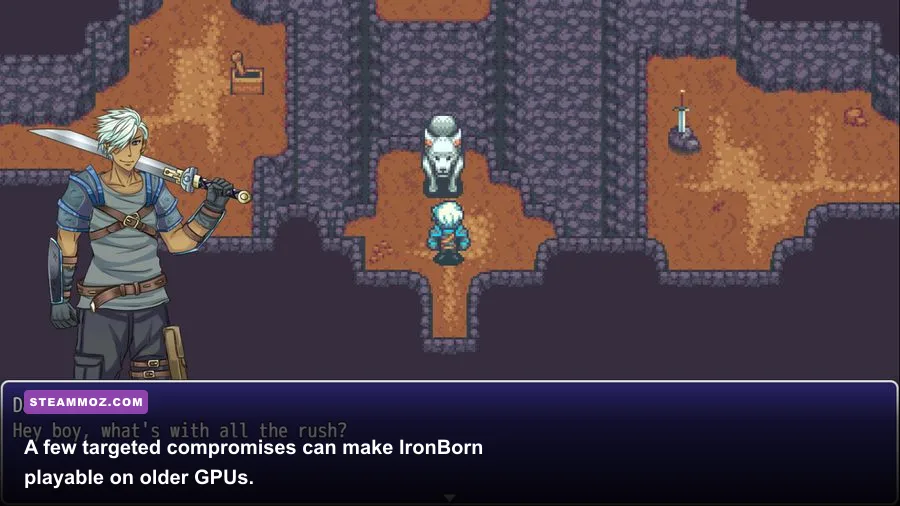
Not every hitch is caused by graphics quality. IronBorn may stutter while compiling shaders, streaming a new environment, or rebuilding data after a driver update. The first run after a patch can therefore be worse than later sessions. Give the game time to finish any visible shader process, then restart it before judging performance. Repeatedly changing drivers during testing also makes comparisons unreliable because each driver can rebuild the cache.
Update your GPU driver from the official NVIDIA driver page or AMD support page. Verify IronBorn's files in Steam, disable unnecessary Steam and Discord overlays, and turn off browser hardware acceleration if you play with a video stream open. Overlays are not automatically bad, but each one adds another layer that can interfere with capture, frame pacing, or fullscreen behavior.
Use a monitoring tool to record GPU utilization, VRAM, system memory, CPU thread load, temperature, and frametime. If your GPU sits at 95-99 percent, reduce resolution, volumetrics, or effects. If one or two CPU threads are maxed while GPU utilization falls, reduce View Distance, foliage, and shadows. If temperatures climb and clocks drop, clean dust, improve case airflow, or use a slightly lower power target. Thermal throttling looks exactly like a graphics-settings problem if you only watch FPS.
For more PC troubleshooting habits, see our Earth Defense Force 5 PC performance guide and GTA V Enhanced system check. The same rule applies here: identify whether the limit is GPU, CPU, memory, storage, or frame pacing before changing random options.
Final IronBorn settings for competitive smoothness

If you want one dependable setup, use native 1080p, High Textures, Medium Shadows, Low Volumetric Lighting, Medium Effects, Medium Foliage, High View Distance, Medium Ambient Occlusion, and High anti-aliasing. Turn off Motion Blur, Film Grain, Chromatic Aberration, and Depth of Field. Cap the game at the highest frame rate it can sustain in a crowded outdoor battle, not the number it reaches inside an empty room.
On a 60Hz monitor, that means a clean 60 FPS target. On a 144Hz display, a stable 90 FPS is a better competitive baseline than a wildly fluctuating 120. If your PC still dips, lower Effects and Shadows before touching Textures. If the image becomes blurry, restore native resolution and lower volumetrics instead. IronBorn rewards a clear picture because distant movement, environmental silhouettes, and combat timing are easier to read without post-processing haze.
Finally, save your settings, play the same demanding route for several minutes, and judge the 1% lows after the game has streamed the area. That small testing routine beats chasing benchmark screenshots. If a future patch changes performance, revisit the four major levers—resolution, volumetric lighting, shadows, and effects—in that order. For broader Steam optimization coverage, our BioShock PC hardware guide offers another useful look at why published system requirements rarely tell the complete performance story.
The best IronBorn graphics settings aren't the ones that make every slider green. They're the ones that keep frame times predictable when the battle gets loud, the smoke thickens, and the game has the most work to do. Start with the Balanced profile, measure the busiest scene, and spend your performance budget on sharp textures and readable distance—not expensive effects you'll barely notice while fighting.