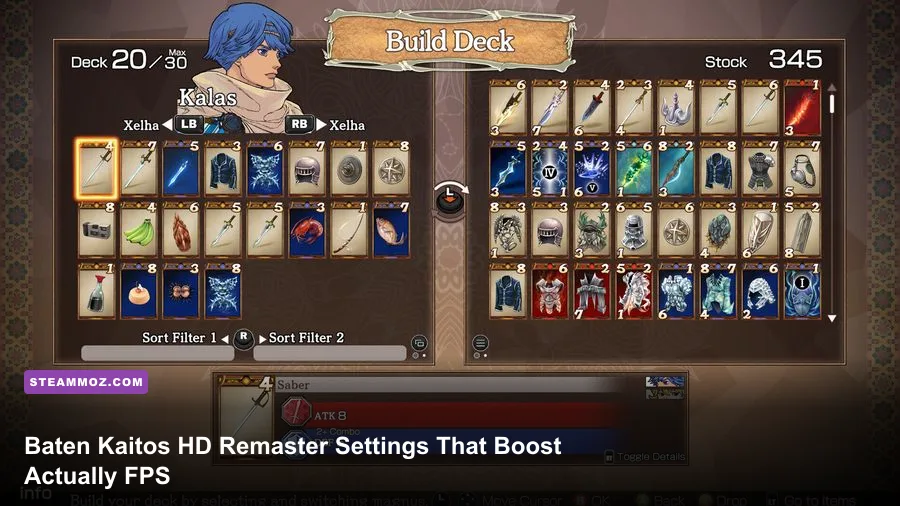
If you want the best Baten Kaitos I & II HD Remaster performance, start at your monitor's native resolution, use fullscreen, disable V-Sync if you have reliable driver-level VRR, and lower shadows and post-processing before touching texture quality. This is a light JRPG by modern PC standards, so a stable 60 fps is realistic for most systems; the real gains come from fixing frame pacing, avoiding unnecessary upscaling, and matching the cap to your display.
The remaster bundles Baten Kaitos: Eternal Wings and the Lost Ocean and Baten Kaitos Origins, two GameCube-era RPGs rebuilt for modern displays. Their painted backgrounds, card effects, menus, and pre-rendered presentation don't behave like a typical open-world game. You won't gain much by blindly dropping every slider to Low. In practice, resolution scaling, shadows, anti-aliasing, effects quality, and synchronization are the settings worth testing first.
This guide focuses on the PC version available through the official Steam listing. Menu names can vary slightly between updates, and some visual options may be grouped differently depending on your hardware. Treat the profiles below as practical targets rather than promises of an identical frame-rate number on every PC.
🎮 Get Baten Kaitos I & II HD Remaster
Ready to dive in? Grab your copy today for just $14.99.
Check OfferThe Best Starting Profile for 60 FPS
The sensible first pass is a Quality-Performance profile: native resolution, fullscreen, 60 fps, medium shadows, and high textures. Baten Kaitos has static or semi-static environments, so texture detail usually costs less than shadows and screen effects. Keeping textures high preserves the painted scenery, character portraits, and Magnus presentation without asking the GPU to redraw every scene at a lower internal resolution.
Set the resolution to 1920x1080 on a 1080p monitor or 2560x1440 on a 1440p display. Do not select a lower desktop resolution merely because the game is older; a soft image is especially noticeable around dialogue text and card borders. If your laptop struggles at 1440p, use 1080p with a stable 60 fps rather than 1440p with frequent dips.
Fullscreen is the best baseline for troubleshooting. Borderless windowed mode is convenient for switching to a browser or Discord, but Windows' compositor and driver behavior can alter latency and frame pacing. Once the game is stable, borderless is perfectly acceptable if you can't see a measurable difference. The important part is testing both modes in the same area instead of relying on the first few seconds after loading.
| Setting | Recommended Value | Likely FPS Impact | Visual Note |
|---|---|---|---|
| Display mode | Fullscreen | Low | Usually gives the cleanest frame pacing and input response. |
| Resolution | Native; 1080p for weaker GPUs | High at 1440p or 4K | Native resolution keeps menus and card text sharp. |
| Frame-rate limit | 60 fps | None | Matches the game's console-era presentation and avoids wasted GPU load. |
| V-Sync | Off with VRR; On without VRR | Low | Choose tear-free output or lower latency based on your display. |
| Textures | High | Low on modern GPUs | Protects the illustrated backgrounds and character assets. |
| Shadows | Medium | Medium | The first quality option worth reducing during drops. |
| Anti-aliasing | High or the second-highest option | Low to medium | Helps diagonal geometry and character edges without a major hit. |
| Effects/post-processing | Medium or High | Medium during card attacks | Lower this if battle animations cause the only stutter. |
That profile should be your reference point. Change one setting at a time, return to the same save, and watch a normal battle plus a busy exploration scene. If you change five options together, you won't know whether shadows, effects, or synchronization solved the problem.

🎮 Baten Kaitos I & II HD Remaster
Looking to experience this game? Grab your digital key directly on our store for $14.99.
View on Steammoz Store →Which Settings Actually Cost Performance?
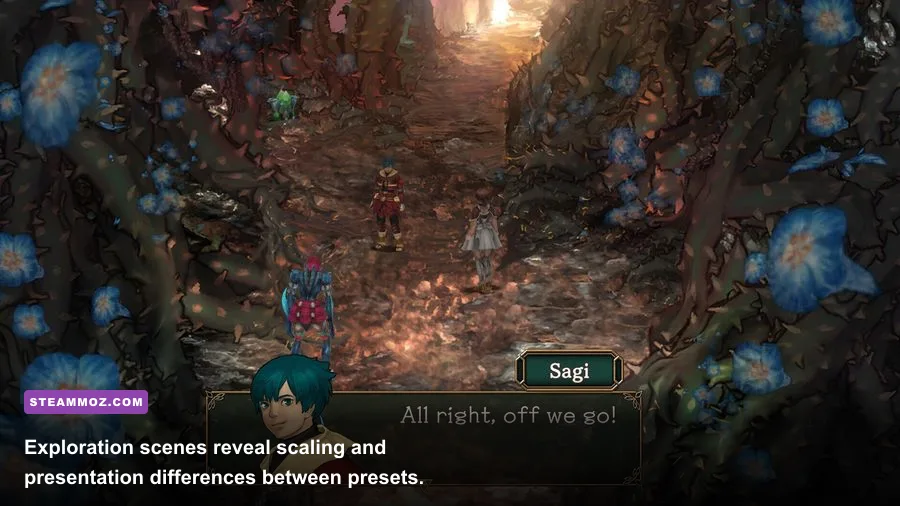
Resolution is the blunt instrument. Moving from 1080p to 1440p increases the number of pixels by roughly 78 percent, while moving to 4K quadruples the 1080p workload. That doesn't mean Baten Kaitos will lose 78 or 300 percent of its frame rate, because the game can become CPU-limited, but resolution is still the fastest way to expose a weak mobile GPU or an integrated graphics chip.
Shadows are usually the most suspicious quality setting after resolution. Even stylized games can render shadow maps at multiple distances and resolutions. Medium often looks almost identical to High in Baten Kaitos because the art direction is doing more work than the shadow detail. If your frame rate dips when several characters, effects, and environmental objects appear together, drop shadows before textures.
Effects quality matters most in combat. Magnus attacks can layer elemental flashes, impact bursts, healing effects, and UI transitions. A machine that holds 60 fps while walking around Nashira can still show a short drop during a large chain. Lowering effects one step can smooth those moments, although the trade-off is obvious: fire, lightning, and finishing attacks lose some bloom and particle density.
Anti-aliasing is a smaller trade than people expect. Turn it down if you need a few extra frames, but don't immediately disable it at 1080p. Thin geometry and character outlines can shimmer without it, especially when the camera moves across detailed backgrounds. High textures plus medium anti-aliasing is normally a better-looking compromise than Low textures plus maximum smoothing.
| Performance Problem | First Change | Second Change | What You Give Up |
|---|---|---|---|
| GPU usage stays near 99% | Lower resolution or render scale | Reduce shadows | Sharpness first, then shadow definition. |
| Battle effects cause drops | Lower effects quality | Reduce anti-aliasing | Less particle density and softer edges. |
| FPS is high but feels uneven | Set a 60 fps cap | Test V-Sync or VRR | Potentially a little input latency with V-Sync. |
| Stutter during new areas | Close overlays and background apps | Try borderless/fullscreen alternatives | Convenience or multitasking behavior. |
| Integrated graphics struggle | Use 1080p or lower | Set shadows and effects to Low | Image clarity and visual effects. |
Texture quality is the outlier. It can increase VRAM use, but on a desktop GPU with 4GB or more, the remaster should not need aggressive texture cuts. If lowering textures doesn't change GPU utilization or frame time, put them back on High. The painted backgrounds are one of the reasons to play this remaster at all.
Best Profiles for Low-End PCs, Laptops, and Steam Deck
For a low-end laptop or integrated GPU, use 1280x720 or 1600x900 only if 1080p cannot maintain a locked target. Set textures to Medium, shadows to Low, effects to Low or Medium, anti-aliasing to Low, fullscreen on, and the frame-rate cap at 30 or 60 depending on the result. A consistent 30 fps is preferable to a presentation that jumps between 35 and 60.
Don't assume a newer CPU guarantees perfect results. The two games are built around older console-era logic, and a modern system may still show a single-threaded hitch or shader compilation stutter. Check GPU utilization while playing. If the GPU sits at 50 percent and the frame rate falls, reducing visual quality won't help much; close recording software, browser tabs, RGB utilities, and overlays first.
On Steam Deck, begin at 1280x800, use a 60 fps cap if the device can hold it, and test 40 fps as a strong battery-friendly alternative. A 40 fps cap with a 40Hz display mode can feel much smoother than an unstable 60, while consuming less power. If you see heavy dips in battle, use 30 fps rather than allowing the GPU to constantly surge.
| Hardware Target | Resolution | Quality Profile | Frame Cap |
|---|---|---|---|
| Modern desktop GPU | Native 1440p or 4K | High textures, High effects, High anti-aliasing | 60 fps or display refresh rate |
| Older dedicated GPU | Native 1080p | High textures, Medium shadows, Medium effects | 60 fps |
| Integrated graphics laptop | 900p or 720p | Medium textures, Low shadows, Low effects | 30 or 60 fps after testing |
| Steam Deck LCD/OLED | 1280x800 | Medium textures, Low shadows, Medium effects | 40 fps or locked 30 fps |
Power mode matters on portable hardware. Play plugged in, use the system's performance profile, and avoid judging performance immediately after waking the Deck or laptop. Shader caches and background updates can create temporary spikes. If the game is smooth for ten minutes and then stutters only when an overlay appears, the graphics preset probably isn't the culprit.
For broader troubleshooting habits, the workflow in our Kholat graphics settings guide also applies here: establish a baseline, monitor frame time, and make deliberate changes. Our Kujlevka performance guide is another useful reference for identifying whether a stutter is GPU-bound or caused by frame pacing.
V-Sync, VRR, and Frame Caps Explained
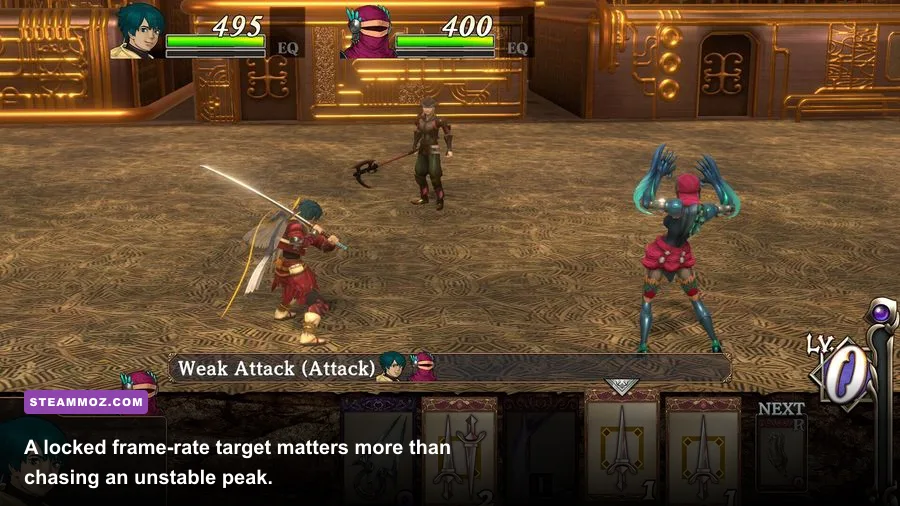
Baten Kaitos is a turn-based RPG, so raw input latency isn't as important as it is in a competitive shooter. That makes a stable, tear-free image the better priority for most players. If your monitor supports FreeSync or G-SYNC, enable VRR in the display driver, turn V-Sync on in the driver, and cap the game slightly below the panel's maximum refresh rate. For a 60Hz screen, a 60 fps cap is fine; for a 144Hz VRR screen, a 60 fps game cap remains sensible if the game itself targets 60.
If you don't have VRR, in-game V-Sync is the easy choice. Turn it off only if you notice added latency or if the game produces obvious pacing problems with it enabled. A frame counter showing 60 doesn't guarantee smooth delivery: frame time should sit close to 16.67 milliseconds for a 60 fps target. Spikes to 25 or 40 milliseconds are the hitch you'll feel during camera movement and battle transitions.
Don't chase 120 or 144 fps just because your monitor supports it. The remaster's animation timing, menus, and console-rooted design make 60 fps the clean target. An uncapped frame rate can also create needless GPU heat and power draw without making combat meaningfully better. If an external limiter gives cleaner pacing than the game's own cap, use the driver or a tool such as RTSS, but avoid stacking multiple limiters.
How to Test the Remaster Properly
Randomly wandering through the first area is a poor benchmark. Use repeatable situations from both games. In Eternal Wings and the Lost Ocean, test a save near a town or field transition, then enter a normal encounter and play a few card turns. In Origins, repeat the same process in a location with several party members and use a chain that produces multiple attack effects. You are testing the worst ordinary moments, not an empty menu.
A practical five-minute test loop
- Load the same save and stand still for 20 seconds to let background shader work settle.
- Move through the area for one minute, including a camera turn across the busiest background.
- Start a regular battle and complete three or four turns with attack and defensive Magnus cards.
- Trigger a visible elemental or finishing animation, then watch the frame-time graph rather than only the average FPS.
- Repeat after changing one setting, keeping resolution, cap, and synchronization unchanged.
Use Steam's performance overlay or your GPU manufacturer's overlay, but keep the display uncluttered when you're playing normally. Average FPS can hide the exact hitch you're trying to remove. A stable 60 with rare 17-20ms spikes will feel excellent; 90 fps with repeated 35ms spikes will feel worse.
Also test both remastered games. Eternal Wings and Origins share the collection but aren't identical in scene composition or effects load. A setting that is harmless in one can expose stutter in the other, especially during combat-heavy sequences. Save your final profile after testing each title, and don't mistake a long loading transition for ongoing gameplay performance.
Fixes Beyond the Graphics Menu
Update your GPU driver, verify the installation through Steam, and install the game on an SSD if your system still uses a hard drive. An SSD won't magically raise average FPS, but it can reduce asset-streaming delays and make area transitions less disruptive. Disable unnecessary Steam, Discord, browser, and capture overlays while diagnosing stutter.
Windows power management can quietly undermine a laptop profile. Plug in the machine, select a performance-oriented power mode, and confirm that the discrete GPU is assigned to the game if the laptop has both integrated and dedicated graphics. On NVIDIA hardware, the per-program setting should favor the high-performance GPU; AMD users should check the equivalent switch in Adrenalin.
Don't edit configuration files or force unofficial ultrawide patches before confirming that the stock game is stable. The official Bandai Namco game page and Steam announcements are the safest places to check for patches or known changes. If an update changes the available options, retest rather than copying an old config blindly.
Players troubleshooting other remasters can also compare the approach in Steamoz's Koa PC fixes guide and Just Cause 3 settings guide. The games have very different engines, but the principle is identical: identify the bottleneck before sacrificing image quality.
My Recommended Final Preset
For most desktop players, use native 1080p or 1440p, fullscreen, High textures, Medium shadows, High or Medium effects, high anti-aliasing, and a locked 60 fps. Enable VRR if your monitor supports it; otherwise use V-Sync unless latency bothers you. This keeps the hand-painted scenery crisp while trimming the settings most likely to create unnecessary GPU work.
For an older GPU, keep the same profile but lower effects and anti-aliasing one step before lowering textures. For integrated graphics, drop to 900p or 720p, use Medium textures, Low shadows, and a locked 30 fps if 60 isn't genuinely stable. On Steam Deck, 40 fps is the sweet spot when available, with locked 30 as the fallback for consistent battery life and frame pacing.
The headline lesson is simple: Baten Kaitos I & II HD Remaster doesn't need an aggressive Low preset to run well. Preserve resolution and texture quality where possible, cut shadows and effects selectively, and judge success by frame-time consistency during real battles. Once the game holds its target without spikes, stop tuning and enjoy the Magnus deck-building, strange skybound worlds, and two wonderfully odd RPG adventures.